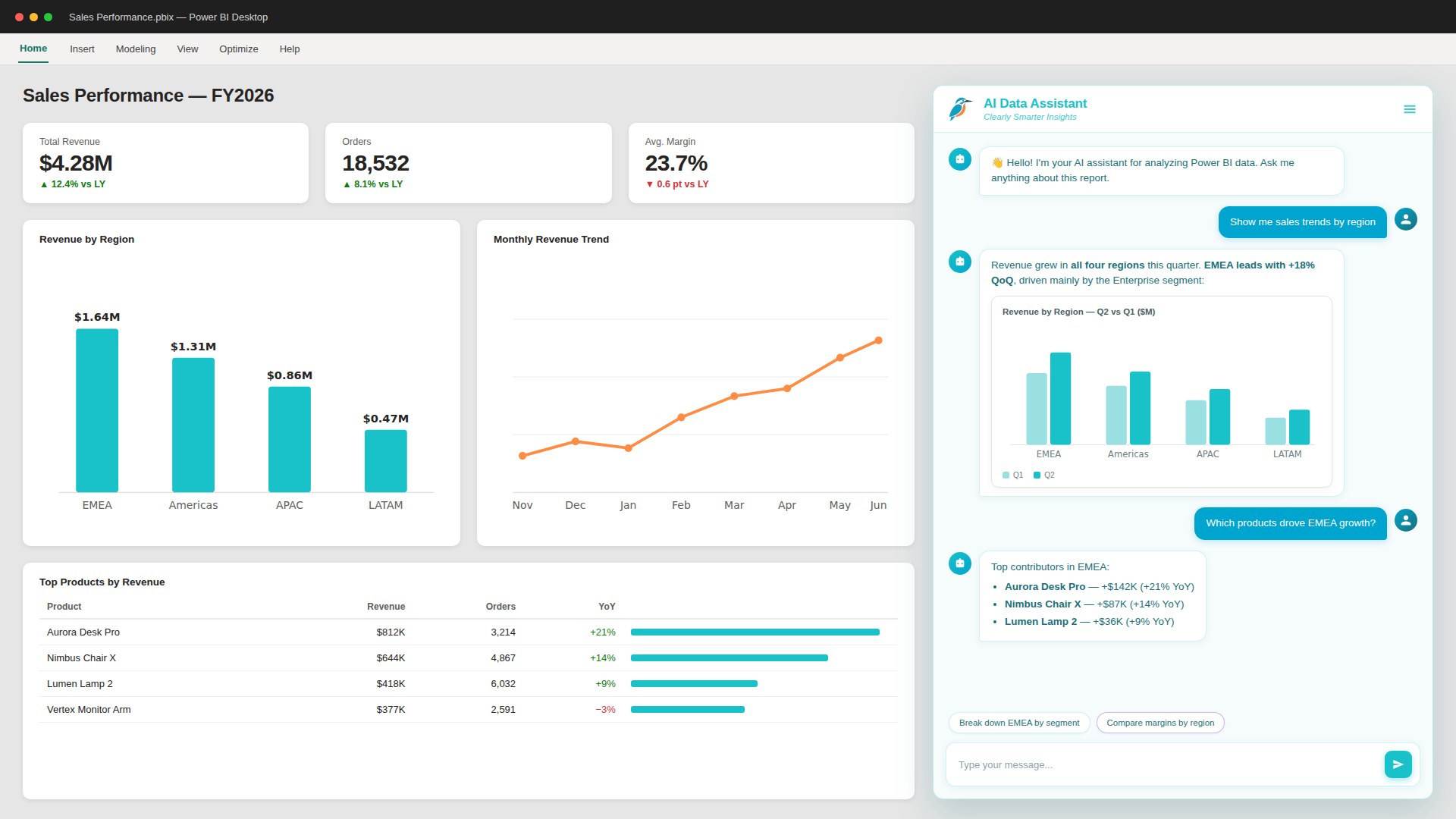
From question to chart: Conversational analytics in Power BI
In this short guide, we show how a simple question can produce a usable visual instantly - without leaving Power BI.
Why this matters
- Analysts save time
- Stakeholders get answers faster
- Your team keeps context inside Power BI
Steps
- Ask your question in plain English
- Let the visual interpret and compute
- Get a chart (or DAX) ready to use
The power of conversational analytics
Traditional business intelligence requires deep technical knowledge. You need to understand data models, write DAX formulas, and know which visual best represents your question.
AI Chatbot changes this entirely.
Instead of building complex queries, you simply ask: "Show me sales by region this quarter" - and instantly get a properly formatted chart.
How it works
The Hybrid AI Engine processes your question in three steps:
- Understanding: Natural language processing interprets your intent
- Computing: Local data processing ensures speed and security
- Visualizing: Auto-generates the most appropriate chart type
No coding. No formulas. Just clarity.
Real-world example
A sales manager asks: "Which products declined last month?"
Within seconds, AI Chatbot:
- Analyzes sales data across all products
- Identifies downward trends
- Creates a sorted bar chart showing the biggest declines
- Highlights the insight in plain language
The entire process happens inside Power BI, keeping your workflow intact.
Beyond simple questions
AI Chatbot handles complex scenarios too:
- Trend analysis: "Compare this quarter vs last year"
- Anomaly detection: "Show me unusual spikes in costs"
- What-if scenarios: "Forecast revenue if growth continues"
- DAX generation: "Create a measure for year-over-year change"
Each response includes not just the answer, but the context you need to act on it.
Getting started
- Install AI Chatbot from Microsoft Marketplace
- Add it to your Power BI report
- Connect to your data model
- Start asking questions
No training required. No setup complexity. Just immediate insights.
Ready to transform your Power BI experience?
Get your free license and start asking better questions today.
Try AI Chatbot for Free
Experience the power of conversational analytics in your Power BI reports. Get your free license in seconds - no credit card required.
Get Free License