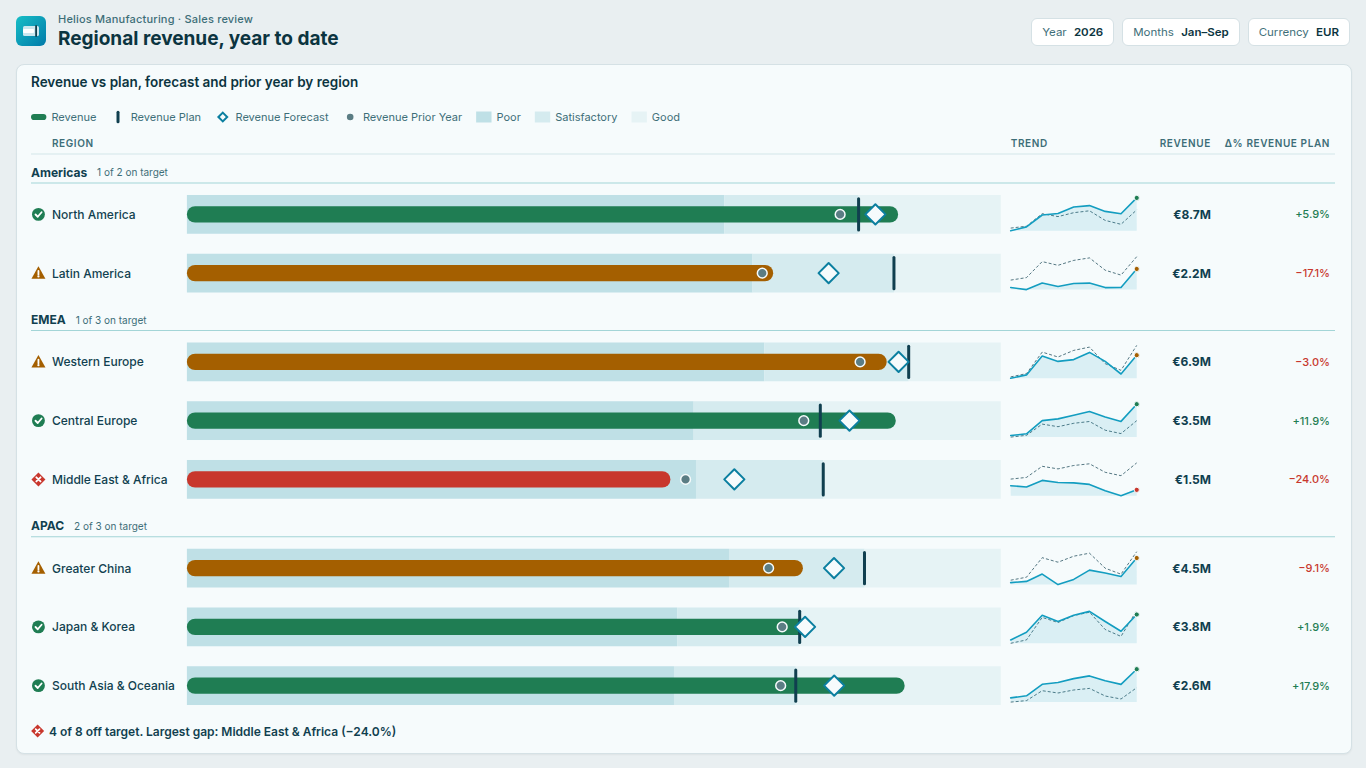
Actual vs target in Power BI: bullet chart or gauge, bands, and the DAX behind them
"Are we on target?" is the most common question a Power BI report has to answer, and the one most often answered with a gauge. A gauge works for one number on its own. Put twelve regions on a review page and you need twelve gauges, each with its own scale, and the reader ends up comparing angles on dials that do not share an axis. The bullet chart was designed by Stephen Few for exactly this case: one compact row per item, the actual as a bar, the target as a marker, and qualitative bands behind them that say what poor, satisfactory and good mean.
Below: what the native visuals do, the data shape and DAX, how to read a bullet chart, and the pitfalls that make a status lie.
What the native visuals give you
Gauge. The gauge takes a Value, a Minimum value, a Maximum value and a Target value. It shows one measure per visual, so a comparison across categories means one gauge per category, each scaled separately unless you fix the minimum and maximum yourself. There are no qualitative bands beyond a single filled arc.
KPI visual. The KPI visual takes a Value, a Trend axis and a Target, and shows a big number, a colour for above or below the goal and a trend area. It is good for one headline number; it is not a comparison across rows.
Bar and combo charts. A clustered bar chart with Actual and Target as two series puts two bars next to each other per category. The reader compares two lengths instead of a bar against a marker, and there are no bands. A line and clustered column chart with the target on the line, the line width set to zero and markers on gets closer: each column carries a target marker. None of these give you bands, a status per row or variance labels without extra measures.
The measures are worth writing well either way, so start there.
The data shape
A typical model has a sales fact table at transaction grain and a budget table at a coarser grain:
Sales[OrderDate],Sales[Region],Sales[Amount]Budget[Month](the first day of each month),Budget[Region],Budget[Amount]- a marked date table
'Date'with'Date'[Date]and'Date'[Year], related toSales[OrderDate]and toBudget[Month] - a
'Region'dimension related to both fact tables
Two relationships matter more than any DAX. If the budget table is not related to the region dimension, every region shows the grand-total target. If it is related to the date table through a month-start date, it filters correctly at month, quarter and year level, but at day level the whole month's budget sits on day one.
The measures
Base measures:
Actual = SUM ( Sales[Amount] )

Target = SUM ( Budget[Amount] )
Year to date, with the target capped at the last date that has actuals. Without the cap, a page with no date filter runs DATESYTD to the last date in the date table, so the target becomes the full-year budget while the actual stops at today, and every row turns red.
Actual YTD =
CALCULATE ( [Actual], DATESYTD ( 'Date'[Date] ) )

Target YTD =
VAR LastActual =
    CALCULATE ( MAX ( Sales[OrderDate] ), REMOVEFILTERS ( 'Region' ) )
RETURN
    CALCULATE (
        [Target],
        DATESYTD ( 'Date'[Date] ),
        'Date'[Date] <= LastActual
    )

Prior Year YTD =
CALCULATE ( [Actual YTD], SAMEPERIODLASTYEAR ( 'Date'[Date] ) )
REMOVEFILTERS ( 'Region' ) gives every region the same cutoff date, so a region with no sales last week is not judged against a shorter target. Because the budget is monthly, the current month's full budget counts as soon as the month starts; if that matters, prorate the current month by days elapsed.
For "will we make the year", you need the full-year target, the share of the year elapsed and a run-rate forecast:
Target FY =
VAR y = YEAR ( MAX ( 'Date'[Date] ) )
RETURN
    CALCULATE ( [Target], REMOVEFILTERS ( 'Date' ), 'Date'[Year] = y )

Elapsed % =
VAR LastActual =
    CALCULATE ( MAX ( Sales[OrderDate] ), REMOVEFILTERS ( 'Region' ) )
VAR y = YEAR ( LastActual )
RETURN
    IF (
        ISBLANK ( LastActual ),
        BLANK (),
        DIVIDE (
            DATEDIFF ( DATE ( y, 1, 1 ), LastActual, DAY ) + 1,
            DATEDIFF ( DATE ( y, 1, 1 ), DATE ( y, 12, 31 ), DAY ) + 1
        )
    )

Run-rate Forecast = DIVIDE ( [Actual YTD], [Elapsed %] )
A run-rate forecast assumes the rest of the year looks like the part already done. For seasonal businesses, a forecast table from finance with the same shape as the budget table works better.
Variance, attainment, bands and status:
Variance % =
DIVIDE ( [Actual YTD] - [Target YTD], ABS ( [Target YTD] ) )

Attainment = DIVIDE ( [Actual YTD], [Target YTD] )

Band Poor Below = [Target YTD] * 0.8

Band Good From = [Target YTD]

Status =
VAR a = [Attainment]
RETURN
    SWITCH (
        TRUE (),
        ISBLANK ( a ), BLANK (),
        a >= 1, "On target",
        a >= 0.8, "Near target",
        "Off target"
    )
ABS in the variance keeps the sign meaningful when the target is negative, and DIVIDE returns blank instead of an error when there is no target, which keeps the status blank rather than "Off target".
How to read a bullet chart
- The bar is the actual, the marker is the target. The question is not how long the bar is but which side of the marker it ends on, and by how much.
- Bands are judgement, not data. The shaded ranges behind the bar say what the organisation calls poor, satisfactory and good. The 80 % and 100 % above are a common default; agree them with the people who own the KPI and write them down.
- The axis starts at zero. A bar's length only means something from zero. A truncated axis turns a 3 % miss into a bar that looks half empty.
- Rows are comparable only on a shared axis. If each row has its own scale, a longer bar is not a bigger number. Use one axis for measures in the same unit; for mixed units, compare percent of target instead.
- Status needs more than colour. Red and green are the pair most often confused by colour-blind readers. Pair the colour with a shape or a label.
- Sort by how far off a row is. Alphabetical order hides the three rows that need discussion among the twelve that do not.
Five ways actual vs target goes wrong
- Blank is not zero. A region with no budget should show no status. If a measure turns blank into zero, the attainment divides by zero or the region shows "Off target" for a target it never had. A target of exactly zero, as in "zero incidents", has no ratio at all: the only question is which side of zero the actual is on.
- Lower is better. For costs, scrap and lead time, 90 against a budget of 100 is good. Flip the comparison for those rows: attainment becomes target divided by actual, and the good band sits below the target, not above it. A scorecard that mixes both directions needs a per-row flag, not one rule for the page.
- Negative targets. A loss budget of minus 200 and an actual of minus 100 is a better result, but actual divided by target gives 50 %. Measure the change relative to the size of the target, as the
ABSin the variance does, rather than the plain ratio. - Year to date against full year. In April, a year-to-date actual at 30 % of the annual target is on pace, not off target. Compare year to date with target year to date, or compare the run-rate forecast with the full-year target, never year to date with full year.
- Totals and "Others" over non-additive measures. Adding up rates, percentages or averages gives a number with no meaning. Keep totals and grouped rows for additive measures such as sales and cost, and recompute ratios from their parts.
Where a dedicated visual saves the work
Everything above can be built with native visuals and the measures in this article; what you cannot get natively is the bullet itself, with its bands, marker and status in one row. SmartVisuals Bullet Chart draws that from three fields: Category, Actual and Target. The bands default to 80 % and 100 % of target or come from Band boundary 1 and Band boundary 2 measures, and variance, attainment and status are computed inside the visual, so the Variance %, Attainment, Band and Status measures above are not needed. Blank targets stay blank, zero and negative targets are handled as described, and a Lower is better field flips individual rows. All of that is free, for unlimited rows.
The run-rate side is premium: a Forecast and a Prior year field in the same row, and pace to target, which uses the share of the period elapsed (from today's date, a fixed percentage or an Elapsed % measure like the one above) to judge each row against where it should be by now. Every premium feature is unlocked in edit mode, and viewers without a licence always see the free chart.
Try AI Chatbot for Free
Experience the power of conversational analytics in your Power BI reports. Get your free license in seconds - no credit card required.
Get Free License