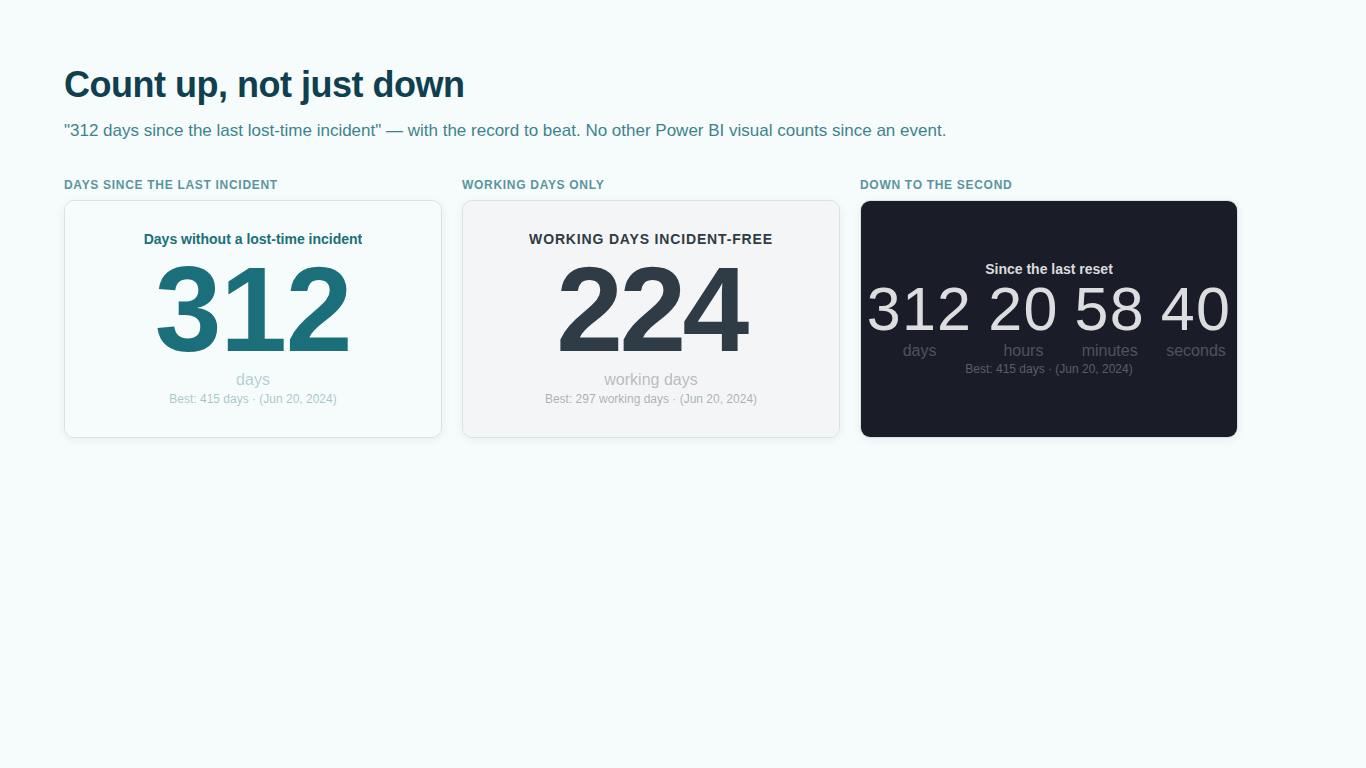
- The visual shows a countdown to the end of this month and a hint, not my deadline.
- That is the start screen. It appears while nothing is bound to Deadline or Event dates and no usable date is typed in the Countdown card. Either drop a date column on Deadline (or on Event dates for a days-since counter), or type a date into Date (When No Field Is Bound) in the format 2026-12-31 or 2026-12-31 23:59. Other formats such as 31/12/2026 are not read, and the start screen stays.
- A warning icon says some rows are not dates, or the visual shows no date to count to.
- The bound column holds text or numbers rather than dates. The visual never reads a number as a date on purpose: an Excel serial, Unix seconds and Unix milliseconds look the same, and a wrong guess would be silently wrong. Change the column's data type to Date or Date/Time in Power Query or the model. Also check the field well: if it shows Date Hierarchy, open the field's menu and choose the column itself so the visual receives the full date, not Year or Month on their own. The warning can be turned off with Warn About Rows That Are Not Dates in the Diagnostics card.
- A milestone is missing from the deadline board.
- Three usual causes. Rows with a blank Deadline have no date to count to and are left off the board. The board shows at most the number set in Maximum Rows (8 by default) and only as many rows as fit the visual's height, so make the visual taller or raise Maximum Rows; Say How Many Rows Are Hidden adds a line such as + 6 more so nothing disappears without a trace. Finally, the visual reads up to 5,000 rows, and binding Non-working dates from an unrelated table multiplies milestones by holidays, so a few hundred of each can exceed that.
- The days-since counter turns over in the middle of a shift, not at midnight.
- Day boundaries follow the zone in the Time Zone card. With Deadline Time Zone on Report viewer's local zone, the day ends at the viewer's own midnight, or at UTC midnight if A Day Ends At is set to UTC midnight. For a plant screen, set Deadline Time Zone to Named zone and type the plant's zone in Named Zone, for example Europe/Prague, so the count changes at the plant's midnight whatever device shows it. Turn on Show The Zone On The Visual to see which zone and offset are in use.
- A warning says Unknown time zone and the deadline looks an hour or more off.
- The text in Named Zone (e.g. Europe/Prague) is not a valid IANA zone name, so the visual falls back to the report viewer's own zone. Check the spelling and use the Region/City form, for example America/New_York or Asia/Kolkata. For a fixed offset with no daylight saving, choose Fixed offset in Deadline Time Zone and type it as +02:00.
- Different people see slightly different numbers, or one screen is clearly wrong.
- The visual ticks on the clock of the device showing the report, which is what keeps it live between refreshes, so a device with a wrong clock shows a wrong count. Bind a measure such as Model Now = UTCNOW() to Reference time: if the device clock is running behind the model by more than 90 seconds, the visual corrects for it. A reference older than the device clock, which is normal for an Import model refreshed hours ago, is ignored on purpose so a stale refresh never rewinds a correct clock. Show Where The Clock Comes From in the Diagnostics card prints which clock is in use.
- I bound incident dates but the visual counts down, or shows Overdue, instead of counting up.
- The dates are on Deadline, which counts towards a date, so a past incident reads as overdue. Move the column to Event dates. With Mode on Auto (from the fields), bound event dates switch the visual to Days since; if Mode was set by hand to something else, set it to Days since (count up). With only one event bound there is no earlier gap to compare with, so the best streak is the current one.
- In high contrast mode the warning and overdue colours disappear.
- In Windows high contrast mode Power BI replaces report colours with the system palette, so colour alone cannot carry the state. Keep Show State Icon and Show State Label on in the States card and every row and card still says Due soon, Due today or Overdue in words. On the deadline board, Tab moves focus into the board, the up and down arrow keys move between rows, Enter or Space cross-filters the report to the focused row and Escape clears the selection.