
Visuals/Pl. XXXI

    Text Insights

    A word cloud that keeps its place when you filter

    Comments split, word forms merged and stop words removed in 18 languages, inside the visual. Premium adds phrases, trends, score impact and the comments behind every word. Nothing leaves your report.

    Read the documentationComing soon to Microsoft Marketplace
    Datasheet
    Status
    Coming soon to Microsoft Marketplace
    Price
    $2.99 /user/mo · $29 /user/yr
    Licensing
    Per user, assigned in the Microsoft 365 admin center. Unlicensed viewers see the free tier, never a blocked visual.
    Data
    Computed inside Power BI. No external calls, no API keys, no telemetry.
    Visuals API
    5.11.0
    Accessibility
    Keyboard navigation, screen-reader labels and hidden data table, tone marked by symbols, Windows high contrast, focus outline, minimum text size, Reduce motion
    Languages
    Format pane and visual in 20 locales: English, Czech, Danish, German, Spanish, French, Hungarian, Italian, Japanese, Korean, Norwegian, Dutch, Polish, Portuguese (Brazil and Portugal), Slovak, Swedish, Turkish, Chinese (Simplified and Traditional)
    Text languages
    18, with stop words and word forms, detected per comment
    Rows analysed
    First 30,000 free, up to 150,000 with Premium
    Max words
    1 to 500 (default 120)
    Network access
    None: no external calls, no AI service, no telemetry
    Works in
    Power BI Desktop, Service, Embedded
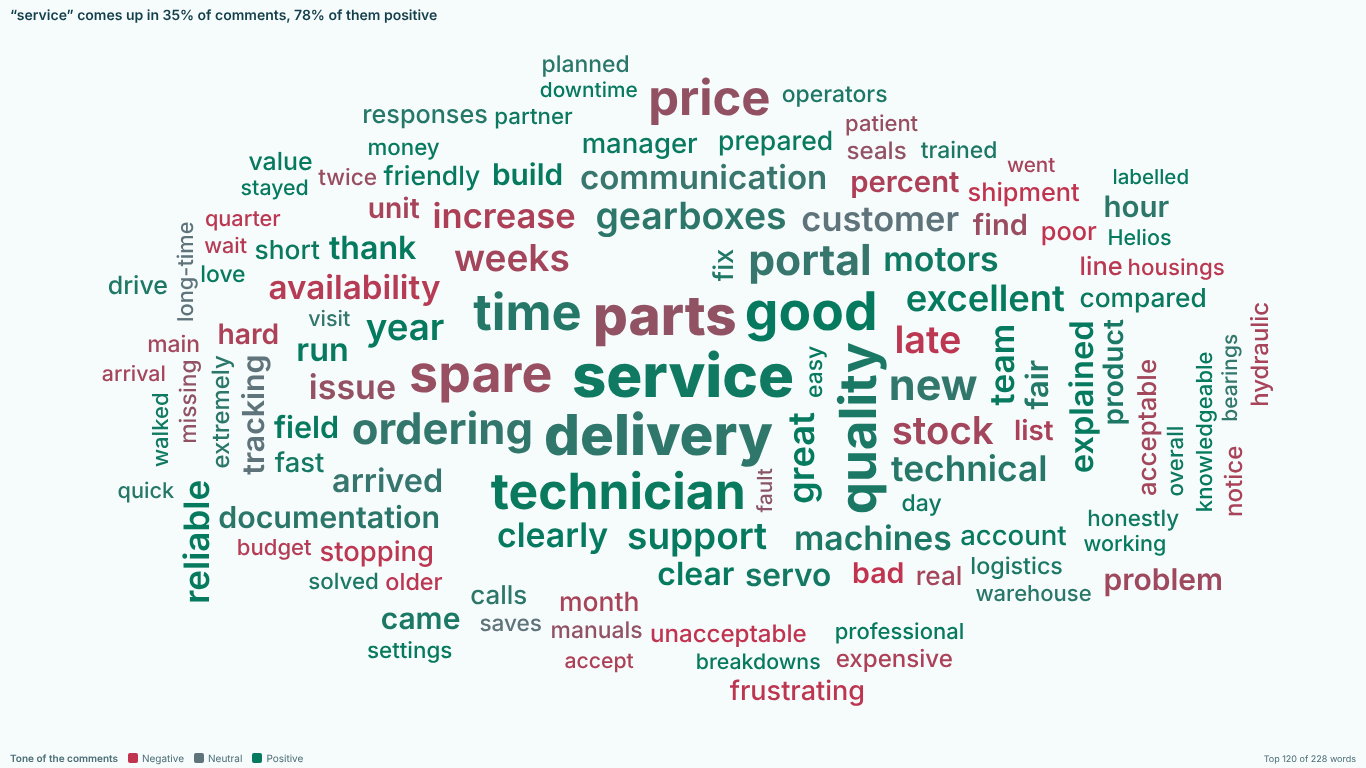
    Power BI word cloud of customer comments with words coloured green, grey or red by tone, a legend and a one-line headline about the word service
    Pl. XXXI  ·  Text Insights  ·  Customer comments coloured by the tone of the sentences around each word. The headline on top is premium.rendered from the shipped visual
    What it does

    SmartVisuals Text Insights turns a column of comments, reviews or survey answers into a word cloud that counts correctly: it splits the text itself, merges price, prices and pricing into one word, removes stop words in 18 languages detected per comment, and sizes words by the number of comments that mention them. Filter the page and the words that remain stay where they were.

    Premium makes it text analytics: phrases, the comments behind every word, group comparison, trend over time, score impact and dictionary themes. Every premium feature is fully unlocked while you edit, and a viewer without a licence always sees a working word cloud. The visual makes no external calls and uses no AI service.

    Search all visuals

    Free and premium

    Where the line is, exactly.

    Report authors see the full premium set in edit mode, so you can evaluate every feature on your own data before assigning a single licence. Unlicensed viewers always get a working chart.

    Free tierevery viewer
    • A word cloud from raw comments or ready-made termsBind comments and the visual tokenizes them, reading the first 30,000; a note says so whenever there were more. Or bind words you pre-aggregated in Power Query with a Weight measure, and every count stays exact.
    • A cloud that stays putFilter the page and the words that remain keep their positions; new words fill the gaps. The same data always gives the same cloud.
    • Word forms merged, labelled with a real wordprice, prices and pricing count as one word; words typed without accents merge into the accented form.
    • Stop words in 18 languagesBuilt in and detected per comment, plus Custom stop words with * wildcards and a Stop words (measure) field that needs no relationship.
    • Sentiment colouringEach word takes the tone of the sentences that mention it, or of your own Sentiment measure. The offline estimate is strongest in English, Danish, French, Polish, Swedish and Turkish; other languages use a short word list, and the tooltip says so.
    • ShapesEllipse, circle, heart, cloud, speech bubble, diamond, triangle, star or hexagon, a word you type, or your own silhouette image.
    • Themes, fonts and style effects4 themes (SmartVisuals, Dark, Clean, Slate) or the report theme colours, rotation presets and size scaling; 7 built-in fonts that work offline plus the report font; bold, italic, letter case; Crayon, Chalk, Marker and Stamp lettering drawn without images.
    • Colour modes and conditional formattingColour by tone, gradient by size, single colour, your own palette, random from a palette, Compare-by group or a Rule (fx).
    • No word dropped silentlyWords shrink to fit before any is left out, and a note says how many did not fit.
    • Tooltips and report page tooltipsComments mentioning, share, occurrences, tone, word forms and an example comment, plus extra Tooltips measures and report page tooltips filtered to the word's comments.
    • Cross-filtering, highlight, bookmarks and context menuClick a word to filter the page to the comments that mention it, Ctrl+click to add more; the selection survives bookmarks.
    • Accessibility and 20 languagesFull keyboard navigation, screen-reader labels and a hidden data table, tone marked by symbols, Windows high contrast, focus outline, minimum text size and Reduce motion. Format pane and visual in 20 locales.
    Premium$2.99 /user/mo · first month free
    • Bars and Table viewsRanked words and phrases with the share of comments and the positive / neutral / negative split, with data labels, axis and gridlines.
    • PhrasesWord pairs and triples that belong together (customer service, delivery time, value for money), found offline with a log-likelihood test, plus negations such as "not good" or "never arrived" with their own tone.
    • Trend over timeAdd a Date and see whether "delivery time" is rising and turning negative, period by period, with a tested verdict (linear trend test, Benjamini-Hochberg).
    • Score impactAdd an NPS or CSAT score and see which words go with a lower or higher score (Welch t-test, Benjamini-Hochberg).
    • Comment panelClick a word or phrase and read the comments behind it, the word highlighted, sorted by relevance or tone, ready to copy.
    • Compare groupsOne cloud per region, plant or quarter with shared word positions (small multiples), words over-represented in a group highlighted (weighted log-odds keyness, also a Table column), an A versus B view and words rising in the latest period.
    • ThemesYour own dictionary (Price: price, cost*, expensive) across languages, with share and tone per theme.
    • Insight headlineOne sentence about the data, such as the top word with its share and tone, or the word that grew most.
    • Large dataReads up to 150,000 comments (free: the first 30,000).

    How do I make a word cloud from survey comments in Power BI?

    Put the column of comments, reviews or survey answers in Text. The visual splits each comment into words itself, merges word forms, removes stop words in the comment's own language and sizes each word by the number of comments that mention it, so one long complaint that repeats "delivery" ten times counts once. There is no word table to build in Power Query and no DAX.

    Add a Comment ID when the same answer can appear twice, such as "Good" or "No comment". Without it Power BI merges identical texts into one row before the visual sees them, and in edit mode a note says so. If your words are already counted, bind them to Text with the count in Weight: Text is: Auto recognises short weighted rows as ready-made terms.


    Why does the word cloud stay in place when I filter?

    Because Layout: Stable remembers where every word was. When you filter the page to Manchester, the words that remain keep their positions and new words fill the gaps, so you see what changed instead of a reshuffled picture. Words a filter hid return to their old place when the filter is cleared, and the same data always gives the same cloud.


    If you prefer a tightly packed cloud on every change, Layout: Compact repacks it each time. Arrangement seed gives a different, equally stable arrangement.

    How are word forms, accents and stop words handled?

    Word forms: Merge word forms (the default) counts price, prices and pricing as one word and labels the group with its most frequent real form, never a truncated stem. Merge words typed without accents counts "tecnico" and "técnico" as one word, labelled with the accented form.

    Built-in stop words cover 18 languages, and the language is detected per comment, so a mixed English, German, Spanish and French dataset loses "the", "die", "el" and "le" alike. Add your own in Custom stop words, with * as a wildcard (promo*), or from a text measure in the Stop words (measure) field, which needs no relationship. In edit mode the × button on a word, or the Delete key, hides it and lists it under Hidden words.

    How does the visual estimate the tone of a word?

    With Color by: Sentiment each word takes the tone of the sentences that mention it, not of the whole comment, so in "Delivery was late. The technician was great." delivery reads negative and technician positive. Negations such as "not good" and "no problem" are handled. The estimate runs offline from word lists and is strongest in English, Danish, French, Polish, Swedish and Turkish; for the other languages the list is short and the tooltip says so.

    If you already score comments upstream, bind the score to Sentiment. Measure range: Auto recognises -1 to 1, 0 to 1, 1 to 5, 0 to 10 and 0 to 100, or you set the most negative, neutral and most positive values yourself. Mark tone with symbols adds ▲ and ▼ so tone never depends on colour alone.

    What does Premium add for text analytics?

    Phrases find the word pairs and triples that belong together, such as "customer service", "delivery time" and "not good", with a log-likelihood test. Click a word or phrase and the comment panel lists the comments behind it with the word highlighted, sortable by tone and ready to copy. Compare groups draws one cloud per region or quarter with shared word positions and highlights the words over-represented in each group.

    Trend over time adds a Date and tests whether each word is rising or falling, quarter by quarter (linear trend test, Benjamini-Hochberg). Score impact adds an NPS or CSAT score and shows which words go with a lower or higher score (Welch t-test, Benjamini-Hochberg), described as linked with, not caused by. Bars and Table views, dictionary themes, a one-sentence insight headline and reading up to 150,000 comments complete it.

    How much text can it read, and what are the limits?

    The free tier analyses the first 30,000 rows Power BI sends, which is Power BI's own single-query window; Premium reads up to 150,000 through Rows to analyse. Rows arrive in the query's sort order, so they are not a random sample, and the visual says "Based on the first 30,000 comments" whenever rows were cut. For exact counts on bigger data, pre-aggregate words in Power Query and bind the count to Weight.

    Max words takes 1 to 500 (default 120). If a large word does not fit, every word shrinks before any is dropped, and the notes say how many did not fit. Clicking a word cross-filters the report by up to 10,000 comments that mention it, and the note says when that cap applies.

    Use cases

    Where Text Insights earns its place.

    What customers say, by region

    Emily Carter's customer-experience team in Chicago binds the survey comment to Text, the comment number to Comment ID and the region to Compare by, and sets Color by to Sentiment. The cloud shows the words customers use most, coloured by the tone of the sentences around them; filtering the page to Manchester keeps every word in its place, so "late" and "delivery" growing is visible at a glance. With Premium, View: Compare groups draws one cloud per region with the words over-represented in each one highlighted.

    Which words go with detractors

    Daniel Hughes in Manchester binds the NPS answer as a Score (100 for promoters, 0 for passives, -100 for detractors, so the average is the NPS) and chooses View: Score impact (Premium). The view lists the words linked with a lower and a higher score, such as "spare parts" pulling down and "technician" pulling up, each with the difference, the number of comments and a Welch t-test, and hollow bars for differences that are not significant.

    Is delivery time getting worse?

    Olivia Bennett binds the comment date to Date and chooses View: Trend over time (Premium) with Period: Quarter. Each of the top words gets a sparkline of the share of comments that mention it and of the share of its mentions that are negative, the latest share and a tested verdict: rising, falling or no clear change.

    Reading the comments behind a word

    A service manager clicks "delivery time" in a phrase cloud (Words > Show: Words and phrases, Premium). The comment panel opens with every comment that mentions it, the phrase highlighted, a tone chip and the region, sorted by Negative first, and the Copy comments button puts them on the clipboard for the weekly review. The click also cross-filters the rest of the page to those comments.

    Getting started

    From empty canvas to first chart.

    1. 01

      Add SmartVisuals Text Insights to the report and put your comment column in Text.

    2. 02

      Add a Comment ID so identical answers are counted separately; add Compare by, Date or Score when you want to compare groups, follow trends or link words to a score.

    3. 03

      Check Format > Language and Stop words: Auto-detect chooses the language per comment, and Custom stop words takes your own words with * wildcards.

    4. 04

      Set Color by to Sentiment, pick a theme, shape and font, and click a word to cross-filter the page.

    5. 05

      Switch View to Bars, Table, Compare groups, Trend over time or Score impact to try the premium analytics, which preview in full while you edit.

    Get Text Insights

    On its way.

    Installation instructions for both paths are on the download page.

    Microsoft Marketplace (recommended)

    The offer is prepared for Microsoft Marketplace and not published yet. This page will link to the listing the moment it is live.

    Coming soon
    Accessibility

    Readable and usable for everyone.

    Tab
    Moves to the cloud, which is one focusable element. The Bars, Table, Trend over time and Score impact views are one tab stop each as well; in the Themes view each theme is its own tab stop.
    Arrow keys
    Right or Down moves to the next word in rank order, Left or Up to the previous one.
    Home / End
    Jumps to the first or the last word.
    Enter or Space
    Selects the focused word and cross-filters the page; with Premium it also opens the comment panel. In the Themes view it cross-filters the page to the focused theme's comments.
    Ctrl+Enter
    Adds the focused word to the selection.
    Esc
    Clears the selection. In the comment panel it closes the panel; in the search box it clears the search.
    Shift+F10 or the Menu key
    Opens the Power BI context menu for the focused word.
    Delete
    In edit mode, hides the focused word and lists it under Stop words > Hidden words.
    • Screen readers

      The cloud is a list of options that announces how many words it shows and how to move between them. Each word reads its name, the number of comments that mention it, its share and its tone ("delivery, 128 comments, 14 %, negative") and whether it is selected. Bars, Trend over time and Score impact rows carry their own labels (a trend row reads its verdict), the table is a grid with sortable column headers, the comment panel is a labelled region, and the notes and search results are status messages.

    • Screen-reader table

      Accessibility > Screen-reader table (on by default) adds a visually hidden table of the top 50 words with their comments, share and tone, in every view and in the free tier.

    • Not colour alone

      Accessibility > Mark tone with symbols adds ▲ to positive and ▼ to negative words in the cloud, bars and table, so tone does not rely on colour. The symbols are part of the text before layout, so they never overlap. The tooltip and the comment panel also name the tone in words.

    • High contrast

      In Windows high contrast mode every word, bar, line, legend and note uses the contrast theme's foreground colour on its background, the focus outline uses its selection colour, style effects and custom colours are switched off, and tone symbols are always shown.

    • Focus outline

      Accessibility > Focus outline color and Focus outline width (1 to 8 pixels, default 2) set the visible outline of the focused word. Empty colour uses the theme's focus colour.

    • Minimum text size

      Accessibility > Minimum text size raises every text the visual draws, words, labels, legend and notes, to at least that size (6 to 32 pixels).

    • Reduced motion

      Accessibility > Reduce motion: Follow system respects the operating system's reduced-motion setting, Always reduce removes the entrance animation and transitions, Off keeps them. Animation > Entrance animation turns the fade-in off for everyone.

    • Context menu

      Right-clicking a word, or Shift+F10 on the focused word, opens the Power BI context menu for its comments; right-clicking the empty space of the cloud opens it for the visual.

    • Languages

      The format pane and every string the visual writes come in 20 locales: English, Czech, Danish, German, Spanish, French, Hungarian, Italian, Japanese, Korean, Norwegian, Dutch, Polish, Portuguese (Brazil and Portugal), Slovak, Swedish, Turkish and Chinese (Simplified and Traditional). The visual's root carries the report's language, so screen readers pronounce it correctly.

    Questions

    Asked before you did.

    More questions? See support or write to hello@smartvisuals.io.

    The word cloud is free with no time limit: word forms, stop words in 18 languages, sentiment colouring, TF-IDF sizing, the search box, every shape, theme, font, style and colour mode, tooltips, cross-filtering and accessibility. Premium adds the Bars and Table views, phrases, the comment panel, Compare groups, Trend over time, Score impact, dictionary themes, the insight headline and reading up to 150,000 comments. It costs $2.99 per user per month or $29 per user per year, with the first month free, licensed through Microsoft Marketplace. Viewers without a licence always see a working word cloud, never a blocked or watermarked visual, and every premium feature is unlocked while you edit.

    The visual has been prepared for Microsoft Marketplace and is not published yet. This page will link to the listing as soon as it is live.

    No. The visual declares no privileges and makes no network calls: no AI service, no telemetry, no web fonts. Every language list, word list and font is bundled in the visual. The only things it saves are in the report itself: the words you hide and the colour each Compare-by group keeps.

    Only Text, the column of comments (or of ready-made terms). Optional: Comment ID keeps identical comments apart, Weight says how much a row counts, Sentiment takes your own score, Stop words (measure) adds words to hide, Tooltips adds measures, and Compare by, Date and Score drive the premium Compare groups, Trend over time and Score impact views. Without Comment ID or Weight, Power BI merges identical comments before the visual sees them, and in edit mode a note says so.

    The free tier analyses the first 30,000 rows Power BI sends; Premium reads up to 150,000 through Format > Text > Rows to analyse. When Premium asks for more, Power BI can stop sending data earlier for very long comments; the notes always say how many comments the cloud is based on. Rows arrive in the query's sort order, so sort by a Comment ID or date when your data is larger. For exact counts at any volume, pre-aggregate words in Power Query and bind the count to Weight.

    Type them in Format > Stop words > Custom stop words, separated by commas or new lines, with * as a wildcard (promo*). Or keep them in a table and bind a measure such as Stop words = CONCATENATEX ( StopWords, StopWords[Word], "," ) to Stop words (measure); it needs no relationship. In edit mode you can also click the × on a word or press Delete; it is listed under Hidden words, where you delete it to show it again.

    With Premium, click a word or phrase, or press Enter on it: the comment panel lists every comment that mentions it with the word highlighted, a tone chip and the group, sorted by relevance, negative first, positive first or longest first, and a Copy comments button. In the free tier the tooltip shows the number of comments and one example comment.

    It is an offline estimate, labelled "Tone (estimated)" in the tooltip. It scores each sentence, handles negation such as "not good" and "no problem", and is strongest in English, Danish, French, Polish, Swedish and Turkish. For the other languages the word list is short, and the tooltip and notes say so. If you score comments upstream, bind that score to Sentiment and the visual uses it instead.

    Yes, with Premium. Bind Date and choose View: Trend over time. Each word gets a sparkline of the share of comments that mention it per month, quarter or year, the latest share and a tested verdict (rising, falling or no clear change, linear trend test with Benjamini-Hochberg q < 0.05). Negative share line adds the share of the word's mentions that are negative, with its own test.

    Yes. The cloud, bars, table, trend and score impact views are one tab stop each: the arrow keys move between words, Home and End jump to the ends, Enter or Space selects, Ctrl+Enter adds to the selection, Esc clears and Shift+F10 opens the context menu. Every word reads its comments, share and tone, a hidden table of the top 50 words is there for screen readers, tone can be marked with ▲ and ▼, and Windows high contrast is supported.

    The format pane and the visual's own text come in 20 locales: English, Czech, Danish, German, Spanish, French, Hungarian, Italian, Japanese, Korean, Norwegian, Dutch, Polish, Portuguese (Brazil and Portugal), Slovak, Swedish, Turkish and Chinese (Simplified and Traditional); the translations are machine-written. The text itself is analysed in 18 languages, detected per comment, with stop words and word forms for each.

    Post it on the public board at smartvisuals.io/feedback, where other users can vote and comment, or use the Report a bug block on the support page (smartvisuals.io/support) or email hello@smartvisuals.io. A screenshot, the fields you bound and the text language help most.
    Troubleshooting

    When it does not look right.

    Found a bug or missing something? Post it on the requests board or vote for what others asked; the developer answers within two business days.

    Common answers like "Good" or "No comment" seem to count only once.
    Power BI groups identical values of a field before the visual receives them, so without a Comment ID the same text arrives as one row; in edit mode the notes say "Identical comments count once - add a Comment ID". Bind a unique comment number to Comment ID, or a count of responses to Weight.
    The note says "Based on the first 30,000 comments".
    The free tier analyses the first 30,000 rows Power BI sends, in the query's sort order (Text, then Comment ID, then Compare by), so they are not a random sample. With Premium, raise Format > Text > Rows to analyse up to 150,000. For exact counts at any volume without Premium, split the comments into words in Power Query, group them with a count, and bind the word to Text and the count to Weight.
    Words like "the", "und" or our company name fill the cloud.
    Check Format > Language: Auto-detect chooses the language per comment, but a column of very short answers can be read wrongly; set the language there if so. Built-in stop words should be Standard or Extended. Add your own words, such as Helios, to Stop words > Custom stop words (commas or new lines, * as a wildcard), or bind a CONCATENATEX measure to Stop words (measure).
    Viewers see only a word cloud where I built a bar chart, trend or comparison.
    Bars, Table, Compare groups, Themes, Trend over time, Score impact, phrases and the insight headline are premium. In reading view a viewer without a licence sees the free word cloud of all rows instead, never a blocked or watermarked visual, and Power BI shows its licence banner once. In edit mode every premium feature works, so authors can build and test before buying.
    Clicking a word does not open the comments.
    The comment panel is premium and opens only for comments, not for ready-made terms (Format > Text > Text is), and only when the visual is at least 360 pixels wide. Check Comment panel (Premium) > Open comments on click. Without a licence in reading view, the click still cross-filters and the tooltip shows one example comment.
    Words fade instead of disappearing when I select something in another visual.
    That is highlighting: words that match the selection keep full opacity and the others fade. Highlighting needs a measure in the visual (Weight or Sentiment); with a Text column alone, Power BI filters the cloud instead. If a note says some words did not fit, enlarge the visual or lower View > Max words.
    For developers & AI agents

    Add this visual programmatically.

    Use the GUID and data roles below to add Text Insights to a Power BI report via PBIR or the Report Authoring agent. Full catalog (JSON)

    GUID available after the visual is published on Microsoft Marketplace.

    RoleDisplay nameKind
    textTextGrouping
    idComment IDGrouping
    groupCompare byGrouping
    weightWeightMeasure
    sentimentSentimentMeasure
    stopWordsStop words (measure)Measure
    tooltipsTooltipsMeasure
    dateDateGrouping
    scoreScoreMeasure
    Missing something?

    Tell us what is missing.

    A feature you need, a bug you hit, a visual that does not exist yet. Every message reaches the person who builds these visuals, and feature requests shape what ships next. We also build visuals to order.

    Also in the family




































