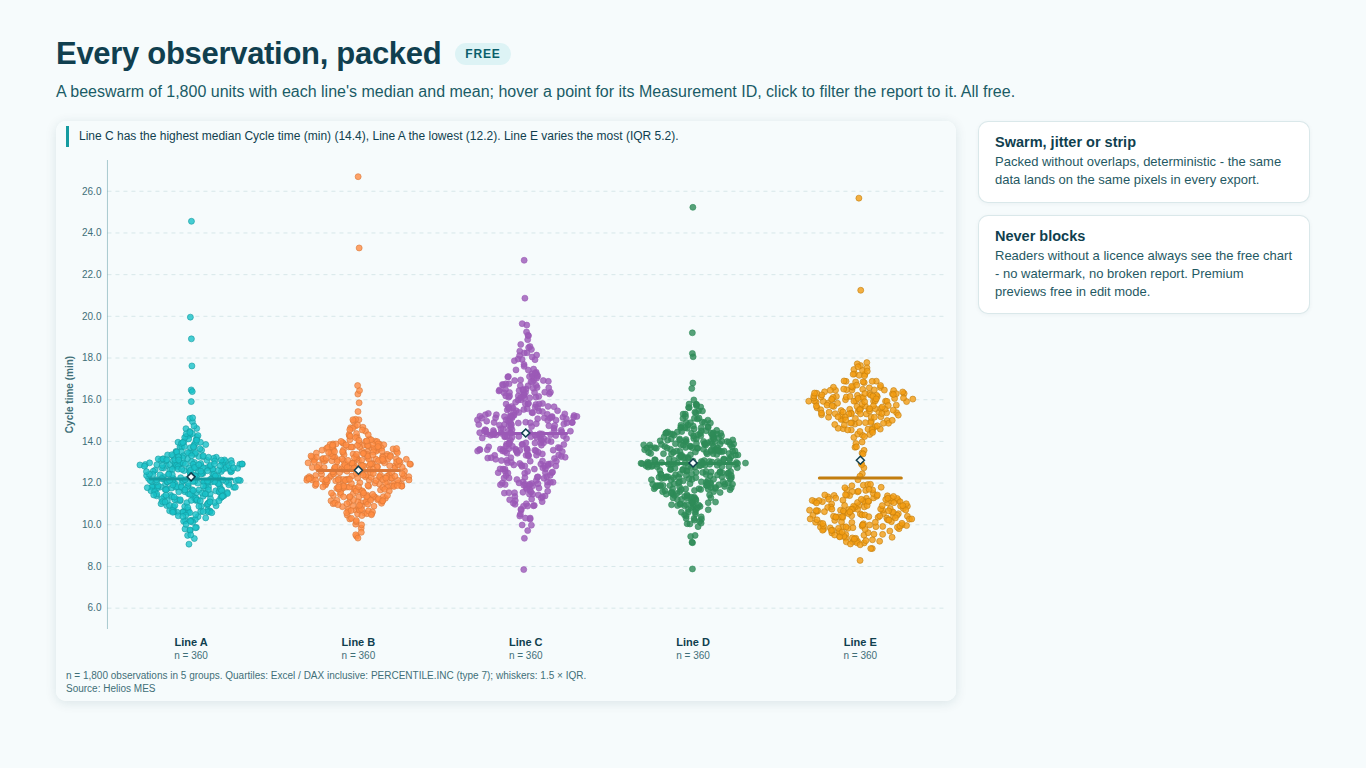
- Each group shows a single point.
- Without Sample / ID, Power BI sums the values per group and the visual receives one number per group; it shows a hint saying so. Map a row-level key, such as a unit, order or employee ID, to Sample / ID, or put the value itself in Value (as column) with a Count measure.
- Points show no tooltip and cannot be clicked.
- When a group has more than 2,500 points, its points are drawn as one image to stay fast, without per-point tooltips or selection. The group keeps its tooltip with the median, quartiles and n, and clicking it still filters the report. Above 6,000 points per group an even sample of the points is drawn, while every statistic still uses all the data.
- Outliers are not marked.
- In a beeswarm every observation is drawn as a point, so extreme values are visible as points far from the rest; the Beeswarm does not draw separate outlier markers. Box > Show Box adds a slim box with the whisker rule from Statistics > Whiskers on top of the points.
- A warning says "Showing part of the data".
- Power BI sends 30,000 rows per data window and the visual fetches further windows up to 150,000 rows. Above that, the chart and its statistics use the rows received and the warning says so. Put the value in Value (as column) with a Count measure so each distinct value arrives once, or filter the page.
- The swarm is too wide or the points crowd into each other.
- Lower Points > Point Size, raise Layout > Space Between Groups (%) or switch Points > Point Layout to Random jitter or Strip (one line). A horizontal orientation (Layout > Orientation) gives long swarms more room.
- Letters, brackets, confidence intervals or small multiples disappear in reading view.
- These are premium. They render in full while you edit; readers without a licence see the free chart and a footnote line naming the premium features not shown. Assign the reader a licence in the Microsoft 365 admin center under Billing > Licenses.