
Visuals/Pl. XL

    Combo Chart

    Columns, a line and the plan, on axes that agree

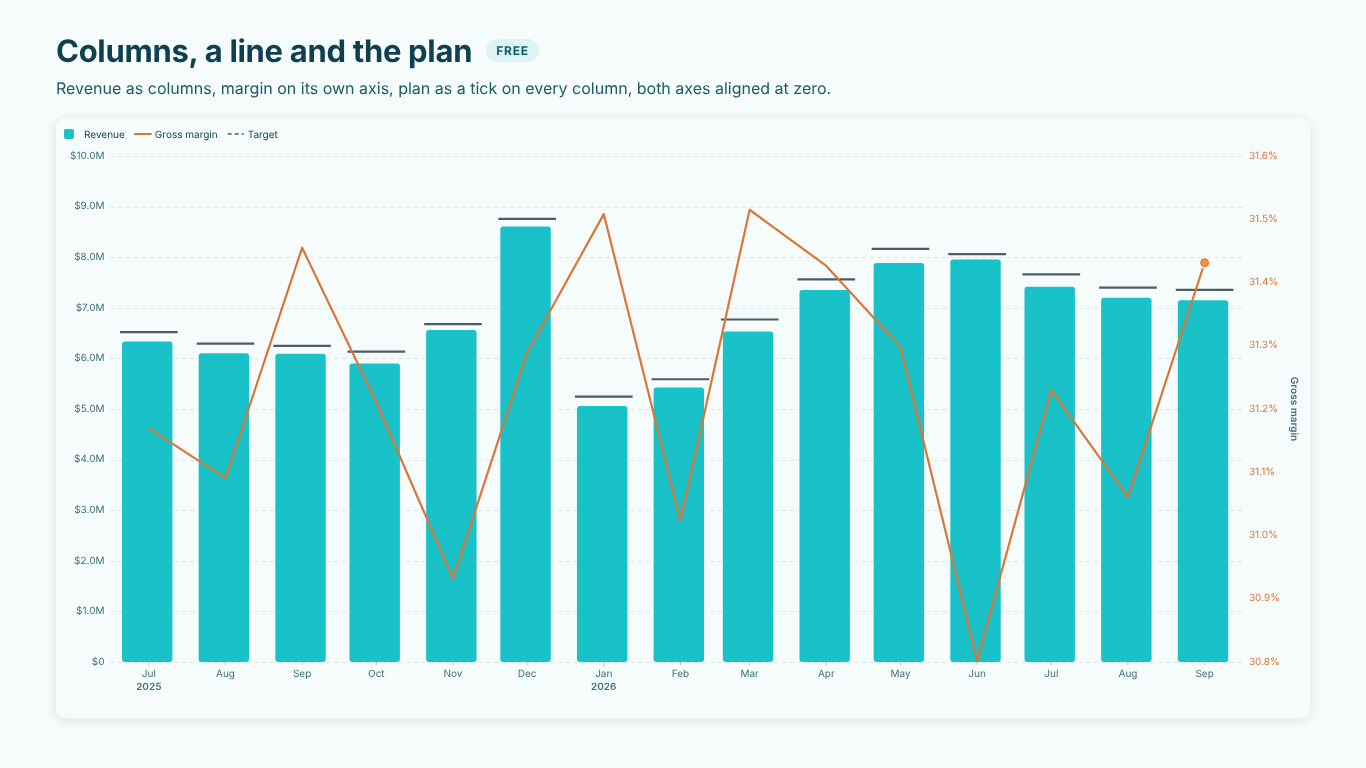
    Revenue as columns, margin on its own axis, the plan as a tick on every column, and one zero line shared by every axis that includes zero.

    Read the documentationComing soon to Microsoft Marketplace
    Datasheet
    Status
    Coming soon to Microsoft Marketplace
    Price
    $1.99 /user/mo · $19 /user/yr
    Licensing
    Per user, assigned in the Microsoft 365 admin center. Unlicensed viewers see the free tier, never a blocked visual.
    Data
    Computed inside Power BI. No external calls, no API keys, no telemetry.
    Visuals API
    5.11.0
    Accessibility
    One tab stop with arrow keys, screen-reader live region, dash and marker shape per series, high contrast, Reduce Motion, focus outline and minimum text size
    Languages
    20: Chinese (simplified and traditional), Czech, Danish, Dutch, English, French, German, Hungarian, Italian, Japanese, Korean, Norwegian, Polish, Portuguese (Brazil and Portugal), Slovak, Spanish, Swedish, Turkish
    Columns
    Clustered, stacked, 100 % stacked; plan as a tick or a line; IBCS notation
    Data volume
    30,000 periods per window, up to 150,000; up to 60 legend values
    Network
    No external calls, no telemetry
    Works in
    Power BI Desktop, Service, Embedded
    Combo chart with monthly revenue columns, a gross margin line on a right-hand percent axis and a target tick above each column, July 2025 to September 2026
    Pl. XL  ·  Combo Chart  ·  Revenue as columns, margin on its own axis, the plan as a tick on every column.rendered from the shipped visual
    What it does

    SmartVisuals Combo Chart draws columns and lines over one date axis: clustered, stacked or 100 % columns, lines on the left or right axis, and the plan as a tick on each column or as a line. Both axes are aligned at zero by default, and IBCS scenario notation draws actuals, plan and previous year the way finance reads them.

    Variance bars to plan or last year, forecasts with prediction intervals that pick up where the columns end, and the Mann-Kendall trend test are computed inside the visual. Nothing leaves the report: no external calls, no telemetry.

    Search all visuals

    Free and premium

    Where the line is, exactly.

    Report authors see the full premium set in edit mode, so you can evaluate every feature on your own data before assigning a single licence. Unlicensed viewers always get a working chart.

    Free tierevery viewer
    • Clustered, stacked or 100 % columnsOne column series per measure or per legend value; zero values hidden, so there are no empty stubs.
    • Lines on one or two axesLines on the left or right axis, zero-aligned by default; straight, smooth or step.
    • The plan as a tick on each columnTarget draws a tick on every column or a line; it takes any measure: plan, budget or target.
    • IBCS scenario notationActuals solid, plan and forecast periods outlined and hatched, the previous year as a grey column, by role.
    • Conditional formatting (fx) and dynamic format stringsColour any column by rule; dynamic format strings are honoured per value in labels and tooltips.
    • Trend, reference lines and bands, zoom, presetsA linear trend line, reference lines and bands, a range navigator and style presets.
    • Tooltips, cross-filter and drilldownTooltips with the change to the previous point and your Tooltips fields, report page tooltips, cross-filter, Ctrl multi-select, cross-highlight (the highlighted value drawn over the whole column), drilldown, bookmarks and the context menu.
    • Labels, legend, themes and localizationData labels, legend, axis titles, four themes, and the visual localized in 20 languages.
    • AccessibilityOne keyboard tab stop with arrow keys between columns and series, Enter or Space to filter, Escape to clear, a screen-reader live region, dash and marker shape per series, Windows high contrast, Reduce Motion, focus outline and minimum text size settings.
    • Never blockedReaders without a licence always see the free chart: no watermark, no broken report.
    Premium$1.99 /user/mo · first month free
    • Variance to planDifference bars under the chart, good and bad by sign and colour, labelled; or against the previous year from the dates or any measure.
    • Forecasts with prediction intervalsPicking up where the columns end: exponential smoothing chosen by AICc, with 80 and 95 % bands.
    • Time-saversShow values as year to date, running total, index or % change; Top N + Others; trend types beyond linear with the equation and R²; reference lines for every series; the drawn smart caption; annotations from a measure.
    • Trend test, more axes, small multiplesMann-Kendall trend test, value axes 3 and 4, and small multiples.

    How do I show columns and a line on two axes in Power BI?

    SmartVisuals Combo Chart draws the measures in Column values as columns and the measures in Values as lines, over one date axis. Put Revenue in Column values and Gross margin % in Secondary axis values, and margin gets its own axis on the right, coloured like its line so the reader knows which scale belongs to which series. Series Axes in the format pane moves any single series to the left or right axis.

    Add the plan to Target and it is drawn as a tick on every column, so each month reads as "column against tick" without a second set of bars. Hover any period for a tooltip with every series, its change to the previous point, the Target and your Tooltips fields.


    Why should the two axes be aligned at zero?

    Two independent axes put their zero lines at different heights. A line that crosses a column top then looks meaningful when it is only an accident of two scales, and a negative margin can sit above the zero of the revenue axis. Y-Axis > Align Zero Across Axes (on by default) gives every axis the same share of the plot below zero, so zero is one line across the chart.

    Alignment applies when every axis includes zero. Column axes start at zero automatically; a line axis follows its data, so a margin between 30 % and 32 % keeps its own range. Set Y-Axis > Start At Zero to Always to bring every axis down to zero and aligned, or to Never to let the column axis float too.

    How do I show actual against plan?

    Target takes any measure, such as the plan, the budget or a target. Columns > Target As draws it as a tick on each column or as a line. Actual and Forecast Styling > Actuals End At marks where actuals stop: periods after it are drawn outlined and dashed, so a measure that holds actuals for past months and plan for the rest reads as one series with a visible break, with an optional vertical rule and label.

    Columns > IBCS Scenario Notation applies the notation by role: actual columns solid, periods after the last actual outlined and hatched, and the Comparison field, typically the previous year, as a grey column offset behind each column. The Finance (IBCS) preset in Presets and Templates switches it on together with a print-friendly style.

    Clustered, stacked or 100 % columns?

    Columns > Layout offers clustered, stacked and 100 % stacked. Several measures in Column values give one column series each; one measure with a field on Legend gives one column series per legend value, such as revenue by product line. Stacked columns put negatives below zero; 100 % stacked scales every period to the same height.

    Hide Zero Values (on by default) leaves out zero-height stubs and their labels. Column Width (%) and Corner Radius set the look, and Data Colours takes a conditional formatting (fx) rule to colour any column by value, for example months below plan in a different colour. With a Legend bound, the rule is not offered and colours are set per series in Series Colours, which lists every series by its real name.

    What data does the combo chart expect?

    A date column or date hierarchy on Axis (date) gives true time spacing, calendar ticks and a detected grain (day, week, month, quarter, year), which sets the forecast step and the previous-year lookup. Text periods and date hierarchy levels are drawn one slot per value in data order. Without anything on Axis the visual says "Add a date or period to Axis".

    Measures go to Column values (columns), Values (lines) or Secondary axis values (lines on the right axis). Blank line values follow Lines > Missing Values: leave a gap, treat as zero, connect across, interpolate or repeat the previous value. Dynamic format strings are read per value, so a measure that switches between currency and percent is labelled correctly.

    What are the limits?

    The visual reads 30,000 periods per data window and asks Power BI for more up to 150,000; if the data is cut, the host's warning icon says so. A Legend draws up to 60 series, the first 60 Power BI sends. Forecasts are computed for at most 12 series per visual and need at least six periods.


    For long histories, Zoom > Range Navigator adds a mini-chart with a draggable window, and Ctrl + wheel zooms the plot while dragging pans it; double-click resets. The zoom is the visual's own and does not filter the report. Everything is computed inside the visual: no external calls, no telemetry.

    Use cases

    Where Combo Chart earns its place.

    Revenue, margin and plan on one page

    A controller at the Chicago headquarters puts the month on Axis (date), Revenue in Column values, Gross margin % in Secondary axis values and the plan in Target. Revenue is drawn as columns with a plan tick on each, margin as a line on its own right-hand axis coloured like the line, and the tooltip shows each value with its change to the previous month.

    Monthly management report in IBCS notation

    A finance team maps Revenue (actuals for past months, plan for the rest) to Column values and last year's revenue to Comparison, applies Presets and Templates > Apply Preset > Finance (IBCS) and sets Actual and Forecast Styling > Actuals End At to the last closed month. Actuals are solid, the plan months outlined and hatched, and last year sits as a grey column behind each month.

    Product-line mix by month

    A sales manager puts Revenue in Column values and Product line on Legend, sets Columns > Layout to Stacked. Bikes, E-bikes, Components and Service stack into each month, Columns > Hide Zero Values leaves no empty stub for a product line with no sales, and switching to 100 % stacked shows the shares instead of the amounts.

    Plant output against target

    An operations lead at the Hamburg plant puts weekly output in Column values and the target in Target, then sets a Data Colours rule (fx) on a measure that returns a colour for weeks below 95 % of target. Each column carries its target tick, and the colour points at the weeks that need a word.

    Getting started

    From empty canvas to first chart.

    1. 01

      Add a date column or date hierarchy to Axis (date).

    2. 02

      Add the measures to draw as columns, such as Revenue, to Column values; add a field such as Product line to Legend for one column series per value.

    3. 03

      Add line measures to Values, or to Secondary axis values for the right-hand axis, such as Gross margin %.

    4. 04

      Add the plan or budget to Target and choose Columns > Target As: Tick on each column or Line.

    5. 05

      Set Columns > Layout and, for finance pages, Columns > IBCS Scenario Notation; the Analytics pane holds Trend Line, Reference Lines, Forecast and Compare.

    Get Combo Chart

    On its way.

    Installation instructions for both paths are on the download page.

    Microsoft Marketplace (recommended)

    The offer is prepared for Microsoft Marketplace and not published yet. This page will link to the listing the moment it is live.

    Coming soon
    Accessibility

    Readable and usable for everyone.

    Tab
    Moves into the chart. The chart is one tab stop; focus starts on the first point of the first series (line series come first, then column series).
    Left / Right arrow
    Moves to the previous or next period of the same series.
    Up / Down arrow
    Moves to the same period of the previous or next series, for example from the margin line to the revenue columns.
    Home / End
    Jumps to the first point of the first series or the last point of the last series.
    Page Up / Page Down
    Jumps ten series up or down; with fewer series, to the first or last point.
    Enter or Space
    Selects the focused column or point and cross-filters the page. Hold Ctrl to add it to the selection.
    Esc
    Clears the selection.
    • Screen readers

      The chart has one accessible name: a sentence about the data, such as how the first series changed over the period and where it peaked. A polite live region reads the focused value as series, period and value, for example "Revenue, Sep 2026: $7.1M". On very long series the keyboard steps over evenly spaced periods so a walk stays manageable.

    • Not colour alone

      Columns and lines differ by shape, and the plan is a tick rather than a second colour. Accessibility > Distinguish Series Without Colour gives each line its own dash pattern and marker shape, also in the legend; IBCS Scenario Notation separates actual, plan and previous year by fill, outline and hatching; tooltips mark the change to the previous point with an up or down arrow as well as the number.

    • High contrast

      In Windows high contrast mode the visual uses the system colours only: series, text, axes and marks take the foreground colour on the system background, markers are hollow, gridlines are dropped and axis lines are drawn, Distinguish Series Without Colour is switched on and the focus outline uses the system's selection colour.

    • Reduced motion

      The chart draws without animation. Accessibility > Reduce Motion, or the operating system's reduced-motion setting, switches off any transition.

    • Focus outline

      Accessibility > Focus Outline Colour and Focus Outline Width set the ring around the focused value (empty colour = the theme's focus colour; 2.5 px by default). High contrast always uses the system colour.

    • Minimum text size

      Accessibility > Minimum Text Size (0 = off) draws every label, axis, legend, caption and footnote at least this large.

    • Context menu

      Right-clicking a column or point opens the Power BI context menu for it; right-clicking empty space opens it for the visual.

    • Languages

      The format pane and every text the visual draws are available in 20 languages: Chinese (simplified and traditional), Czech, Danish, Dutch, English, French, German, Hungarian, Italian, Japanese, Korean, Norwegian, Polish, Portuguese (Brazil and Portugal), Slovak, Spanish, Swedish and Turkish. Dates and numbers follow the report's locale.

    Questions

    Asked before you did.

    More questions? See support or write to hello@smartvisuals.io.

    Free: clustered, stacked and 100 % columns, lines on one or two zero-aligned axes, the plan as a tick or a line, IBCS scenario notation, conditional formatting (fx), dynamic format strings, a linear trend line, reference lines and bands, the range navigator, presets, themes, tooltips, cross-filtering, drilldown and every accessibility feature. Premium ("Forecast & Compare") adds variance bars to plan, previous year or any measure, forecasts with prediction intervals, the Mann-Kendall trend test, show values as, Top N + Others, trend types beyond linear, reference lines for every series, the drawn smart caption, annotations from a measure, value axes 3 and 4 and small multiples. Premium is a per-user licence at $1.99 per user per month or $19 per user per year, with the first month free. Every premium feature previews in full in Power BI Desktop and edit mode, and readers without a licence always see the free chart, never a watermark or a blocked visual.

    The visual has been prepared for Microsoft Marketplace and is not published yet; this page will link to the listing once it is live.

    No. The visual declares no network privileges and makes no external calls; every statistic, including forecasts and the trend test, is computed inside the visual in your report. There is no telemetry, and the licence check uses Power BI's own licence service.

    Axis (date) and at least one measure in Column values (drawn as columns) or Values (drawn as lines). Optional: Legend (one column series per value), Secondary axis values (lines on the right-hand axis), Target (plan, budget or target: a tick per column and the base for variances), Comparison (previous year or any series from your model), Annotation (a text measure that pins a note on a period), Small multiples and Tooltips.

    Put it in Secondary axis values, or keep it in Values and set its axis in the format pane under Series Axes > Axis. Secondary Y-Axes > Colour Each Axis Like Its Series (on by default) colours the right axis like its line, and Title names it.

    Column axes start at zero automatically; a line axis follows its data, and Align Zero Across Axes only applies when every axis includes zero. Set Y-Axis > Start At Zero to Always to bring both axes to zero, and they line up. Turn off Y-Axis > Align Zero Across Axes if you want independent axes.

    Set Actual and Forecast Styling > Actuals End At to A date and type the last actual period (yyyy-mm-dd). Columns after it are drawn outlined, and with IBCS Scenario Notation hatched; lines continue dashed, with an optional Vertical Rule and Rule Label. Last period with an actual reads the last non-blank value of the first line measure.

    30,000 periods per data window, with more requested from Power BI up to 150,000; if the data is cut, the host's warning icon appears. Up to 60 legend values are drawn. Forecasts run for up to 12 series and need at least six periods.

    Yes. The chart is one tab stop: Left and Right move along a series, Up and Down move to the same period of the neighbouring series (line series first, then column series), Home and End jump to the first and last point, Enter or Space cross-filters and Escape clears. A live region reads each value, such as "Revenue, Sep 2026: $7.1M", and the chart's accessible name is a sentence describing the change of the first series. Windows high contrast uses the system colours.

    20: Chinese (simplified and traditional), Czech, Danish, Dutch, English, French, German, Hungarian, Italian, Japanese, Korean, Norwegian, Polish, Portuguese (Brazil and Portugal), Slovak, Spanish, Swedish and Turkish, for the format pane and every text the visual draws. Dates and numbers follow the report's locale.

    SmartVisuals Time Series holds the combo view of this visual plus line, area, sparklines, candlestick and ridgeline views over the same fields, with one engine and the same premium layer. For combo charts alone, Combo Chart is the smaller choice; if you need three or more chart types or want to switch views over one set of fields, see SmartVisuals Time Series. Microsoft licenses each offer separately, so a licence for one does not unlock the other.

    Post it on the public board at smartvisuals.io/feedback, where other users can vote and comment, use the Report a bug block on smartvisuals.io/support, or email hello@smartvisuals.io. A screenshot, the fields you bound and the column layout you chose help most.
    Troubleshooting

    When it does not look right.

    Found a bug or missing something? Post it on the requests board or vote for what others asked; the developer answers within two business days.

    Everything is drawn as lines, not columns.
    Only measures in Column values are drawn as columns; Values and Secondary axis values are lines. Move the measure to Column values. The landing screen of an empty visual names the fields: Axis, Column values and Values.
    The right-hand axis does not start at zero, so the line and the columns do not share a zero.
    Column axes start at zero automatically, but a line axis follows its data, and Y-Axis > Align Zero Across Axes only lines up axes that all include zero. Set Y-Axis > Start At Zero to Always and both axes start at zero and align. To give the line axis a fixed range instead, type Minimum and Maximum in Secondary Y-Axes.
    I do not see the plan ticks.
    Ticks are drawn for the Target field on the first column series. Check that the plan measure is in Target (one measure) and that Columns > Target As is Tick on each column; set it to Line to draw the plan as a dashed line instead. A Target with blank months shows no tick in those months.
    The conditional formatting (fx) button is missing from Data Colours.
    With a field on Legend, the Data Colours card is hidden, following Microsoft's guidance to format series individually; set the colours per series in Series Colours instead. Without a Legend, Data Colours > Colour takes an fx rule for every column.
    Months are in the wrong order or missing months close up.
    A text month column is drawn one slot per value in data order, with no notion of time. Use a date column or the date hierarchy on Axis (date): the axis then has true time spacing, gaps stay visible and ticks fall on calendar months. For a text column, set a sort-by column in the model.
    A reader sees the chart without the variance bars or forecast I set up.
    A feature marked Premium on the landing page is drawn for readers with a licence and previews in full in Power BI Desktop and edit mode. In reading view without a licence, the visual draws the free chart from the same fields and Power BI shows its own licence notice once; nothing is blocked or watermarked. Assign a licence in the Microsoft 365 admin center.
    For developers & AI agents

    Add this visual programmatically.

    Use the GUID and data roles below to add Combo Chart to a Power BI report via PBIR or the Report Authoring agent. Full catalog (JSON)

    GUID available after the visual is published on Microsoft Marketplace.

    RoleDisplay nameKind
    axisAxis (date)Grouping
    legendLegendGrouping
    valuesValuesMeasure
    columnsColumn valuesMeasure
    secondarySecondary axis valuesMeasure
    targetTargetMeasure
    comparisonComparisonMeasure
    annotationAnnotationMeasure
    facetSmall multiplesGrouping
    tooltipsTooltipsMeasure
    Missing something?

    Tell us what is missing.

    A feature you need, a bug you hit, a visual that does not exist yet. Every message reaches the person who builds these visuals, and feature requests shape what ships next. We also build visuals to order.

    Also in the family



































