
Visuals/Pl. XLII

    Candlestick

    Candles from four measures and a date

    Candlesticks, OHLC bars, Heikin-Ashi and Renko with a volume pane, a moving average and the last close on the axis, for prices, rates and any open-high-low-close data.

    Read the documentationComing soon to Microsoft Marketplace
    Datasheet
    Status
    Coming soon to Microsoft Marketplace
    Price
    $1.99 /user/mo · $19 /user/yr
    Licensing
    Per user, assigned in the Microsoft 365 admin center. Unlicensed viewers see the free tier, never a blocked visual.
    Data
    Computed inside Power BI. No external calls, no API keys, no telemetry.
    Visuals API
    5.11.0
    Accessibility
    One tab stop with arrow keys along the bars, screen-reader live region, hollow and filled bodies besides colour, high contrast, focus outline and minimum text size
    Languages
    20: English, Chinese (Simplified and Traditional), Czech, Danish, Dutch, French, German, Hungarian, Italian, Japanese, Korean, Norwegian, Polish, Portuguese (Brazil and Portugal), Slovak, Spanish, Swedish, Turkish
    Fields
    Axis (date), Open, High, Low, Close, Volume, Annotation, Small multiples
    Data volume
    30,000 rows per data window, up to 150,000 with fetch more
    Network
    No external calls, no market data feeds, no telemetry
    Works in
    Power BI Desktop, Service, Embedded
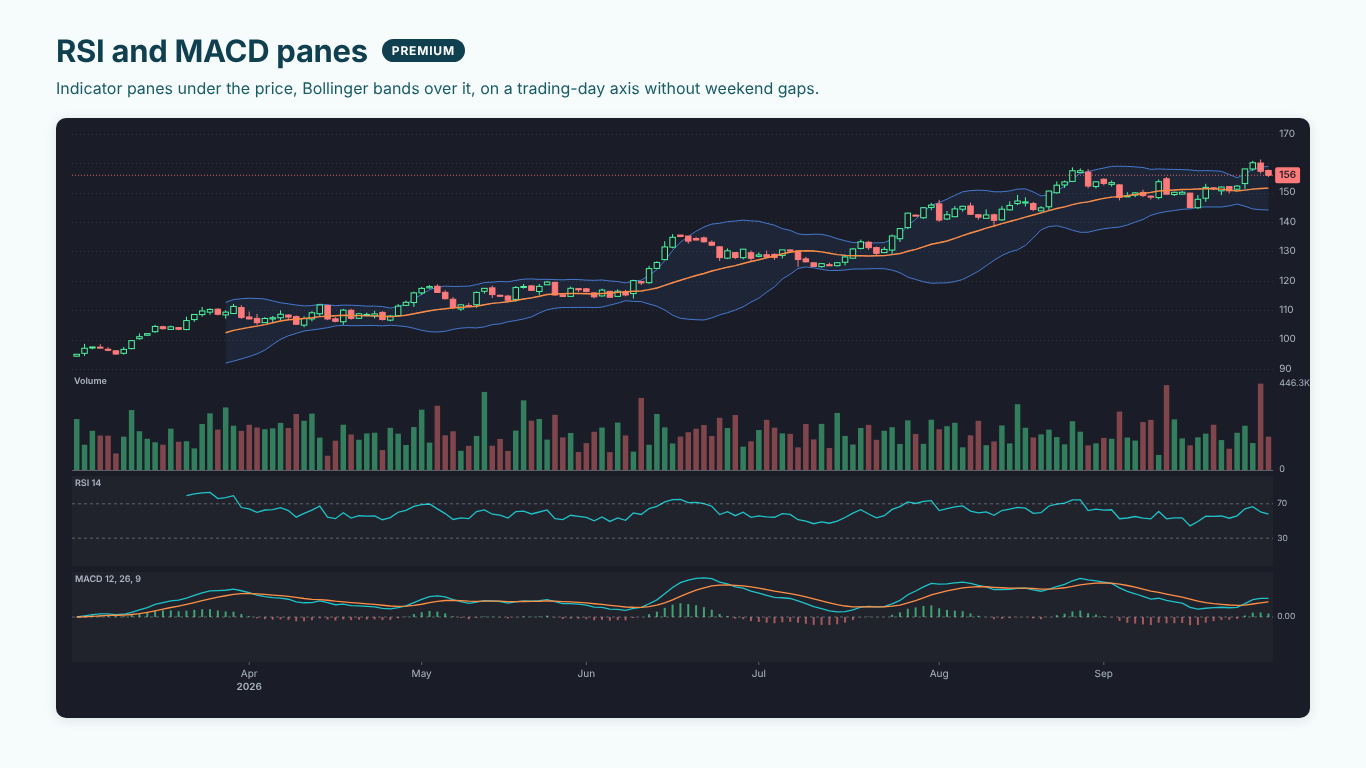
    Dark-theme candlestick chart with Bollinger bands over the price, a volume pane, and RSI 14 and MACD 12, 26, 9 panes below
    Pl. XLII  ·  Candlestick  ·  RSI and MACD panes under the price and Bollinger bands over it, on a trading-day axis.rendered from the shipped visual
    What it does

    SmartVisuals Candlestick draws a price chart the way traders read one: candles on a trading-day axis without weekend gaps, a volume pane coloured by direction, a moving average over the candles and the last close marked on the price axis. Bind a date and Open, High, Low and Close, and that is the first render.

    It runs entirely inside your report, with no market data feed and no external calls: the prices are your measures, and the indicators are computed in the visual. A bar whose high and low do not bracket its open and close is flagged, and years of daily history are combined per pixel into true open, high, low and close rather than thinned out.

    Search all visuals

    Free and premium

    Where the line is, exactly.

    Report authors see the full premium set in edit mode, so you can evaluate every feature on your own data before assigning a single licence. Unlicensed viewers always get a working chart.

    Free tierevery viewer
    • Seven stylesFilled candles, hollow candles, OHLC bars, Heikin-Ashi, Renko bricks (a fixed brick size or one from the ATR), a close line and a close area.
    • A trading-day axisWeekends and other days without a bar do not leave gaps by default; Show Calendar Gaps puts them back.
    • Volume paneVolume bars under the price, coloured by direction; up and down candles are also told apart by hollow and filled bodies, never by colour alone.
    • One moving averageA simple, exponential or weighted moving average over the candles, 20 periods by default.
    • Data integrity checkA bar whose High or Low does not bracket its Open and Close is outlined and named in the tooltip, so a bad row in the source is visible.
    • Dense history and zoomYears of daily bars combined per pixel into true open, high, low and close, with the last close on the price axis and a range navigator to zoom and pan.
    • Power BI featuresA tooltip with open, high, low, close, change, change % and volume, report page tooltips, cross-filter with Ctrl multi-select, bookmarks, the context menu, dynamic format strings, four themes and 20 languages.
    • AccessibilityOne tab stop with the arrow keys walking the bars, a screen-reader live region that reads each bar, high contrast, Reduce Motion, focus outline and minimum text size settings.
    Premium$1.99 /user/mo · first month free
    • Indicator panesRSI with 30 / 70 bands, MACD with signal and histogram, Stochastic with 20 / 80, and ATR, in panes under the price.
    • More overlays and event flagsSecond and third moving averages, Bollinger bands and VWAP over the candles; annotations from a measure flag earnings and other events on their bars.
    • Pivot levelsClassic floor-trader pivots (P, R1 to R3, S1 to S3) from the previous period, as dashed levels.
    • Forecast of the close and small multiplesAn ETS forecast of the closing value with its 95 % prediction interval, and one panel per value of the Small multiples field.

    How do I make a candlestick chart in Power BI?

    Bind a date to Axis (date) and four measures to Open, High, Low and Close; Volume is optional and adds a volume pane under the price. SmartVisuals Candlestick then draws candles on a trading-day axis with a 20-period moving average and the last close marked on the price axis, without further setup. Until the four price fields are bound, the visual asks for Open, High, Low and Close instead of drawing an empty chart.

    It works for any open-high-low-close data, not only share prices: exchange rates, commodity and energy prices, daily minimum and maximum readings, or a KPI with an opening and closing value per period. The sample report uses HELI, the fictional Helios share, with trading days from January 2024 to September 2026.


    What shape does the OHLC data need?

    One row per period with the four prices, or a table of trades or readings from which measures compute them. With daily rows, make the measures aggregate correctly when the axis moves to weeks or months: Open is the first period's open, Close the last period's close, High the maximum and Low the minimum, and Volume a sum. A plain sum of the Open column gives a wrong candle as soon as a bar covers more than one row.

    The visual draws one instrument per visual, so filter to one ticker with a slicer or use the Small multiples field for one panel per ticker. A bar with a blank price is left out rather than drawn at zero.

    Why are there no weekend gaps, and can I get them back?

    By default the axis has one slot per bar, so weekends, holidays and any other day without a row leave no gap, which is how price charts are usually read. Ticks mark where the month or year changes. Candles > Show Calendar Gaps switches to true calendar spacing, where a long weekend becomes visible as a gap.

    Candles, hollow candles, OHLC bars, Heikin-Ashi or Renko?

    Candles colour by close against open; hollow candles colour by close against the previous close. In both, a rising body (close above open) is hollow and a falling one filled, so direction is readable without colour. OHLC bars show the open and close as ticks. Heikin-Ashi recomputes each bar from averages of the current and previous bar for a smoother trend view, and the tooltip says the values are Heikin-Ashi. Renko draws time-independent bricks of a fixed size, or of a size taken from the 14-period ATR when Brick Size is 0. Close line and close area draw the closing value only.

    Moving Average 1 sits over the candles as a simple, exponential or weighted average (Indicators card, 20 periods by default, 0 switches it off). Its value appears in the tooltip next to open, high, low, close, change, change % and volume.

    How does it handle bad bars and long histories?

    A bar whose High is below its Open or Close, or whose Low is above them, is outlined and named in the tooltip ("High or Low does not bracket Open and Close: check the source"), and the footnote explains the outline. Candles > Flag Invalid Bars switches the check off.

    When there are more bars than the width can show, neighbouring bars are combined per pixel into true OHLC: the first open, the highest high, the lowest low, the last close and the summed volume, and the footnote says so. Power BI sends 30,000 rows per data window and the visual fetches more up to 150,000. Zoom > Range Navigator adds a mini chart with a window to drag; double-click resets it.

    How does it fit with the rest of the Time Series suite?

    SmartVisuals Candlestick is one of six offers built on the same Time Series engine. SmartVisuals Time Series holds Line, Area, Combo, Sparklines, Candlestick and Ridgeline views over one set of fields, with a tab bar to switch between them; SmartVisuals Line Chart, Area Chart, Combo Chart and Sparklines are the other single views.

    Microsoft licenses each offer separately, so a licence for one never unlocks another. For candlesticks alone this visual is the cheaper choice; with three or more chart types the multi-view is. Indicators follow the textbook Wilder definitions and are tested against reference values computed with pandas.

    Use cases

    Where Candlestick earns its place.

    A share price page for investor relations

    A daily price table with Date, Open, High, Low, Close and Volume feeds Axis (date) and the five measures of the same names. The page shows the Helios share (HELI) as candles on a trading-day axis with a 20-day moving average, the volume pane and the last close marked on the price axis; the tooltip gives open, high, low, close, change, change % and volume for any day.

    Weekly commodity or energy prices for purchasing

    A buyer tracks the daily price of a raw material from a supplier export. Measures with FIRSTNONBLANKVALUE for Open, LASTNONBLANKVALUE for Close, MAX for High and MIN for Low let the same visual show daily candles or, with the axis on a week or month level of the date hierarchy, correct weekly and monthly candles.

    Exchange rates in a treasury report

    A treasury team binds the daily EUR/USD fixing as Open, High, Low and Close without Volume. Candles > Style > Hollow candles colours each day by its close against the previous close, and Zoom > Range Navigator lets the reader drag a window over three years of history.

    Daily minimum and maximum readings

    A plant engineer uses the first, highest, lowest and last temperature reading of each shift as Open, High, Low and Close. The candles show the range and direction of every shift, and Flag Invalid Bars outlines any shift whose readings do not add up, naming the problem in the tooltip.

    Getting started

    From empty canvas to first chart.

    1. 01

      Add SmartVisuals Candlestick to the page and bind a date column to Axis (date).

    2. 02

      Bind measures to Open, High, Low and Close; for daily rows use first-open, last-close, maximum-high and minimum-low measures so weekly and monthly bars stay correct.

    3. 03

      Optionally bind Volume for the volume pane.

    4. 04

      In Format pane > Candles choose the Style, the Up and Down colours and whether to Show Calendar Gaps; set the moving average in the Indicators card.

    5. 05

      Turn on Zoom > Range Navigator for long histories, and filter to one ticker with a slicer.

    Get Candlestick

    On its way.

    Installation instructions for both paths are on the download page.

    Microsoft Marketplace (recommended)

    The offer is prepared for Microsoft Marketplace and not published yet. This page will link to the listing the moment it is live.

    Coming soon
    Accessibility

    Readable and usable for everyone.

    Tab
    Moves focus to the visual, which is one tab stop; the first bar is focused.
    Left / Right arrow
    Moves to the previous or next bar. On histories longer than 2,000 bars, the walk steps over evenly spaced bars so it stays at 2,000 stops or fewer.
    Home / End
    Jumps to the first or the last bar.
    Page Up / Page Down
    Jumps to the first or the last bar.
    Enter or Space
    Cross-filters the report by the focused bar's date. Hold Ctrl to add it to the selection.
    Esc
    Clears the selection.
    • Screen readers

      The visual's accessible name is one sentence with the last close, its change over the period and the period's low and high, in every tier, whether or not the caption is drawn. As the arrow keys move, a polite live region reads the focused bar: its date, open, high, low, close, change, change % and volume, the moving average, and a warning when the bar fails the data integrity check. In the Renko style the bricks are not walked; the accessible name still describes the series.

    • Not colour alone

      In the candle and hollow candle styles a rising body (close above open) is hollow and a falling body filled, whatever the colours. The tooltip and the live region give the change with ▲ or ▼ and its sign, and bars that fail the integrity check get a dashed outline, not only a colour.

    • High contrast

      In Windows high contrast mode the candles, volume, axes and text use the contrast theme's foreground and background colours, the focus ring uses its selection colour, gridlines are dropped and Transparent Background is ignored. Hollow and filled bodies keep rising and falling bars apart.

    • Reduced motion

      The chart draws without animation. Accessibility > Reduce Motion, and the operating system's reduced-motion setting, switch off any transition the visual has.

    • Focus Outline Colour and Focus Outline Width

      Accessibility > Focus Outline Colour and Focus Outline Width set the dashed ring around the focused bar (2.5 px in the theme's focus colour by default). High contrast always uses the system selection colour.

    • Minimum Text Size

      Accessibility > Minimum Text Size (0 = off) draws every label, axis, the last close chip, caption and footnote at least this large.

    • Distinguish Series Without Colour

      This Accessibility option gives each series its own dash pattern and marker shape in the suite's line views and is switched on automatically in high contrast. The candlestick view separates direction by hollow and filled bodies already, so it changes nothing here.

    • Context menu

      Right-clicking a bar opens the Power BI context menu for that bar's date; right-clicking elsewhere opens it for the visual.

    • Languages

      The format pane and the text the visual writes are in 20 languages: English, Chinese (Simplified and Traditional), Czech, Danish, Dutch, French, German, Hungarian, Italian, Japanese, Korean, Norwegian, Polish, Portuguese (Brazil and Portugal), Slovak, Spanish, Swedish and Turkish. Dates and numbers follow the report's locale.

    Questions

    Asked before you did.

    More questions? See support or write to hello@smartvisuals.io.

    The free tier draws every candle style, the volume pane, the trading-day axis, one moving average, the data integrity check, per-pixel aggregation, the range navigator, tooltips and every accessibility feature. Premium adds the RSI, MACD, Stochastic and ATR panes, moving averages 2 and 3, Bollinger bands, VWAP, annotations from a measure, pivot levels, the forecast of the close and small multiples, for $1.99 per user per month or $19 per user per year, with the first month free. Report readers without a licence keep the free chart: nothing is blocked or watermarked, and authors preview every premium feature in Power BI Desktop and edit mode.

    SmartVisuals Candlestick has been prepared for Microsoft Marketplace and is not published yet. This page will link to the listing once it is live.

    No to both. The visual declares no network privileges and makes no external calls: no price feeds, no web fonts, no telemetry. It draws the values your measures return, computes the moving averages and indicators inside the visual, and licensing goes through Power BI's own licence service.

    Axis (date) and the four measures Open, High, Low and Close. Volume adds the volume pane. Annotation (a text measure that flags events on their bars) and Small multiples are optional.

    Power BI sends up to 30,000 rows per data window and the visual fetches more windows up to 150,000, one row per bar. When bars would be thinner than the screen can draw, neighbouring bars are combined per pixel into true open, high, low and close, and the footnote says so; the moving average is then computed over the combined bars. To see every single bar, filter the date range or widen the visual.

    The measures add up the daily values. When a bar covers several days, Open must be the first day's open and Close the last day's close, for example FIRSTNONBLANKVALUE(Prices[Date], SUM(Prices[Open])) and LASTNONBLANKVALUE(Prices[Date], SUM(Prices[Close])), with MAX for High, MIN for Low and SUM for Volume.

    The default axis is a trading-day axis with one slot per bar, so days without a row leave no gap. Switch on Candles > Show Calendar Gaps for true calendar spacing.

    Its High is below its Open or Close, or its Low is above them, which a correct bar cannot be. The tooltip names the problem and the footnote explains the outline; check that row in the source. Candles > Flag Invalid Bars switches the check off.

    One visual draws one instrument. Filter to a ticker with a slicer, put one visual per ticker on the page, or bind the ticker to Small multiples for one panel per ticker.

    Yes. The visual is one tab stop. The left and right arrow keys move from bar to bar, Home and End jump to the first and last bar, Enter or Space cross-filters the report by the bar and Esc clears. A polite live region reads each bar's date, open, high, low, close, change and volume, and the visual's accessible name states the last close, the change over the period and its range. Rising and falling bodies are hollow and filled, and Windows high contrast uses the system colours.

    20: English, Chinese (Simplified and Traditional), Czech, Danish, Dutch, French, German, Hungarian, Italian, Japanese, Korean, Norwegian, Polish, Portuguese (Brazil and Portugal), Slovak, Spanish, Swedish and Turkish, for the format pane and the text the visual writes. Dates and numbers follow the report's locale.

    Post it on the public board at smartvisuals.io/feedback, where other users can vote and comment, use the Report a bug block on smartvisuals.io/support, or email hello@smartvisuals.io. A screenshot and the fields you bound help most.
    Troubleshooting

    When it does not look right.

    Found a bug or missing something? Post it on the requests board or vote for what others asked; the developer answers within two business days.

    The visual says "Add Open, High, Low and Close to draw candles".
    All four price measures are needed before candles are drawn. Bind a measure to each of Open, High, Low and Close; Volume is optional. A date or period must be in Axis (date).
    Weekly or monthly candles have the wrong open and close.
    The measures sum the daily values. Use FIRSTNONBLANKVALUE(Prices[Date], SUM(Prices[Open])) for Open, LASTNONBLANKVALUE(Prices[Date], SUM(Prices[Close])) for Close, MAX for High, MIN for Low and SUM for Volume, so a bar that covers several days takes the first open and the last close.
    Some candles are drawn with a dashed outline.
    Those bars fail the data integrity check: High is below Open or Close, or Low is above them. The tooltip says "High or Low does not bracket Open and Close: check the source". Correct the source row or the measures; Candles > Flag Invalid Bars switches the check off.
    The footnote says bars were combined per pixel.
    There are more bars than the width can draw, so neighbouring bars are combined into true open, high, low and close (first open, highest high, lowest low, last close, summed volume). Filter to a shorter date range or make the visual wider to see every bar.
    There is no moving average, volume pane or tooltip in the Renko style.
    Renko bricks are time-independent, so the time-based parts are left out in that style: no moving average, no volume pane, no last close chip and no tooltip or keyboard walk along the bars. Switch Candles > Style to Candles, Hollow candles or OHLC bars for those.
    A report reader does not see a feature I see in Desktop.
    A feature marked Premium on the landing page is drawn for report readers who have a licence. Authors see every premium feature in Power BI Desktop and edit mode; a reader without a licence gets the free chart and Power BI may show its own licence notice. Nothing is blocked or watermarked.
    For developers & AI agents

    Add this visual programmatically.

    Use the GUID and data roles below to add Candlestick to a Power BI report via PBIR or the Report Authoring agent. Full catalog (JSON)

    GUID available after the visual is published on Microsoft Marketplace.

    RoleDisplay nameKind
    axisAxis (date)Grouping
    openOpenMeasure
    highHighMeasure
    lowLowMeasure
    closeCloseMeasure
    volumeVolumeMeasure
    annotationAnnotationMeasure
    facetSmall multiplesGrouping
    tooltipsTooltipsMeasure
    Missing something?

    Tell us what is missing.

    A feature you need, a bug you hit, a visual that does not exist yet. Every message reaches the person who builds these visuals, and feature requests shape what ships next. We also build visuals to order.

    Also in the family





































