Visuals/Pl. XXIII

    Histogram

    The histogram Power BI took away, rebuilt properly

    Named bin rules, your own bin edges, reference lines and curves, dynamic in the Service. Premium adds process capability from spec limits typed or mapped from measures.

    Datasheet
    Status
    Available on Microsoft Marketplace
    Price
    $1.99 /user/mo · $19 /user/yr
    Licensing
    Per user, assigned in the Microsoft 365 admin center. Unlicensed viewers see the free tier, never a blocked visual.
    Data
    Computed inside Power BI. No external calls, no API keys, no telemetry.
    Visuals API
    5.11
    Accessibility
    One-tab-stop keyboard navigation, screen-reader announcements, high contrast
    Languages
    English, Czech
    Works in
    Power BI Desktop, Service, Embedded
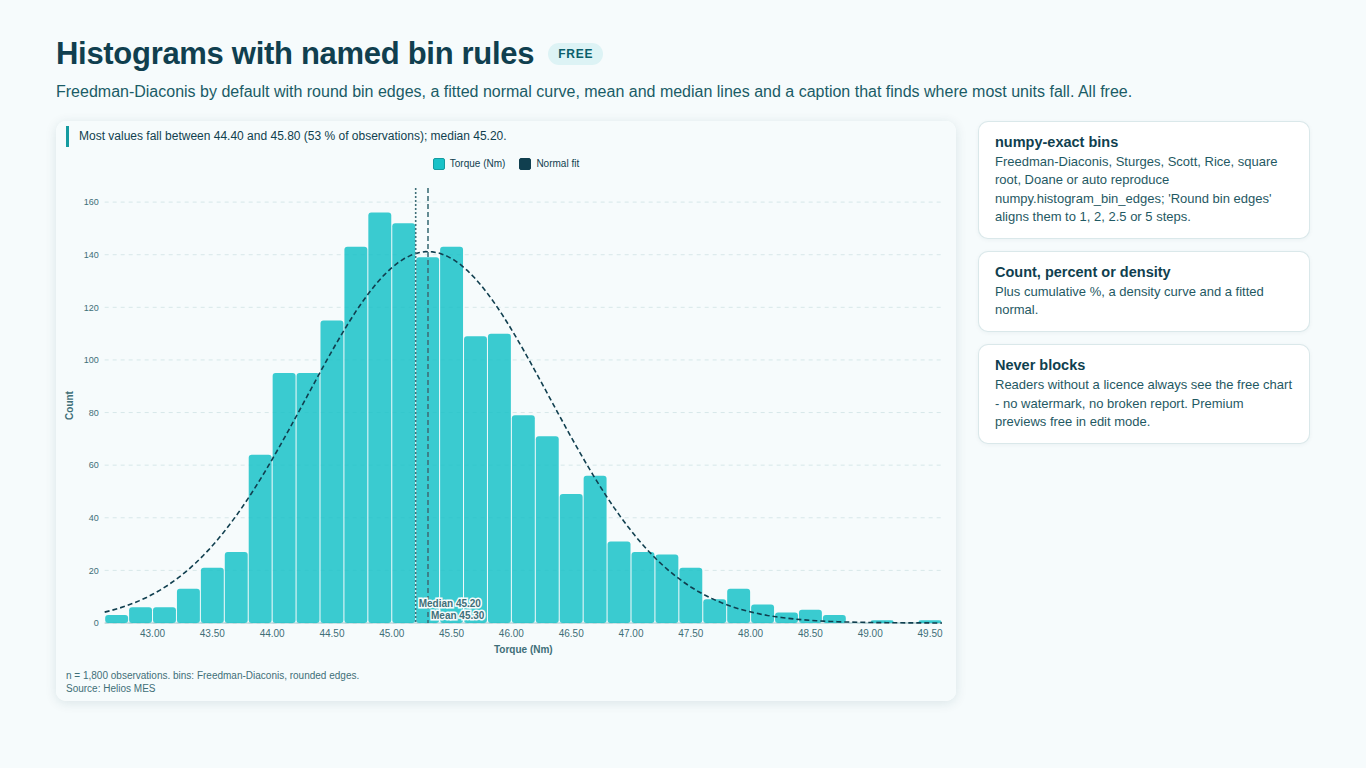
    Histogram in Power BI built with a named bin rule and round bin edges
    Pl. XXIII  ·  Histogram  ·  Histograms with named bin rules and round edges, free.rendered from the shipped visual
    What it does

    SmartVisuals Histogram computes its bins inside the visual, so they follow slicers in Power BI Desktop and in the Service. Freedman-Diaconis, Sturges, Scott, Rice, square root, Doane and auto are named rules with round bin edges; custom edges and a bin start cover the cases where the audience expects a particular grid. Bars show count, percent or density, with a cumulative line, a density curve, a normal curve and percentile lines that match Excel / DAX.

    Premium adds process capability for quality teams: spec limits typed or from LSL, USL and Target measures, Cp, Cpk, Cpl, Cpu, Cpm, Pp and Ppk, ppm expected outside spec and control limits, plus significance between groups, weights, advanced density and small multiples, for $1.99 per user per month or $19 per year with the first month free. Premium previews free in edit mode, readers without a licence always see the free chart, and the visual makes no external calls.

    Search all visuals

    Free and premium

    Where the line is, exactly.

    Report authors see the full premium set in edit mode, so you can evaluate every feature on your own data before assigning a single licence. Unlicensed viewers always get a working chart.

    Free tierevery viewer
    • Bins you can nameFreedman-Diaconis (default), Sturges, Scott, Rice, square root, Doane, auto, a fixed number or a fixed width, with round bin edges.
    • Bins you chooseType your own edges (0, 10, 12, 15, 20) or set where a bin starts; values outside your edges are counted in the footnote.
    • Reference linesMean, median and up to four percentiles (P90, P95), for all data or per group, by the quartile definition you pick.
    • Bars and curvesCount, percent of group or density, with a cumulative % line, a density curve and a fitted normal curve.
    • Groups on shared binsOverlaid, stacked or one row per group, picked automatically until you choose.
    • Dynamic in the ServiceNo Desktop-only bins; up to 150,000 rows or a value column plus Count, a smart caption and a methods footnote.
    • Four themes and native behaviourSmartVisuals, Dark, Clean and Slate themes, keyboard navigation, high-contrast mode and two languages (English, Czech).
    Premium$1.99 /user/mo · first month free
    • Spec limits your wayTyped, or from LSL, USL and Target measures so every product or line is judged against its own specification and follows the slicers.
    • Every capability indexCp, Cpk, Cpl, Cpu, Cpm, Pp and Ppk following AIAG, with Cpm against the target. An index that cannot be computed is not shown.
    • Out of spec and control limitsShare and ppm expected outside spec, and plus or minus 3 sigma control limits.
    • Significance and weightsTests between groups and weighted statistics with an effective base.
    • Advanced density and small multiplesSix density kernels and one panel per plant, product or region on a shared scale.

    How do I make a histogram in Power BI?

    Microsoft retired its own histogram visual in 2022, and the usual replacement is a column chart over a bin column built in Power BI Desktop. Those bins are computed once in the model, so they do not adapt when a slicer narrows the data. SmartVisuals Histogram bins inside the visual: map a row-level key to Sample / ID and a measure to Value, and the bins are computed from the data in every filter state, in Desktop and in the Service alike.

    Add a field to Group to compare lines, shifts or products. Groups share one set of bins and can be overlaid, stacked or drawn as one row per group; the visual picks a sensible arrangement automatically until you choose one.

    Which bin rule should I use?

    Freedman-Diaconis is the default because it is robust to outliers. Sturges, Scott, Rice, square root, Doane and auto are available as named rules, and they reproduce the standard reference implementation exactly, so the chart can be stated in a methods section. A fixed number of bins or a fixed width covers the case where the audience expects a particular grid.

    Round bin edges are on by default: the rule's width is snapped to 1, 2, 2.5 or 5 times a power of ten and the edges align to multiples of it, so bins read as 10 to 12 rather than 9.87 to 11.93. Bins are half-open with the last one closed, and a methods footnote names the rule that was used.

    Can I set my own bin edges?

    Yes, free. Type the edges you need, for example 0, 10, 12, 15, 20, and bins may differ in width; observations outside the first or last edge are not drawn and the footnote counts them. Or keep a fixed width and set where a bin starts, such as 0.5 for bins from 9.5 to 10.5.

    Bars can show count, percent of group or density. A cumulative percentage line, a density curve and a fitted normal curve can be drawn over them; with unequal bin widths the curves appear only when the bars show density, because a count bar and a curve are not comparable then.

    Percentile lines on a histogram: P90, P95 and the median

    Reference lines for the mean, the median and up to four percentiles can be drawn for all data or per group. Percentiles follow the quartile definition you pick, with Excel / DAX inclusive as the default, so a P95 line on the chart is the same number PERCENTILE.INC returns in your model. Excel / DAX exclusive, Tukey's hinges and all nine Hyndman-Fan definitions are available.

    How do I show Cp and Cpk in Power BI?

    Premium adds process capability. Type the spec limits for the whole chart, or map LSL, USL and Target measures from a spec table or product master: every group is then judged against its own specification, and the limits follow the slicers. The visual computes Cp, Cpk, Cpl, Cpu, Cpm, Pp and Ppk following the AIAG SPC manual, the share and ppm expected outside spec, and plus or minus 3 sigma control limits.

    An index that cannot be computed is not shown, never guessed: too few observations, zero spread, crossed limits, a target outside the limits or an ambiguous limit give no index at all. Within-group sigma is taken in production order, so the Sample / ID field should sort the way the parts were made; the footnote names the field. Premium also adds significance between groups, weights, advanced density kernels and small multiples.

    What happens for viewers without a licence?

    They always see the free histogram in full, with bins, curves and reference lines, and the footnote names any premium feature not shown. The visual never blocks a report and never shows a watermark. Every premium feature previews free in edit mode, so a report author can build and check the capability view before anyone buys a licence.

    Use cases

    Where Histogram earns its place.

    Shaft diameters against the drawing tolerance

    A quality engineer maps the part serial number to Sample / ID and the measured diameter to Value. The histogram bins with Freedman-Diaconis and round edges, Bins > Fitted Normal Curve draws the normal fit, and with the licence the Spec Limits & Capability card adds the lower and upper tolerance with Cp, Cpk and the ppm expected outside spec.

    Order values in the bands sales reports use

    Sales maps the order ID to Sample / ID and order value to Value, sets Bins > Binning to Custom bin edges and types 0, 100, 250, 500, 1000. The bars follow the bands the team already talks about, Bins > Bar Height > Percent of group shows the share in each band, and the footnote counts the orders outside the edges.

    Response times with the P95 the service level uses

    IT maps the ticket ID to Sample / ID and response time to Value, turns on Bins > Cumulative % Line and sets Statistic Lines > Percentile Lines to 50, 95. The P95 line is the same number PERCENTILE.INC returns in the model, and the bins follow every slicer in the Power BI Service.

    Each product line against its own specification

    With the licence, map Product Line to Group and the LSL, USL and Spec Target measures from the product master. Bins > Groups > One row per group draws a histogram per line on shared bins, each with its own limits, and every row's tooltip carries its capability indices.

    Getting started

    From empty canvas to first chart.

    1. 01

      Map a row-level key to Sample / ID and a measure to Value. The histogram is binned with Freedman-Diaconis and round edges.

    2. 02

      Choose a bin rule, a fixed count or width, or type your own edges in the format pane.

    3. 03

      Pick count, percent or density bars and add a cumulative line, curves and mean, median or percentile lines.

    4. 04

      Add a field to Group to compare lines or shifts on shared bins; for capability, type spec limits or map LSL, USL and Target measures.

    Get Histogram

    Two ways in.

    Installation instructions for both paths are on the download page.

    Microsoft Marketplace (recommended)

    Reviewed by Microsoft, updates automatically, licences assigned in the Microsoft 365 admin center.

    Open Microsoft Marketplace

    Direct download (1.0.0.0)

    .pbiviz package, import into Power BI Desktop or Service, does not auto-update. Includes the full free tier; premium features preview in edit mode and are licensed through Microsoft Marketplace.

    Download .pbiviz
    Accessibility

    Readable and usable for everyone.

    Tab
    Moves into the chart. The whole chart is one tab stop, and the first bar takes the focus.
    Arrow keys
    Right or Down moves to the next bar, Left or Up to the previous one, through every group's bars in turn.
    Home / End
    Jumps to the first or the last bar.
    Page Up / Page Down
    Moves ten bars back or forward.
    Enter or Space
    With a Group field, filters the report to the focused bar's group. Hold Ctrl to add it to the selection.
    Esc
    Clears the selection.
    • Screen readers

      The chart is labelled with its smart caption, which states where most values fall. As the arrow keys move, a polite announcement reads the focused bar's group, its range and its count, for example "Line A: 10 to 12, 34". This announcement is in English in every report language for now.

    • Visible focus and labelled lines

      The focused bar gets a dashed focus ring. Mean, median and percentile lines carry a text label and a dash pattern of their own, and the curves are named in the legend, so none of them depends on colour alone.

    • High contrast

      In Windows high contrast mode the bars are drawn as outlines in the contrast theme's foreground colour and fills are dropped.

    • Context menu

      With a Group field, right-clicking a bar opens the Power BI context menu for its group; right-clicking elsewhere opens it for the visual.

    • Languages

      The format pane, notes, caption and footnote are available in English and Czech.

    Release notes

    What changed, and when.

    Updates install automatically from Microsoft Marketplace. Full history.

    1. 1.0.0.0

      First release on Microsoft Marketplace.

      • Histograms binned inside the visual, so the bins follow slicers in the Service: seven named bin rules with round edges, a fixed count or width, custom edges, and cumulative, density and normal curves.
      • Spec limits typed or from measures with Cp, Cpk, Cpl, Cpu, Cpm, Pp and Ppk, ppm out of spec, control limits, significance, weights and small multiples (premium).
    Questions

    Asked before you did.

    More questions? See support or write to hello@smartvisuals.io.

    Yes. Bins are computed inside the visual from the rows it receives, so they follow every filter in Power BI Desktop and in the Service. There is no Desktop-only bin column to maintain.

    Never. Unlicensed viewers always see the full free histogram, and the footnote names any premium feature not shown. The visual never blocks a report and never shows a watermark. Every premium feature previews free in edit mode.

    Premium is a per-user licence through Microsoft Marketplace at $1.99 per user per month or $19 per user per year, with the first month free.

    Yes, in Premium. Map LSL, USL and Target as measures and each group is judged against its own limits, which follow the slicers. With a frequency table (value plus Count) there is no production order, so only Pp, Ppk and Cpm are shown and the footnote says so.

    Histogram is the single-view edition and is complete on its own. SmartVisuals Distribution, the multi-view edition at $4.49 per user per month, adds box plot, violin, raincloud, ridgeline and beeswarm views over the same fields with the same premium layer. Licences do not carry across offers: for histograms alone this one is cheaper, with three or more chart types the multi-view is.

    No. The visual requests no privileges and makes no external calls; every statistic is computed offline inside your report.

    Sample / ID (a row-level key such as a measurement, part or order ID) and a Value measure. Without Sample / ID, Power BI sums the values and the histogram gets one value per group; the visual shows a hint. Group adds one histogram per line, shift or product on shared bins, Tooltips takes extra measures, and Weight, Small Multiples and the LSL, USL and Spec Target measures are premium.

    Freedman-Diaconis with round bin edges, because it is robust to outliers. Bins > Binning switches to Sturges, Scott, Rice, square root, Doane, auto, a fixed number of bins, a fixed width or your own edges, and the footnote names the rule in use.

    Power BI sends 30,000 rows per data window and the visual fetches further windows up to 150,000 rows, with a warning icon when it reaches that cap. For larger tables, map the value as a column with a Count measure: each distinct value arrives once and the bins, percentiles and Pp, Ppk and Cpm are the same as with row input.

    Yes. The chart is one tab stop labelled with its smart caption: the arrow keys move between bars, Home and End jump to the ends, Page Up and Page Down move by ten, Enter or Space filters the report to the bar's group (Ctrl adds) and Esc clears. A polite announcement reads each bar's group, range and count, in English for now. Windows high contrast draws the bars as outlines in the system colour.

    English and Czech, for the format pane, the caption, the footnote and the notes.

    Yes. In the Power BI Service, licensed readers see the premium features and others see the free histogram. Where Power BI tells the visual that licences cannot be checked, for example in Power BI Embedded, Publish to web or Power BI Report Server, the premium features stay on rather than lock anyone out.

    Post it on the public board at smartvisuals.io/feedback, where other users can vote and comment, or use the Report a bug block on the support page (smartvisuals.io/support) or email hello@smartvisuals.io. A screenshot and the fields you mapped help most.
    Troubleshooting

    When it does not look right.

    Found a bug or missing something? Post it on the requests board or vote for what others asked; the developer answers within two business days.

    The histogram shows a single bar per group.
    Without Sample / ID, Power BI sums the values per group and the visual receives one number per group; it shows a hint saying so. Map a row-level key, such as a measurement, order or ticket ID, to Sample / ID, or put the value itself in Value (as column) with a Count measure.
    The bin edges are not where I expect them.
    Bins > Round Bin Edges snaps the rule's width to 1, 2, 2.5 or 5 times a power of ten and aligns the edges to it. Turn on Set Bin Start and type where a bin should start, for example 0.5 for bins from 9.5 to 10.5, or choose Fixed bin width or Custom bin edges for full control.
    My custom bin edges are ignored.
    Bins > Bin Edges needs at least two numbers separated by commas or spaces, such as 0, 10, 20; with semicolons a decimal comma works (0; 2,5; 5). With fewer, the visual falls back to Freedman-Diaconis bins and the footnote says so. Values outside the first and last edge are not drawn and the footnote counts them.
    The density or normal curve disappeared.
    With custom bin edges of different widths, a count bar and a curve are not comparable, so the curves are drawn only when Bins > Bar Height is Density; the footnote says so. Equal-width bins show the curves with any bar height.
    Cp, Cpk and control limits are missing while Pp and Ppk show.
    Within-subgroup capability needs the individual observations in production order, from Sample / ID; sort that field the way the parts were made. With Value (as column) and Count the visual only has frequencies, so it shows Pp, Ppk and Cpm and the footnote says why.
    Spec limits, capability or small multiples disappear in reading view.
    These are premium. They render in full while you edit; readers without a licence see the free histogram and a footnote line naming the premium features not shown. Assign the reader a licence in the Microsoft 365 admin center under Billing > Licenses.

    For developers & AI agents

    Add this visual programmatically.

    Use the GUID and data roles below to add Histogram to a Power BI report via PBIR or the Report Authoring agent. Full catalog (JSON)

    Visual GUID
    smartvisualsHistogram0B2CDFBFD376F32FDEA400260852BF18
    RoleDisplay nameKind
    groupGroupGrouping
    seriesSplit ByGrouping
    detailSample / IDGrouping
    valueValueMeasure
    valueColumnValue (as column)Grouping
    countCountMeasure
    weightWeightMeasure
    facetSmall MultiplesGrouping
    tooltipsTooltipsMeasure
    lslLower Spec Limit (LSL)Measure
    uslUpper Spec Limit (USL)Measure
    targetSpec TargetMeasure
    Missing something?

    Tell us what is missing.

    A feature you need, a bug you hit, a visual that does not exist yet. Every message reaches the person who builds these visuals, and feature requests shape what ships next. We also build visuals to order.

    Also in the family