Visuals/Pl. XXVII

    Year in Review

    Your year in review, written by the visual

    Bind a date and a measure, and optionally a category, and bold story cards tell the year in plain language: peak, top lists, streaks, records and milestones, free. Premium judges it against last year, the target and the team.

    Datasheet
    Status
    Available on Microsoft Marketplace
    Price
    $1.99 /user/mo · $19 /user/yr
    Licensing
    Per user, assigned in the Microsoft 365 admin center. Unlicensed viewers see the free tier, never a blocked visual.
    Data
    Computed inside Power BI. No external calls, no API keys, no telemetry.
    Visuals API
    5.11
    Accessibility
    Keyboard paging, screen-reader carousel with full-text alternative, high contrast, reduced motion, pause control
    Languages
    English, Czech, German
    Works in
    Power BI Desktop, Service, Embedded
    Pl. XXVII  ·  Year in Review  ·  the product spotrecorded from the shipped visual
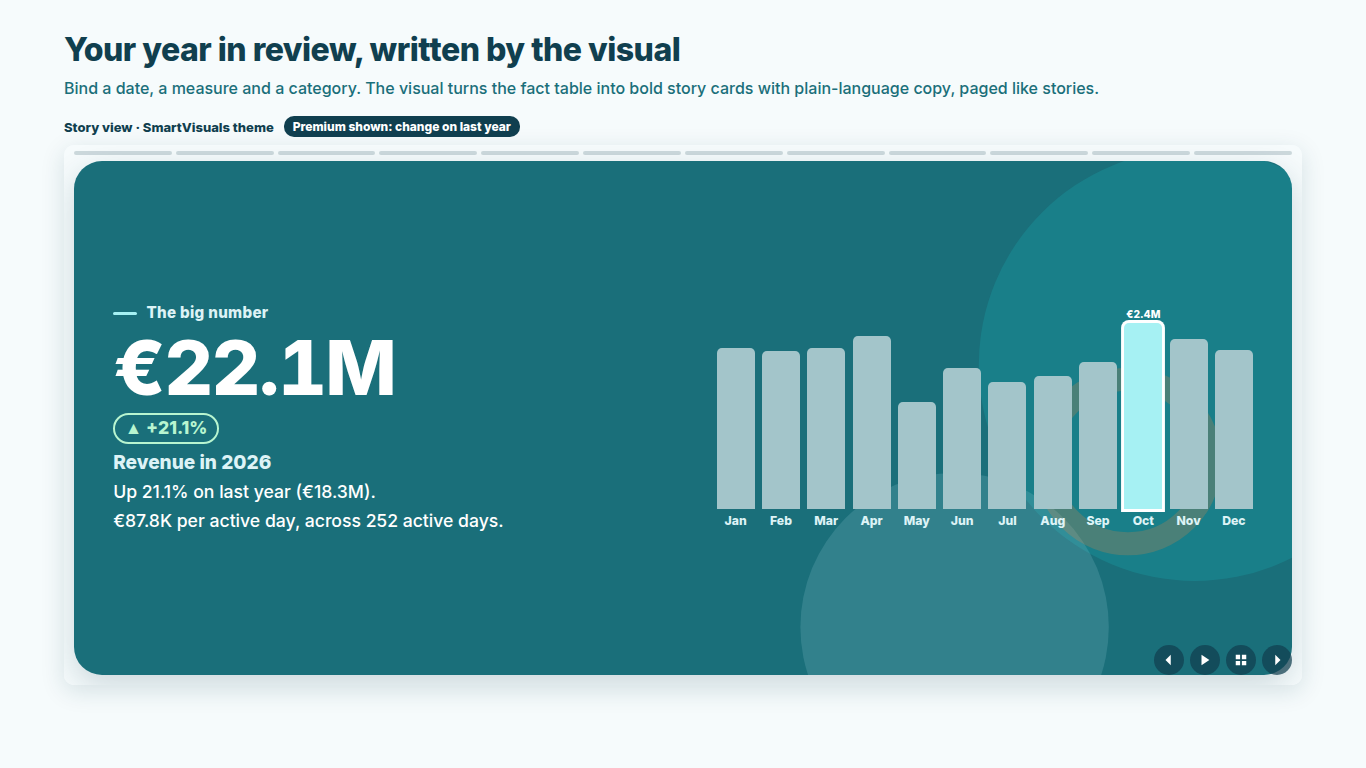
    Power BI year in review story card showing the year's total with the change on last year
    Pl. XXVII  ·  Year in Review  ·  Your year in review, written by the visual. The change on last year is Premium.rendered from the shipped visual
    What it does

    SmartVisuals Year in Review turns any fact table into a year-in-review story. From a Date, a Value and up to two Categories it writes twelve cards in English, Czech or German with real grammar: the headline total, peak month, week and day, top lists, the biggest mover, the longest streak, the weekday rhythm, records, milestones and the halfway date, a personality for the year and a summary. Every edge case gets honest copy, from ties and close races to a year that is still running.

    Premium judges the year: like-for-like comparison with last year across the story, a Target field, and a review for every person or team with peer rank and team awards, plus a card builder and the Confetti, Rays and Stripes art packs. Authors preview every premium feature while editing, and readers without a licence always see the free review: never blocked, never watermarked. The visual makes no network calls and has the Inter font built in.

    Search all visuals

    Free and premium

    Where the line is, exactly.

    Report authors see the full premium set in edit mode, so you can evaluate every feature on your own data before assigning a single licence. Unlicensed viewers always get a working chart.

    Free tierevery viewer
    • Twelve cards the visual writesTotal, peak month, week and day, top lists for two fields, biggest mover within the year, longest streak, rhythm, records, milestones, personality and summary.
    • Honest copy for every caseTies are named, close races are called close, negatives never get shares, a year to date says so and percentages are averaged.
    • Any periodThe latest year, a chosen or fiscal year with any start month, the last 12 months or the whole date range.
    • Story paging and a static gridClick, arrow keys or auto-advance with a pause button for wall screens; press G for every card at once in a static grid.
    • Four themes and a boardroom modeSmartVisuals, Dark, Clean and Slate, the Shapes art style, a calm boardroom style, and your own colours, fonts and text size.
    • Click to filterClick a category on a top list and the rest of the page filters to it.
    • Accessible and in three languagesKeyboard, screen reader, high contrast and reduced motion, with copy and format pane in English, Czech and German.
    Premium$1.99 /user/mo · first month free
    • Last year across the storyLike-for-like change on the total, rank movement and newcomers in the top lists, last year's best month, streak and personality, milestones days earlier or later.
    • TargetAttainment, the day the target was reached or the gap, and months on target, with the counting rule named on the card.
    • For each person or teamA review for every sales rep, team, plant or customer, with rank among peers and team awards.
    • Card builderUp to three cards of your own with live values such as {total} and {top1}, in your own card order.
    • Art packsConfetti, Rays and Stripes decoration on top of the free themes, kept off the text so readability never changes.

    How do I build a year in review in Power BI?

    Bind a Date (a date column or the date hierarchy), a Value measure and up to two Categories, and the visual writes the story itself: an intro, the headline total, the peak month, week and day, top lists for two fields, the biggest mover within the year, the longest streak, the weekday and month rhythm, records, milestones and the halfway date, a personality for the year and a summary. No DAX for each card, no bookmarks, no hand-built pages of cards.

    Pick the period in the Period card: the latest year (a year to date says "so far"), a chosen year, a fiscal year with any start month, the last 12 months or the whole date range. Values can be summed or averaged, and every card can be shown or hidden.

    Does the copy handle ties, partial years and odd data?

    Yes. Ties are named, a lead too small to show is called a close race, negative values never get shares, a year to date says so, monthly tables never get a daily peak and percentages are averaged rather than added. Sparse data, a single category and an all-zero year each get their own honest wording.

    Additive measures such as revenue, units, orders or hours fit most naturally. For a rate, the visual averages daily values and says so on the card. Up to 150,000 rows are read; if that limit cuts off the period under review, the visual says so and suggests sorting by date descending, filtering or aggregating.

    Story paging on a wall screen or a static grid for the meeting

    Story view pages like stories: click a card (the left third goes back, the rest forward), use the arrow keys, or turn on auto-advance with progress bars and a visible pause button. Auto-advance pauses on hover and focus. Press G for the grid of every card at once; the Grid view is fully static and readable.

    Four themes have their own personality (SmartVisuals, Dark, Clean and Slate), with the Shapes art style and a calm boardroom mode that shows the same story as plain cards. Every colour, font and text size is adjustable, and clicking a category filters the rest of the page.

    Can I compare this year with last year and against a target?

    With Premium, the comparison with the same period last year runs across the story, like for like: the total and summary, rank movement and newcomers in the top lists, last year's strongest month, last year's longest streak, milestones reached days earlier or later, last year's personality and the mover against last year. The comparison needs last year in the report's filter context, and when last year's data starts late or stops early, the card says so instead of printing a misleading percentage.

    A Target field adds attainment, the day the target was reached (or the gap) and months on target. A target that repeats on every category row counts once, one that differs by category is added up, and the card names the rule it used.

    How do I make a year in review for every sales rep or team?

    Bind a For each field in Premium and every sales rep, team, plant or customer gets a review of their own, with rank among peers such as "#2 of 8" and team awards: highest total, most improved, longest streak, biggest day and most consistent. The awards tile opens the overview; click a person to open their review and press Escape to return.

    The Gallery display lays everyone's key cards out in rows, static and sized to the visual, and counts anyone who does not fit instead of cutting them off. A card builder adds up to three cards of your own with live values such as {total} and {top1}, in your own card order.

    Is a year-in-review visual accessible?

    Accessibility is free for everyone. The story follows the carousel pattern for screen readers, with slides announced as "Card 3 of 11" and a full-text alternative; the keyboard pages and pauses the story; high-contrast mode uses the host palette with no colour-only meaning; and the reduced-motion preference shows the final frame at once and turns auto-advance off. Text and mark colours are contrast-tested on every card.

    Use cases

    Where Year in Review earns its place.

    A year in review for the whole company

    Map the order date to Date, revenue to Value and Product and Region to Categories. The visual writes the story: the headline total, the peak month, week and day, the top products and regions, the biggest mover within the year, the longest streak, records, milestones, a personality for the year and a summary. Put it on the landing page of the year-end report.

    A review for every sales rep

    With the licence, map Sales rep to For each. Everyone gets their own review with rank among peers, such as "#2 of 8", and the team awards card names the highest total, the most improved, the longest streak, the biggest day and the most consistent. Show > Everyone side by side opens a person's review on click; Escape returns.

    This year against last year and the target

    With the licence, Comparison runs last year through the story like for like: the change on the total, rank movement and newcomers in the top lists, last year's best month and streak. A Target measure adds attainment, the day the target was reached or the gap, and months on target. The model must have last year's data in the report's filter context.

    A wall screen in the office

    Story view with View > Advance Automatically pages through the cards with progress bars, pauses on hover and has a visible pause button. For a meeting, press G or set View to the grid of every card at once.

    Getting started

    From empty canvas to first chart.

    1. 01

      Add SmartVisuals Year in Review and bind a Date, a Value measure and up to two Categories.

    2. 02

      Page with a click on a card (the left third goes back), the arrow keys or auto-advance; press G for the grid of every card.

    3. 03

      In the Period card pick the year, a fiscal start month or the last 12 months; in the Cards card show or hide any card.

    4. 04

      To try Premium, turn on Comparison, bind Target or For each, or open Card builder; everything previews in full while you edit.

    Get Year in Review

    Two ways in.

    Installation instructions for both paths are on the download page.

    Microsoft Marketplace (recommended)

    Reviewed by Microsoft, updates automatically, licences assigned in the Microsoft 365 admin center.

    Open Microsoft Marketplace

    Direct download (1.0.0.0)

    .pbiviz package, import into Power BI Desktop or Service, does not auto-update. Includes the full free tier; premium features preview in edit mode and are licensed through Microsoft Marketplace.

    Download .pbiviz
    Accessibility

    Readable and usable for everyone.

    Tab
    Moves into the story. The previous, next, pause and grid buttons and the items on the top lists are buttons of their own.
    Right arrow or Page Down
    Shows the next card.
    Left arrow or Page Up
    Shows the previous card.
    Home / End
    Jumps to the first or the last card.
    Up / Down arrow
    With For each (premium), moves to the previous or next person's review.
    G
    Switches between the story and the grid of every card.
    Space or K
    Pauses or resumes automatic advance. Space does this when the story itself has the focus; on a button it presses the button.
    Esc
    In For each shown side by side, returns from a person's review to everyone; otherwise clears the selection.
    • Screen readers

      The story follows the carousel pattern: the visual is a region labelled Year in review and each card is a slide labelled with its position, such as "Card 3 of 11", and its heading. When you page with the keyboard or the buttons, the new card's text is announced politely. A hidden full-text version of the story is always present, and in the For each overview it lists each person's total and the team awards.

    • Pause and motion

      Automatic advance has a visible pause button and pauses while the pointer is over the visual (Pause On Hover, on by default) and while the keyboard focus is inside it. View > Motion sets Full, Subtle (fade only) or Off. When the operating system asks for reduced motion, cards show their final frame at once and automatic advance is turned off.

    • High contrast

      In Windows high contrast mode the cards are drawn in the colours of the contrast theme, so no meaning rests on the theme colours. Text and mark colours of the built-in themes are contrast-tested on every card.

    • Context menu

      Right-click opens the Power BI context menu, for the clicked category when there is one.

    • Languages

      The generated story and the format pane are available in English, Czech and German; Text > Language follows the report by default.

    Release notes

    What changed, and when.

    Updates install automatically from Microsoft Marketplace. Full history.

    1. 1.0.0.0

      First release on Microsoft Marketplace.

      • Twelve story cards written from a date and a measure, in English, Czech and German, with story paging and a static grid.
      • Comparison with last year, Target, For each with peer rank and team awards, card builder and art packs (premium).
    Questions

    Asked before you did.

    More questions? See support or write to hello@smartvisuals.io.

    Every card about the year itself is free: total, peak, top lists, mover within the year, streak, rhythm, records, milestones, personality and summary, with all periods, themes, boardroom mode, cross-filtering and accessibility. Premium adds the comparison with last year across the story, Target, For each with peer rank, team awards and the gallery, the card builder and the art packs for $1.99 per user per month or $19 per user per year, with the first month free, through Microsoft Marketplace.

    Never. Readers without a licence see the free review on every page: a premium page falls back to the free story, For each becomes one combined review and premium art falls back to the free style. At most a short licence notice from Power BI appears, and only on visuals where the author set up a premium feature. The visual is never blocked and never watermarked, and every premium feature previews free in edit mode.

    A fact table with a date, a measure and optionally one or two category fields. Daily, weekly or monthly rows all work; a monthly table simply never gets a daily peak. Additive measures fit most naturally, and for a rate the visual averages daily values and says so on the card.

    English, Czech and German, with plural rules and real grammar in the generated copy, and a format pane translated into all three.

    No. The visual makes no network calls of any kind, has no telemetry, uses no browser storage and requests no privileges; the Inter font is embedded in the package and every card is written inside your report.

    Up to 150,000 rows. If that limit cuts off the period under review, the visual says so and suggests sorting the visual by the date field descending, filtering the report or removing a category.

    Yes. With View > Advance Automatically the story pages itself with progress bars; it pauses on hover (Pause On Hover, on by default), while the keyboard focus is inside it and with the visible pause button. Automatic advance is off when the viewer's system asks for reduced motion and where Power BI does not allow interaction, such as dashboard tiles.

    Yes. Press G, or set View > View to Grid (all cards, static). On Auto, the visual shows the story where readers can interact and the static grid where they cannot, such as dashboard tiles. With For each (premium), the Gallery display lays everyone's key cards out in static rows.

    Yes. The arrow keys and Page Up / Page Down page through the cards, Home and End jump to the first and last, G switches to the grid, Space or K pauses and Esc goes back from a person's review in For each. The story follows the carousel pattern for screen readers with a full-text alternative, and it supports Windows high contrast and reduced motion, all in the free tier.

    Yes. In the Power BI Service, licensed readers see the premium features and others see the free review. Where Power BI tells the visual that licences cannot be checked, for example in Power BI Embedded, Publish to web or Power BI Report Server, the premium features stay on rather than lock anyone out.

    Post it on the public board at smartvisuals.io/feedback, where other users can vote and comment, or use the Report a bug block on the support page (smartvisuals.io/support) or email hello@smartvisuals.io. A screenshot, the fields you bound and the period you chose help most.
    Troubleshooting

    When it does not look right.

    Found a bug or missing something? Post it on the requests board or vote for what others asked; the developer answers within two business days.

    The visual says there is no data in the period.
    Period > Period decides which year is told: the latest year in the data, a chosen year, the last 12 months or the whole date range, with Period > Year Starts In for a fiscal year. Check that the report filters leave data in that period, and that Date is a date column or a date hierarchy.
    The story says "so far" and the year looks short.
    The data stops before the end of the period, so Period > Year Is on Auto treats it as a year to date and says so. Choose Complete there if the data really is complete, or pick another period.
    The total looks wrong for a rate or a percentage.
    Period > Combine Values By is Auto by default: percentages are averaged, everything else is summed. For a rate that is not formatted as a percentage, choose Average there.
    A message says only the first rows could be loaded.
    The visual reads up to 150,000 rows. If that cuts off the period under review, it says so; sort the visual by the date field descending so the newest rows come first, filter the report or remove a category to reduce the rows.
    Readers see the free story without last year, the target or For each.
    Comparison, Target, For each, custom card order, the card builder and the Confetti, Rays and Stripes art packs are premium. They render in full while you edit; readers without a licence see the free review, For each becomes one combined review and premium art falls back to the free style, with one licence notice from Power BI. Assign a licence in the Microsoft 365 admin center under Billing > Licenses.
    In For each, some people are missing from the overview.
    For each > Most Tiles (24 by default, up to 100) limits the side-by-side overview, and a note says how many more there are; the Gallery counts the rows that do not fit the visual's height. Raise Most Tiles, make the visual taller or filter the report.
    A dashboard tile shows the grid of all cards, not a story card.
    View > View on Auto shows the story where readers can interact and the static grid where they cannot, such as dashboard tiles, and automatic advance never runs there. Choose Story (one card at a time) in View > View to show a single card there.

    For developers & AI agents

    Add this visual programmatically.

    Use the GUID and data roles below to add Year in Review to a Power BI report via PBIR or the Report Authoring agent. Full catalog (JSON)

    Visual GUID
    wrappedYearInReview590CC3915B59468CB5347877640DE889
    RoleDisplay nameKind
    dateDateGrouping
    valueValueMeasure
    categoryCategoriesGrouping
    forEachFor Each (Premium)Grouping
    targetTarget (Premium)Measure
    Missing something?

    Tell us what is missing.

    A feature you need, a bug you hit, a visual that does not exist yet. Every message reaches the person who builds these visuals, and feature requests shape what ships next. We also build visuals to order.

    Also in the family