Visuals/Pl. XXXII

    Process Metro Map

    How long, not just how many

    A process as a metro line: stations are stages, line width is traffic, every gap shows the drop-off. Premium adds the clock: leg times, late legs against a target and what changed since last period.

    Read the documentationComing soon to Microsoft Marketplace
    Datasheet
    Status
    Coming soon to Microsoft Marketplace
    Price
    $1.99 /user/mo · $19 /user/yr
    Licensing
    Per user, assigned in the Microsoft 365 admin center. Unlicensed viewers see the free tier, never a blocked visual.
    Data
    Computed inside Power BI. No external calls, no API keys, no telemetry.
    Visuals API
    5.11.0
    Accessibility
    One tab stop with arrow-key navigation, screen-reader table, high contrast with line patterns, reduced motion, clocks and bullets so nothing depends on colour
    Free tier
    One line, up to 6 stages
    Data limit
    Up to 3,000 stage, order and line combinations
    Works in
    Power BI Desktop, Service, Embedded
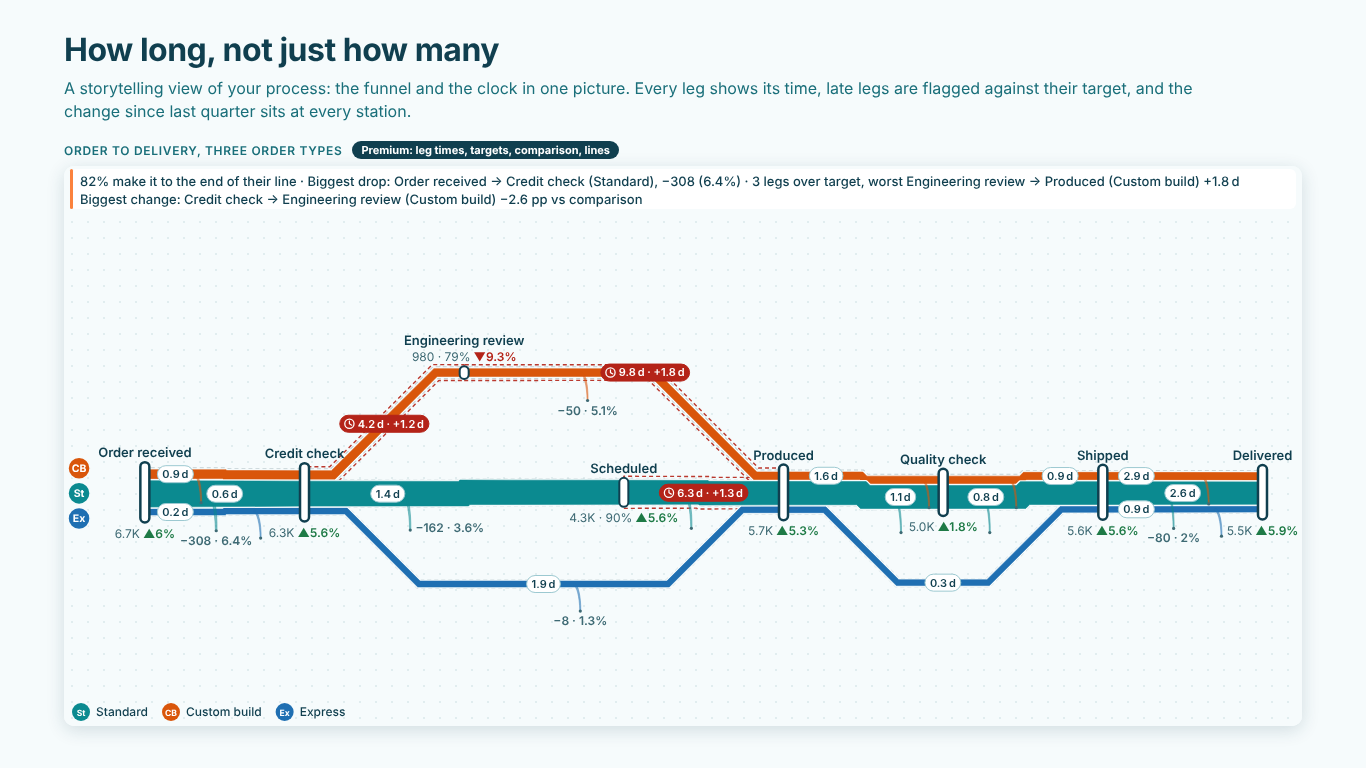
    Process metro map in Power BI of order to delivery with three lines, leg times, late legs with clocks, changes at each station and an insight sentence
    Pl. XXXII  ·  Process Metro Map  ·  Order to delivery on three lines: leg times, late legs flagged with a clock and the change since last quarter (Premium).rendered from the shipped visual
    What it does

    SmartVisuals Process Metro Map puts the funnel and the clock in one picture. Bind a Stage and a Traffic measure and the line narrows as traffic leaves, with an exit at every gap showing how many dropped off and their share. Add Time From Previous Stage, Target Time and Comparison Volume and each leg shows how long it took, which legs ran late and how traffic changed since the comparison period.

    The free tier draws one funnel of up to six stages with conversion, drop-offs, four themes, boardroom mode and full accessibility, with no watermark and no time limit. Premium adds more stages, several lines and the time story for $1.99 per user per month or $19 per user per year. Nothing leaves your report: no network calls, no tracking and no external fonts.

    Search all visuals

    Free and premium

    Where the line is, exactly.

    Report authors see the full premium set in edit mode, so you can evaluate every feature on your own data before assigning a single licence. Unlicensed viewers always get a working chart.

    Free tierevery viewer
    • One funnel of up to six stagesBind a Stage and a Traffic measure; Stage Order sets the order, otherwise stations order by traffic.
    • Drop-offs and entries at every gapThe line narrows as traffic leaves. Every drop-off leaves the line as an exit with its count and share; traffic that joins mid-way joins as an entry.
    • Labels at every stationTraffic, share of start, share of previous station, or two together. Stations can be numbered.
    • Four themes, every colour, boardroom modeSmartVisuals, Dark, Clean and Slate, every colour yours, a per-line colour that accepts conditional formatting (fx), moving trains for wall screens and a boardroom mode that shows the same numbers as a plain table.
    • Readable at any sizeHorizontal, vertical or automatic. A small tile angles the names, then shows every other one, then drops values, before anything overlaps or is cut. A minimum text size can be set.
    • Built for real reportsClick a station to cross-filter, click a line to filter the line, Ctrl+click for several, right-click for the context menu. Highlights from other visuals draw as a bright core inside each line. Tooltips on every station and leg, plus your own tooltip measures.
    • Accessible, in every tierOne tab stop, arrow keys from station to station, a screen-reader table, Windows high contrast with a stripe pattern per line, and reduced motion honoured or forced.
    • No watermark, no time limitThe free map is a finished visual. Nothing leaves your report: no network calls, no tracking, no external fonts.
    Premium$1.99 /user/mo · first month free
    • Leg timesBind Time From Previous Stage and every leg carries its time in days, hours, minutes, weeks or months; the end-to-end time is in the last station's tooltip.
    • Target Time (SLA)Legs over their target get a clock and the overrun, a dashed works-zone outline and a line in the insight sentence. Never colour alone.
    • Time heatEvery leg coloured by its time against the median leg, from quicker to slower, no target needed. The badges keep the numbers.
    • Comparison VolumeLast quarter, last year or plan. The change shows at every station with an arrow, the comparison width runs as a casing behind each line, and the insight names the leg whose conversion moved most.
    • The insight sentenceHow many reach the end, the biggest drop, the slowest leg, how many legs ran late and the biggest change. Computed offline in your report's number format.
    • Real processesMore than six stages, and several lines. Bind a Line field and each value becomes a metro line; shared stages become interchanges, a branch leaves the main line and rejoins it, an express line bypasses the stations it skips.

    How do I show how long each stage of a process takes in Power BI?

    A funnel chart answers how many reached each stage. The review meeting usually asks a second question: how long did it take to get there, and which step is holding things up? SmartVisuals Process Metro Map draws both in one picture. Stations are the stages, the line width is the traffic, every gap between two stations shows how many dropped off, and with Premium each leg carries its time from the previous stage.

    It is a presentation view of an ordered process built from one row per stage, for sales pipelines, hiring, order to delivery, claims or tickets. It is not a process-mining tool: it does not read event logs or discover process variants. You prepare the stage counts and times as measures, and the visual tells the story.

    Which fields does the metro map need?

    Two fields draw the map: Stage (Station) for the stage names and Traffic (Volume) for how many reached each stage. Stage Order sets the order of the stations with a number or sortable text; without it, stations are ordered by traffic, largest first. Line (Path) turns each value, such as an order type, channel or site, into its own metro line.

    Premium adds three measures: Time From Previous Stage (the average or median time it took to reach this stage from the one before), Target Time (the time a leg should take) and Comparison Volume (the same traffic for last quarter, last year or plan). Tooltips takes up to eight extra measures.

    How do I find the slow leg and the late leg?

    Bind Time From Previous Stage and every leg carries a badge with its time, in days, hours, minutes, weeks or months; the end-to-end time is in the last station's tooltip. Leg Times > Time Heat colours each leg by its time against the median leg, from quicker to slower, so the slow leg stands out without a target. The badges keep the numbers and the legend shows the quicker-to-slower key.

    Bind Target Time and every leg over its target gets a clock, the overrun ("+1.2 d") and a dashed outline. The Insight Strip writes one sentence above the map: how many reach the end, the biggest drop, the slowest leg, how many legs ran late and, with a Comparison Volume, the leg whose conversion moved most.

    Can it show branches, parallel paths and more than six stages?

    Yes, with Premium. Bind a Line field and each value becomes a metro line. A stage that several lines share becomes an interchange, a line that leaves the main line and rejoins it is drawn as a branch, and an express line that skips stations bypasses them on its own track. The line with the most traffic at its first station is the main line, drawn in the middle.

    The free tier draws one line of up to six stages. Readers without a licence see the free map and a short notice from Power BI, never a blank or watermarked visual: past six stages the first six are shown with a note such as "Showing 6 of 7 stages", and several lines show as their total ("All Order Type") when they share the same stages, or as the main line by name when they branch.

    What does the data need to look like?

    A flat table with one row per line and stage, or event-level data that Power BI aggregates, as long as the Traffic measure counts what reached each stage. A blank traffic value counts as zero. A negative or invalid value also counts as zero and is reported in the visual's warning icon, and rows without a stage name are skipped and counted there too.

    Two rows for the same line and stage are merged: traffic and comparison add up, while times and targets are averaged weighted by traffic. The visual reads up to 3,000 stage, order and line combinations. Time From Previous Stage is shown in the unit you choose in Leg Times > Time Unit; the visual labels the number, it does not convert it, so the measure must already be in that unit.

    Will it fit a small tile or a wall screen?

    Orientation is Horizontal, Vertical or Auto, which turns the map vertical on a tall tile. When space runs short, names are angled first, then every other name is shown, then values are dropped, before anything overlaps or is cut; the tooltip, the keyboard and the screen-reader table keep every value. Accessibility > Minimum Text Size stops labels from shrinking below a size you set.

    Four themes (SmartVisuals, Dark, Clean and Slate) each have their own station and interchange style. Animation > Moving Trains runs small cars along the lines for wall screens, and Layout > Style > Plain table (boardroom mode) shows the same numbers as a table with traffic bars when a meeting wants no metro at all.

    Use cases

    Where Process Metro Map earns its place.

    Order to delivery with late legs flagged

    An operations team at the Chicago plant binds Stage to the order stage (Order received, Credit check, Scheduled, Produced, Quality check, Shipped, Delivered), Stage Order to its step number, Traffic to a distinct count of orders, Time From Previous Stage to the average days per leg and Target Time to the agreed days per leg. Each leg shows its time, and the legs over target get a clock and the overrun, so the review starts at the leg that ran late (Premium).

    One process, three order types

    Bind Line (Path) to the order type (Standard, Custom build, Express) and each becomes a metro line. Custom build leaves the main line for Engineering review and rejoins it at Produced, and Express bypasses the stations it skips. Readers see where each order type loses volume and how long each one waits at every leg (Premium).

    A free hiring funnel for the monthly review

    HR binds Stage to Applied, Screened, Phone interview, Onsite interview, Offer and Hired, Stage Order to the step and Traffic to a count of candidates. The line narrows at every step with the drop-off count and share as an exit, Stations > Number The Stations numbers each stop, and Layout > Style > Plain table (boardroom mode) shows the same figures as a table. Six stages and one line are free.

    What changed since last quarter

    A sales team adds a Comparison Volume measure with last quarter's opportunities per stage next to this quarter's Traffic, and turns on Insight Strip > Show Insights. Every station shows its change with an arrow, the comparison width runs as a casing behind the line, and the sentence above the map names the leg whose conversion moved most (Premium).

    Getting started

    From empty canvas to first chart.

    1. 01

      Add the visual and bind Stage (Station) and a Traffic (Volume) measure, such as a distinct count of the orders that reached each stage.

    2. 02

      Bind Stage Order to put the stations in process order; without it they are ordered by traffic, largest first.

    3. 03

      For parallel paths bind Line (Path), such as an order type or site; for the time story bind Time From Previous Stage, Target Time and Comparison Volume (Premium).

    4. 04

      Set the unit in Leg Times > Time Unit to match your time measure, then turn on Insight Strip > Show Insights or Leg Times > Time Heat if you want them.

    5. 05

      Pick a theme and label content under Stations and Drop-offs; Layout > Style switches to the plain boardroom table.

    Get Process Metro Map

    On its way.

    Installation instructions for both paths are on the download page.

    Microsoft Marketplace (recommended)

    The offer is prepared for Microsoft Marketplace and not published yet. This page will link to the listing the moment it is live.

    Coming soon
    Accessibility

    Readable and usable for everyone.

    Tab
    Moves to the map, which is one tab stop. The first station of the main line takes the focus ring.
    Left / Right arrow
    Moves to the previous or next station on the current line. In a vertical map, Up and Down do this.
    Up / Down arrow
    Changes line: at an interchange to the same station on the neighbouring line, otherwise to the nearest station of that line. In a vertical map, Left and Right do this.
    Home / End
    Jumps to the first or the last station of the current line.
    Enter or Space
    Selects the focused station and cross-filters the page. Hold Ctrl to add it to the selection.
    Shift+F10 or the menu key
    Opens the Power BI context menu for the focused station.
    Esc
    Clears the selection.
    P
    Pauses or resumes the moving trains, when Animation > Moving Trains is on.
    • Screen readers

      The map is labelled with what it shows, such as "Metro map, 9 stations on 3 lines" or "Metro map of Standard, 6 stations", and how to move around it; in the free view the label adds "Showing 6 of 7 stages". As the focus moves, a polite live region reads the station name, its line, its position ("Station 3 of 7") and its tooltip values. A visually hidden table lists every stage with its traffic, share of start, share of previous station, drop-off and, when bound, time, target and change.

    • Not colour alone

      Every line starts with a bullet holding its initials, and the legend repeats bullet and name. A late leg carries a clock glyph, the overrun and a dashed outline, changes at stations carry an up or down arrow, and time heat keeps the time on every badge with a quicker-to-slower key in the legend.

    • High contrast

      In Windows high contrast mode the map uses the contrast theme's foreground and background colours, every line gets its own stripe pattern, the focus ring uses the system colour and time heat is switched off. Bullets, names, clocks and arrows still identify lines and late legs.

    • Reduced motion

      With Accessibility > Reduce Motion set to Follow system setting (the default), the viewer's reduced-motion preference turns off the draw-in and the moving trains, leaving the final map only. Always reduce forces this for everyone; Off (always animate) ignores the preference. Export and print always get the finished map.

    • Context menu

      Right-clicking a station or a line, or pressing Shift+F10 or the menu key on the focused station, opens the Power BI context menu for it; right-clicking elsewhere opens it for the visual.

    • Focus Outline Color and Focus Outline Width

      Accessibility > Focus Outline Color sets the colour of the keyboard focus ring around the focused station (empty follows the theme; high contrast always uses the system colour). Focus Outline Width sets its width from 1 to 8 px, 2 px by default.

    • Minimum Text Size

      Accessibility > Minimum Text Size (px, 0 = Off) keeps every label at or above the size you set. When the tile is too small, labels are left out rather than shrunk; the tooltip, the keyboard and the screen-reader table still have them.

    • Line Patterns

      Accessibility > Line Patterns gives every line its own stripe pattern so lines are told apart without colour: In high contrast (the default), Always or Off.

    • Languages

      The format pane and the text the visual writes follow the Power BI language. They are translated into Czech, Slovak, German, French, Spanish and Portuguese (Brazil); in other languages the visual uses English.

    Questions

    Asked before you did.

    More questions? See support or write to hello@smartvisuals.io.

    The free tier draws one line of up to six stages with traffic as line width, drop-offs and entries, conversion labels, four themes, every colour, moving trains, boardroom mode and full accessibility, with no watermark and no time limit. Premium adds more than six stages, several lines, leg times, Target Time, Comparison Volume, time heat and the insight sentence for $1.99 per user per month or $19 per user per year, with a one-month free trial.

    The visual has been prepared for Microsoft Marketplace and is not published yet. This page will link to the listing once it is live.

    The free map, never a blank or watermarked visual. In edit mode every Premium feature can be tried. In reading view Power BI shows a short notice naming what the licence unlocks; leg times, targets, comparison, time heat and the insight sentence are left out; past six stages the first six are shown with a note such as "Showing 6 of 7 stages"; and several lines show as their total, or as the main line by name when they branch, so one line never passes for the whole pipeline.

    No. The visual makes no network calls, uses no tracking and loads no external fonts. Every number, including the insight sentence, is computed inside the visual in your report.

    Stage (Station) and Traffic (Volume) are required. Stage Order, Line (Path) and Tooltips (up to eight measures) are optional. Time From Previous Stage, Target Time and Comparison Volume are Premium measures for leg times, late legs and the comparison period.

    The free tier draws one line of up to six stages. With Premium there is no fixed cap on stages or lines; the visual reads up to 3,000 stage, order and line combinations, and on a small tile it drops names and values before anything overlaps, keeping them in the tooltip and the screen-reader table.

    Leg Times > Time Unit labels the number from your measure; it does not convert it. Set Time Unit to Hours, or choose "Use the measure's format" to show the number with the measure's own format string. Decimals sets the precision.

    By Stage Order when it is bound: numerically when every value is a number, otherwise in natural text order. Without Stage Order, stations are ordered by traffic, largest first. With several lines, the line with the most traffic at its first station is the main line; a line that goes back to an earlier stage is drawn as a dashed return leg.

    Bind a Comparison Volume measure, such as the traffic for the previous quarter or a plan figure (Premium). Each station shows its change with an arrow, the comparison width runs as a casing behind each line, and the insight sentence names the leg whose conversion moved most. Comparison > More Traffic Is sets whether an increase counts as good or bad.

    Yes, in every tier. The map is one tab stop: the arrow keys move from station to station and between lines at an interchange, Home and End jump to the ends, Enter or Space selects (Ctrl adds), Shift+F10 or the menu key opens the context menu and Esc clears. Each station is read aloud as you move, and screen readers get a table of every stage, its traffic, shares, drop-off and times.

    Yes. Every line uses the contrast theme's foreground colour with its own stripe pattern, and the focus ring uses the system colour. Line bullets with initials and names tell lines apart, late legs carry a clock and the overrun, and time heat is switched off, so nothing depends on colour.

    Post it on the public board at smartvisuals.io/feedback, where other users can vote and comment, or use the Report a bug block on the support page (smartvisuals.io/support) or email hello@smartvisuals.io. A screenshot and the fields you bound help most.
    Troubleshooting

    When it does not look right.

    Found a bug or missing something? Post it on the requests board or vote for what others asked; the developer answers within two business days.

    The stations are in the wrong order.
    Without Stage Order, stations are ordered by traffic, largest first, so a stage that gains traffic jumps ahead. Bind a step number or sortable text to Stage Order. When every value is a number the order is numeric; otherwise it is natural text order, where "9 Produced" comes before "10 Shipped" but "Produced" comes before "Scheduled", so prefer a step number over stage names. Stages with the same step line up in the same column.
    The badges say days, but my measure is in hours.
    Leg Times > Time Unit labels the number from Time From Previous Stage; it does not convert it. Set Time Unit to the unit your measure returns (Days, Hours, Minutes, Weeks or Months), or choose "Use the measure's format" to use the measure's own format string. Leg Times > Decimals sets the precision.
    Readers see only six stations, or one line instead of several.
    Readers without a Premium licence in reading view see the free tier: one line of up to six stages, with a note such as "Showing 6 of 7 stages". Lines that call at the same stages are summed into one line named "All" followed by the Line field name; a branching network shows its main line by name. Leg times, targets, comparison, time heat and the insight sentence are left out. Nothing is blocked or watermarked, and in edit mode every Premium feature can be tried.
    A warning icon says some rows were not drawn as they are.
    A negative or invalid Traffic value counts as 0 and is counted in the warning, and rows without a stage name are skipped and counted. A blank Traffic value counts as 0 without a warning. Check the Traffic measure and the Stage column for those rows.
    A line called (Blank) appears.
    Rows with an empty Line (Path) value are drawn as their own line named (Blank). Filter those rows out, or fill the line value in the data.
    Names or values disappear on a small tile.
    When space runs short, the visual angles the names, then shows every other name, then drops values, rather than letting labels overlap or be cut; the tooltip, the keyboard and the screen-reader table keep them. Make the tile larger, set Layout > Orientation to Vertical for a tall tile, lower Stations > Name Size or Value Size, or set Stations > Angled Names to Always. Accessibility > Minimum Text Size makes the visual drop labels rather than shrink them below that size.

    For developers & AI agents

    Add this visual programmatically.

    Use the GUID and data roles below to add Process Metro Map to a Power BI report via PBIR or the Report Authoring agent. Full catalog (JSON)

    GUID available after the visual is published on Microsoft Marketplace.

    RoleDisplay nameKind
    stageStage (Station)Grouping
    stepStage OrderGrouping
    lineLine (Path)Grouping
    volumeTraffic (Volume)Measure
    durationTime From Previous StageMeasure
    targetTarget TimeMeasure
    compareComparison VolumeMeasure
    tooltipsTooltipsMeasure
    Missing something?

    Tell us what is missing.

    A feature you need, a bug you hit, a visual that does not exist yet. Every message reaches the person who builds these visuals, and feature requests shape what ships next. We also build visuals to order.

    Also in the family