Visuals/Pl. XXIX

    Data Freshness

    Every reader knows how fresh the numbers are

    Last refresh time and status, data coverage and freshness, in each reader's own time zone, with a reason when the data is not fresh. Completely free.

    Datasheet
    Status
    Available on Microsoft Marketplace
    Price
    Free, no licence
    Licensing
    Nothing to assign. Every feature for every viewer.
    Data
    Computed inside Power BI. No external calls, no API keys, no telemetry.
    Visuals API
    5.11
    Accessibility
    Icon shape and word for every state, keyboard focus, screen-reader labels, high contrast
    Languages
    English, Czech, German
    Works in
    Power BI Desktop, Service, Embedded
    Pl. XXIX  ·  Data Freshness  ·  the product spotrecorded from the shipped visual
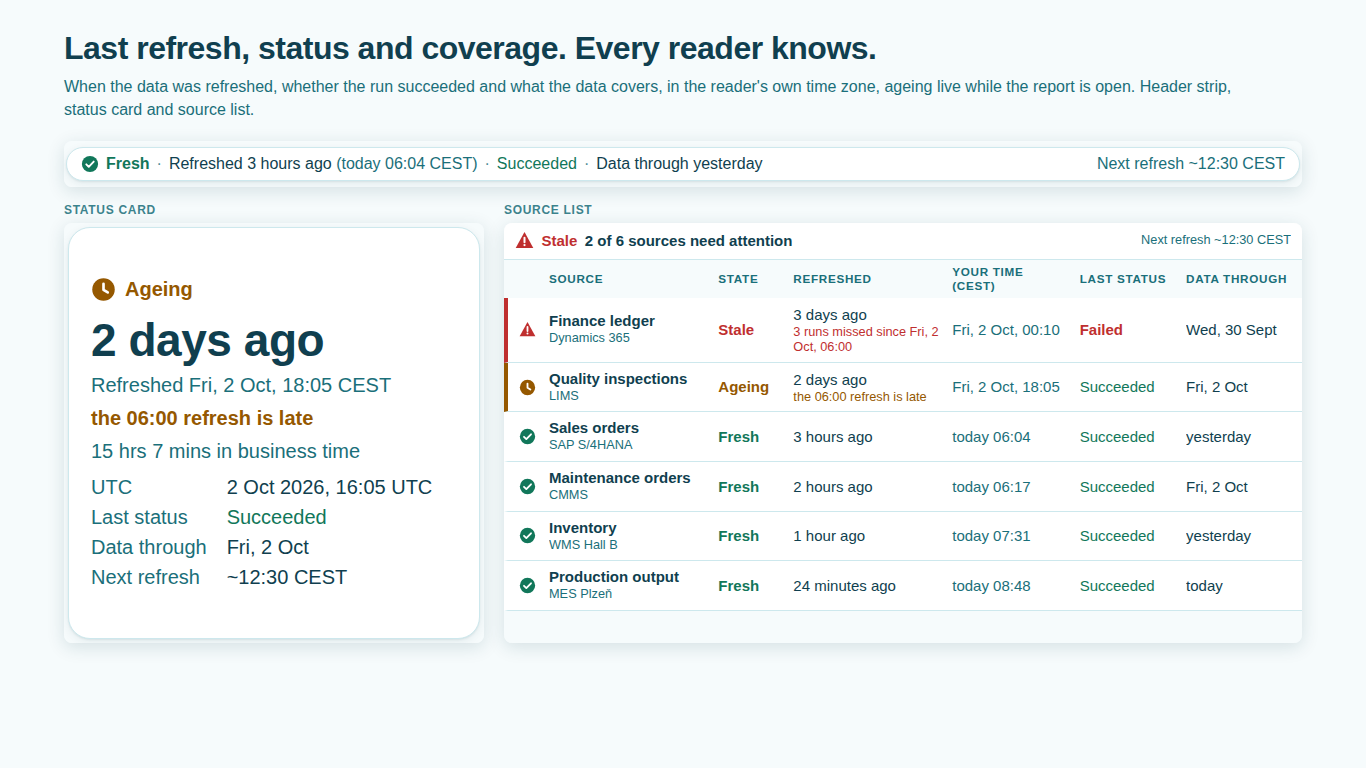
    Last refresh header strip, status card and six-source freshness list in a Power BI report
    Pl. XXIX  ·  Data Freshness  ·  Last refresh, status and coverage: header strip, status card and a six-source list.rendered from the shipped visual
    What it does

    SmartVisuals Last Refresh & Data Freshness shows "Refreshed 3 hours ago (today 06:04) - Succeeded - Data through yesterday" on any report page, keeps ageing while the report is open and says why when the data is not fresh. The refresh time is converted in each reader's browser, daylight saving included, which DAX cannot do.

    It tests when the model refreshed, what the data covers and whether the last run worked, counts age in business time by default, knows your refresh schedule and gives every source in a load log its own verdict. It is free, with no licence, no watermark, no network calls and no telemetry.

    Search all visuals

    Everything in the box

    Every feature, for every viewer.

    No licence, no plan, nothing to assign. The whole visual is free and stays that way.

    Includedevery viewer
    • Your time zone, not the server'sStore the refresh time in UTC and each reader sees it in their own zone, daylight saving included, with the zone named in their language.
    • Three inputs, all testedRefreshed At, Data Through and Last Status: a refresh that loaded nothing is stale, and a failed run marks the source stale with the reason printed.
    • States you can read without colourFresh, Ageing, Stale and Unknown, each with its own icon shape and word.
    • Business time and the refresh scheduleWorking days, working hours and holidays count by default; type your schedule and the visual knows when a run is late and when the next is due.
    • Many sourcesBind a load log and every source gets its own state, reason, status and thresholds, from the format pane or from your data; click or press Enter on a source to cross-filter the report.
    • Five layoutsBadge, header strip, corner chip, status card and source list, or Auto; one-line layouts shed parts instead of cutting text.
    • Guards against mistakesA time or data date in the future, or an unreadable value, is flagged and never shown as fresh; a zone abbreviation without daylight saving is refused with a hint.

    How do I show the last refresh date in Power BI?

    Add a one-row Power Query table with DateTimeZone.RemoveZone(DateTimeZone.UtcNow()) and bind a MAX of it to Refreshed At. Add a Data Through measure such as the MAX of your order date, and the visual shows "Refreshed 3 hours ago (today 06:04) - Succeeded - Data through yesterday" on any report page. The landing page and the sample report show both recipes.

    The age keeps counting while the report is open, and the absolute time is always printed next to the relative one, so the statement stays true however long the page has been on screen.

    Why does the refresh time show in the wrong time zone?

    Because DAX cannot do this: NOW() and UTCNOW() run in the service's zone. Store the refresh time in UTC and the browser converts it for each reader, daylight saving included, with the zone named in the reader's language, such as CEST, EDT or GMT+2. The author declares how the time is stored: UTC by default, the viewer's zone, a named zone or a fixed offset.

    Readers in different cities each see their own time, while the verdict stays the same for everyone: the schedule, the working calendar and "today" use one business time zone, never the zone of whoever opens the report.

    Refreshed on time but loaded nothing: is that fresh?

    No. Three inputs are tested. Refreshed At says when the model refreshed, Data Through says what the data covers and Last Status says whether the last run worked. A model that refreshed on time but loaded nothing since Tuesday is stale, a blank Data Through is flagged, and a failed run marks the source stale, with the reason printed.

    Last Status takes Succeeded or Failed text or a numeric code such as an exit code, a SQL Agent status or an HTTP status, and shows it next to the refresh time.

    When does the data count as stale?

    Every source is Fresh, Ageing, Stale or Unknown, each with its own icon shape and word, so the state reads without colour. Age is counted in business time by default, so a quiet weekend is not stale: working days, optional working hours and holidays count, and calendar time is one click away.

    Type your refresh schedule and the visual knows when a run is late ("the 06:00 refresh is late") and when the next one is due, skipping holidays. A refresh time or data date in the future, or a value the visual cannot read, is flagged and never shown as fresh.

    Can one visual track the freshness of many sources?

    Yes. Bind a load log and every source gets its own state, reason, last status and thresholds, set in the format pane under the source's real name or from your data. The source list puts the worst first and summarises how many sources need attention.

    Badge, header strip, corner chip, status card or source list

    Five layouts, or Auto, fit every page: a badge, a header strip for the top of a page, a corner chip for a crowded page, a status card and a source list. One-line layouts shed parts instead of cutting text; the list wraps long reasons and the tooltip has them in full, along with your time, UTC, the storage zone, the exact age and the business-time age.

    Four themes have their own personality, and the full format pane comes in English, Czech and German, with cross-filtering, keyboard access, screen-reader labels and high contrast.

    Use cases

    Where Data Freshness earns its place.

    A last-refresh stamp on every report page

    Add a one-row Power Query table with DateTimeZone.RemoveZone(DateTimeZone.UtcNow()), bind a MAX of it to Refreshed At and the MAX of the order date to Data Through, and pick Layout > Header strip. Every reader sees when the model refreshed in their own time zone and how far the data reaches, and the age keeps counting while the page is open.

    A load-log monitor for many sources

    A data team binds its load log: the source name to Source, the last load time to Refreshed At, the loaded-through date to Data Through and the job result to Last Status. Layout > Source list puts the worst source first with a summary line, each source gets its own state and reason, and clicking or pressing Enter on a source cross-filters the rest of the page to it.

    Knowing when a scheduled refresh is late

    Type the refresh times into Refresh Schedule > Scheduled Times (06:00, 12:30) and the days it runs. The visual then says when a run is late ("the 06:00 refresh is late") after the grace minutes and shows when the next one is due, counting age in business time so a quiet weekend is not stale.

    Getting started

    From empty canvas to first chart.

    1. 01

      Add a one-row Power Query table with DateTimeZone.RemoveZone(DateTimeZone.UtcNow()) and bind a MAX of it to Refreshed At.

    2. 02

      Bind a Data Through measure such as the MAX of your order date, and Last Status if your load log has one.

    3. 03

      Set the thresholds, the business calendar and your refresh schedule in the format pane.

    4. 04

      Pick a layout and theme, or bind a Source field for one verdict per source; everything is free.

    Get Data Freshness

    Two ways in.

    Installation instructions for both paths are on the download page.

    Microsoft Marketplace (recommended)

    Reviewed by Microsoft, updates automatically, licences assigned in the Microsoft 365 admin center.

    Open Microsoft Marketplace

    Direct download (1.0.0.0)

    .pbiviz package, import into Power BI Desktop or Service, does not auto-update.

    Download .pbiviz
    Accessibility

    Readable and usable for everyone.

    Tab
    Moves to the badge, header strip, corner chip or status card, which is one focusable element. In the source list, one row is the tab stop.
    Up / Down arrow
    In the source list, moves to the previous or next source.
    Home / End
    In the source list, jumps to the first or the last source.
    Enter or Space
    In the source list, selects the focused source and cross-filters the page. Hold Ctrl or Shift to add it to the selection.
    Esc
    Clears the selection.
    • Screen readers

      The badge, strip, chip and card are labelled with the full sentence, such as the refresh age and time, the last status and how far the data reaches. With several sources the label starts with the summary line and names each source's state. In the source list, each source is an option that reads its own sentence and whether it is selected. When a state or its reason changes, it is announced politely ("Stale: the 06:00 refresh is late"); the age ticking by the minute is never announced.

    • Not colour alone

      Fresh, Ageing, Stale and Unknown each have their own icon shape and word (Show > State Icon and State Word, both on by default), so the state reads without colour.

    • High contrast

      In Windows high contrast mode text, borders and every state use the contrast theme's foreground colour, the focus ring uses its selection colour and shadows are dropped; the icon shapes and words still tell the states apart.

    • Context menu

      Right-clicking a source opens the Power BI context menu for it; right-clicking elsewhere opens it for the visual.

    • Languages

      The format pane and every string the visual writes are available in English, Czech and German; zone names such as CEST follow the reader's language.

    Release notes

    What changed, and when.

    Updates install automatically from Microsoft Marketplace. Full history.

    1. 1.0.0.0

      First release on Microsoft Marketplace.

      • Last refresh time, status and data coverage in each reader's own time zone, with a reason when the data is not fresh.
      • Business time, refresh schedules and one verdict per source in a load log. Free.
    Questions

    Asked before you did.

    More questions? See support or write to hello@smartvisuals.io.

    Yes. Free with no licence, no paid tier and no watermark; every feature works for every reader.

    NOW() and UTCNOW() run in the service's time zone and freeze at query time. This visual converts the stored refresh time in each reader's browser, daylight saving included, and keeps the age counting while the report is open.

    Not by default. Age is counted in business time: working days, optional working hours and holidays. Calendar time is one click away in the format pane.

    No. That would need a token and a network call. The refresh time comes from your model, with the Power Query recipe shown on the landing page and in the sample report.

    No. The visual makes no network calls and sends no telemetry; time zones are converted by the browser inside your report.

    Refreshed At (the refresh time) is the core field; Data Through (how far the data reaches) and Last Status (text or a numeric code) are recommended. For many sources add Source and optionally Source Detail, Next Refresh, and per-source Ageing After (Hours) and Stale After (Hours) measures; Tooltips takes extra fields.

    Up to 500 sources in one visual. The source list puts the worst first with a summary line, and clicking a source or pressing Enter on it cross-filters the rest of the page (Ctrl or Shift adds more).

    Abbreviations such as CET or EST stand for a fixed offset without daylight saving rules, and some are ambiguous, so the visual does not take them silently. It suggests a zone name, such as Europe/Prague or America/New_York, which follows daylight saving.

    Yes. The badge, strip, chip and status card are focusable and read the full freshness sentence; in the source list the arrow keys move between sources, Home and End jump to the ends, Enter or Space selects and Esc clears. State changes are announced politely, every state has its own icon shape and word, and Windows high contrast is supported.

    English, Czech and German, for the format pane and every string the visual writes. Time zone names such as CEST follow the reader's language.

    Post it on the public board at smartvisuals.io/feedback, where other users can vote and comment, or use the Report a bug block on the support page (smartvisuals.io/support) or email hello@smartvisuals.io. A screenshot, the fields you bound and the time zone settings help most.
    Troubleshooting

    When it does not look right.

    Found a bug or missing something? Post it on the requests board or vote for what others asked; the developer answers within two business days.

    The refresh time shows in the wrong time zone.
    Time Zones > Refresh Time Is Stored As must match how the model stores the time. The recommended recipe stores UTC (DateTimeZone.UtcNow); if your column holds local server time, choose a time zone there and type its IANA name, such as Europe/Prague, in Stored Time Zone. Show Times In sets whether readers see their own zone, UTC or the business zone.
    A note says a zone abbreviation such as CET or EST was not used.
    Abbreviations such as EST or CET stand for a fixed offset with no daylight saving rules, and some are ambiguous (IST), so the visual refuses them and suggests a zone name, such as America/New_York or Europe/Prague, which it then follows through daylight saving.
    On Monday morning the data shows as stale after a quiet weekend.
    Refresh Age > Count Age In is Business time by default, so weekends and the holidays you list in Business Calendar should not count. Check Business Calendar > Weekend, Working Hours and Holidays (YYYY-MM-DD, comma separated), and Time Zones > Business Time Zone, which decides when the business day starts.
    The model refreshed on time, but the visual says stale.
    The data itself is behind: Data Through is older than Data Coverage allows, or Last Status reports a failed run. The reason line says which. Adjust Data Coverage > Expected Lag (Days) if the data is meant to lag, or Last Status > A Failed Last Run Makes the Source if a failure should not mark the source stale.
    Last Status shows a number, or a failure is not recognised.
    Text such as Succeeded or Failed is read directly. For numbers, set Last Status > Numeric Status Codes to how your job reports them: exit codes (0 = succeeded), SQL Agent (1 succeeded, 0 failed, 4 running) or HTTP (2xx succeeded, 4xx and 5xx failed).
    The visual says a time is in the future or cannot be read.
    A refresh time or data date in the future, or a value that cannot be read as a date and time, is flagged and never shown as fresh. A future time usually means the stored zone is wrong (local time read as UTC); check Refresh Time Is Stored As.

    For developers & AI agents

    Add this visual programmatically.

    Use the GUID and data roles below to add Data Freshness to a Power BI report via PBIR or the Report Authoring agent. Full catalog (JSON)

    Visual GUID
    dataFreshness4BAAAB2339CF41DABFC1E0BFB560FA50
    RoleDisplay nameKind
    refreshedRefreshed AtMeasure
    throughData ThroughMeasure
    sourceSourceGrouping
    detailSource DetailGrouping
    statusLast StatusMeasure
    nextNext RefreshMeasure
    ageingAfterAgeing After (Hours)Measure
    staleAfterStale After (Hours)Measure
    tooltipsTooltipsMeasure
    Missing something?

    Tell us what is missing.

    A feature you need, a bug you hit, a visual that does not exist yet. Every message reaches the person who builds these visuals, and feature requests shape what ships next. We also build visuals to order.

    Also in the family