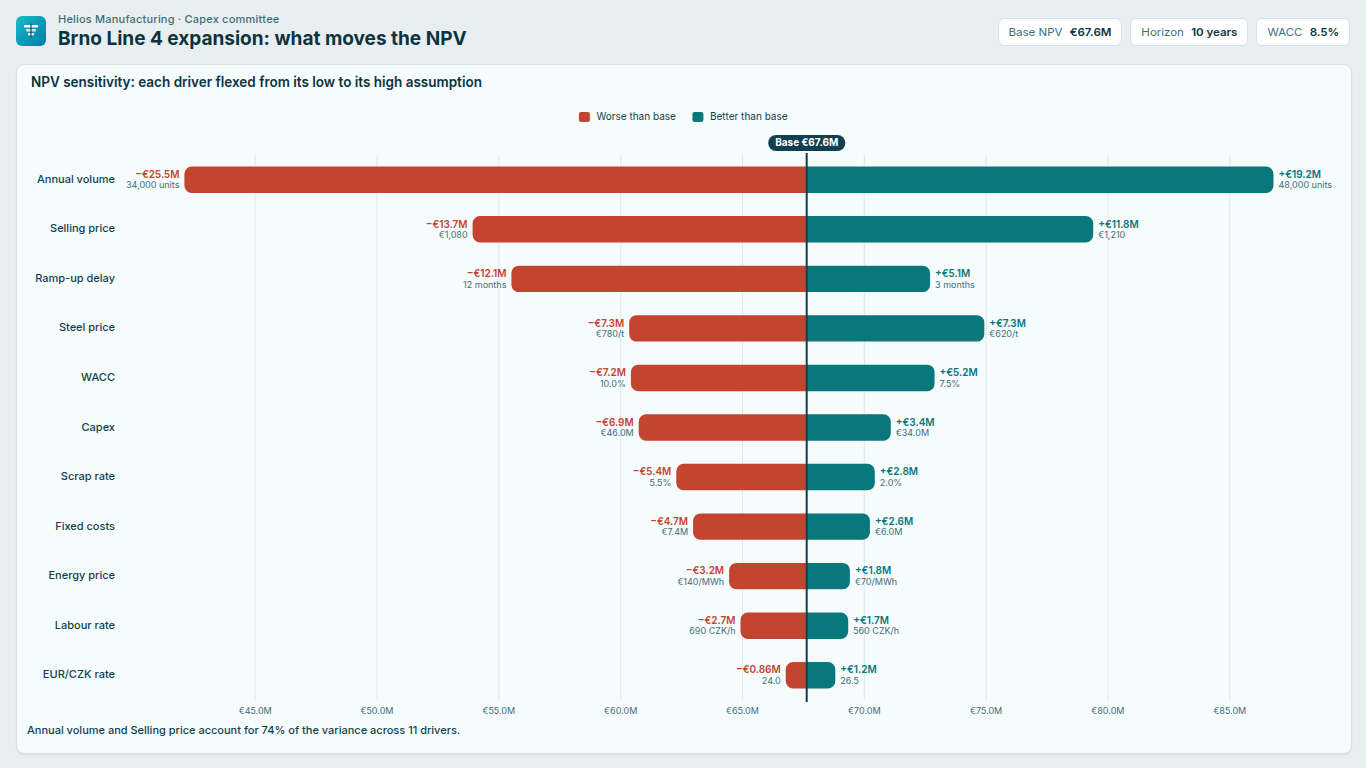
- My tornado bars start at zero, like a butterfly, instead of swinging around the base case.
- The sensitivity tornado turns on when a measure is in Base case together with Left / low case or Right / high case. If the scenario (Low / High) is a column in Split by with one measure in Value, the visual draws a butterfly, because that is what the fields describe. Write one measure per case instead, for example CALCULATE over the output with the scenario column filtered to Low, and another filtered to High, and put them in Left / low case and Right / high case. If you have no base measure, Format > Sensitivity > Base from this number and Base value set one; without any base the bars span low to high and a note says so.
- A note says some drivers are not shown because they have no low or high value, or a blank Base case.
- A driver is left out when both its low and high outputs are blank, or when Base case is bound but returns blank for that driver while other drivers have a base. Check the measures for that driver in a table visual. A driver with only one of the two outputs is still drawn: the missing end is treated as no change from the base and shows as a dash in the tooltip. If your base measure is blank for some drivers, make it ignore the driver filter (REMOVEFILTERS on the driver column) or use Format > Sensitivity > Base from this number.
- The base line has turned into short ticks on each row and the label reads "Base varies by row".
- Your Base case measure returns a different number for different drivers, so there is no single base to draw a line at, and each bar gets its own base tick. In a one-way sensitivity analysis the base should be the same for every driver. Change the measure so it ignores the driver (for example CALCULATE with REMOVEFILTERS on the driver column), or turn on Format > Sensitivity > Base from this number and type the base value.
- The input assumptions at the bar ends show raw numbers such as 0.075 instead of 7.5%.
- Each driver can have its own unit. Add a column or measure to Input unit or format; for a text column, set the aggregation to First. A unit label such as €/t, CZK/h or months is printed next to the number, and a format string such as 0.0% or €#,0 is applied as a format. Without a unit, the input measure's own format from the model is used. Position, font size and the base input are set in the Input assumptions card, which appears once Low input, High input or Base input is bound.
- Some drivers are missing even though I have a licence.
- Two settings hide drivers on purpose: Sensitivity > Hide swings below (% of base) drops drivers whose swing is smaller than that share of the base, and Chart > Show top N keeps only the N widest swings. When either hides something, a note under the chart says how many drivers are not shown and the largest swing among them. Set both to 0 to see every driver. Also check the notes for a data reduction message: Power BI sends the visual at most 1,000 categories.
- Readers see only 5 drivers, or the reference outline, small multiples and analytics columns are gone in reading view.
- Sensitivity with more than 5 drivers, the reference overlay, small multiples, the share-of-variance and cumulative columns and the butterfly difference column are premium. Every premium feature is fully unlocked while you edit, and an unlicensed author sees a muted note: "Readers without a licence see the 5 widest drivers." Readers without a licence get the free tier: the 5 widest drivers with a note, the first small-multiple panel of a sensitivity analysis, and small-multiple butterflies or diverging bars combined into one chart. Nothing is blocked or watermarked. To give a reader the full chart, assign them a licence in the Microsoft 365 admin center under Billing > Licenses.
- My population pyramid is upside down, or the age bands are in the wrong order.
- Chart > Sort by is Auto by default, and Auto draws a pyramid only when the category labels start with a number (18-24, 65+) and Split by has exactly two values recognised as male and female. Otherwise it keeps the data order. Choose Sort by > Pyramid (oldest on top) to force it. The pyramid follows the order of the bands in your model, so sort the age band column by an age-order column; otherwise 5-9 sorts after 40-49 and the pyramid inherits that order. Chart > Swap sides moves men to the right.
- My custom bar colours are ignored and the bars are drawn with dashes.
- Windows high-contrast mode is on. The visual then uses the colours of the high-contrast theme only, ignores custom colours and row styles, and in a sensitivity tornado marks the worse side (or the high input) with dashes so direction never depends on colour; the legend shows the same dash. Your colours come back when high contrast is turned off. Keyboard use works in both modes: Tab into the chart, move between rows with the arrow keys, press Enter to select and Escape to clear the selection.