Visuals/Pl. XXI

    Violin

    See the shape a box plot hides

    Violin, half violin, split violin, raincloud and ridgeline plots for Power BI, with density estimates you can state and defend. Premium tests whether the groups really differ.

    Datasheet
    Status
    Available on Microsoft Marketplace
    Price
    $1.99 /user/mo · $19 /user/yr
    Licensing
    Per user, assigned in the Microsoft 365 admin center. Unlicensed viewers see the free tier, never a blocked visual.
    Data
    Computed inside Power BI. No external calls, no API keys, no telemetry.
    Visuals API
    5.11
    Accessibility
    One-tab-stop keyboard navigation, screen-reader announcements, high contrast
    Languages
    English, Czech
    Works in
    Power BI Desktop, Service, Embedded
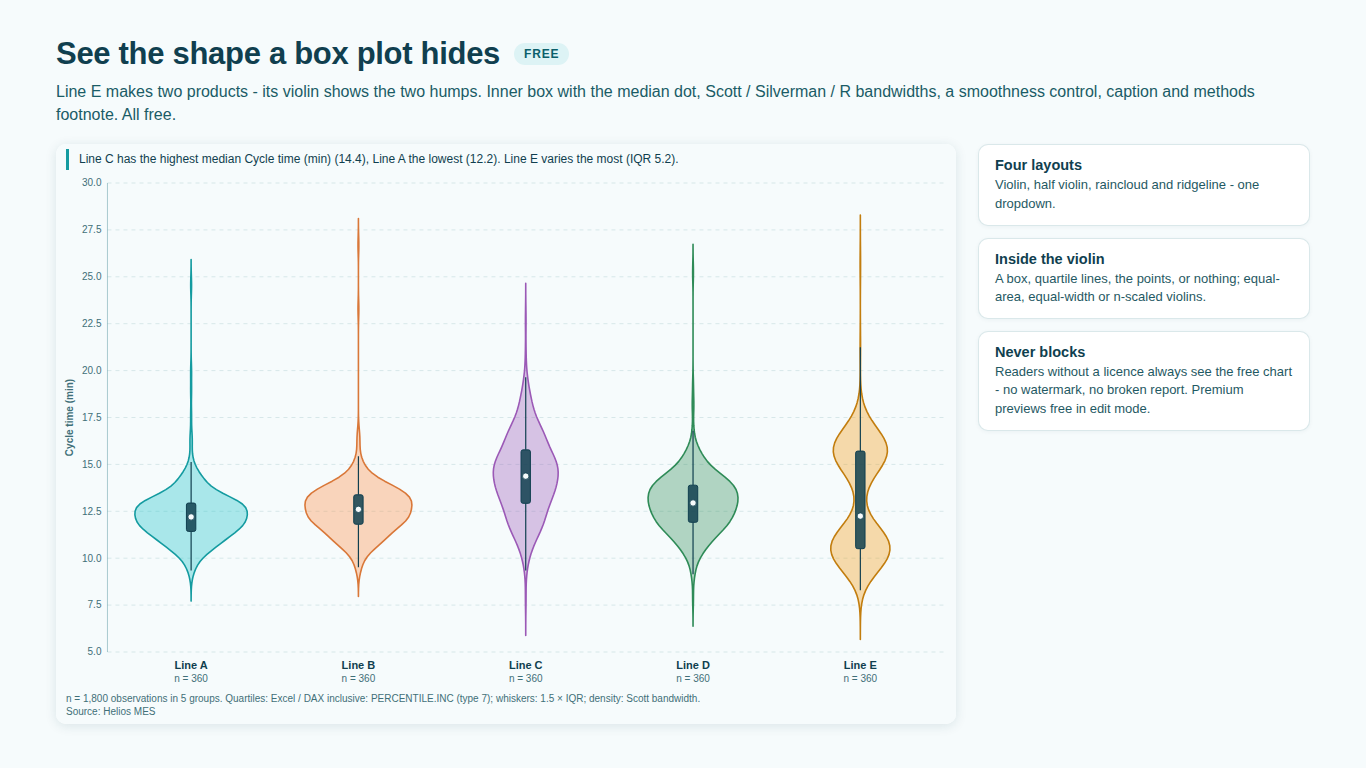
    Violin plots per group in Power BI with an inner box and quartile lines
    Pl. XXI  ·  Violin  ·  See the shape a box plot hides: violins per group with the summary inside, free.rendered from the shipped visual
    What it does

    SmartVisuals Violin draws the distribution of a measure for every group as a kernel density estimate, so two groups with the same median but a different shape no longer look alike. Five shapes come from the same fields: violin, half violin, split violin, raincloud and ridgeline. The bandwidth follows a named rule, quartiles follow Excel / DAX by default, and a methods footnote says exactly how the chart was computed.

    Premium adds the step after looking: significance between groups or split halves with letters or brackets, advanced density with six kernels and bounded support, confidence intervals, weights, spec limits with capability indices and small multiples, for $1.99 per user per month or $19 per year with the first month free. Premium previews free in edit mode, readers without a licence always see the free chart, and every statistic runs inside Power BI; the visual makes no external calls.

    Search all visuals

    Free and premium

    Where the line is, exactly.

    Report authors see the full premium set in edit mode, so you can evaluate every feature on your own data before assigning a single licence. Unlicensed viewers always get a working chart.

    Free tierevery viewer
    • Five shapesViolin, half violin, split violin (two Split By levels share one violin), raincloud with density, box and every observation, and ridgeline.
    • Density done properlyScott, Silverman or Silverman's rule-of-thumb bandwidth, a smoothness control, trim to the data range, and equal-area, equal-width or n-scaled violins.
    • Inside the violinA box, quartile lines, the points or nothing; four whisker rules and every quartile definition from Excel / DAX to Tukey's hinges.
    • Reference linesMean, median and up to four percentiles, for all data or per group, computed with the chart's own quartile definition.
    • Large data without samplingUp to 150,000 rows, or a value column plus a Count measure that is expanded inside the visual with identical results.
    • Caption, footnote and four themesA smart caption, a methods footnote, sorting, minimum group size, horizontal layout and four themes: SmartVisuals, Dark, Clean and Slate.
    • Native Power BI behaviourTooltips, keyboard navigation, high-contrast mode and two languages (English, Czech).
    Premium$1.99 /user/mo · first month free
    • Significance between groupsWelch t or Mann-Whitney U between groups or split halves, Holm or Bonferroni adjustment, Welch's ANOVA, ANOVA or Kruskal-Wallis, as brackets or letters.
    • Advanced densitySix kernels (Gaussian, Epanechnikov, biweight, triangular, cosine, uniform), a fixed bandwidth and bounded support by reflection.
    • Confidence intervals and weightsMean confidence intervals and weighted statistics with an effective base, so weighted data is summarised correctly.
    • Spec limits and capabilitySpec limits typed or from LSL, USL and Target measures, with Cp, Cpk, Cpl, Cpu, Cpm, Pp and Ppk per group.
    • Small multiplesOne panel per plant, product or region on a shared scale, from a single field.

    How do I make a violin plot in Power BI?

    Map a category such as line, shift or region to Group, a row-level key to Sample / ID and a measure to Value. Every group gets a violin: the outline is a kernel density estimate of the values, so a reader sees where observations pile up, where they thin out and whether there are two peaks instead of one. Nothing has to be pre-binned or pre-aggregated, and there is no DAX to write; the density is computed inside the visual in every filter state.

    The same fields draw five shapes: a full violin, a half violin, a split violin where two Split By levels share one violin, a raincloud with the density, a box and every observation, and a ridgeline with one density per group stacked like a mountain range. Switching shape is a format-pane setting, not a new visual.

    Why a violin instead of a box plot?

    A box plot shows five numbers. Two groups can share the same median and quartiles and still look completely different: one tight and symmetric, the other bimodal or with a long tail. The violin shows that shape, and with a box, quartile lines or the points drawn inside it, the reader keeps the familiar summary as well.

    Quartiles follow the definition you choose. The default is Excel / DAX inclusive, the same numbers PERCENTILE.INC returns in your model; Excel / DAX exclusive, Tukey's hinges and all nine Hyndman-Fan sample-quantile types are one click away. Whisker rules are 1.5 x IQR with an adjustable multiple, percentiles, mean plus or minus k standard deviations, or minimum to maximum.

    Which bandwidth does the density use, and can I defend it?

    The bandwidth comes from a named rule: Scott (the default), Silverman, or Silverman's rule of thumb. A smoothness control multiplies it when the shape needs to be calmer or sharper, densities can be trimmed to the data range so a violin never suggests values that were never observed, and violins can be scaled to equal area, equal width or the group's number of observations.

    Because the rule is named, the chart can be stated in a methods section. A methods footnote on the visual says which quartile definition and bandwidth rule were used, and every statistic is golden-tested against independent reference implementations on nine fixture datasets. Degenerate inputs such as a single observation or zero spread return n/a instead of a misleading shape.

    Raincloud and ridgeline plots in Power BI

    A raincloud puts a half violin, a slim box and the individual observations side by side, so a reader sees the shape, the summary and the raw data at once. It is the honest choice for small and medium samples, where a density alone can hide how few observations it is built on.

    A ridgeline stacks one density per group along a shared value axis. It reads well with many groups, such as months, products or machines, and with mean, median and up to four percentile lines drawn per group it shows how the distribution drifts from one group to the next.

    Are the differences between groups significant?

    Premium answers the question every violin plot raises. Pairwise tests compare groups, or the two halves of a split violin, with Welch's t-test or the Mann-Whitney U test, adjusted across the pairs shown by Holm or Bonferroni; an overall test runs Welch's ANOVA, one-way ANOVA or Kruskal-Wallis. Results appear as brackets with stars or as letters, and too many brackets to read switch to letters automatically.

    Premium also adds six kernels, a fixed bandwidth and bounded support by reflection for values with a natural floor or ceiling, confidence intervals, weights, spec limits typed or from measures with Cp, Cpk, Cpl, Cpu, Cpm, Pp and Ppk, and small multiples. Every premium feature previews free in edit mode; readers without a licence always see the free chart, never a blocked visual or a watermark.

    How much data can a violin plot handle?

    Power BI sends up to 30,000 rows per window; the visual fetches further windows up to 150,000 rows and raises the host's warning icon if the data reached that cap. For larger data, map the value as a column together with a Count measure: each distinct value is sent once and expanded inside the visual, so quartiles, densities and tests are identical to row input.

    Use cases

    Where Violin earns its place.

    Fill weights by filling line

    A quality engineer maps Line to Group, the container ID to Sample / ID and fill weight to Value. Each line gets a violin with a box inside, and a line whose weights split into two clusters, for example after a nozzle change, shows two bulges where a box plot would show one ordinary box.

    Before and after a process change

    Map Product to Group and a Period field with the two values Before and After to Split By. With exactly two levels the violin view draws a split violin: before on one side, after on the other, so each product's shift reads at a glance. With the licence, Compare Groups tests whether the two halves differ.

    Monthly lead times as a ridgeline

    Purchasing maps Month to Group and the order ID to Sample / ID and sets View > Chart to Ridgeline. Twelve densities stack along a shared lead-time axis, and Statistic Lines > Percentile Lines set to 50, 90 with Computed For > Each group draws the median and P90 in every row, so the drift from month to month is visible.

    Small samples, honestly shown

    For a lab with a dozen measurements per batch, View > Chart > Raincloud puts a half violin, a slim box and every measurement side by side, so the reader sees how few points the density rests on. Density > Trim to Data Range keeps the violin from suggesting values that were never measured.

    Getting started

    From empty canvas to first chart.

    1. 01

      Map a category to Group, a row-level key to Sample / ID and a measure to Value. Every group gets a violin.

    2. 02

      Pick the shape in the format pane: violin, half violin, raincloud or ridgeline; add a two-level field to Split By for split violins.

    3. 03

      Choose the bandwidth rule, smoothness and what sits inside the violin, then add mean, median or percentile reference lines.

    4. 04

      For large data, map the value as a column with a Count measure instead; add extra measures to Tooltips.

    Get Violin

    Two ways in.

    Installation instructions for both paths are on the download page.

    Microsoft Marketplace (recommended)

    Reviewed by Microsoft, updates automatically, licences assigned in the Microsoft 365 admin center.

    Open Microsoft Marketplace

    Direct download (1.0.0.0)

    .pbiviz package, import into Power BI Desktop or Service, does not auto-update. Includes the full free tier; premium features preview in edit mode and are licensed through Microsoft Marketplace.

    Download .pbiviz
    Accessibility

    Readable and usable for everyone.

    Tab
    Moves into the chart. The whole chart is one tab stop, and the first violin takes the focus.
    Arrow keys
    Right or Down moves to the next violin, Left or Up to the previous one; in a ridgeline, to the next or previous row. With Split By, each part of a group is a stop of its own.
    Home / End
    Jumps to the first or the last violin.
    Page Up / Page Down
    Moves ten violins back or forward.
    Enter or Space
    Filters the report to the focused group. Hold Ctrl to add it to the selection.
    Esc
    Clears the selection.
    • Screen readers

      The chart is labelled with its smart caption. As the arrow keys move, a polite announcement reads the focused violin with its median, quartiles and number of observations, for example "Line B: median 498.60, quartiles 497.10 to 500.20, n 120". This announcement is in English in every report language for now.

    • Visible focus and summary marks

      The focused violin gets a dashed focus ring. The box, the quartile lines or the median line inside each violin and the mean marker carry the summary, so the centre of a group does not depend on colour.

    • High contrast

      In Windows high contrast mode every violin, ridge and box is drawn as an outline in the contrast theme's foreground colour, points are drawn hollow and fills are dropped.

    • Context menu

      Right-clicking a violin, or a point in a group of up to 2,500 points, opens the Power BI context menu for it; right-clicking elsewhere opens it for the visual.

    • Languages

      The format pane, notes, caption and footnote are available in English and Czech.

    Release notes

    What changed, and when.

    Updates install automatically from Microsoft Marketplace. Full history.

    1. 1.0.0.0

      First release on Microsoft Marketplace.

      • Violin, half violin, split violin, raincloud and ridgeline plots with Scott, Silverman or rule-of-thumb bandwidths and a box, quartile lines or the points inside.
      • Significance between groups or split halves, advanced density with six kernels, confidence intervals, weights, spec limits with Cp to Ppk and small multiples (premium).
    Questions

    Asked before you did.

    More questions? See support or write to hello@smartvisuals.io.

    No. The density, quartiles and reference lines are computed inside the visual from the rows you map, in every filter state. Quartiles match Excel / DAX PERCENTILE.INC by default.

    Never. Unlicensed viewers always see the full free chart, and the footnote names any premium feature not shown. The visual never blocks a report and never shows a watermark. Every premium feature previews free in edit mode.

    Premium is a per-user licence through Microsoft Marketplace at $1.99 per user per month or $19 per user per year, with the first month free.

    Violin is the single-view edition for density charts and is complete on its own. SmartVisuals Distribution, the multi-view edition at $4.49 per user per month, adds box plot, beeswarm and histogram views over the same fields with the same premium layer. Licences do not carry across offers: for density charts alone Violin is cheaper, with three or more chart types the multi-view is.

    No. The visual requests no privileges and makes no external calls; every statistic is computed offline inside your report.

    Group (line, shift, product), Sample / ID (a row-level key such as a measurement, unit or order ID) and a Value measure. Without Sample / ID, Power BI sums the values per group and you get one value per group. Split By divides each group by a second field, and exactly two levels make a split violin. Tooltips takes extra measures, and Weight, Small Multiples and the spec-limit fields are premium.

    A violin mirrors the density around a centre line, with a box, quartile lines or the points inside; a half violin draws one side only. A raincloud puts a half violin, a slim box and every observation side by side, which suits small samples. A ridgeline stacks one density per group along a shared axis and reads well with many groups, such as months.

    Power BI sends 30,000 rows per data window and the visual fetches further windows up to 150,000 rows, with a warning icon when it reaches that cap. For larger tables, map the value as a column with a Count measure: each distinct value arrives once and densities, quartiles and tests are the same as with row input. Above 2,500 points per group the points are drawn as one image without per-point tooltips, and above 6,000 an even sample of them is drawn; the statistics always use all the data.

    Yes. The chart is one tab stop labelled with its smart caption: the arrow keys move between violins (rows in a ridgeline), Home and End jump to the ends, Page Up and Page Down move by ten, Enter or Space filters the report (Ctrl adds) and Esc clears. A polite announcement reads each group's median, quartiles and n, in English for now. Windows high contrast draws every violin as an outline in the system colour.

    English and Czech, for the format pane, the caption, the footnote and the notes.

    Yes. In the Power BI Service, licensed readers see the premium features and others see the free chart. Where Power BI tells the visual that licences cannot be checked, for example in Power BI Embedded, Publish to web or Power BI Report Server, the premium features stay on rather than lock anyone out.

    Post it on the public board at smartvisuals.io/feedback, where other users can vote and comment, or use the Report a bug block on the support page (smartvisuals.io/support) or email hello@smartvisuals.io. A screenshot and the fields you mapped help most.
    Troubleshooting

    When it does not look right.

    Found a bug or missing something? Post it on the requests board or vote for what others asked; the developer answers within two business days.

    Each group shows a single value instead of a violin.
    Without Sample / ID, Power BI sums the values per group and the visual receives one number per group; it shows a hint saying so. Map a row-level key, such as a measurement, order or unit ID, to Sample / ID, or put the value itself in Value (as column) with a Count measure.
    The violin looks too lumpy or too smooth.
    Density > Smoothness (%) multiplies the bandwidth: above 100 calms the shape, below 100 sharpens it. Density > Bandwidth Rule switches between Scott, Silverman and Silverman's rule of thumb, and the footnote names the rule in use. A fixed bandwidth and other kernels are in Advanced Density (premium).
    The violin runs past the smallest or largest value.
    A kernel density has tails beyond the data. Turn on Density > Trim to Data Range to end each violin at the group's minimum and maximum, or, with the licence, set Advanced Density > Bounded Below or Bounded Above for a value with a natural floor such as zero.
    Split By shows two violins side by side instead of one split violin.
    A split violin needs exactly two levels in Split By and View > Chart set to Violin or Half violin. With three or more levels, the levels are drawn side by side.
    A warning says "Showing part of the data".
    Power BI sends 30,000 rows per data window and the visual fetches further windows up to 150,000 rows. Above that, densities and quartiles are computed on the rows received and the warning says so. Put the value itself in Value (as column) with a Count measure so each distinct value arrives once, or filter the page.
    Significance, kernels, intervals or small multiples disappear in reading view.
    These are premium. They render in full while you edit; readers without a licence see the free chart and a footnote line naming the premium features not shown. Assign the reader a licence in the Microsoft 365 admin center under Billing > Licenses.

    For developers & AI agents

    Add this visual programmatically.

    Use the GUID and data roles below to add Violin to a Power BI report via PBIR or the Report Authoring agent. Full catalog (JSON)

    Visual GUID
    smartvisualsViolin84C50CEA520DC9C498C89A72EC625999
    RoleDisplay nameKind
    groupGroupGrouping
    seriesSplit ByGrouping
    detailSample / IDGrouping
    valueValueMeasure
    valueColumnValue (as column)Grouping
    countCountMeasure
    weightWeightMeasure
    facetSmall MultiplesGrouping
    tooltipsTooltipsMeasure
    lslLower Spec Limit (LSL)Measure
    uslUpper Spec Limit (USL)Measure
    targetSpec TargetMeasure
    Missing something?

    Tell us what is missing.

    A feature you need, a bug you hit, a visual that does not exist yet. Every message reaches the person who builds these visuals, and feature requests shape what ships next. We also build visuals to order.

    Also in the family