Visuals/Pl. XII

    Venn & UpSet

    Set overlap that tells the truth

    An area-proportional Venn/Euler diagram for up to three sets, an UpSet matrix from four. Built for multi-select survey questions, customer and product overlap, and feature adoption.

    Datasheet
    Status
    Available on Microsoft Marketplace
    Price
    $2.99 /user/mo · $29 /user/yr
    Licensing
    Per user, assigned in the Microsoft 365 admin center. Unlicensed viewers see the free tier, never a blocked visual.
    Data
    Computed inside Power BI. No external calls, no API keys, no telemetry.
    Visuals API
    5.11
    Accessibility
    Full keyboard navigation, screen-reader labels, high-contrast mode
    Languages
    English, Czech, German, French, Spanish
    Works in
    Power BI Desktop, Service, Embedded
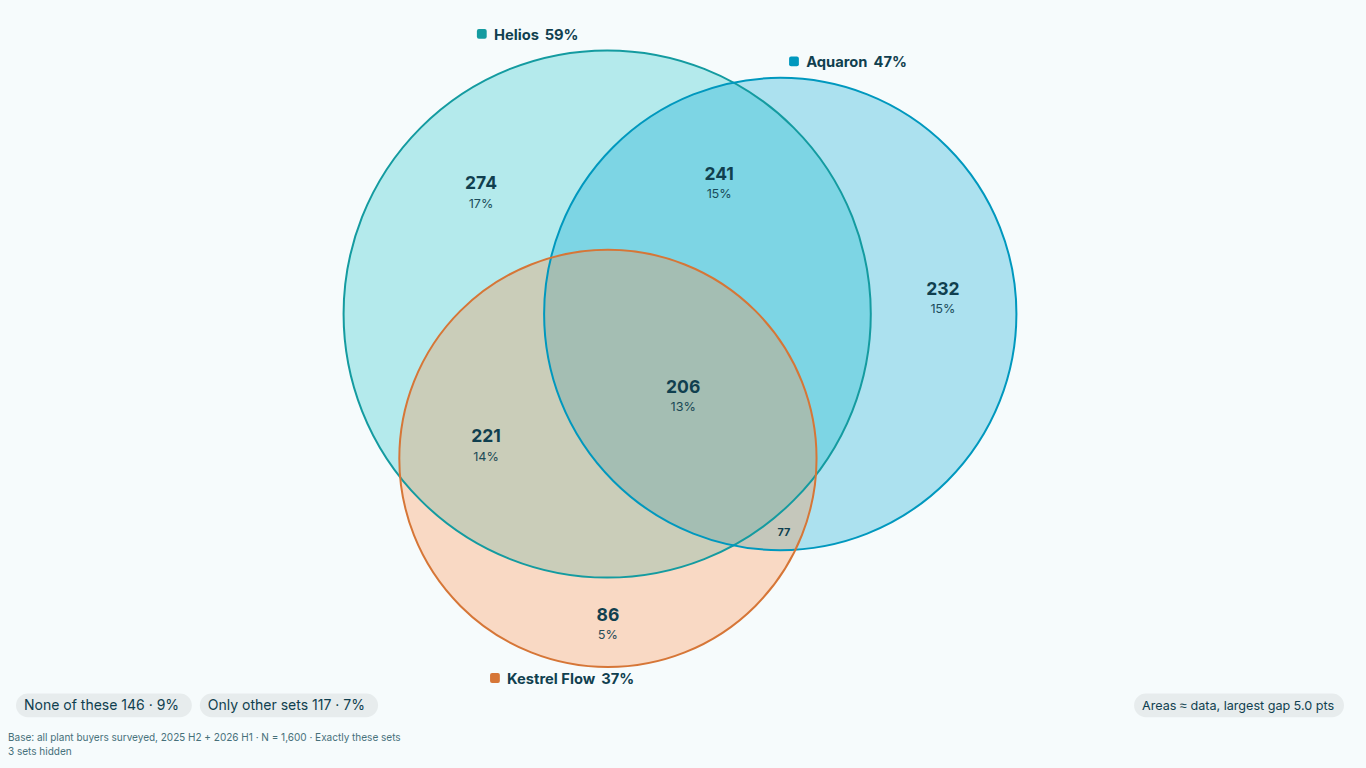
    Area-proportional Euler diagram of three brands in Power BI with a fit badge and % of base
    Pl. XII  ·  Venn & UpSet  ·  Free: area-proportional Euler of three brands, honest fit badge, % of base and "None of these" shown apart.rendered from the shipped visual
    What it does

    SmartVisuals Venn & UpSet shows who belongs to which sets and how they overlap. Up to three sets draw an area-proportional Venn/Euler diagram whose areas follow your data, with an honest fit badge and true counts on every label. From four sets you get an UpSet matrix for up to 30 sets. It reads long, delimited, wide or pre-aggregated data, so a multi-select survey question or a customer table goes in as it is.

    The free tier is made for real use: counts and % of base including "None of these", exclusive or inclusive counts, set queries, cross-filtering, four themes and full accessibility. Premium, Overlap intelligence, adds survey weights, confidence intervals, significance of overlaps, a duplication matrix, TURF reach, wave and segment comparison and value sizing, for $2.99 per user per month or $29 per year, with the first month free. Premium previews free in edit mode, and readers without a licence always see the free chart, never a blocked or watermarked visual.

    Search all visuals

    Free and premium

    Where the line is, exactly.

    Report authors see the full premium set in edit mode, so you can evaluate every feature on your own data before assigning a single licence. Unlicensed viewers always get a working chart.

    Free tierevery viewer
    • Area-proportional Venn/EulerCircle areas follow your data. Two sets are always exact; for three sets a badge says how close the areas are, labels show the true counts, and any region circles cannot draw is listed with its count.
    • UpSet matrix for up to 30 setsIntersection bars, set-size bars and the dot matrix, sorted by size or degree, filtered by minimum size and degree, on a linear or log scale. The view switches automatically from four sets.
    • % of base with "None of these"Counts and % of base, where the base includes everyone who picked "None of these", shown on the chart. Exclusive or inclusive counts, always labelled.
    • Four data shapes, no reshapingLong (ID + answer), delimited ("A;B;C" as Microsoft Forms exports), wide (one 0/1 or Yes/No field per set) or pre-aggregated (combination + count).
    • Set queries and cross-filteringAny of / all of / exactly / none of a chosen list, highlighted and counted. Click a region, bar or set to cross-filter the report; highlight, tooltips and report-page tooltips included.
    • Four themes, every element adjustableFour themes with their own personalities, a colour per set labelled with your real set names, and every label and element adjustable in the format pane.
    • Accessible in five languagesFull keyboard navigation, screen-reader labels and high contrast, in English, Czech, German, French and Spanish. Accessibility is never behind the licence.
    Premium$2.99 /user/mo · first month free
    • Survey weights and effective baseWeighted counts and % of base, with the Kish effective base printed next to N.
    • Confidence intervals and significanceWilson or Wald intervals on every share, plus deviation from independence, lift and phi with significance tests.
    • Duplication matrix% also, lift or Jaccard for every pair of sets, with significant attraction and repulsion marked.
    • TURF reachThe best portfolio of 1 to 15 items, with incremental reach and frequency.
    • Compare waves or segmentsSmall multiples or grouped bars with significance letters across waves or segments.
    • Value sizingSize overlaps by a value field, for example the revenue of customers who buy A and B.

    How do I make a Venn diagram in Power BI that is actually to scale?

    Most Venn visuals draw three equal circles and write numbers inside them, so a region with 40 people looks as big as a region with 4,000. SmartVisuals Venn & UpSet draws an area-proportional Venn/Euler diagram instead: circle and overlap areas follow your data. Two sets are always exact. Three circles cannot always fit every overlap perfectly, so for three sets a badge on the chart says how close the areas are, the labels always show the true counts, and any region the circles cannot draw is listed by name with its count.

    If you want the textbook picture, a classic equal-circle Venn is available too, and it is marked "not to scale" on the chart so nobody reads the areas as data.

    What should I use instead of a Venn diagram for four or more sets?

    From four sets on, circles stop being readable. The visual switches automatically to an UpSet matrix: one bar per combination of sets, a dot matrix underneath that says which sets the combination contains, and set-size bars beside it. It handles up to 30 sets, sorts by size or degree, filters by minimum size and degree, and offers a linear or log scale.

    The same data feeds both views, so a fourth brand added to a survey never breaks the report. You can also choose the view yourself in the format pane.

    How do I chart a multi-select survey question in Power BI?

    Questions like "which of these brands do you use?" arrive in several shapes, and the visual reads four of them without reshaping: long (one row per respondent and answer), delimited ("A;B;C" in one cell, as Microsoft Forms exports), wide (one 0/1 or Yes/No field per set) and pre-aggregated (a combination plus a count).

    Shares are a % of base, and the base includes everyone who picked "None of these", shown on the chart. Counts can be exclusive ("exactly these sets") or inclusive ("at least these sets"), and the chart always says which one you are looking at.

    Who buys A and B? Customer and product overlap in Power BI

    Point the visual at a customer ID and a product line and every region or bar is a group of customers. A set query, any of / all of / exactly / none of a chosen list, highlights and counts the matching customers. Click a region, bar or set and the rest of the report cross-filters to those IDs; report highlighting, tooltips and report-page tooltips work as in native visuals.

    With the premium licence, overlaps can be sized by a value field instead of by count, for example the revenue of the customers who buy A and B.

    Is this overlap real? Weights, significance and TURF for survey teams

    The premium tier, Overlap intelligence, is built for insight teams: survey weights with the Kish effective base printed next to N, Wilson or Wald confidence intervals on every share, deviation from independence with lift, phi and significance tests, a duplication matrix of % also, lift or Jaccard for every pair of sets, TURF reach for the best portfolio of 1 to 15 items, and wave or segment comparison with significance letters.

    The statistics are validated against standard open-source statistics and geometry libraries, and the methodology is published. Every calculation runs inside Power BI; the visual makes no external calls.

    Use cases

    Where Venn & UpSet earns its place.

    Brand usage from a multi-select survey question

    A brand tracker stores one row per respondent and brand bought. Put RespondentID in ID (respondent, customer…) and Brand in Sets (answer, item). With three brands you get an area-proportional Euler diagram with % of base; respondents who answered "None of these" stay in the base and are shown apart, so every share reads against everyone asked.

    Microsoft Forms export with answers in one cell

    Forms writes a multi-select answer as "Helios;Aquaron" in a single column. Map the respondent column to ID (respondent, customer…) and the answer column to Sets (answer, item); the cell is split on ; or | automatically, and Format > Data > Split answers on handles commas or turns splitting off. No Power Query unpivot is needed.

    Cross-sell: which customers buy which product lines

    From an orders table, map CustomerID to ID (respondent, customer…) and ProductLine to Sets (answer, item). Five product lines draw an UpSet matrix: one bar per combination, the dot matrix underneath and set-size bars beside it. A Set query of "All of" Pumps and Service contracts highlights and counts those customers, and clicking a bar cross-filters the rest of the page to exactly those IDs.

    Feature adoption from a wide user table

    A product team keeps one row per user with a 0/1 or Yes/No column per feature. Put UserID in ID (respondent, customer…) and each feature column in Set flags (one per set), aggregated with Max or First. The UpSet shows which feature bundles users actually combine, and Format > View > Intersections switches between "exactly these features" and "at least these features".

    Overlap from a pre-aggregated summary

    When only a summary table is available, for example "A;B" with 120 and "A" with 340, map the combination column to Sets (answer, item) and the number to Count (pre-aggregated). No ID is needed; the base note then reads "Base: all counted cases".

    Wave-on-wave reach for an insight team (Premium)

    Add Wave to Compare by and Max of the weight column to Weight. Each wave gets its own panel or grouped bars, shares are weighted with the effective base next to N, and significance letters mark which wave is higher. Format > Overlap intelligence holds confidence intervals and deviation from independence, and View > Chart adds the Duplication matrix and TURF reach.

    Getting started

    From empty canvas to first chart.

    1. 01

      Map an ID (respondent or customer) and the field that names the sets, or one 0/1 field per set. Delimited "A;B;C" answers are split automatically.

    2. 02

      Up to three sets draw a Venn/Euler diagram, four or more an UpSet matrix; override the view in Format > View if you want.

    3. 03

      Choose exclusive or inclusive counts, set a query (any of / all of / exactly / none of), and pick a theme.

    4. 04

      Add a Weight, Compare by or Value field for the premium features; they preview free in edit mode.

    Get Venn & UpSet

    Two ways in.

    Installation instructions for both paths are on the download page.

    Microsoft Marketplace (recommended)

    Reviewed by Microsoft, updates automatically, licences assigned in the Microsoft 365 admin center.

    Open Microsoft Marketplace
    Accessibility

    Readable and usable for everyone.

    Tab
    Moves focus into the chart. The whole visual is one tab stop.
    Arrow keys
    Move to the next or previous region, bar or set; the last element wraps to the first.
    Home / End
    Jump to the first or the last element.
    Enter or Space
    Selects the focused element and cross-filters the report to its IDs.
    Ctrl+Enter
    Adds the focused element to the selection (Shift+Enter does the same).
    Escape
    Clears the selection.
    Context menu key
    Opens the Power BI context menu for the focused element.
    • Screen readers

      The chart is labelled with the view (Venn, UpSet, duplication matrix or TURF), the number of sets and the base with the name of your ID field, followed by the keyboard help. Each focused element is announced with its name, count and % of base, such as "Set Helios: 640, 53% of base".

    • High contrast

      In Windows high contrast the visual uses the system foreground, background and selection colours, drops the circle fills, draws set outlines and bars in the foreground colour, and ignores the transparent background setting.

    • Not colour alone

      Sets are named on their labels, the UpSet dot matrix shows which sets each combination contains, significant deviations and duplication-matrix cells carry ▲ or ▼, and a classic diagram is marked "Not to scale" in words.

    • Contrast in every theme

      Text, set outlines, bars and the focus ring are adjusted until they meet contrast targets against the theme background: 4.5:1 for text and 3:1 for marks.

    • Languages

      English, Czech, German, French and Spanish, for the format pane and every label drawn on the chart.

    Release notes

    What changed, and when.

    Updates install automatically from Microsoft Marketplace. Full history.

    1. 1.0.0.0

      First release on Microsoft Marketplace.

      • Area-proportional Venn/Euler diagrams and an UpSet matrix for up to 30 sets.
      • % of base with "None of these", from four data shapes without reshaping.
      • Survey weights, significance, duplication matrix and TURF reach (premium).
    Questions

    Asked before you did.

    More questions? See support or write to hello@smartvisuals.io.

    Yes, by default. Two sets are always exact. With three sets an exact fit is not always possible with circles, so a badge on the chart says how close the areas are, the labels always show the true counts, and any region that cannot be drawn is listed with its count.

    The visual switches to an UpSet matrix, which reads cleanly for up to 30 sets. The same fields feed both views, so adding a set never breaks the report.

    An ID (respondent, customer…) plus either Sets (answer, item), which can be one answer per row or "A;B;C" in one cell, or Set flags (one per set), one 0/1 or Yes/No field per set for up to 30 sets. A summary table needs no ID: put the combination in Sets and the number in Count (pre-aggregated). Weight, Value and Compare by are optional and drive the premium features; Tooltips takes up to five measures.

    Free: the Venn/Euler diagram and the UpSet matrix, counts and % of base with "None of these", exclusive or inclusive counts, set queries, cross-filtering, tooltips, four themes and all accessibility features. Premium (Overlap intelligence): survey weights with the effective base, confidence intervals, deviation from independence with significance, the duplication matrix, TURF reach, wave or segment comparison, and sizing by a value field.

    Never. Readers without a licence always see the free chart, never a blocked or watermarked visual. Premium settings degrade gracefully: weighted numbers show as unweighted counts labelled "unweighted", the TURF and matrix views fall back to the Venn/UpSet view, and a wave comparison shows one pooled chart. Premium features preview free in edit mode.

    $2.99 per user per month or $29 per user per year, with the first month free. Licences are bought and managed through the Microsoft Marketplace.

    The visual reads rows in segments of 30,000 and loads up to 21 segments, about 630,000 rows. If the data is larger, a note under the chart says the counts cover the rows loaded. More than 30 distinct sets are folded to the 30 most frequent, and the notes count the rest.

    Yes. Click a region, bar or set and the other visuals filter to exactly those IDs; Ctrl+click adds to the selection. It responds to highlighting from other visuals, shows tooltips with up to five extra measures, and supports report-page tooltips and the right-click context menu.

    Yes, and none of it is behind the licence. The chart is one tab stop: arrow keys move between regions, bars and sets, Enter selects and Escape clears, and each element is announced with its count and % of base. In Windows high contrast it switches to the system colours, and significant differences carry ▲ or ▼ marks, not colour alone.

    English, Czech, German, French and Spanish, for the format pane and every label drawn on the chart. Numbers follow the report's locale.

    No. The visual makes no external calls, sends no telemetry and requests no privileges; every calculation runs locally on the data Power BI passes to it.

    Use the Report a bug block on the support page, or write to hello@smartvisuals.io. A screenshot and the field shape you used (long, delimited, wide or pre-aggregated) help us reproduce it quickly.
    Troubleshooting

    When it does not look right.

    Found a bug or missing something? Post it on the requests board or vote for what others asked; the developer answers within two business days.

    The visual shows "Add an ID field (or a pre-aggregated Count)" instead of a chart.
    The visual counts distinct IDs, so it needs to know what one person or thing is. Add the respondent, customer or user ID column to ID (respondent, customer…). If your table is already a summary of combinations and counts, put the number in Count (pre-aggregated) instead.
    Everyone appears to be a member of every set, including people who answered No.
    A text column dropped into Set flags (one per set) is aggregated with Count by default, and Count counts "No" as a value. The chart says so in its notes. In the Visualizations pane, open the field's menu under Set flags and change the aggregation to First or Max. 1, TRUE, Yes and other non-blank text then mean member; 0, FALSE, No and blanks do not.
    Shares look too high, or "None of these" is missing.
    The base is every ID that reaches the visual. If your table only holds rows for people who selected something, people who selected nothing are not in it and cannot be counted. Keep a row for them, either with a blank answer or with an explicit answer such as "None of these". Answers listed in Format > Data > "None" answers (by default None of these; None; None of the above; Nothing) count in the base but in no set; add your own wording there, separated by semicolons. View > Show "none of these" controls whether the bar or label is drawn. Rows with a blank ID are left out (the notes count them), because a blank is nobody in particular.
    Filtering the report to a few sets changes every percentage.
    A slicer or filter on the Sets field removes rows, so IDs that only belonged to the filtered-out sets leave the base. To hide sets without changing the base, leave the filter off and switch sets off in Format > Sets shown, or use Max sets (largest first). IDs whose only sets are hidden are kept in the base and shown as "Only other sets", never mixed into "None of these".
    The UpSet bars add up to more than the base, or a combination is larger than I expected.
    Check Format > View > Intersections. Exclusive (exactly these sets) puts each ID in one bar, so the bars plus "None of these" add up to the base. Inclusive (at least these sets) counts an ID in every combination it contains, so bars overlap by design. The base note under the chart always says which one is shown. Venn regions are always exclusive.
    Some combinations or sets are missing from the UpSet.
    The notes say why. "+N more combinations" means Max intersections (20 by default) or the visual's size cut the list; raise it in Format > UpSet or enlarge the visual. Min size, Min degree, Max degree and Hide empty in the same card filter combinations out. "The N largest sets fit this size" means the visual is too short for every set row: make it taller or pick sets in Format > Sets shown. More than 30 distinct sets are folded to the 30 most frequent, and the notes count the rest.
    Weights, letters, TURF or the duplication matrix show in Desktop but not for my colleagues.
    These are the premium Overlap intelligence features. They preview in full in edit mode, so the author sees them. A reader without a licence gets the free chart instead, never a blocked visual: weighted numbers become unweighted counts labelled "unweighted", Duplication matrix and TURF reach fall back to the Venn or UpSet view, and Compare by shows one pooled chart. A host banner names what a licence would add. To give readers premium, buy the plan in Microsoft Marketplace and assign a licence to each reader in Microsoft 365 admin center > Billing > Licenses.
    Can I use the chart with a keyboard or in high contrast?
    Yes. Tab into the visual, move between bars, regions and sets with the arrow keys (Home and End jump to the ends), select with Enter, add to the selection with Ctrl+Enter and clear with Escape; each element is announced with its count and share. In Windows high contrast the visual uses the system colours and drops the fills.

    For developers & AI agents

    Add this visual programmatically.

    Use the GUID and data roles below to add Venn & UpSet to a Power BI report via PBIR or the Report Authoring agent. Full catalog (JSON)

    Visual GUID
    upsetVennE30F1ED6F31446988B04E836AFF14BEF
    RoleDisplay nameKind
    entityID (respondent, customer…)Grouping
    setSets (answer, item)Grouping
    flagsSet flags (one per set)Measure
    countCount (pre-aggregated)Measure
    weightWeightMeasure
    valueValueMeasure
    groupCompare byGrouping
    tooltipsTooltipsMeasure
    Missing something?

    Tell us what is missing.

    A feature you need, a bug you hit, a visual that does not exist yet. Every message reaches the person who builds these visuals, and feature requests shape what ships next. We also build visuals to order.

    Also in the family