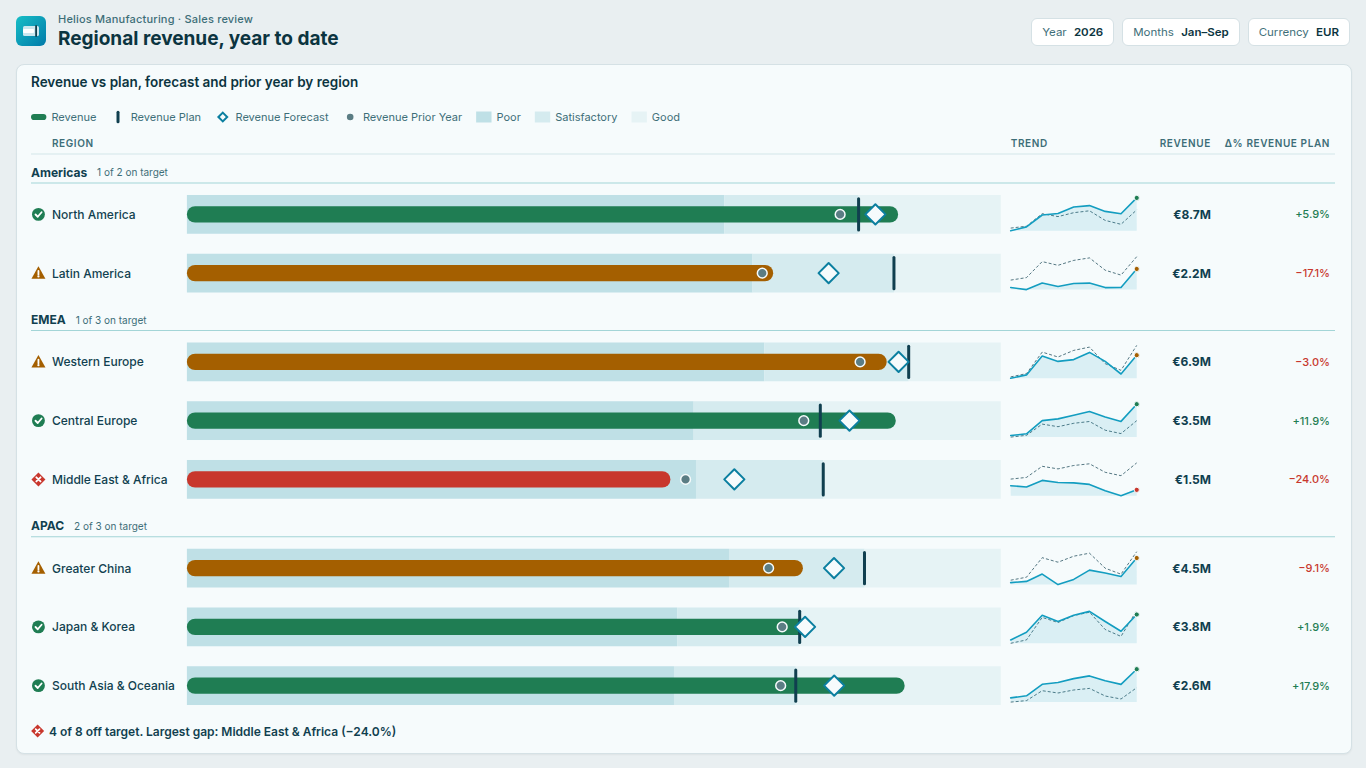
- The visual says Add an Actual measure, or every row shows the same target
- The bullet needs a measure in Actual before it draws anything; Category, Target, Forecast and Prior year are optional, and without a Category the visual draws one row named after the measure. If every row shows the same target, the target table is not filtered by the field in Category: Power BI then returns the grand total for each row. Relate the target table to the same dimension table you use in Category, or write the Target measure so it responds to that column.
- I mapped Band boundary 1 and Band boundary 2 but the bands did not change
- Bands are drawn from % of target until you switch them. Open Bands and set Band boundaries from to Band boundary fields; the option appears only once at least one band field is mapped. If only one of the two fields has a value for a row, the visual uses that value for both boundaries on that row.
- Some rows have no status icon, no colour and no bands
- Status and bands are measured against a comparison value, and those rows have none: the Target is blank for that category. The visual never treats a blank as zero. When the scenario chosen in Comparisons > Measure status against is blank for a row, it falls back to Target, then Forecast, then Prior year. A target of exactly zero is a separate case: there is no ratio to compute, so the row is good or off target depending on which side of zero the actual lies. Categories with a blank name are labelled (Blank).
- The numbers in the bullets changed after I added a Trend period field
- With a Trend period field the visual receives one value per period and has to combine them into the bullet. Trend > Bullet shows controls this: Auto adds the periods together, except for a percentage-formatted Actual, where it takes the latest period; you can also choose Latest period, Sum of periods or Average of periods. For year-to-date or balance measures, set it to Latest period. Up to 60 periods are used.
- Viewers do not see the forecast, prior year, pace or sparklines that I see in edit mode
- Forecast and prior-year comparisons, pace to target, trend sparklines, the % of target scale, the variance pins column and the summary sentence are premium. Every premium feature previews in edit mode so you can build the page first. A viewer without a licence sees the free tier: actual against target, bands, status, variance, groups and sorting, with the % of target scale falling back to Per row, never a blocked or empty visual, and your settings are kept. Power BI's own licence banner names the features it held back. To give a viewer the premium view, assign them a SmartVisuals Bullet Chart licence in the Microsoft 365 admin center under Billing > Licenses.
- Pace marks every row behind, or ahead, on a past year
- Year to date (today), Quarter to date (today) and Month to date (today) under Pace & projection > Period elapsed use the viewer's clock, so a report filtered to last year is still judged as if today were inside that period. For a closed or historical period, choose Fixed % and set Elapsed %, or choose Elapsed % field and map a measure to Elapsed %. The field accepts 0 to 1 and also reads values above 1 as a percentage, so 75 and 0.75 mean the same.
- My colours are ignored in high-contrast mode, or I cannot reach the rows with the keyboard
- In Windows high-contrast mode the visual uses only the colours of the high-contrast theme: custom bar, band and marker colours are set aside, bands become outlines, and status stays readable through the icon shapes. Your colours return when high contrast is switched off. For keyboard use, the whole visual is one tab stop: Tab into it, then use the arrow keys to move between rows, Home and End to jump to the first or last row, Enter or Space to select and cross-filter, Escape to clear the selection, and Shift+F10 or the context-menu key for the context menu.
- A Not all data is shown warning appears, or the Others row looks wrong
- Power BI sends a custom visual at most 1,000 categories and 60 trend periods; beyond that the warning icon appears and some rows are left out. Filter the page or the visual to choose which rows appear, or use Layout > Show top N with Sort to keep the rows that matter. The Others row adds the remaining rows together, which suits sales or costs but not percentages or rates; switch Layout > Others row off to drop the rest instead. An Others row that mixes directions or units shows no status.