
Visuals/Pl. XXIV

    Waterfall & PVM

    Why did revenue change? Computed for you.

    A complete waterfall with subtotals, variance bridges and IBCS notation, free. Premium splits the change into volume, mix, price, currency, new and lost items from units and revenue, reconciled to the cent, with no DAX.

    Datasheet
    Status
    Available on Microsoft Marketplace
    Price
    $2.99 /user/mo · $29 /user/yr
    Licensing
    Per user, assigned in the Microsoft 365 admin center. Unlicensed viewers see the free tier, never a blocked visual.
    Data
    Computed inside Power BI. No external calls, no API keys, no telemetry.
    Visuals API
    5.11
    Accessibility
    Keyboard navigation (one tab stop), high contrast, WCAG-tested theme colours
    Languages
    20 languages, including English, Czech, German, Spanish, French, Italian, Dutch, Polish, Portuguese, Slovak, Japanese, Korean and Chinese
    Works in
    Power BI Desktop, Service, Embedded
    Pl. XXIV  ·  Waterfall & PVM  ·  the product spotrecorded from the shipped visual
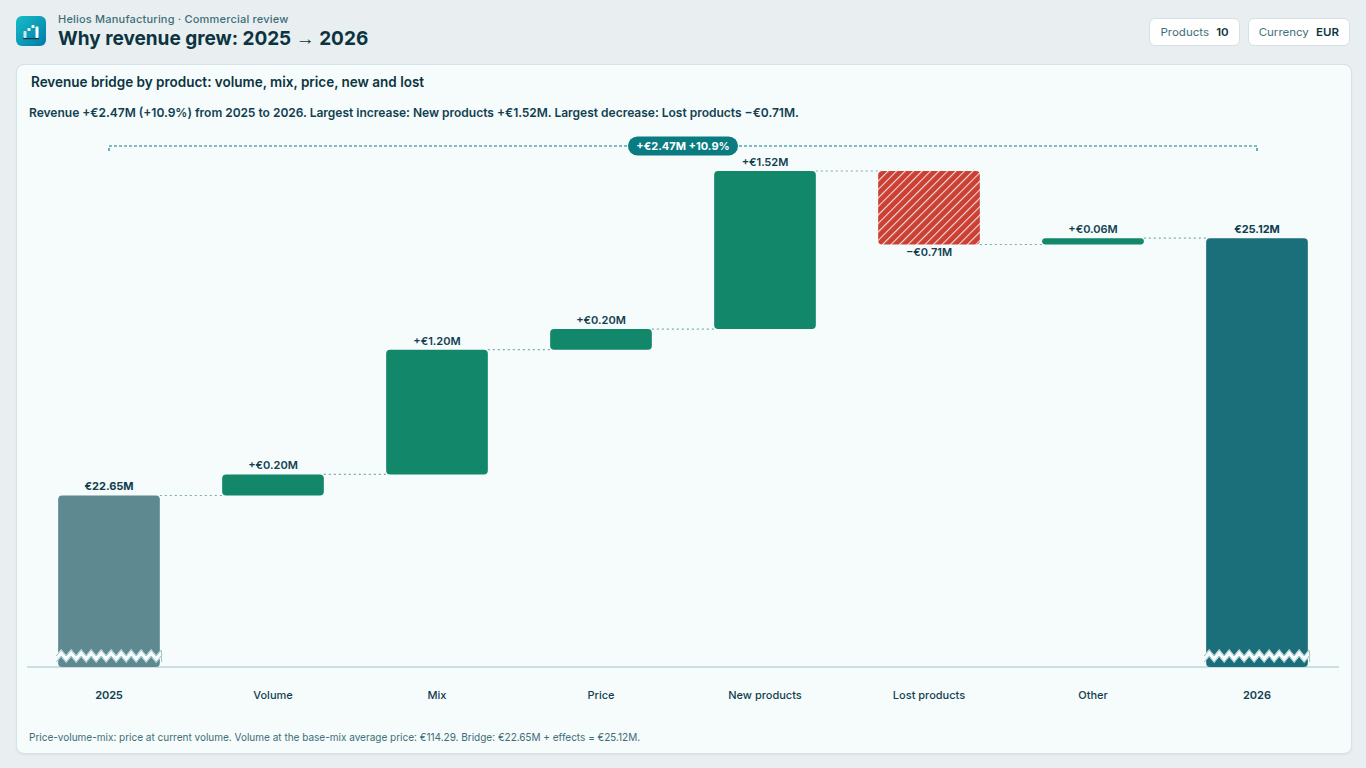
    Price-volume-mix bridge in Power BI by product from 2025 to 2026 with volume, mix, price, new and lost bars
    Pl. XXIV  ·  Waterfall & PVM  ·  Premium: price, volume, mix, new and lost products from units and revenue, reconciled to the cent.rendered from the shipped visual
    What it does

    SmartVisuals Waterfall & PVM Bridge answers the question every monthly business review asks: how much of the change is price, how much is volume, how much is mix, and how much did currency take? Give it units and revenue by product or customer for two periods and it draws the price-volume-mix bridge finance teams otherwise build by hand in DAX, with the method named on the chart and every label adding up to the end total.

    The waterfall around it is free for every viewer: thousands of steps with subtotals, budget-to-actual and prior-year variance bridges, horizontal layout, Top N with Others, IBCS notation, lower is better for cost bridges, axis break, data table and four themes. Every premium feature is fully unlocked while you edit, and viewers without a licence always see a working chart, never a blocked or watermarked visual. Everything is computed inside Power BI; the visual makes no external calls.

    Search all visuals

    Free and premium

    Where the line is, exactly.

    Report authors see the full premium set in edit mode, so you can evaluate every feature on your own data before assigning a single licence. Unlicensed viewers always get a working chart.

    Free tierevery viewer
    • Waterfall with subtotalsThousands of steps, with subtotals and totals from a Step type field or an "=" name prefix, and invert per step.
    • Variance bridgesBudget to actual or prior year to actual by category, from a comparison measure or a Period field.
    • Layout and orderVertical or horizontal, Top N with Others, sort by impact and drill-down.
    • IBCS and cost bridgesIBCS notation (PY, PL, FC, AC) with hatched adverse bars, and lower is better for cost bridges.
    • Labels that add upAutomatic axis break, difference highlight in value and %, a data table and labels that still add up after rounding.
    • Four themes, every optionA one-line insight, four themes with their own personality, step colours per category with Power BI conditional formatting (fx), and every colour, font and label adjustable.
    • Native Power BI behaviourCross-filtering, tooltips and report-page tooltips, keyboard navigation, high contrast and 20 languages.
    Premium$2.99 /user/mo · first month free
    • Price-volume-mix bridgeVolume, mix and price from units and revenue, plus cost for a margin bridge, currency from constant-rate revenue, and new and lost items.
    • Four documented methodsPrice at current volume, price at base volume, a separate price-by-volume interaction or the symmetric midpoint, with mix and new/lost switches.
    • Chained multi-period bridges2024 to 2025 to 2026 from one Period field, up to the latest 24 periods, for variance and price-volume-mix bridges.
    • Effects down to the itemBreak any effect down by product, see the top contributors in every tooltip, and an item table that ties the bars back to the items.
    • Small multiplesOne bridge per region or segment, on a shared or an independent scale.

    How do I build a price-volume-mix bridge in Power BI without DAX?

    The usual price-volume-mix analysis in Power BI is a SUMX, a disconnected table and a SWITCH measure per effect, rebuilt in every model and wrong the first time a product is launched or discontinued. SmartVisuals Waterfall & PVM Bridge does the arithmetic inside the visual. Bind Category (product or customer), Value (revenue), Volume (units) and a Period field, or a Comparison value and Comparison volume instead of a period, and the change between the two periods is split into volume, mix, price, new and lost items.

    Add a cost measure and the bridge becomes a margin bridge with separate price and cost effects. Add revenue at the comparison period's exchange rates and a currency bar separates FX from underlying growth. Fees, rebates and credit notes without units go to an Other bar, because an amount without volume cannot be split into price and volume. The footnote names the method and the base average price, and the effects always add up exactly to the change.


    How are price, volume and mix calculated?

    For items sold in both periods, price is the change in unit price times the current units, volume is the change in total units valued at the base average price, and mix is the shift of units towards items priced above or below that average. Items sold only in the current period form the New bar and items no longer sold form the Lost bar, so price, volume and mix compare like with like. Items are classified by volume, never by amount, so a credit note cannot pose as a product.

    That default, price at current volume, is the management-accounting sales price variance. Three more documented methods are a format-pane choice: price at base volume, price at base volume with a separate price-by-volume interaction bar, and a symmetric midpoint whose result does not depend on the order. Mix can be folded back into volume for the classic two-way split, which is the right choice when items are counted in different units, and new and lost items can be imputed into volume and mix instead of shown as their own effects.

    Do the labels on the bridge really add up?

    Yes. For every item and under every method, volume, mix, price, cost, interaction, currency, new, lost and other sum to the change by algebra, and the bridge closes on the data's own end pillar. With Rounded labels add up, on by default, the steps between two pillars are rounded with the largest-remainder method, so the labels you read sum to the pillar labels. The data table and the item table use the same rounded ledger, and tooltips show two more decimals than the labels.

    The engine is validated against an independent reference implementation on 480 scenarios, including new and discontinued products, returns, zero volume and mixed currencies, and property tests close 400 random portfolios under random option combinations.

    Can a free waterfall chart do subtotals, IBCS and cost bridges?

    The free tier is a complete waterfall for every viewer, with no licence. Subtotals and totals come from a Step type field or an "=" prefix on the step name, and a waterfall can have thousands of steps. Variance bridges from budget or prior year to actual by category come from a comparison measure or a Period field. Vertical or horizontal, Top N with Others, sort by impact and drill-down are all free.

    Lower is better turns a cost bridge the right way round, and any step can be inverted. IBCS notation styles the pillars as PY, PL, FC and AC with hatched adverse bars. An automatic axis break keeps small steps readable on a large base, the difference highlight shows the change in value and percent, a data table sits under the chart and a one-line insight states the result.

    How do I show a bridge over several years or per region?

    Map a Period field with three or more values and a chained bridge runs through every period, 2024 to 2025 to 2026, as a variance or a price-volume-mix bridge, up to the latest 24 periods. If there are more, the footnote says which periods are shown, and you filter the Period field to choose others.

    Map a region or segment to Small multiples and you get one bridge per value, on a shared or an independent scale. Any effect can be broken down by product inside a labelled band, every effect tooltip lists the top contributors, and an item table ties the bars back to the items. Chained bridges, small multiples and the price-volume-mix bridge with its breakdowns are the premium features.

    What happens for viewers without a licence?

    The visual never blocks a report and never shows a watermark. A viewer without a licence sees the free variance bridge of the same numbers, with the same start and end totals; a chained bridge becomes one first-to-last bridge and small multiples merge into one chart, and Power BI shows its own one-time licence banner. The default configuration uses no premium feature, so an unconfigured visual never raises a banner.

    In edit mode every premium feature renders in full, so you can evaluate the whole visual on your own data before buying. Premium is $2.99 per user per month or $29 per user per year, with the first month free, through Microsoft Marketplace.

    Use cases

    Where Waterfall & PVM earns its place.

    Monthly revenue bridge by product

    An FP&A team maps Product to Category, revenue to Value, units to Volume and Year or Month to Period. With the licence, the change between the last two periods is split into volume, mix, price, new and lost products, the footnote names the method and the base average price, and every label adds up to the end pillar. Without Volume, or for readers without a licence, the same fields draw a variance bridge by product.

    Margin bridge with currency

    Add Cost and Comparison cost for a margin bridge with separate price and cost effects, and a measure with this period's revenue at the comparison period's exchange rates to Value at comparison FX for a Currency bar. Price, volume and mix are then measured in constant currency. All of this is part of the premium price-volume-mix bridge.

    Budget to actual by region

    A controller maps Region to Category, actual to Value and budget to Comparison value. The free variance bridge starts at the budget total, shows each region's gap and closes on actual. Bars & colors > Direction > Lower is better turns a cost bridge the right way round, and Chart type & method > Notation > IBCS styles the pillars and hatches the adverse bars.

    P&L walk with subtotals

    Map the P&L line to Category, the amount to Value and a Step type column with values such as start, subtotal and total (or start the line name with "=" for a subtotal). The free waterfall draws the walk from revenue to net profit with subtotal pillars, in data order or sorted by impact.

    Getting started

    From empty canvas to first chart.

    1. 01

      Map steps to Category and a measure to Value for a classic waterfall; add a Step type field or an "=" name prefix for subtotals.

    2. 02

      Add a comparison measure or a Period field for a variance bridge, budget or prior year to actual, by category.

    3. 03

      Add units to Volume and the bridge splits the change into volume, mix, price, new and lost; add cost or revenue at comparison exchange rates for margin and currency.

    4. 04

      Choose the method, chained periods or a Small multiples field in the format pane; everything previews in full while you edit.

    Get Waterfall & PVM

    Two ways in.

    Installation instructions for both paths are on the download page.

    Microsoft Marketplace (recommended)

    Reviewed by Microsoft, updates automatically, licences assigned in the Microsoft 365 admin center.

    Open Microsoft Marketplace

    Direct download (1.0.0.0)

    .pbiviz package, import into Power BI Desktop or Service, does not auto-update. Includes the full free tier; premium features preview in edit mode and are licensed through Microsoft Marketplace.

    Download .pbiviz
    Accessibility

    Readable and usable for everyone.

    Tab
    Moves into the chart. The chart is one tab stop that starts on the first step; with small multiples, each panel is its own tab stop.
    Right / Down arrow
    Moves to the next step.
    Left / Up arrow
    Moves to the previous step.
    Home / End
    Jumps to the first or the last step.
    Enter or Space
    Selects the focused step and cross-filters the page. Hold Ctrl or Shift to add it to the selection.
    Esc
    Clears the selection.
    Shift+F10 or the context-menu key
    Opens the Power BI context menu for the focused step.
    • Screen readers

      The chart is a list of steps labelled with the number of steps and the insight sentence, for example "Waterfall chart, 9 steps". Each step is an option that reads the same lines as its tooltip, such as its name, value and change, and says whether it is selected. The focused step gets a visible focus ring.

    • Not colour alone

      Bars & colors > Hatch adverse bars (on by default) hatches the steps that work against you, so direction never depends on colour; when bars are coloured by effect, and in high contrast, adverse steps are always hatched. In IBCS notation, plan and forecast pillars are drawn as outlines, the forecast one hatched.

    • High contrast

      In Windows high contrast mode every bar, label and line uses the contrast theme's colours, adverse steps stay hatched, a selected step gets an outline instead of dimming the others, and the difference highlight becomes an outlined pill.

    • Context menu

      Right-click, Shift+F10 or the context-menu key opens the Power BI context menu on a step; right-clicking the background opens it for the visual.

    • Languages

      The format pane, effect names, notes, tooltips and the insight are available in 20 languages: Chinese (simplified and traditional), Czech, Danish, Dutch, English, French, German, Hungarian, Italian, Japanese, Korean, Norwegian, Polish, Portuguese (Brazil and Portugal), Slovak, Spanish, Swedish and Turkish.

    Release notes

    What changed, and when.

    Updates install automatically from Microsoft Marketplace. Full history.

    1. 1.0.0.0

      First release on Microsoft Marketplace.

      • Waterfall with subtotals, variance bridges, IBCS notation, lower is better, axis break and a data table, in 20 languages.
      • Price-volume-mix bridge with four methods, chained multi-period bridges, item breakdowns and small multiples (premium).
    Questions

    Asked before you did.

    More questions? See support or write to hello@smartvisuals.io.

    The waterfall with subtotals, variance bridges, horizontal layout, Top N with Others, IBCS notation, lower is better, axis break, data table and every theme and cosmetic option are free. Premium adds the price-volume-mix bridge with all four methods and its new, lost, cost and currency effects, item breakdowns, chained multi-period bridges and small multiples for $2.99 per user per month or $29 per user per year, with the first month free, through Microsoft Marketplace.

    Never. They see the free variance bridge of the same numbers, with the same start and end totals; a chained bridge becomes one first-to-last bridge and small multiples merge into one chart. The visual never blocks a report and never shows a watermark, and every premium feature previews free in edit mode.

    Price at current volume by default, the management-accounting sales price variance. Price at base volume, a separate price-by-volume interaction and the symmetric midpoint are a format-pane choice, and the footnote always names the method and the base average price.

    Items are classified by volume. Items sold only in the current period form the New bar, items no longer sold the Lost bar, and amounts without units, such as fees and credit notes, go to Other. Price, volume and mix therefore compare like with like, and the effects add up exactly to the change.

    Yes. Bind a measure with the current revenue at the comparison period's exchange rates and a currency bar shows actual minus constant currency; price, volume and mix are then measured in constant currency.

    No. The visual makes no external calls, requests no privileges and loads no web fonts or remote images; every calculation runs inside your report.

    Category and Value draw a waterfall. Add a Period field, or a Comparison value, for a variance bridge, and Volume (with Comparison volume when there is no Period) for the price-volume-mix bridge; Cost, Comparison cost and Value at comparison FX add margin and currency effects. For subtotals, map a Step type column with start, subtotal, total or subtract (or 2, 1, 3 and -1), or start a step's name with "=".

    Up to 30,000 rows and, with a Period field, the latest 24 periods; a note or a warning icon says when something was left out. Layout > Show top N steps keeps the largest steps and groups the rest into Others, and the category accepts a drill-down hierarchy of up to four levels.

    Yes. The chart is one tab stop: the arrow keys move between steps, Home and End jump to the ends, Enter or Space selects (Ctrl or Shift adds), Esc clears and Shift+F10 opens the context menu. Screen readers hear each step's name, value and change. Adverse steps are hatched so direction never depends on colour, and Windows high contrast has its own rendering.

    20: Chinese (simplified and traditional), Czech, Danish, Dutch, English, French, German, Hungarian, Italian, Japanese, Korean, Norwegian, Polish, Portuguese (Brazil and Portugal), Slovak, Spanish, Swedish and Turkish, for the format pane, effect names, notes, tooltips and the insight.

    Yes. In the Power BI Service, licensed readers see the premium bridge and others see the free variance bridge. Where Power BI tells the visual that licences cannot be checked, for example in Power BI Embedded, Publish to web or Power BI Report Server, the premium features stay on rather than lock anyone out.

    Post it on the public board at smartvisuals.io/feedback, where other users can vote and comment, or use the Report a bug block on the support page (smartvisuals.io/support) or email hello@smartvisuals.io. A screenshot and the fields you mapped help most; sample data is welcome but never required.
    Troubleshooting

    When it does not look right.

    Found a bug or missing something? Post it on the requests board or vote for what others asked; the developer answers within two business days.

    I mapped Volume, but the chart draws a variance bridge instead of price, volume and mix.
    The price-volume-mix bridge needs a Volume field and a comparison: a Period field with at least two values, or Comparison value and Comparison volume. When Chart type & method > Chart type is set to Price-volume-mix bridge and one is missing, the chart says what it needs. It is also premium: in reading view without a licence, the visual draws the variance bridge of the same totals instead.


    The New and Lost bars are bigger than I expected.
    Items are classified by volume: an item with units only in the current period is New, one with units only in the comparison period is Lost, so price and mix compare like with like. Check that the item has units in both periods. If you prefer them inside volume and mix, turn off Chart type & method > New and lost items as effects.
    There is an Other bar I did not expect.
    Other collects amounts that cannot be split into price and volume: lines without units such as fees, rebates and credit notes, items whose units change sign (sales turning into returns) and items whose price per unit flips sign or moves more than 1,000 times. A note lists the items with irregular prices.
    There is no Currency bar.
    The currency effect needs a measure in Value at comparison FX. By default that measure is read as the current period at the previous period's rates, which fits adjacent periods only, so a bridge between non-adjacent periods leaves the currency effect out and a note says why. If your measure values every period at constant rates, say so in Chart type & method > Value at comparison FX holds.
    The labels do not add up to the total.
    Data labels > Rounded labels add up is on by default: the steps between two pillars are rounded together so the printed labels sum to the pillar labels. If it is off, each label is rounded on its own and can be off by a unit. Tooltips show two more decimals than the labels.
    Some steps or periods are missing.
    Layout > Show top N steps keeps only the largest steps and groups the rest into Others (0 shows all). A Period field with more than 24 values shows the latest 24 periods with a note; filter the Period field to choose others. The visual reads up to 30,000 rows; above that a warning says the bridge is computed on the items Power BI sent.
    Readers see one first-to-last bridge instead of a chained bridge, or one chart instead of small multiples.
    Chained multi-period bridges, small multiples and the price-volume-mix bridge are premium. They render in full while you edit; readers without a licence see a working chart with the same start and end totals and one licence notice from Power BI. Assign a licence in the Microsoft 365 admin center under Billing > Licenses.
    For developers & AI agents

    Add this visual programmatically.

    Use the GUID and data roles below to add Waterfall & PVM to a Power BI report via PBIR or the Report Authoring agent. Full catalog (JSON)

    Visual GUID
    waterfallPvmBridge7D3C9E21A4B84F6FA1E2C5D8B9F04A13
    RoleDisplay nameKind
    categoryCategoryGrouping
    periodPeriodGrouping
    groupSmall multiplesGrouping
    valueValueMeasure
    baseValueComparison valueMeasure
    volumeVolumeMeasure
    baseVolumeComparison volumeMeasure
    valueFxValue at comparison FXMeasure
    costCostMeasure
    baseCostComparison costMeasure
    stepTypeStep typeMeasure
    tooltipsTooltipsMeasure
    Missing something?

    Tell us what is missing.

    A feature you need, a bug you hit, a visual that does not exist yet. Every message reaches the person who builds these visuals, and feature requests shape what ships next. We also build visuals to order.

    Also in the family

































