Visuals/Pl. XVI

    KPI Weather

    Your KPIs as a weather forecast

    Sunny, partly cloudy, rain or storm from actual vs target for every KPI, with the trend arrow and prior-year comparison free. Premium Outlook forecasts the coming months with the chance of meeting target.

    Datasheet
    Status
    Available on Microsoft Marketplace
    Price
    $1.99 /user/mo · $19 /user/yr
    Licensing
    Per user, assigned in the Microsoft 365 admin center. Unlicensed viewers see the free tier, never a blocked visual.
    Data
    Computed inside Power BI. No external calls, no API keys, no telemetry.
    Visuals API
    5.11
    Accessibility
    Shape and word on every status, keyboard navigation, screen-reader labels, high contrast, reduced motion
    Languages
    English, Czech, German, Spanish, French, Italian, Dutch, Polish, Portuguese (Brazil), Slovak
    Works in
    Power BI Desktop, Service, Embedded
    Pl. XVI  ·  KPI Weather  ·  the product spotrecorded from the shipped visual
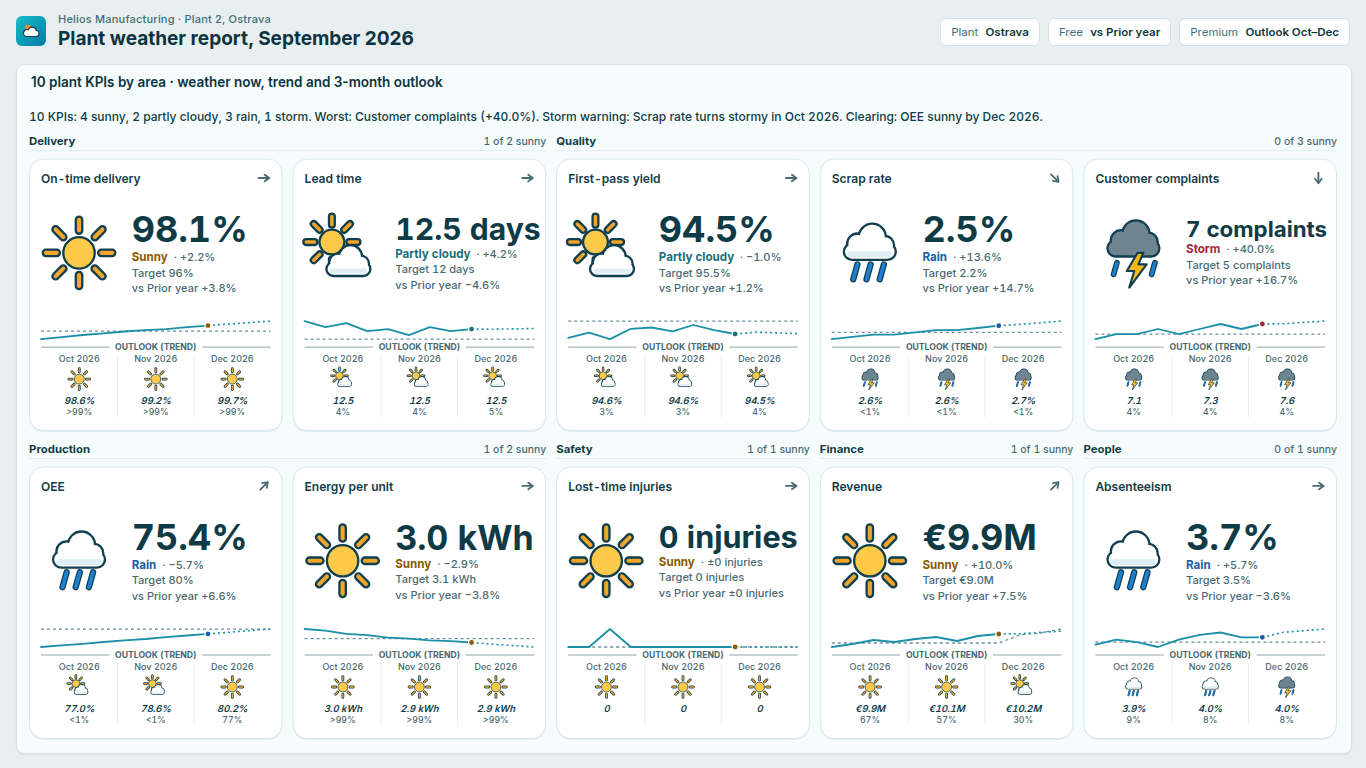
    Power BI KPI Weather grid of plant KPIs shown as weather with trend arrows and prior-year comparison
    Pl. XVI  ·  KPI Weather  ·  Every KPI as weather with trend and vs prior year, free; the 3-month outlook is Premium Outlook.rendered from the shipped visual
    What it does

    Everyone reads a weather forecast in half a second, from across the room, without a legend. SmartVisuals KPI Weather turns actual vs target into that language for up to 500 KPIs: sunny on target, partly cloudy within tolerance, rain below, storm far below and fog when there is no reading, with a five-step trend arrow, a sparkline and a prior-year comparison, all free. No DAX and no emoji: the weather art is drawn in SVG by the visual itself.

    Premium Outlook adds what a KPI card cannot do: the weather for the coming periods from a linear trend, each period judged against its own budget, the chance of meeting target, storm warnings, pace to target and more comparisons. Every premium feature is fully unlocked while you edit, and viewers without a licence always see a working visual in the free tier. Everything is computed inside Power BI; the visual makes no external calls.

    Search all visuals

    Free and premium

    Where the line is, exactly.

    Report authors see the full premium set in edit mode, so you can evaluate every feature on your own data before assigning a single licence. Unlicensed viewers always get a working chart.

    Free tierevery viewer
    • Weather for up to 500 KPIsSunny on target, partly cloudy within tolerance, rain below, storm far below, fog when there is no reading.
    • Your bands, your directionTolerance bands you set (100 / 95 / 85 % by default) or per-KPI rain and storm thresholds; lower-is-better per visual or per row; zero-harm targets.
    • Trend and sparklineA five-step trend arrow and a sparkline with its target line, plus an optional rule that a falling trend lowers the weather.
    • One comparison, such as prior year"vs Prior year +4.2%" on every KPI and in the table, labelled with your field's real name; the tooltip says better or worse per KPI direction.
    • Four layoutsOne big hero with wall-screen rotation, a grid with one tile per KPI (small multiples), a forecast strip, and Boardroom mode: the same data as a plain status table. Tile columns and value size adjust to the size of the visual.
    • Four themes, four art stylesOur own weather art in four styles, four themes with their own personality, and weather words, business words or your own.
    • Never colour aloneShape and word on every KPI, high contrast, keyboard navigation, reduced motion and 10 languages.
    Premium$1.99 /user/mo · first month free
    • OutlookThe weather for the next 1 to 6 periods from a linear trend, each period judged against its own budget.
    • Chance of meeting targetFor every forecast period, the way a forecaster gives the chance of rain.
    • Storm warningsOutlook sentences in the weather report, such as "Scrap rate turns stormy in Oct 2026".
    • Pace to targetYear, quarter or month to date judged against where you should be today, with the run-rate landing.
    • More comparisonsA second and third measure: prior year, forecast and group average side by side.
    • Sky scenesWeather-matched sky backdrops for wall screens and landing pages.

    How do I show KPI status as weather in Power BI?

    Map a KPI name, an Actual and a Target, and every KPI gets its weather: sunny on target, partly cloudy within tolerance, rain below it, storm far below, and fog when there is no reading. The visual never guesses a sun; a missing value or a missing target reads as fog. Add a period field such as Month and each KPI also gets a five-step trend arrow and a sparkline with its target line, with zero configuration.

    The status comes from performance against the target, mirrored for lower-is-better KPIs, so "5 % over the cost budget" and "5 % short of the revenue target" land in the same weather. No DAX, no UNICHAR weather column, no emoji: the weather art is the visual's own, drawn in SVG.

    Tolerance bands, lower-is-better and zero-harm targets

    The default bands are 100 / 95 / 85 %: sunny at or above target, partly cloudy down to 95 %, rain down to 85 %, storm below. All three boundaries are adjustable and can never cross. When a percentage does not fit, optional Rain threshold and Storm threshold fields set absolute limits per KPI, for example a lead time that is fine up to 12 days and stormy beyond 15.

    Lower-is-better works per visual or per row, so a mixed scorecard of revenue, scrap rate and lead time reads correctly in one visual. Zero targets for zero-harm KPIs such as injuries or spills are met exactly or not at all: sunny at zero, storm above.

    Can a KPI card compare against prior year for free?

    Yes. Bind one measure to the Comparison well, such as prior year, and every KPI shows its change against it, labelled with the field's own name: "vs Prior year +4.2%" on tiles and the hero, in the strip, as a column in the Boardroom table and in the tooltip, which says better or worse according to the KPI's direction. The weather itself stays actual vs target; a comparison is context, never a second judgement.

    A second and third comparison measure, for prior year, forecast and group average side by side, are part of Premium Outlook.

    How does the KPI forecast work, and can I trust it?

    Premium Outlook draws the weather for the next 1 to 6 periods from an ordinary least-squares line through your last periods, the same simple trend a CFO can check with FORECAST.LINEAR in Excel. Each future period is judged against its own budget when the data has one; otherwise the latest target is carried forward and the tooltip says so. Every tooltip names the method and the number of periods, and every outlook on the canvas sits under an "Outlook (trend)" label.

    The chance of meeting target comes from the prediction interval of that line, shown as "70 %" or "7 in 10" the way a forecaster gives the chance of rain. It is withheld when the history is too short or has no scatter, and KPIs that never went below zero are never forecast below zero. The statistics are validated against reference values in automated tests.

    Hero, grid, forecast strip or a plain status table

    Auto picks a hero for one KPI and a grid for several. The hero shows one big forecast and can rotate through KPIs on a wall screen, with a visible pause button. The grid gives one tile per KPI, small multiples of KPI cards, each with its own glyph, value, vs target, trend and sparkline, under optional Group headers. The forecast strip lays out one row per KPI like a weather app's weekly forecast. Boardroom mode shows the same data as a plain status table with status shape, word, actual, target, variance and trend, for the meeting where weather icons would feel out of place.

    Every layout fits itself to the size of the visual. With Layout > Tile columns at 0 (auto), the grid puts as many tiles in a row as the width allows and spreads them evenly over the rows, and tiles grow taller to use the available height. With Values > Value size at 0 (auto), the big number is sized to fit its tile or the hero. Forecast strip and Boardroom rows grow with the height too, and when the content needs a scrollbar the visual lays itself out again inside the narrower space.

    Four themes have their own personality: SmartVisuals morning sky, Dark night broadcast, Clean newspaper weather page and Slate control room. Weather art comes in four styles, and the labels can be weather words, business words or your own.

    Is weather readable without colour?

    Status is never colour alone. The shape of the glyph is the status, so it reads in greyscale; every KPI also carries its weather or business word, and the tooltip and screen-reader label say it. High-contrast mode draws outlines in the host colours, the visual is one keyboard tab stop with arrows, Home, End, Enter and Escape, and the reduced-motion preference switches every animation off. By default animations play once and settle on a static frame (Continuous is an option for wall screens), and the lightning flash stays within safe flash limits.

    Use cases

    Where KPI Weather earns its place.

    Monthly plant scorecard for operations

    A plant controller maps the KPI name to KPI, the area (Quality, Delivery, Safety) to Group, Month to Period, and the Actual and Target measures. Each KPI gets a tile with its weather, a trend arrow and a sparkline with the target line, grouped under headers that count how many are sunny. With Sort set to Worst first, storms and rain come to the top of the grid.

    One mixed scorecard of higher- and lower-is-better KPIs

    A quality lead keeps revenue, scrap rate, complaints and lead time in one visual. A 0/1 column in the Lower is better well, aggregated with Max, sets the direction per KPI, and a Unit or format column gives each row its own unit (%, days, €). Being 5 % over the scrap target and 5 % short of the revenue target land in the same weather.

    Service levels with absolute limits

    Some KPIs have a fixed tolerance rather than a percentage, such as a lead time that is acceptable up to 12 days and critical beyond 15. Binding measures to Rain threshold and Storm threshold sets those boundaries per KPI, while KPIs without them keep the percentage bands from the Weather rules card.

    Wall screen in the plant or contact centre

    A single KPI, or Layout set to Hero, shows one large forecast readable across the room. With several KPIs, Rotate KPIs every n seconds cycles through them, with rotation dots and a visible pause control. The Dark theme and Weather animation set to Continuous (wall screens) suit a screen that runs all day.

    Management meeting status table

    For a board pack where weather art would feel out of place, Layout set to Boardroom table shows status shape, word, actual, target, variance and trend per KPI. Weather words set to Business reads On target, Within tolerance, Below target and Critical, and one measure in the Comparison well adds a vs prior year column, free.

    Budget outlook for the rest of the year (Premium Outlook)

    A finance team keeps monthly budgets in the Target measure through December and leaves future actuals blank. With Periods ahead set to 3 in the Outlook card, the Forecast strip shows the weather for the next three months per KPI, each judged against its own month's budget, with the chance of meeting target and a storm warning in the weather report sentence.

    Getting started

    From empty canvas to first chart.

    1. 01

      Map your KPI names, Actual and Target. Every KPI gets its weather in a grid, or a hero for a single KPI.

    2. 02

      Add a period field such as Month for the trend arrow and sparklines, and a measure to Comparison for vs prior year.

    3. 03

      Set tolerance bands, lower-is-better and the layout, theme and words in the format pane.

    4. 04

      Set an outlook horizon or pace to try Premium Outlook; everything previews in full while you edit.

    Get KPI Weather

    Two ways in.

    Installation instructions for both paths are on the download page.

    Microsoft Marketplace (recommended)

    Reviewed by Microsoft, updates automatically, licences assigned in the Microsoft 365 admin center.

    Open Microsoft Marketplace
    Accessibility

    Readable and usable for everyone.

    Tab
    Moves focus to the visual. All KPIs share one tab stop, so Tab leaves the visual in one step.
    Arrow keys
    Move to the next KPI. In the grid they follow the tiles on screen; in the strip and the Boardroom table they go down and up the list. In Hero they step through the KPIs.
    Home / End
    Jump to the first or the last KPI.
    Enter or Space
    Selects the focused KPI and cross-filters the page. Ctrl+Enter adds it to the selection.
    Space (rotating Hero)
    Pauses or resumes the rotation through KPIs.
    Escape
    Clears the selection.
    Shift+F10 or the context-menu key
    Opens the Power BI context menu for the focused KPI.
    • Not colour alone

      The shape of the weather glyph is the status (sun, cloud, rain, storm, fog), so it reads in greyscale. Each KPI can also show its weather or business word, and the trend arrow points in its direction.

    • Screen readers

      The visual is announced as a list of KPIs with their count and the weather report sentence. Each KPI is announced with its name and group, weather word, period, actual, target, performance, variance and comparisons, and whether it is selected. On a rotating Hero it also says that Space pauses.

    • High contrast

      In a Windows high-contrast theme the visual uses only the host's foreground and background colours, draws the weather art as outlines, ignores custom colours, and turns off Sky scenes, status stripes and animation. Focus and selection use the host's selected colour.

    • Reduced motion

      When the operating system asks for reduced motion, every weather animation is switched off. By default animations play once and then rest; the lightning flash is limited to small, slow changes in brightness. A rotating Hero has a visible pause button and pauses while the pointer is over it.

    • Languages

      Format pane and visual text in English, Czech, German, Spanish, French, Italian, Dutch, Polish, Portuguese (Brazil) and Slovak.

    Release notes

    What changed, and when.

    Updates install automatically from Microsoft Marketplace. Full history.

    1. 1.0.0.0

      First release on Microsoft Marketplace.

      • KPI status as weather for unlimited KPIs, with your own bands and direction.
      • Outlook, chance of meeting target, storm warnings and pace (premium).
    Questions

    Asked before you did.

    More questions? See support or write to hello@smartvisuals.io.

    Weather for every KPI, tolerance bands, lower-is-better, trend, sparklines, one comparison, all four layouts, themes and art styles are free. Premium Outlook adds the forecast, chance of meeting target, storm warnings, pace to target, the second and third comparison and Sky scenes for $1.99 per user per month or $19 per user per year, with the first month free, through Microsoft Marketplace.

    Never. Unlicensed viewers always see a working visual in the free tier: weather, trend, sparklines, targets, the first comparison and every layout and theme. Premium parts are simply not drawn, and a paced KPI shows "no reading" rather than a wrong weather. The visual never blocks a report and never shows a watermark, and every premium feature previews free in edit mode.

    KPI (the KPI name), Actual and Target are enough for the weather. Optional wells add more: Group for section headers, Period (a date or period column) for the trend arrow, sparkline and forecast, Comparison for up to three measures such as prior year, Rain threshold and Storm threshold for absolute limits per KPI, Lower is better for a per-row direction, Elapsed % for pace, Unit or format for a per-row unit, and up to five Tooltips.

    From actual against target, as a percentage: sunny from 100 %, partly cloudy from 95 %, rain from 85 % and storm below, mirrored for lower-is-better KPIs. All three boundaries are set in the Weather rules card, and Rain threshold and Storm threshold measures override them per KPI. A KPI without an actual or a target reads as fog (No reading); the visual never guesses.

    An ordinary least-squares line through your last periods (6 by default, 3 to 36 in the Outlook card), extrapolated 1 to 6 periods ahead and judged against each period's own target. The chance of meeting target comes from the line's prediction interval. Every tooltip names the method, and the statistics are validated against reference values in automated tests.

    No. The weather is always actual vs target. A comparison such as prior year is shown as context next to it, with better or worse judged by the KPI's direction.

    Up to 500 KPIs and the latest 60 periods per visual, the most Power BI sends to it. There is no smaller limit in the free tier. When your data goes beyond either number, a warning icon says so and a page or visual filter chooses what appears.

    Yes, through the Unit or format well. Give it a text column (aggregated with First or Max) or a DAX measure that returns text, one value per KPI. A unit such as %, days, kWh or € is attached to that KPI's numbers; a format string such as 0.0% or #,0 is applied to them the way the model would apply it. Without the well, every KPI uses the format string of the Actual measure. This is the visual's own field; it does not read Power BI's dynamic format strings.

    Status never depends on colour: the glyph shape and the weather or business word carry it. The visual has full keyboard navigation with one tab stop, screen-reader labels for every KPI, a high-contrast mode in the host's colours, and it switches animation off when the system asks for reduced motion. The Accessibility section lists every key.

    The format pane and the text in the visual follow the Power BI language: English, Czech, German, Spanish, French, Italian, Dutch, Polish, Portuguese (Brazil) and Slovak. Your field names, KPI names and custom weather words are shown as you wrote them.

    No. The visual makes no external calls, requests no privileges and loads no web fonts or remote images; every calculation runs inside your report.

    Not yet. Power BI includes a custom visual in PDF and PowerPoint exports only after Microsoft has certified it, and KPI Weather is not certified yet.

    Use the Report a bug block on the support page, or write to hello@smartvisuals.io. A screenshot, the Power BI version (Desktop or Service) and the fields you have bound help us reproduce it quickly. Missing a feature? Tell us the same way.
    Troubleshooting

    When it does not look right.

    Found a bug or missing something? Post it on the requests board or vote for what others asked; the developer answers within two business days.

    Every KPI shows fog and the word No reading.
    The weather is always actual against target, and the visual never guesses a status. Fog means the KPI has no Actual or no Target for its current period. If the Target well is empty, edit mode shows a hint saying so; bind your plan, budget or goal measure there. If only some KPIs are foggy, check that the Target measure returns a value for those rows in the latest period that has an actual.
    The visual judges a month that has not happened yet, and shows a storm for it.
    With a Period field, today's weather comes from the latest period that has an actual. A blank actual counts as no reading, but a zero counts as a real value. If your Actual measure returns 0 for future months (for example through COALESCE or + 0), the visual treats the last month as current and compares 0 with its target. Change the measure so future periods return BLANK(), and the last month with real data becomes Now again.
    The Period shows only years, or the trend arrow and sparkline look wrong.
    The Period well needs the date or period column itself, not its date hierarchy. If Power BI added Year, Quarter, Month and Day levels, open the drop-down on the field in the Period well and choose the date column instead of Date Hierarchy, or remove the extra levels so only the month column remains. Text periods such as month names, quarters or Sprint 5 also work.
    A cost or defect KPI shows sunny when it is over target, or every KPI flipped to lower-is-better.
    Direction in the Weather rules card sets higher or lower is better for the whole visual. For a mixed scorecard, bind a column to the Lower is better well with 1, true or yes for lower-is-better rows and 0 for the others; a blank row uses the Direction setting. If a text column was dropped there, Power BI aggregates it with Count, which marks every KPI; the visual ignores the field and shows a warning icon. Set the field's aggregation to Max.
    The Trend or Outlook card is missing from the format pane, or no outlook appears.
    The format pane only shows cards that have an effect. Trend appears once a field is in the Period well. Forecast also needs Current value from in the Trend card set to Latest period, because a sum or average of periods has no next period to forecast. The outlook starts when Periods ahead is above 0 and a KPI has at least three periods with an actual. The Pace card works the other way round: it appears only without a Period field and with a Target bound.
    The forecast, chance of meeting target or second comparison show while I edit but not for colleagues in reading view.
    These are Premium Outlook features. In edit mode every premium feature previews in full, so you can set everything up before buying. Viewers without a licence still see a working visual in the free tier: weather, trend, sparklines, targets, the first comparison and every layout and theme. A KPI set up with pace to target reads No reading for them rather than a wrong weather. To show premium features to a colleague, assign them a licence in the Microsoft 365 admin center under Billing, then Licenses.
    A warning icon says Not all data is shown.
    Power BI sends a custom visual at most 500 KPIs and the latest 60 periods, so the visual shows this icon when the data reaches either limit. Filter the page or the visual to the KPIs and periods you want, for example with a relative date filter on the period column, and the warning clears.
    My weather colours, art style or backdrop change in high contrast, or I need to use the visual without a mouse.
    In a Windows high-contrast theme the visual deliberately draws outline art in the host's colours, ignores custom colours, switches off Sky scenes and animation, and keeps the status readable from the glyph shape and the word. For keyboard use, the visual is one tab stop: arrow keys move between KPIs (or step through KPIs in Hero), Home and End jump to the first and last, Enter or Space selects (Space pauses a rotating Hero instead), Escape clears the selection, and Shift+F10 opens the context menu.

    For developers & AI agents

    Add this visual programmatically.

    Use the GUID and data roles below to add KPI Weather to a Power BI report via PBIR or the Report Authoring agent. Full catalog (JSON)

    Visual GUID
    kpiWeatherFF07437A76914148ACA0775101EF3B6F
    RoleDisplay nameKind
    categoryKPIGrouping
    groupGroupGrouping
    periodPeriodGrouping
    valueActualMeasure
    targetTargetMeasure
    comparisonComparisonMeasure
    rainAtRain thresholdMeasure
    stormAtStorm thresholdMeasure
    lowerIsBetterLower is betterMeasure
    elapsedElapsed %Measure
    unitUnit or formatMeasure
    tooltipsTooltipsMeasure
    Missing something?

    Tell us what is missing.

    A feature you need, a bug you hit, a visual that does not exist yet. Every message reaches the person who builds these visuals, and feature requests shape what ships next. We also build visuals to order.

    Also in the family