
Visuals/Pl. XXXVIII

    Line Chart

    A line chart that reads itself

    Bind a date and a measure: an end label, a soft gradient and a calm date axis, with no setup. Then a legend and two axes together, plan styling, forecasts and trend tests.

    Read the documentationComing soon to Microsoft Marketplace
    Datasheet
    Status
    Coming soon to Microsoft Marketplace
    Price
    $1.99 /user/mo · $19 /user/yr
    Licensing
    Per user, assigned in the Microsoft 365 admin center. Unlicensed viewers see the free tier, never a blocked visual.
    Data
    Computed inside Power BI. No external calls, no API keys, no telemetry.
    Visuals API
    5.11.0
    Accessibility
    One tab stop with arrow-key navigation, screen-reader live region and chart label, dash and marker shape per series, high contrast, Reduce motion, focus outline and minimum text size
    Languages
    20: English, Czech, Danish, Dutch, French, German, Hungarian, Italian, Japanese, Korean, Norwegian, Polish, Portuguese (Brazil), Portuguese (Portugal), Slovak, Spanish, Swedish, Turkish, Chinese (Simplified), Chinese (Traditional)
    Data volume
    30,000 periods per window, up to 150,000; up to 60 lines
    Statistics
    Computed inside the visual, golden-tested against statsmodels, scipy and pandas
    Network
    No external calls, no telemetry
    Works in
    Power BI Desktop, Service, Embedded
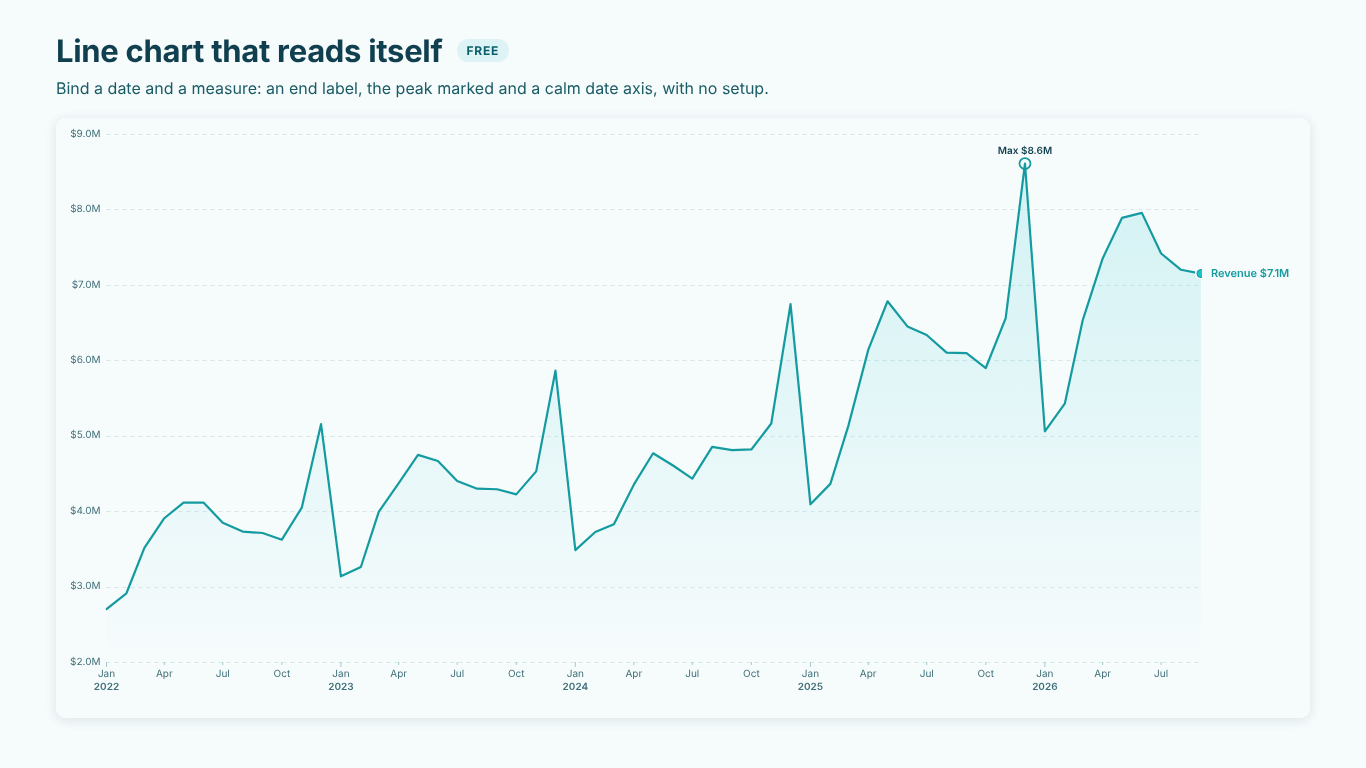
    Monthly revenue line from 2022 to 2026 with a soft gradient, the maximum of $8.6M marked and an end label of $7.1M
    Pl. XXXVIII  ·  Line Chart  ·  Bind a date and a measure: an end label and a calm date axis, with no setup; Highlights > Mark Maximum adds the peak.rendered from the shipped visual
    What it does

    SmartVisuals Line Chart starts from the chart people draw most and fixes the details: an end label instead of a legend you have to match by colour, a soft gradient and date ticks such as "Jan / 2026". A Legend and a second value axis work at the same time, so every region can keep its revenue and its margin on one chart.

    Actuals turn into plan in one line, a threshold changes the colour exactly where the line crosses it, and gaps follow the rule you choose. Forecasts with prediction intervals, comparisons with variance bars, the Mann-Kendall trend test and seasonal decomposition are computed inside the visual and golden-tested against statsmodels, scipy and pandas. SmartVisuals Time Series carries the same line view next to area, combo, sparklines, candlestick and ridgeline.

    Search all visuals

    Free and premium

    Where the line is, exactly.

    Report authors see the full premium set in edit mode, so you can evaluate every feature on your own data before assigning a single licence. Unlicensed viewers always get a working chart.

    Free tierevery viewer
    • Legend and two value axes at the same timeSplit by Region and still put Gross margin % on the right-hand axis: each region keeps its revenue and its margin line, with the zero line aligned across axes when they start at zero.
    • Straight, smooth or step linesSmoothing that never invents a peak (monotone cubic), and steps before, after or in the middle of each period.
    • End labels and markersThe series name and last value at the end of each line, pushed apart so they do not collide; markers on all, the last, the minimum and maximum, or the first and last points.
    • Actual and plan in one lineDashed after the last actual period with a labelled rule; the gap between two series, or a series and the Target, shaded in two colours.
    • Threshold colouringA line changes colour above and below a value or the Target, split exactly at the crossing, for every series, with a legend.
    • Linear trend, peaks and gapsA linear trend line per series, the maximum, minimum, peaks and troughs marked, and five rules for missing values.
    • Reference lines, bands and zoomReference lines (a value, or the average, median, percentile, minimum or maximum of the first series), value and period bands, a range band from Low and High, log scale, a range navigator with zoom and pan, and style presets you can copy between visuals.
    • Tooltips, cross-highlight and drilldownTooltips with the change to the previous point and your tooltip fields, report page tooltips, cross-filter with Ctrl multi-select, cross-highlight, drilldown on the date hierarchy, bookmarks and the context menu.
    • Conditional formatting and dynamic format stringsConditional formatting (fx) on markers, dynamic format strings honoured per value, data labels, a legend, axis titles, four themes and localization in 20 languages.
    • AccessibilityOne keyboard tab stop with arrow-key navigation, a screen-reader live region, a chart label that describes the chart, dash and marker shape per series, high contrast and Reduce motion.
    Premium$1.99 /user/mo · first month free
    • Forecasts with prediction intervalsFor every series in the legend: exponential smoothing chosen by AICc, 80 and 95 % bands, a horizon in periods or through a date, and anomalies flagged.
    • Comparisons with variance barsAgainst the same period last year (by calendar), the Target or the Comparison field, with the gap shaded and absolute or relative variance bars underneath.
    • Trend test and seasonal decompositionMann-Kendall with Sen's slope says whether the series really rose; seasonal decomposition splits it into trend, seasonal and remainder.
    • Time-saversShow values as year to date, running total, index or % change; Top N + Others; polynomial, exponential, logarithmic, power and LOESS trends and moving averages with equation and R²; reference lines for every series; a one-sentence smart caption; annotations from a measure.
    • Value axes 3 and 4 and small multiplesTwo more value axes on the outer edges, and one panel per value of the Small multiples field.

    How do I show a legend and a second value axis on one line chart?

    Put Region in Legend, Revenue in Values and Gross margin % in Secondary axis values. Every region keeps a revenue line on the left axis and a margin line on the right, labelled "US · Revenue" and "US · Gross margin" at the line ends. Each axis scales to its own data; set Y-Axis > Start At Zero to Always and Align Zero Across Axes (on by default) puts zero at the same height on both. Secondary Y-Axes > Colour Each Axis Like Its Series ties each scale to its line when an axis carries one series.

    Any series can also move to the other axis in Format pane > Series Axes, and Series Line Styles gives each one its own dash, so revenue can stay solid and margin dashed. A practical walk-through of when two axes help and when they mislead is in our Insights article on the topic.


    How do I show actuals turning into plan or forecast?

    Set Actual and Forecast Styling > Actuals End At to Last period with an actual (the last period where the first measure in Values is not blank) or to A date. Every point after it is drawn dashed with hollow markers, and Vertical Rule (on by default) marks the switch with a label you can rename. Put the plan in Target and it is drawn as a dashed reference line.

    Difference Fill > Fill Between Two Series shades the gap between the first two series, or between the first series and the Target, in a better and a worse colour (Higher Is Better decides which). Threshold Colouring > Colour Above / Below changes the line colour at a value or at the Target, split exactly where the line crosses it rather than at the nearest data point.

    What happens with missing values and gaps?

    Blank means missing, and a real 0 is a value. Lines > Missing Values decides what a blank does: Leave a gap (default), Treat as zero, Connect across, Interpolate (in time, drawn as hollow markers and noted in the footnote) or Repeat previous value. Leading and trailing blanks are never filled, so a line never runs on into months that have not happened.

    On a date axis the spacing is true time, so a month with no row at all still shows as a gap rather than being squeezed out. Unsorted dates are sorted by the visual.

    How do the forecast, trend test and seasonal decomposition work?

    Forecast > Show Forecast fits exponential smoothing models (simple, Holt, damped trend, seasonal and Holt-Winters additive) to every series in the legend and keeps the one with the lowest AICc, or the model you pick. It draws 80 % and 95 % prediction intervals, needs at least 6 periods (two full seasons for a seasonal model) and can run a number of periods ahead or through a date. Trend Test runs Mann-Kendall with Sen's slope and says in the caption whether the rise or fall is significant.

    Seasonal Decomposition > Trend, Seasonal and Remainder splits the first series into three aligned panes with classical additive decomposition. Every statistic is computed inside the visual and golden-tested against statsmodels, scipy and pandas, and the footnote names the method, such as "Decomposition of Revenue: classical additive, season of 12 periods".

    Which data does it expect?

    A date or date/time column in Axis (date) gives a continuous time axis with calendar ticks such as "Jan / 2026"; the grain (hour, day, week, month, quarter, year) is detected from the dates and sets the tooltip date format and the season. A number gives a linear axis, and text periods or date hierarchy levels give one slot per value; drilldown walks Year > Quarter > Month > Day.

    Values takes one or more measures; Legend splits them into one line per value. Secondary axis values, Target, Comparison, Low and High (a range band), Annotation (a text measure that pins a note on a period), Small multiples and Tooltips are optional.

    What are the limits?

    Power BI sends 30,000 periods per window, and the visual asks for more, up to 150,000. Up to 60 Legend values are drawn as lines. Lines with more points than the plot has pixels are simplified for drawing with LTTB, which keeps the first, last, minimum and maximum points, while every statistic uses all of them. Forecasts are drawn for up to 12 series.

    A logarithmic axis with zero or negative values falls back to linear. Multiplicative seasonality is not in this version. Tell us what is missing on the feedback board.

    Use cases

    Where Line Chart earns its place.

    Revenue and margin per region on one chart

    Helios puts Month in Axis (date), Region in Legend, Revenue in Values and Gross margin % in Secondary axis values. The US and DE each keep a revenue line on the left axis and a margin line on the right, labelled "US · Revenue" and "DE · Gross margin" at the line ends, each axis scaled to its own range.

    Monthly revenue that turns into plan

    Revenue in Values and Plan in Target, with Actual and Forecast Styling > Actuals End At set to Last period with an actual. After September the plan continues dashed behind an "Actual | Plan" rule, and Difference Fill > Compare With > The Target field shades the months where revenue fell short of plan.

    OEE against a threshold for one plant

    The Milwaukee plant's weekly OEE in Values, with Threshold Colouring > Colour Above / Below on, Threshold set to A value and Value set to 0.8. The line turns to the below colour exactly where it crosses 80 %, not at the nearest week, and Reference Lines > Line 1 at the same value, labelled Target, prints the threshold and its value on the chart so it reads without colour.

    Revenue history with its season and events

    Revenue by month from January 2022, an Events text measure in Annotation ("Supplier outage", "E-bike Gen 3 launch") and Seasonal Decomposition switched on. Readers see the line with the events pinned, plus a seasonal pane and a remainder pane underneath that show how much of each December peak is the usual season.

    Getting started

    From empty canvas to first chart.

    1. 01

      Add SmartVisuals Line Chart to the page and put a date column, or a date hierarchy, in Axis (date).

    2. 02

      Add one or more measures to Values, such as Revenue, and a field like Region to Legend for one line per value.

    3. 03

      For a second scale, add a measure such as Gross margin % to Secondary axis values; Y-Axis > Start At Zero > Always lines up the zero of both axes.

    4. 04

      Add the plan to Target and set Actual and Forecast Styling > Actuals End At to Last period with an actual.

    5. 05

      Pick a line shape, markers and a theme, or apply a preset under Presets and Templates; Forecast, Compare and Trend Test are further down the format pane.

    Get Line Chart

    On its way.

    Installation instructions for both paths are on the download page.

    Microsoft Marketplace (recommended)

    The offer is prepared for Microsoft Marketplace and not published yet. This page will link to the listing the moment it is live.

    Coming soon
    Accessibility

    Readable and usable for everyone.

    Tab
    Moves to the chart, which is one tab stop. Focus lands on the first point of the first line.
    Left / Right arrow
    Moves to the previous or next point along the focused line.
    Up / Down arrow
    Moves to the same period in the previous or next line.
    Home / End
    Jumps to the first or the last point.
    Page Up / Page Down
    Jumps ten lines at a time, stopping at the first or the last.
    Enter or Space
    Selects the focused point and cross-filters the page. Hold Ctrl to add it to the selection.
    Esc
    Clears the selection.
    • Screen readers

      The chart is labelled with a sentence that describes it, such as "Revenue rose 165 % from Jan 2022 to Sep 2026. Peak in Dec 2025 ($8.6M).", whether or not the smart caption is drawn. A polite live region reads the focused point as series, period and value, for example "Revenue, Mar 2026: $7.1M".

    • Not colour alone

      Accessibility > Distinguish Series Without Colour gives every line its own dash pattern and marker shape, in the chart and in the legend. End-of-Line Labels name each line where it ends, and Series Line Styles sets a dash per series by hand.

    • High contrast

      In Windows high contrast mode the visual uses only the contrast theme's colours: text, axes, lines and markers take its foreground colour, the focus outline takes its selection colour, area fills and gridlines are dropped, markers become hollow and Distinguish Series Without Colour is switched on.

    • Reduce motion

      Accessibility > Reduce Motion switches off transitions and animations; they are also off when the operating system asks for reduced motion.

    • Focus outline and text size

      Accessibility > Focus Outline Colour and Focus Outline Width set the dashed ring around the focused point (the theme's ring at 2.5 px by default). Minimum Text Size raises every label in the chart to at least that size.

    • Context menu

      Right-clicking a point opens the Power BI context menu for it; right-clicking elsewhere opens it for the visual.

    • Languages

      The format pane and every string the visual writes come in 20 languages: English, Czech, Danish, Dutch, French, German, Hungarian, Italian, Japanese, Korean, Norwegian, Polish, Portuguese (Brazil), Portuguese (Portugal), Slovak, Spanish, Swedish, Turkish and Chinese (Simplified and Traditional). Dates and numbers follow the report's locale.

    Questions

    Asked before you did.

    More questions? See support or write to hello@smartvisuals.io.

    The line chart is free for every reader: the legend and two axes, straight, smooth or step lines, end labels, actual-to-plan styling, threshold colouring, the fill between two lines, the linear trend, reference lines and bands, zoom and every accessibility feature. Premium (Forecast & Compare) adds forecasts with prediction intervals, comparisons with variance bars, the trend test, seasonal decomposition, the time-savers, value axes 3 and 4 and small multiples, for $1.99 per user per month or $19 per user per year, with the first month free. Premium previews in full in Power BI Desktop and edit mode; readers without a licence see the free chart, with no watermark and nothing blocked.

    SmartVisuals Line Chart has been prepared for Microsoft Marketplace and is not published yet. This page will link to the listing once it is live.

    Put the field that splits the lines in Legend, the first measure in Values and the second in Secondary axis values. Each legend value gets a line for each measure, on its own axis. Each axis scales to its own data; with Y-Axis > Start At Zero set to Always, Align Zero Across Axes (on by default) puts zero at the same height on both. Format pane > Series Axes moves any single series to the other axis.

    Axis (date) and at least one measure in Values. Optional: Legend (one line per value), Secondary axis values, Target (plan, dashed, and the base for variances), Comparison, Low and High (a shaded range band), Annotation (a text measure that pins a note on a period), Small multiples and Tooltips.

    No. The visual declares no network privileges, makes no external calls and sends no telemetry. Forecasts, trend tests and decomposition are computed inside the visual in your report. The licence is checked through Power BI's own licensing service.

    Lines > Missing Values offers Leave a gap (default), Treat as zero, Connect across, Interpolate and Repeat previous value. Interpolated points are drawn hollow and the footnote says so. Leading and trailing blanks are never filled, and a real 0 is always drawn as 0.

    30,000 periods per window, and the visual asks Power BI for more, up to 150,000. Up to 60 Legend values are drawn as lines. Long lines are simplified for drawing (the first, last, minimum and maximum points are always kept) while statistics use every point, and forecasts are drawn for up to 12 series.

    Line Chart is the single-view edition. SmartVisuals Time Series adds area, combo, sparklines, candlestick and ridgeline views over the same fields, with the same engine. Microsoft licenses every offer separately, so a licence for one never unlocks the other. For line charts alone this one costs less; with three or more chart types Time Series does.

    Yes. The chart is one tab stop: Left and Right arrows walk along a line, Up and Down move to the same period of the next line, Home and End jump to the ends, Enter or Space filters, with Ctrl to add, and Escape clears. A polite live region reads each point, such as "Revenue, Mar 2026: $7.1M", and the chart is labelled with a sentence that describes it, such as "Revenue rose 165 % from Jan 2022 to Sep 2026."

    20: English, Czech, Danish, Dutch, French, German, Hungarian, Italian, Japanese, Korean, Norwegian, Polish, Portuguese (Brazil), Portuguese (Portugal), Slovak, Spanish, Swedish, Turkish and Chinese (Simplified and Traditional), for the format pane and every string the visual writes. Dates and numbers follow the report's locale.

    Post it on the public board at smartvisuals.io/feedback, where other users can vote and comment, or use the Report a bug block on the support page (smartvisuals.io/support) or email hello@smartvisuals.io. A screenshot and the fields you bound help most.
    Troubleshooting

    When it does not look right.

    Found a bug or missing something? Post it on the requests board or vote for what others asked; the developer answers within two business days.

    The chart says "Add a date or period to Axis".
    A line chart over time needs a time axis. Put a date, a date hierarchy level, a number or a text period column in Axis (date); measures in Values alone would give one point per series.
    My line has breaks in it.
    A blank value is drawn as a gap by default. Lines > Missing Values offers Treat as zero, Connect across, Interpolate (hollow markers) and Repeat previous value. Leading and trailing blanks are never filled, and a real 0 is always drawn as 0.
    The secondary axis does not line up with the primary one.
    Each axis scales to its own data, and line axes do not start at zero by default, so their zeros can sit at different heights. Set Y-Axis > Start At Zero to Always: with zero on every axis, Align Zero Across Axes (on by default) puts it at the same height on both. Alignment is skipped while either axis uses a logarithmic scale.
    The logarithmic scale is not applied.
    A logarithmic axis needs every value on it above zero. With a zero or a negative value the axis stays linear; filter those periods out, or move the series to the other axis in Format pane > Series Axes.
    No forecast or decomposition appears.
    A forecast needs at least 6 periods; seasonal models and Seasonal Decomposition need two full seasons (24 months for monthly data), and the footnote says when there are too few. Forecasts are drawn for up to 12 series ("Forecast shown for the first 12 series").
    A feature marked Premium on this page shows in Desktop but not for some readers.
    Premium features preview in full in Power BI Desktop and in edit mode. In reading view, a reader without a licence sees the free chart, set up in memory without the premium settings, and Power BI shows its own licence banner once; nothing is blocked or watermarked.
    For developers & AI agents

    Add this visual programmatically.

    Use the GUID and data roles below to add Line Chart to a Power BI report via PBIR or the Report Authoring agent. Full catalog (JSON)

    GUID available after the visual is published on Microsoft Marketplace.

    RoleDisplay nameKind
    axisAxis (date)Grouping
    legendLegendGrouping
    valuesValuesMeasure
    secondarySecondary axis valuesMeasure
    targetTargetMeasure
    comparisonComparisonMeasure
    highHighMeasure
    lowLowMeasure
    annotationAnnotationMeasure
    facetSmall multiplesGrouping
    tooltipsTooltipsMeasure
    Missing something?

    Tell us what is missing.

    A feature you need, a bug you hit, a visual that does not exist yet. Every message reaches the person who builds these visuals, and feature requests shape what ships next. We also build visuals to order.

    Also in the family





































