- The visual says "One more period" instead of drawing lines.
- A slope needs at least two periods. Either put two or more measures in Values (one per period), or put one measure in Values and a Year, Quarter, Month or Scenario column in Period. When a Period column is used, only the first measure in Values is plotted; move any other measures to Tooltips.
- Before and after are the wrong way round, or the latest periods are missing.
- Without a Period column, the order of the measures in the Values well is the order of the periods, left to right: drag them into before, after order. With a Period column, the periods follow that column's sort order. Month names stored as text sort alphabetically, so give the column a Sort by column such as MonthNumber. The chart draws the latest 36 periods and writes "N earlier periods not shown" under the chart; if the Period column is sorted descending, the note tells you to sort it ascending to see the latest ones.
- Some lines show "new" or "gone" instead of a change, or a line has a gap.
- A blank value is treated as no data, not as zero. A category with no value in the first period is labelled new, one with no value in the last period is labelled gone, and a blank middle period breaks the line. A blank category name is shown as (Blank). If blank should mean zero in your model, return zero from the measure (for example [Revenue] + 0); note that a line starting at zero then shows an absolute change, not a %. If every category is blank in the chosen periods, the visual shows "No data to compare".
- The change annotation is not the number I expected (% instead of percentage points, or absolute instead of %).
- Labels > Change annotation set to Auto shows percentage points only when the measure is formatted as a percentage in the model; give the measure a Percentage format and a rate going from 20% to 25% reads +5.0 pp instead of +25%. When a line starts at or below zero there is no honest % change, so that line shows the absolute change. For the same reason, if any line starts at or below zero, the story headline, Top N by % change and the dumbbell's % change sort rank by absolute change instead.
- Some labels are missing and the chart says "+N labels hidden".
- Labels > Avoid overlaps (leader lines) never draws two labels on top of each other, so on a crowded or small canvas the least important labels give way. Make the visual taller, lower the Labels font size, set Label content to Name or Value, reduce Max label width, or use Focus > Named categories with Hide the others to keep only the lines you are talking about. Show notes turns the note itself off; in the dumbbell view the same note reads "+N more rows".
- Lines I expect to be red or green are grey, or I cannot find the per-category colour pickers.
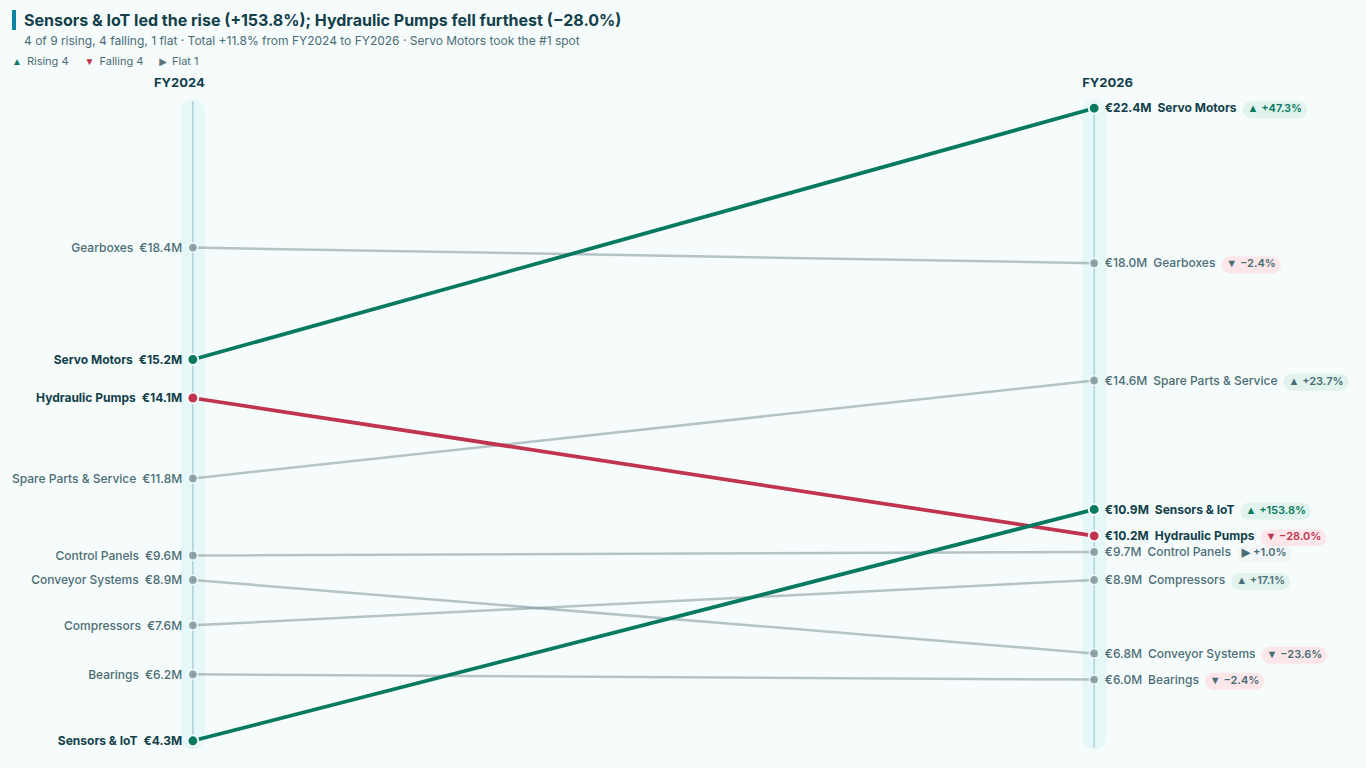
- With Colors > Color lines set to By direction, any change inside the dead band counts as flat. The default is Flat within ± 2 with Flat band measured as % change; lower it, or switch to Absolute change and enter a threshold in the measure's units. Higher is better swaps the rising and falling colours for costs or defects. The Category colors card, with one picker per real category name, appears only when Color lines is set to By category. Lines can also be faded by Focus; Others opacity % controls how much.
- Readers see a simpler chart than I built, with a licence banner.
- Three or more periods, the bump view, the indexed and share scales, Top / Bottom N focus, the story headline, the average benchmark and small multiples are premium. Every one of them previews in edit mode. A viewer without a licence in reading view sees the nearest free chart (first vs last period, the slope view, values scale, one combined panel) and Power BI shows its licence banner once; the visual is never blocked or watermarked. To give a viewer the full chart, assign them a SmartVisuals Slope Chart licence in the Microsoft 365 admin center under Billing > Licenses.
- High contrast mode changed my colours, or I want to use the chart from the keyboard.
- In Windows high contrast mode the visual takes its colours from the host and ignores custom category colours, the axis colour and the transparent background, so the chart stays readable. Direction is still shown by the ▲, ▼ and ▶ glyphs on the change annotations, the legend and the tooltip. From the keyboard, Tab moves into the chart, the arrow keys and Home / End move between lines, Enter or Space selects a line (Ctrl adds to the selection), Esc clears the selection and Shift+F10 opens the context menu.