Visuals/Pl. XXXIV

    Timeline

    Every event on the axis, no label on top of another

    Events, ranges, milestones and swimlanes on one time axis. Zoom, pan, icons, historic dates and keyboard access are free; Premium adds lane groups, eras, planned vs actual and story mode.

    Read the documentationComing soon to Microsoft Marketplace
    Datasheet
    Status
    Coming soon to Microsoft Marketplace
    Price
    $1.99 /user/mo · $19 /user/yr
    Licensing
    Per user, assigned in the Microsoft 365 admin center. Unlicensed viewers see the free tier, never a blocked visual.
    Data
    Computed inside Power BI. No external calls, no API keys, no telemetry.
    Visuals API
    5.11.0
    Accessibility
    One tab stop with arrow-key navigation, a screen-reader name per event, Windows high contrast, Accessibility card (focus outline, minimum text size, reduce motion, distinct shapes per category)
    Languages
    20: English, Chinese (Simplified and Traditional), Czech, Danish, Dutch, French, German, Hungarian, Italian, Japanese, Korean, Norwegian, Polish, Portuguese (Brazil and Portugal), Slovak, Spanish, Swedish, Turkish
    Data
    Up to 30,000 rows; dates, date-times or whole-number years (negative = BC)
    Network
    No external calls; web image addresses are never loaded
    Works in
    Power BI Desktop, Service, Embedded
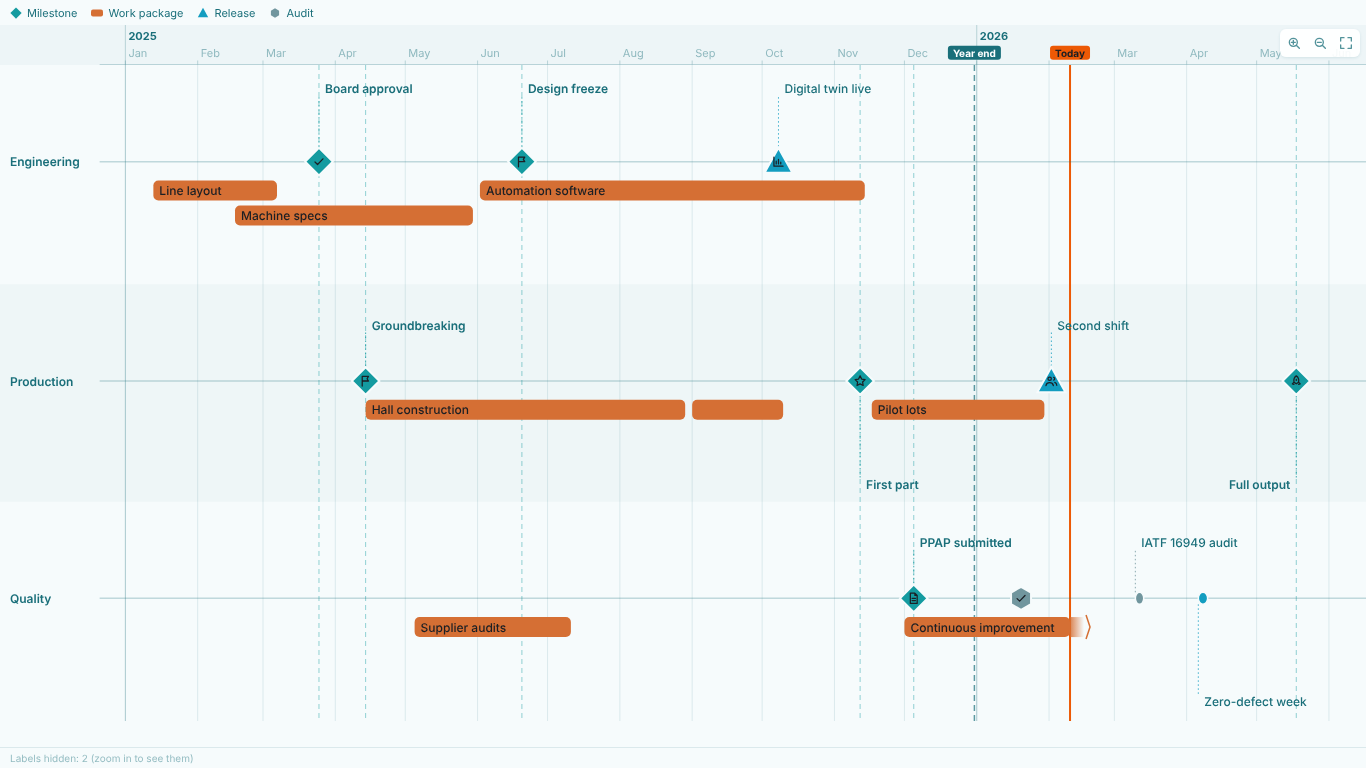
    Power BI timeline of a plant programme with Engineering, Production and Quality swimlanes, milestones, work-package bars, a Year end reference line and a Today line
    Pl. XXXIV  ·  Timeline  ·  Free: points, ranges, milestones and icons in three swimlanes, an ongoing range and a reference line, with no label on top of another.rendered from the shipped visual
    What it does

    SmartVisuals Timeline draws points and ranges from one table on one time axis, in swimlanes if you have them. Bind an Event and its Start and it already reads like a finished slide. A collision-free layout places every label above or below its line, most important first, and whatever cannot fit is counted in the status strip and comes back as you zoom.

    The free tier is a complete timeline in up to three swimlanes: milestones, ongoing and approximate dates, historic years, icons, links, reference lines, cross-filtering and full keyboard access. Premium, Roadmap & Story, adds the review layer for $1.99 per user per month or $19 per user per year. The visual makes no external calls, and readers without a licence always see the free timeline, never a blocked or watermarked one.

    Search all visuals

    Free and premium

    Where the line is, exactly.

    Report authors see the full premium set in edit mode, so you can evaluate every feature on your own data before assigning a single licence. Unlicensed viewers always get a working chart.

    Free tierevery viewer
    • Collision-free labels and markersLabels stack above and below each line, most important first, and no stem runs through another label. Markers that would touch stack apart. Hidden labels are counted in the status strip and come back as you zoom.
    • Points and ranges in one tableEnd is optional: blank makes a point, a later date a range. An End of ongoing, or a date in the year 9999, draws a range that runs to today.
    • Milestones from the category nameA category named Milestone draws diamonds with guide lines through every lane, recognised in 20 languages and overridable per category under Category Styles.
    • Dates, times and historic yearsDates, date-times down to the minute, or whole-number years where negative years are BC. Write c. 1450 for an approximate date.
    • Zoom, pan, overview and time-range selectionCtrl + mouse wheel or the buttons zoom, drag pans, the overview strip steers. Shift + drag selects a time range and filters the rest of the report. Open the report on the period you choose.
    • Reference lines, today line and descriptionsUp to three labelled reference lines for deadlines and go-lives, a today line, descriptions drawn under the labels, and a two-row axis from minutes to millennia.
    • Four themes and conditional formatting (fx)SmartVisuals, Dark, Clean and Slate change the character of markers, bars, lanes and stems, not just the colours. Conditional formatting (fx) on event colours, a Legend, Comfortable or Compact density.
    • Built for reportsCross-filtering, cross-highlighting, report-page tooltips and the context menu.
    • Accessibility and 20 languagesOne tab stop, arrow keys through events and lanes, plus and minus zoom, a screen-reader name for every event, Windows high contrast, an Accessibility card and 20 interface languages.
    • Up to three swimlanes, horizontal layoutEverything above, in up to three swimlanes in the horizontal layout, with no time limit.
    Premium$1.99 /user/mo · first month free
    • Any number of swimlanes and lane groupsMore than three lanes, and lane groups (Group > Lane) the reader can collapse: plant, workstream, team.
    • Background eras and the vertical layoutEras from a category named Era, Phase or Period, drawn as bands behind the lanes, and a vertical layout for long histories.
    • Milestone DatesBind several date columns, one row per project and one column per milestone, and each becomes a named milestone on its project's line. No unpivoting.
    • Planned vs actualA ghost marker at the plan and the slip in days on every milestone, also per milestone column with each plan matched to its milestone by name. Pending and overdue milestones are flagged and counted first.
    • Story modeStep or play through the events, each one zoomed to and explained in a card.
    • Gap analysisDays between consecutive events per lane, with the longest quiet period marked.
    • Axis breaksCollapse empty centuries or quiet years so the busy part of the timeline gets the room.

    How do I build a timeline of events in Power BI?

    Power BI has no native timeline of events. The usual workarounds are chart-based: a scatter or line chart with dates on one axis and a lane number on the other, or a stacked bar chart with an invisible offset series for the ranges. They draw the marks, but the labels sit on top of each other as soon as two events are close, and a point event and a range rarely share one chart.

    SmartVisuals Timeline takes one table as it is. Bind an Event and its Start and the timeline is drawn; add an End (Optional) for ranges, a Lane (Optional) for swimlanes and a Category (Optional) for colours, shapes and the legend. A category whose name contains Milestone draws diamonds with guide lines through every lane, recognised in 20 languages and overridable per category in the format pane under Category Styles.

    How does it keep labels from overlapping?

    Labels are placed most important first: by the Importance (Optional) measure when you bind one, then milestones, then time order. Each label takes the lowest free row above or below its line, and no stem may run through another label. Markers that would touch are stacked apart across the line instead of piling up.

    A label that has no free row is hidden, never drawn on top of another one. Its marker stays, the keyboard and the tooltip still reach it, and the status strip under the plot counts it ("Labels hidden: 2 (zoom in to see them)"). Zoom in and it comes back. Layout > Density (Comfortable or Compact), Label Placement and Max Label Rows per Side decide how much room labels get.

    Which dates can it read?

    Dates, date-times down to the minute and whole-number years from -9999 to 9999, where negative years are BC. That covers a company history from 1673, a plant programme by the day and an incident log by the minute. Write c. 1450 (or ca., circa, ~ and similar prefixes) for an approximate date: the marker gets a soft halo and the tooltip and screen reader say "c. 1450".

    An End of ongoing, present, today or a date in the year 9999, the usual "no end" value of databases, draws a range that runs to today and fades out, without stretching the axis to 9999. Bind the date field itself rather than its Date Hierarchy. Rows whose Start cannot be read, or whose End is before the Start, are skipped and counted in the status strip, never guessed.

    How do readers move around a long timeline?

    Ctrl + mouse wheel or the zoom buttons zoom, dragging pans and the overview strip shows where the view sits in the whole timeline. The axis has two rows and a ladder of steps from minutes to millennia. Zoom & Navigation > Initial Window opens the report on Fit all, a number of months around today or a Custom range you type as From and To.

    Shift + drag across the plot selects a time range and filters the rest of the report to the events in it. A today line, up to three labelled reference lines for deadlines or go-lives (Reference Lines card, typed as YYYY-MM-DD or a year) and descriptions drawn under the labels (Layout > Descriptions on the Canvas) are all free.

    What does Premium add for roadmap reviews?

    The free tier draws up to three swimlanes in the horizontal layout. Premium, Roadmap & Story, adds any number of lanes, lane groups the reader can collapse (Lane Group > Lane), background eras from a category named Era, Phase or Period, and the vertical layout for long histories.

    For reviews it adds Milestone Dates (one row per project and a date column per milestone, no unpivoting), planned vs actual with a ghost marker and the slip in days on every milestone, pending and overdue milestones flagged and counted, story mode that steps or plays through the events, gap analysis with the longest quiet period marked, and axis breaks that collapse empty stretches. Everything previews in edit mode.

    Timeline or Gantt chart: which one fits?

    The Timeline tells what happened and what is coming: events, ranges, milestones and eras packed into a few readable lanes. It has no task dependencies, no percent complete, no critical path and no resource rows, by design.

    If you are scheduling work with predecessors and a critical path, SmartVisuals Gantt Chart is the better fit. If you are showing a company history, a programme's milestones, an incident log or a roadmap for a steering meeting, the Timeline is.

    Use cases

    Where Timeline earns its place.

    A plant programme on one page

    The Atlanta plant programme lives in one table: the activity in Event, its start and finish in Start and End (Optional), the workstream (Engineering, Production, Quality) in Lane (Optional) and Milestone, Work package or Audit in Category (Optional). The steering group sees milestones as diamonds with guide lines, work packages as bars, an ongoing improvement range running to today and a Year end reference line, all free in three swimlanes.

    An incident log with the quiet periods measured

    Hannah Wright, safety lead in Milwaukee, binds the incident title to Event, the date to Start, the production line to Lane and the incident type (First aid, Near miss, Lost time) to Category. With Roadmap Analysis > Gap Between Events and Mark Longest Quiet Period on (Premium), each line shows the days between incidents and the longest quiet period is shaded, with the median gap in the status strip.

    A company history from 1673 to today

    Helios keeps its history as whole-number years in Start, so 1673 reads as a year and c. 1700 as an approximate one; Icon or Image (Optional) holds built-in names such as factory, globe and trophy. Premium adds eras from a category named Era (Founding years, Export boom, Lean transformation, Digital plant), the vertical layout, and Collapse Empty Stretches so the quiet centuries take little room.

    A product portfolio review, one row per project

    Emily Carter's portfolio table has one row per project and a column per milestone: Kick-off, Design freeze, Pilot run, Launch, plus a planned column for each. Bound to Milestone Dates and Planned Milestone Dates (Premium), each project becomes one line with its named milestones, a slip chip in days on every milestone and pending or overdue launches flagged, without unpivoting the table.

    Getting started

    From empty canvas to first chart.

    1. 01

      Add SmartVisuals Timeline to the report page and bind a text column to Event and a date, date-time or whole-number year column to Start. Use the date field itself, not its Date Hierarchy.

    2. 02

      Add End (Optional) for ranges, Lane (Optional) for swimlanes and Category (Optional) for colours, shapes and the legend. Name a category Milestone to get diamonds with guide lines.

    3. 03

      Optionally bind Description (Optional), Icon or Image (Optional) with a built-in icon name such as flag or rocket, Link (Optional) and Importance (Optional) to decide which labels win when space is short.

    4. 04

      In the format pane, pick a Theme, set Layout > Density and Label Placement, add deadlines under Reference Lines and choose the Initial Window under Zoom & Navigation.

    5. 05

      For roadmap reviews, try the premium wells and cards in edit mode: Lane Group, Milestone Dates, Planned Date, Story Mode and Roadmap Analysis all preview before you buy.

    Get Timeline

    On its way.

    Installation instructions for both paths are on the download page.

    Microsoft Marketplace (recommended)

    The offer is prepared for Microsoft Marketplace and not published yet. This page will link to the listing the moment it is live.

    Coming soon
    Accessibility

    Readable and usable for everyone.

    Tab
    Moves focus to the events. All events share one tab stop; focus returns to the event you used last. The zoom and story buttons and each lane group header are their own tab stops.
    Left / Right arrow
    Moves to the previous or next event in the lane (Up / Down in the vertical layout). Focusing an event outside the view pans to it.
    Up / Down arrow
    Jumps to the event nearest in time in the lane above or below (Left / Right in the vertical layout).
    Home / End
    Jumps to the first or last event in the lane. With Ctrl, to the first or last event of the whole timeline.
    Page Up / Page Down
    Moves five events back or forward in the lane.
    Enter or Space
    Selects the focused event and cross-filters the report. Hold Ctrl to add it to the selection. On a lane group header, collapses or expands the group.
    Shift + Left / Right arrow
    Extends a time-range selection from the focused event, filtering the report to every event in the range (Shift + Up / Down in the vertical layout).
    Shift+Enter
    Opens the focused event's Link through Power BI, which asks before leaving the report.
    + / - / 0
    Zooms in, zooms out, or fits the whole timeline.
    Space (story mode)
    Plays or pauses story mode (Premium) while it is open.
    Escape
    Closes story mode if it is open; otherwise clears the selection and the time range.
    Shift+F10 or the Menu key
    Opens the Power BI context menu for the focused event.
    • Screen readers

      The plot is a list box announced as "Timeline with 24 events. Arrow keys move between events, Enter selects, plus and minus zoom." Each event is an option with its own name: label, date or range, lane, category, description, "ongoing" for open ranges, "c. 1450" for approximate dates, Pending or Overdue for planned milestones, and "link" when it opens one; its selected state is announced. Lane group headers are buttons that say whether they are expanded. The status strip is a status region, and the story mode card is announced politely as it changes.

    • Not colour alone

      Accessibility > Distinct Shape per Category (on by default) gives each category its own marker shape: circle, square, triangle and hexagon in turn. Milestones are diamonds, ranges are bars, and slip chips print the number of days, so nothing relies on colour.

    • High contrast

      In Windows high contrast mode the visual uses only the host's foreground and background colours for markers, bars, eras, labels, the toolbar and the focus ring. Custom, theme and conditional-formatting colours are set aside, and marker shapes carry the categories.

    • Focus outline

      The visual draws its own focus ring around the focused event, in the colour and width set by Accessibility > Focus Outline Colour and Focus Outline Width (1 to 8 px).

    • Minimum text size

      Accessibility > Minimum Text Size (6 to 24, default 8) sets a floor for the text the visual draws, such as labels, axis ticks, chips and the story card, whatever other font sizes are chosen.

    • Reduced motion

      Zooming, panning and story steps redraw at once, with no animated transitions, so there is no motion to reduce. Accessibility > Reduce Motion (Follow system setting, Always, Off) is in the card. Story mode's Play advances only when a reader starts it, at the Seconds per Step you set, and Space or the pause button stops it.

    • Context menu

      Right-clicking an event opens the Power BI context menu for it; right-clicking empty space opens it for the visual. From the keyboard, use Shift+F10 or the Menu key.

    • Languages

      The format pane and every string the visual draws are available in 20 languages: English, Chinese (Simplified and Traditional), Czech, Danish, Dutch, French, German, Hungarian, Italian, Japanese, Korean, Norwegian, Polish, Portuguese (Brazil and Portugal), Slovak, Spanish, Swedish and Turkish. Dates are written in the report's locale.

    Questions

    Asked before you did.

    More questions? See support or write to hello@smartvisuals.io.

    The free tier is a full timeline in up to three swimlanes in the horizontal layout, with every theme, accessibility feature and language. Premium, Roadmap & Story, adds more lanes, lane groups, eras, the vertical layout, Milestone Dates, planned vs actual, story mode, gap analysis and axis breaks for $1.99 per user per month or $19 per user per year, with the first month free.

    The visual has been prepared for Microsoft Marketplace and is not published yet. This page will link to the listing once it is live.

    The free timeline, never a blocked or watermarked visual. In edit mode every premium feature previews. In reading view an unlicensed reader sees the first three lanes in your lane order with a "Showing 3 of N lanes" note, the horizontal layout, no eras and no planned dates, and Power BI shows its own notice where premium features were set up.

    No. The visual makes no external calls and sends no telemetry. Icons are built in, and an Icon or Image value that is a web address is never loaded; such rows are counted in the status strip. A Link opens only when a reader clicks the label, through Power BI, which asks before leaving the report.

    Event and Start. End, Lane, Category, Description, Icon or Image, Link, Importance and Tooltips are optional. The premium wells are Lane Group, Milestone Dates (up to 12 fields; one field is free), Planned Date and Planned Milestone Dates (up to 12 fields).

    Up to 30,000 rows; the status strip says "Showing the first 30,000 rows" when the cap is hit. Labels that do not fit at the current zoom are hidden and counted, and come back as you zoom in.

    The status strip names the reason: "Rows skipped, Start is not a date" (often a Date Hierarchy bound instead of the date field, or text that is not a date) or "Rows skipped, End is before Start". Rows are never guessed into place.

    Yes, free. An End of ongoing, present, now, today, open or current (and the same words in other languages), or a date in the year 9999 such as 9999-12-31, draws a range that runs to today with a fading open end. The tooltip and the screen reader say "ongoing".

    Bind the plan to Planned Date (Premium), or for one row per project bind each milestone's plan to Planned Milestone Dates (Premium); a field named "Launch (Planned)" or "Planned Launch" pairs with Launch by name. With Roadmap Analysis > Planned vs Actual on, each milestone gets a ghost marker at the plan and a slip chip in days; On-Time Tolerance (Days) sets what counts as on time. A planned date with no actual is pending, and overdue once the plan has passed.

    Yes. The events are one tab stop: Left and Right move through a lane, Up and Down jump to the nearest event in the lane above or below, Home and End go to the first and last, Enter or Space selects, Shift + Enter opens a link, plus and minus zoom, 0 fits the whole timeline and Esc clears the selection. Every event has a screen-reader name with its date, lane, category and description, and Windows high contrast is supported.

    20: English, Chinese (Simplified and Traditional), Czech, Danish, Dutch, French, German, Hungarian, Italian, Japanese, Korean, Norwegian, Polish, Portuguese (Brazil and Portugal), Slovak, Spanish, Swedish and Turkish, for the format pane and every string the visual draws. Dates follow the report's locale.

    Post it on the public board at smartvisuals.io/feedback, where other users can vote and comment, or use the Report a bug block on the support page (smartvisuals.io/support) or email hello@smartvisuals.io. A screenshot, the fields you bound and the text of the status strip help most.
    Troubleshooting

    When it does not look right.

    Found a bug or missing something? Post it on the requests board or vote for what others asked; the developer answers within two business days.

    Some event labels are missing.
    Labels that have no free row are hidden rather than drawn over another label, and the status strip counts them ("Labels hidden: 2 (zoom in to see them)"). Zoom in, raise Layout > Max Label Rows per Side, switch Density to Comfortable, or turn off Dates in Labels. Bind an Importance (Optional) measure to decide which labels win the space. Hidden events still have their marker, tooltip and keyboard focus.
    The visual says rows were skipped because Start is not a date.
    Bind the date field itself, not its Date Hierarchy (open the field's menu in the Start well and pick the field name). Start accepts dates, date-times, whole-number years from -9999 to 9999 and text such as 2025-03-14 or c. 1450. Decimal numbers and other text are skipped and counted, never guessed. "End is before Start" rows are skipped the same way.
    Viewers only see three lanes, or no eras.
    More than three lanes, lane groups, eras, the vertical layout and the Roadmap Analysis, Story Mode and Milestone Dates features are premium. In edit mode they preview; in reading view a viewer without a licence sees the first three lanes in your Layout > Lane Order with a "Showing 3 of N lanes" note, in the horizontal layout. Assign the viewer a licence in the Microsoft 365 admin center, or keep the report within three lanes.
    My image does not appear on the event.
    Icon or Image (Optional) takes a built-in icon name (flag, star, rocket, check, alert, team, trophy, factory and others) or an embedded data:image value in base64. Web addresses are never loaded because the visual makes no external calls; such rows are counted in the status strip as "Images from web addresses not shown".
    A reference line or the custom start window does not appear.
    Dates in the Reference Lines card and in Zoom & Navigation > From and To are typed as YYYY-MM-DD, YYYY-MM-DD HH:MM or a whole year (negative = BC). Anything else draws nothing and the status strip shows "Date not recognised". Check that Show Reference Lines is on and, for the window, that Initial Window is set to Custom range.
    Planned dates are matched to the wrong milestones.
    Planned Milestone Dates pair with Milestone Dates by name first: "Launch (Planned)", "Planned Launch" or "Launch plan" pairs with Launch. Fields left over pair by position, and the status strip names those ("Planned dates matched by position, not by name") and any plan with no milestone left. Rename the planned fields in the well so the names match.

    For developers & AI agents

    Add this visual programmatically.

    Use the GUID and data roles below to add Timeline to a Power BI report via PBIR or the Report Authoring agent. Full catalog (JSON)

    GUID available after the visual is published on Microsoft Marketplace.

    RoleDisplay nameKind
    eventEventGrouping
    startStartGrouping
    endEnd (Optional)Grouping
    laneLane (Optional)Grouping
    laneGroupLane Group (Premium)Grouping
    categoryCategory (Optional)Grouping
    descriptionDescription (Optional)Grouping
    imageIcon or Image (Optional)Grouping
    linkLink (Optional)Grouping
    milestoneDatesMilestone Dates (Premium)Grouping
    plannedPlanned Date (Premium)Grouping
    plannedMilestoneDatesPlanned Milestone Dates (Premium)Grouping
    importanceImportance (Optional)Measure
    tooltipsTooltipsMeasure
    Missing something?

    Tell us what is missing.

    A feature you need, a bug you hit, a visual that does not exist yet. Every message reaches the person who builds these visuals, and feature requests shape what ships next. We also build visuals to order.

    Also in the family