
Visuals/Pl. XXVI

    Date Slicer

    A date slicer that knows your calendar

    Presets that keep rolling after you publish, fiscal years, ISO weeks and holidays for 21 countries, free. Period intelligence adds comparison periods for your measures, working-day filters and retail 4-4-5 years.

    Datasheet
    Status
    Available on Microsoft Marketplace
    Price
    $1.99 /user/mo · $19 /user/yr
    Licensing
    Per user, assigned in the Microsoft 365 admin center. Unlicensed viewers see the free tier, never a blocked visual.
    Data
    Computed inside Power BI. No external calls, no API keys, no telemetry.
    Visuals API
    5.11
    Accessibility
    Full keyboard use, screen-reader announcement of the applied range, high contrast, touch support
    Languages
    English, Czech, German, Spanish, French
    Works in
    Power BI Desktop, Service, Embedded
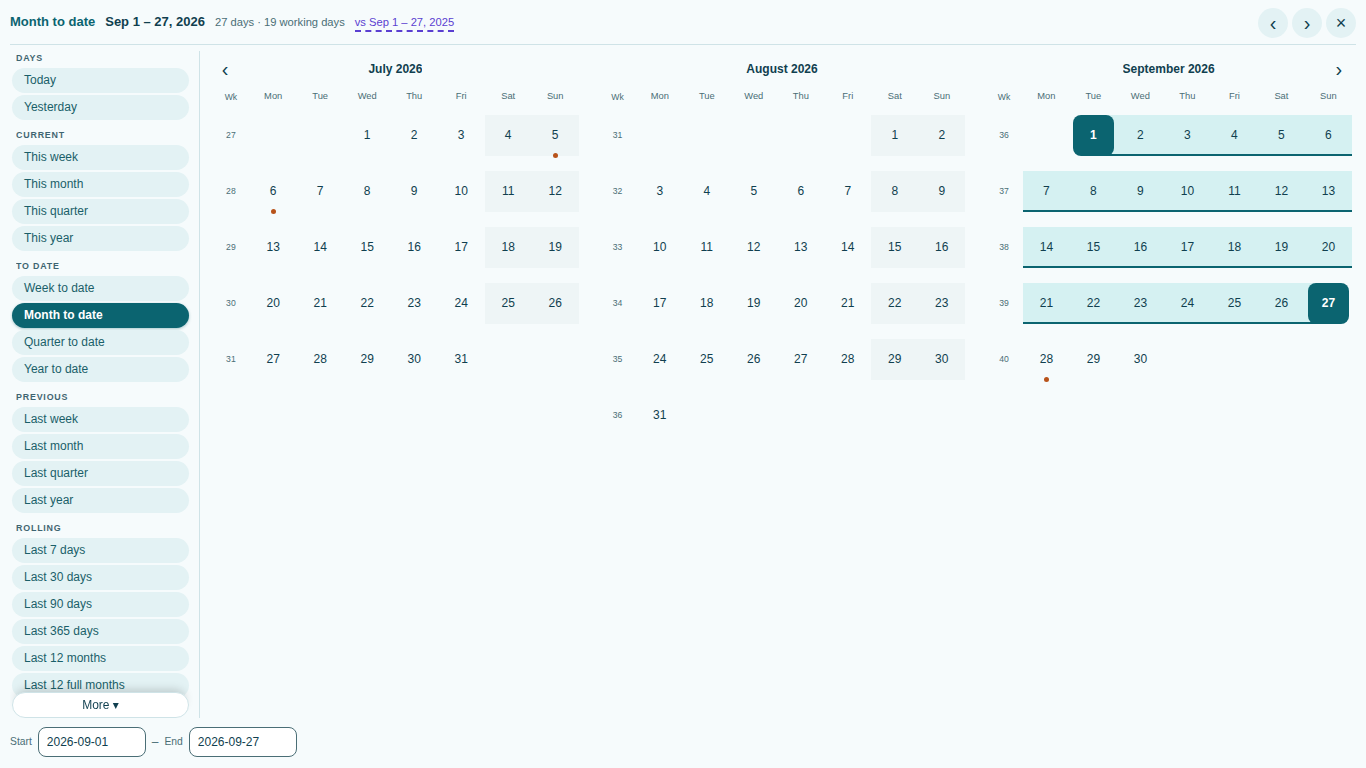
    Pl. XXVI  ·  Date Slicer  ·  the product spotrecorded from the shipped visual
    Power BI date slicer calendar on month to date with the same period last year in the header
    Pl. XXVI  ·  Date Slicer  ·  Month to date that stays current after publishing; the same-period-last-year comparison is Period intelligence.rendered from the shipped visual
    What it does

    Pick dates the fast way: one click on a preset, two clicks in the calendar, a drag across the timeline or typed dates in your own format, and always see in plain words what is selected. SmartVisuals Date Slicer saves the preset, not just the dates, so a report published on Month to date is still month to date next week, with no one logging in to move the slicer. Fiscal years from any month, weeks starting Monday, Sunday or Saturday, ISO week numbers, public holidays for 21 countries and working-day counts are all free.

    Premium Period intelligence adds what reporting teams otherwise rebuild in DAX: a comparison period written straight to a date column so one line of DAX gives any measure its comparison, working-days-only filters and "Last N working days" presets, and retail 4-4-5 years. Every premium feature is unlocked while you edit, and viewers without a licence always get a working slicer with the free features. Everything runs inside Power BI; the visual makes no external calls.

    Search all visuals

    Free and premium

    Where the line is, exactly.

    Report authors see the full premium set in edit mode, so you can evaluate every feature on your own data before assigning a single licence. Unlicensed viewers always get a working chart.

    Free tierevery viewer
    • Four layouts in one slicerCalendar with 1 to 3 months, timeline from years down to days, compact bar with previous / next stepping and a presets list; Auto picks the layout that fits the space.
    • Presets that keep rollingToday and yesterday; this and last week, month, quarter and year; next week, month and quarter; half-years; week, month, quarter, half-year and year to date; last 7 / 30 / 90 / 365 days; last 12 months; and viewers' own "last or next N" of any unit.
    • Latest date with dataRolling presets can end on the latest date that has data instead of today, moved forward only when later data appears, never pulled back by other visuals.
    • Your calendarFiscal years from any month, weeks starting Monday, Sunday or Saturday, ISO or simple week numbers, and fiscal-aware to-date presets.
    • Holidays and working daysPublic holidays for 21 countries computed offline, weekend shading and the working-day count of the selected range in the header.
    • Every way to pickBetween, on or after, on or before and single day; typed dates in your report's format; an Apply button for heavy models; Reset to the default.
    • Native Power BI behaviourBookmarks, sync slicers, date hierarchies, data density bars, four themes with their own personality, high contrast, full keyboard use and five languages.
    Premium$1.99 /user/mo · first month free
    • Comparison periodPrevious period, same period last year or 52 weeks back, shown in the header and written to a Comparison date field, so one line of DAX gives any measure its comparison.
    • Working days onlyFilter the report to working days, with weekends and the chosen country's public holidays left out.
    • Last N working daysPresets such as the last 20 working days, rolling like every other preset.
    • Retail 4-4-5 calendarsRetail years as 4-4-5, 4-5-4 or 5-4-4 with 52 and 53 week years, with presets and comparisons on retail periods.

    How do I keep a Power BI date slicer on month to date after publishing?

    A slicer saved on a fixed range stays on that range: publish a report on 1 to 27 September and next week it still shows 1 to 27 September until somebody opens it in edit mode and moves it. SmartVisuals Date Slicer saves the preset, not just the dates. Save the report on Month to date and it is still month to date next week, next month and next year, re-resolved every time the report opens.

    Your viewers can always pick something else; the default never locks them out, and Reset brings it back. The header always says in plain words what is selected, such as "Month to date, Sep 1 - 27, 2026, 27 days, 19 working days", so nobody has to guess which dates a page is showing. A saved report keeps rolling; a bookmark keeps the dates it captured.


    Can a date slicer use the latest date with data instead of today?

    Yes, and it is free. Map a measure to Data density, set Presets end on to Latest date with data, and the rolling presets end on the latest date that has data instead of today, so "Last 7 days" on a report refreshed yesterday morning shows seven days of real numbers, not six and an empty one. The same measure draws data density bars under the timeline and dims dates without data.

    The anchor is set when the report opens and moves only forward, when a refresh brings later data. Filtering in other visuals never pulls it back, so clicking around the page never re-rolls an anchored preset. The header's "Data through" marker tells the reader how current the data is.

    Fiscal years, Monday weeks and ISO week numbers in one slicer

    Set the fiscal year to start in any month and every to-date preset follows it: year to date and quarter to date mean the fiscal year and quarter. Weeks start on Monday, Sunday or Saturday, with ISO or simple week numbers, and the ISO and fiscal week logic is checked against golden test periods.

    Public holidays for 21 countries are computed offline from rules, so they never go stale and never need an external service. Weekends and holidays are shaded in the calendar, and the header counts the working days in the selected range.

    How do I compare a period with the same period last year in Power BI?

    The usual answer is two slicers that drift apart, or a period-switch table rebuilt in every model. With Period intelligence, the slicer works out the comparison period itself, previous period, same period last year or 52 weeks back, shows it in the header and writes it to a Comparison date field, usually a disconnected comparison calendar.

    One line of DAX then gives any measure its comparison: CALCULATE([Revenue], REMOVEFILTERS('Date'), TREATAS(VALUES('Comparison Date'[Date]), 'Date'[Date])). When the range changes, the comparison changes with it. If a comparison no longer matches the selected range, it is dropped and comparison measures go blank rather than silently comparing against an unrelated period.

    Working days and retail 4-4-5 calendars

    Period intelligence can filter working days only, leaving weekends and the holidays of the chosen country out of the filter, and adds "Last N working days" presets, the window operations, logistics and support teams actually report on.

    Retail years come as 4-4-5, 4-5-4 or 5-4-4 with 52 and 53 week years, and the presets and comparison periods follow the retail calendar, so "same period last year" on retail weeks lines up with the retail year.

    Calendar, timeline or compact bar: which layout fits my report?

    The calendar shows one to three months: click two days to pick a range, shift-click to extend it. The timeline shows years, quarters, months, weeks or days and you drag across it. The compact bar fits a header strip and steps the range back and forward by its own shape, so a month steps by months and a quarter by quarters. The presets list shows just the presets. Auto picks the layout that fits the space.

    Every layout supports between, on or after, on or before and single day, typed start and end dates in your report's date format, an Apply button for heavy models, bookmarks, sync slicers across pages (with the Date field alone) and date hierarchies. Every part works from the keyboard: Tab moves between the presets, the calendar or timeline and the date fields, the arrow keys move inside them, Enter picks and Escape cancels. The applied range is announced to screen readers, and high contrast is supported.

    Use cases

    Where Date Slicer earns its place.

    A sales report that stays on month to date

    Map the date table's Date column to Date and set Default and reset > Default selection to Month to date. The report opens on month to date every day after it is published, with no one moving the slicer; viewers can pick any other range, and Reset brings the default back. The header says in words what is selected, with the day count and working days.

    Last 7 days that end on the latest data

    An operations report refreshed each morning maps a row-count measure to Data density and sets Default and reset > Presets end on > Latest date with data. "Last 7 days" then ends on the last day that has data instead of today, the timeline shows density bars, and the header's Data through marker says how current the data is.

    A fiscal-year finance slicer

    A finance team with a July fiscal year sets Calendar > Year type > Fiscal year and Fiscal year starts > July, weeks starting on Monday with ISO week numbers, and Public holidays for its country. Year to date and quarter to date follow the fiscal year, holidays are shaded and the header counts working days.

    This period against the same period last year

    With the licence, Period intelligence > Comparison period writes the previous period, the same period last year or 52 weeks back to a disconnected comparison calendar mapped to Comparison date. One measure with CALCULATE, REMOVEFILTERS and TREATAS then shows any value for the comparison range, and the comparison follows every new pick.

    Getting started

    From empty canvas to first chart.

    1. 01

      Map your date table's Date column to Date; the auto date hierarchy works too. The slicer filters the report straight away.

    2. 02

      Pick the layout, presets, fiscal year start, week start and holiday country in the format pane, and set a default selection such as Month to date.

    3. 03

      Optionally map a measure to Data density for the density bars and the latest-date-with-data anchor.

    4. 04

      To try Period intelligence, map a comparison calendar's date column to Comparison date and choose a comparison period; everything previews in full while you edit.

    Get Date Slicer

    Two ways in.

    Installation instructions for both paths are on the download page.

    Microsoft Marketplace (recommended)

    Reviewed by Microsoft, updates automatically, licences assigned in the Microsoft 365 admin center.

    Open Microsoft Marketplace

    Direct download (1.0.0.0)

    .pbiviz package, import into Power BI Desktop or Service, does not auto-update. Includes the full free tier; premium features preview in edit mode and are licensed through Microsoft Marketplace.

    Download .pbiviz
    Accessibility

    Readable and usable for everyone.

    Tab
    Moves between the parts of the slicer: the presets, the granularity switch, the calendar or timeline, the typed date fields and the buttons. The presets, the calendar and the timeline are one tab stop each.
    Arrow keys in the presets
    Move to the next or previous preset, wrapping at the ends; Home and End jump to the first or last. Enter or Space applies the focused preset.
    Arrow keys in the calendar
    Left and Right move by a day, Up and Down by a week.
    Home / End in the calendar
    Jump to the first or last day of the week.
    Page Up / Page Down in the calendar
    Move by a month; with Shift, by a year.
    Enter or Space in the calendar
    Picks the focused day. In a Between selection the first press starts the range and the second ends it; Shift+Enter extends the current range to the focused day.
    Esc in the calendar
    Cancels a range that is half picked or still waiting for Apply.
    Left / Right in the timeline
    Move to the previous or next period; Home and End jump to the first or last. Enter or Space picks the period, Shift+Enter extends the current range to it.
    Arrow keys in the granularity switch
    Switch the timeline between days, weeks, months, quarters, half-years and years.
    Enter in a typed date field
    Applies the typed date.
    • Screen readers

      Each calendar month is a grid labelled with its month, and every day reads its full date and says when it is today, a public holiday (with its name) or a day without data, and whether it is selected. The presets form a toolbar whose buttons say which one is active, the granularity switch is a radio group and the timeline is a list of periods with their own labels. Whenever the range changes, a status announcement reads it, such as "Month to date: Sep 1 - 27, 2026".


    • Typed dates

      Start and end dates can be typed in your report's date format. A value that cannot be read as a date marks the field as invalid and shows "Not a date" as an alert.

    • High contrast

      In Windows high contrast mode the slicer uses the colours of the contrast theme instead of its theme and custom colours.

    • Touch

      On a touch screen, a long press on a day or a period shows its tooltip.

    • Languages

      The format pane, presets, header and messages are available in English, Czech, German, Spanish and French.

    Release notes

    What changed, and when.

    Updates install automatically from Microsoft Marketplace. Full history.

    1. 1.0.0.0

      First release on Microsoft Marketplace.

      • Calendar, timeline, compact bar and presets list with presets that keep rolling after publishing, fiscal years, ISO weeks and holidays for 21 countries.
      • Period intelligence: comparison periods, working-days-only filters, Last N working days and retail 4-4-5 years (premium).
    Questions

    Asked before you did.

    More questions? See support or write to hello@smartvisuals.io.

    All layouts, every rolling and to-date preset, the latest-date-with-data anchor, fiscal years, week start, ISO weeks, holidays for 21 countries, working-day counts, themes and keyboard use are free. Period intelligence adds the comparison period, working-days-only filters, "Last N working days" presets and retail 4-4-5 years for $1.99 per user per month or $19 per user per year, with the first month free, through Microsoft Marketplace.

    Never. Unlicensed viewers always get a working slicer with the free features: presets still roll and defaults still apply. Premium parts are left out, so comparison measures go blank rather than show a wrong number. The visual never blocks a report and never shows a watermark, and every premium feature previews free in edit mode.

    Yes. The slicer saves the preset behind the range and re-resolves it every time the report opens, so a report saved on Year to date shows year to date of the day it is opened. Viewers can still pick any other range, and Reset brings the default back.

    The slicer writes the comparison range to the date column you map to Comparison date, usually a disconnected comparison calendar. One line of DAX with TREATAS moves it onto your main date table, so any measure can show its previous period, same period last year or 52 weeks back.

    Yes. The selection is restored from bookmarks and kept in step across synced pages. Power BI syncs slicers only when a slicer has a single field, so mapping Data density or Comparison date turns syncing off for that slicer.

    No. The visual makes no external calls, stores nothing outside the report and requests no privileges. Public holidays are computed offline from rules inside the visual.

    Only Date: the Date column of your date table, or a date hierarchy that goes down to the day. Data density (a measure) is optional and adds density bars and the latest-date-with-data anchor; Comparison date is optional and takes the comparison calendar for Period intelligence; Tooltips takes extra measures. Mapping Data density or Comparison date turns sync slicers off for that slicer.

    Click Clear (x): the filter is removed and the header reads "All dates". Reset goes back to the default selection, and setting Default and reset > Default selection to None (all dates) makes all dates the default.

    Yes. The header counts the working days in the selected range, from the weekend days and the public holidays of the chosen country, for every viewer. Filtering the report to working days only, and the Last N working days presets, are part of Period intelligence.

    Yes. Tab moves between the presets, the calendar or timeline, the date fields and the buttons. In the calendar the arrow keys move by day and week, Page Up and Page Down by month (with Shift, by year), Enter picks and Escape cancels a half-picked range; the presets and the granularity switch move with the arrow keys. Each day reads its full date, and the applied range is announced. Windows high contrast is supported.

    English, Czech, German, Spanish and French, for the format pane, the presets, the header and the messages. Typed dates use your report's date format.

    Post it on the public board at smartvisuals.io/feedback, where other users can vote and comment, or use the Report a bug block on the support page (smartvisuals.io/support) or email hello@smartvisuals.io. A screenshot, the field you mapped and the preset you expected help most.
    Troubleshooting

    When it does not look right.

    Found a bug or missing something? Post it on the requests board or vote for what others asked; the developer answers within two business days.

    Sync slicers does not keep this slicer in step with the others.
    Power BI syncs slicers only when a slicer has a single field. Mapping Data density or Comparison date turns syncing off for that slicer. Keep the synced copies on the Date field alone; the slicer that writes the comparison can live on one page.
    My comparison measure is blank.
    The comparison range is written only while Period intelligence > Comparison period is set, a Comparison date field is mapped and the viewer has a licence. When a viewer without a licence picks a new range, the comparison filter is dropped on purpose, so the measure goes blank instead of comparing with an unrelated period. Check that the comparison measure moves the Comparison date selection onto your main date table with TREATAS.
    The slicer says "Needs days" or "No readable dates".
    The slicer filters a range of days, so it needs a date column, or a date hierarchy that goes down to the day. A hierarchy that stops at month or year shows Needs days; map the Date column itself. No readable dates means the field holds no values that can be read as dates; check its data type in the model.
    The slicer turned into a narrow bar or a list of presets.
    Layout > Layout is Auto by default and picks what fits the tile: under about 110 pixels high it becomes the compact bar, a wide and short tile gets the timeline, and a narrow tall tile the presets list. Make the tile larger or choose Calendar, Timeline, Compact bar or Presets list yourself.
    A report saved on Year to date shows old dates.
    Check Default and reset > Relative presets follow the calendar: when it is off, the dates are frozen as saved. A bookmark keeps the dates it captured, by design, and a premium preset saved in edit mode stops rolling for viewers without a licence and shows as fixed dates.
    Comparison periods, working days only or retail 4-4-5 years are gone for some viewers.
    These are Period intelligence, the premium part of the slicer. Viewers without a licence get a working slicer with the free features: presets still roll, defaults still apply and a retail year falls back to the calendar year. Assign them a licence in the Microsoft 365 admin center under Billing > Licenses.
    For developers & AI agents

    Add this visual programmatically.

    Use the GUID and data roles below to add Date Slicer to a Power BI report via PBIR or the Report Authoring agent. Full catalog (JSON)

    Visual GUID
    dateSlicer5B31A308CE89423F868B26BA14DFA05F
    RoleDisplay nameKind
    dateDateGrouping
    valueData density (optional)Measure
    compareDateComparison date (optional)Measure
    tooltipsTooltipsMeasure
    Missing something?

    Tell us what is missing.

    A feature you need, a bug you hit, a visual that does not exist yet. Every message reaches the person who builds these visuals, and feature requests shape what ships next. We also build visuals to order.

    Also in the family



































