
Visuals/Pl. XXXVI

    Receipt

    Your numbers, printed

    A P&L, an order or an expense claim as a till receipt: sections, subtotals, discount, tax and a bold total, computed from your data. Free up to 10 item lines; Premium from $1.99 per user per month.

    Read the documentationComing soon to Microsoft Marketplace
    Datasheet
    Status
    Coming soon to Microsoft Marketplace
    Price
    $1.99 /user/mo · $19 /user/yr
    Licensing
    Per user, assigned in the Microsoft 365 admin center. Unlicensed viewers see the free tier, never a blocked visual.
    Data
    Computed inside Power BI. No external calls, no API keys, no telemetry.
    Visuals API
    5.11.0
    Accessibility
    Keyboard with a visible focus outline, a screen-reader table behind every receipt, high contrast, reduced motion, minimum text size
    Languages
    20 (format pane and every printed word)
    Free tier
    A complete receipt of up to 10 item lines; totals always from all rows
    Data limit
    1,000 rows per visual
    Network
    No network calls, no telemetry, fonts embedded
    Works in
    Power BI Desktop, Service, Embedded
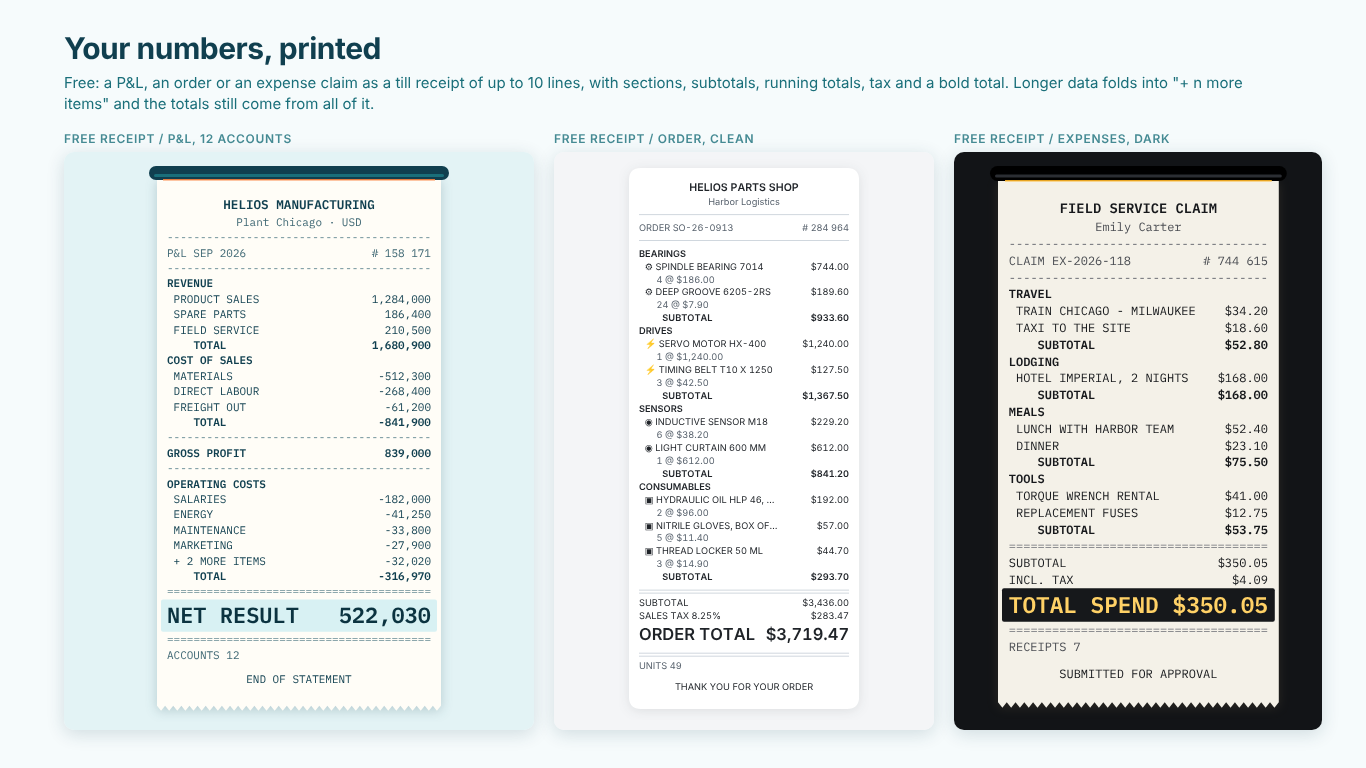
    Three free Power BI receipts: a Helios Manufacturing P&L with Gross profit and a folded more-items line, a parts order with sales tax, and an expense claim on the Dark theme
    Pl. XXXVI  ·  Receipt  ·  Free: a P&L of 12 accounts folded to 10 lines, an order with sales tax (Clean) and an expense claim (Dark).rendered from the shipped visual
    What it does

    SmartVisuals Receipt turns a breakdown into a slip people read: bind Item and Amount, add a Section, and the lines feed out of a printer slot with section subtotals, discount and tax lines and a bold total. For a P&L it subtracts the cost sections you name and prints running totals such as Gross profit in the statement order you set.

    The free receipt is complete up to 10 item lines; longer data folds into "+ n more items" lines and the totals still come from all of it. Premium Statement adds comparison, ratios, one receipt per plant and CSV export, and the Premium Print pack adds a QR code, barcode, stamp and three more papers. Readers without a licence always see a working receipt with the same totals, with no watermark and nothing blocked.

    Search all visuals

    Free and premium

    Where the line is, exactly.

    Report authors see the full premium set in edit mode, so you can evaluate every feature on your own data before assigning a single licence. Unlicensed viewers always get a working chart.

    Free tierevery viewer
    • A complete receipt, up to 10 item linesItem and Amount, plus Section for headers and subtotals. Longer data keeps each section's largest items and folds the rest into "+ n more items"; subtotals and the total always come from all of your data.
    • P&L readySubtract the cost sections you name, print running totals such as Gross profit, and fix the statement with Section Order so a running total stays right whatever a reader does.
    • Discount and taxDiscount from a measure or a percentage; tax from a measure, or a rate added to the total or included in the prices.
    • Quantities, icons and item countQuantity lines (4 @ 186.00) or a quantity column, an icon per line, the item count and Lines Per Section.
    • Your number formatsThe measure's own format string is respected, dynamic format strings included; negatives as -1,234, (1,234), 1,234- or 1,234 CR.
    • Paper-feed animationLines print top to bottom out of a printer slot and settle to a complete final frame; reduced motion prints the receipt at once.
    • Paper, themes and Boardroom modeThermal paper, torn edge, printer slot, dot leaders, share bars, conditional formatting (fx) of ink and accent colours, four themes, Boardroom mode (a calm statement table) and templates for a till receipt, a P&L, an order or an expense claim.
    • Accessible and interactiveKeyboard with a visible focus outline, a screen-reader table behind every receipt, Windows high contrast, a minimum text size, On-object formatting, cross-filtering, highlighting, tooltips with your field names and 20 languages.
    Premium$1.99 /user/mo · first month free
    • Statement: unlimited linesEvery item line prints, with no "+ n more items" fold beyond the ones you ask for.
    • Statement: ComparisonA budget or prior-period measure adds a difference and difference % column on every line, subtotal and total, with a sign and an arrow, never colour alone, plus a "vs Budget" footer. A second comparison, such as prior year next to budget, prints as a % column or a footer line.
    • Statement: RatiosA margin line under every running total and an optional % of revenue column.
    • Statement: Receipt ByOne receipt per plant, month or store, side by side.
    • Statement: "of which" lines and CSV exportA part of a line printed under it and never added twice, and a CSV file of the receipt when your admin allows downloads from custom visuals.
    • Print pack: barcode and QR codeGenerated inside the visual. Bind a field or measure to Code Content and every receipt carries its own link or text, such as the order in your ERP or an approval form, for a phone to scan.
    • Print pack: stamp and papersA rubber stamp from your data (APPROVED, OVERDUE, PRELIMINARY), from the comparison (ON BUDGET, OVER BUDGET, with your words and tolerance) or from the sign of the total, plus the Guest check, Tractor feed and Carbon copy papers.

    What does a till receipt do for a P&L in Power BI?

    SmartVisuals Receipt prints a P&L, a sales order, an expense claim or a cost breakdown as a till receipt: line items, section headers with subtotals, discount and tax lines, and a bold total. Every figure is computed inside the visual from your data, so there is no DAX to write for the arithmetic.

    It is one narrow column, so it reads at phone width and in a Teams tab where a wide matrix does not. On load the lines feed out of a printer slot one by one and settle into a complete final frame; Boardroom mode prints the same numbers as a calm statement table instead.


    Which fields do I need to set up a receipt?

    Item and Amount print a receipt. Add Section for section headers and subtotals: Revenue, Cost of sales, Operating costs, or Bearings, Drives and Sensors on an order. Quantity prints a line such as 4 @ 186.00 under the item or as a column, and Period puts the month or the order number in the header. Use a measure for Period, such as SELECTEDVALUE or MAX of a date, so it never multiplies the rows.

    Tax and Discount take a measure each; Icon prints an emoji or symbol before each item; Tooltips takes up to five extra measures. Paper > Template sets the words for a till receipt, a P&L statement, an order or an expense claim, and anything you type in the cards wins.

    How do I print Gross profit on a P&L receipt?

    If your model stores costs as positive numbers, set Lines > Signs to Subtract the sections below and type the cost sections into Lines > Sections To Subtract, for example Cost of sales, Operating costs. Then type Cost of sales = Gross profit into Lines > Running Totals: after that section a GROSS PROFIT line prints the cumulative sum of every section up to it.

    Running totals add up in statement order, so Lines > Section Order lets you fix that order by name (Revenue; Cost of sales; Operating costs). The visual sorts by Section and Item with a fixed implicit sort that follows your model's Sort by columns, and readers get no Sort by menu, so no reader action can reorder the statement under a running total.

    How are discount, tax and the total computed?

    Discount comes from a Discount measure or from Totals > Discount (%) of the subtotal, printed as one negative line. Tax comes from a Tax measure, or from Totals > Tax with a Tax Rate (%): Added to the total, or Included in the prices, where it prints as an "incl." line and is not added again. The tax rate starts at 0 and Tax at None, because there is no universal rate; type yours, such as 8.25 for a US sales tax.

    Total is the subtotal minus the discount plus any added tax. Subtotals and totals are summed from the raw values, never from the printed text, and the measure's own format string is respected, dynamic format strings included. Negative numbers print as -1,234, (1,234), 1,234- or 1,234 CR, as you choose under Lines > Negative Numbers.


    What happens with long data, and what does Premium add?

    The free receipt prints up to 10 item lines. With longer data each section keeps its largest items and folds the rest into a "+ n more items" line carrying their sum, so every subtotal, running total and the total are the same as with a licence. You can also fold on purpose with Lines > Lines Per Section.

    Premium Statement prints every line and adds a Comparison column against a budget or prior-period measure, a second comparison, Ratios (a margin line under each running total and a % of base column), Receipt By for one receipt per plant or month, "of which" lines and CSV export. The Premium Print pack adds a barcode and QR code per receipt, the rubber stamp, and the Guest check, Tractor feed and Carbon copy papers.

    What are the limits?

    The visual reads up to 1,000 rows and says so in a small note when the limit is reached. A QR code carries up to 213 characters and a barcode up to 32; a bound value that is longer is never cut, the code is replaced by a note that says why. Item and Section are single fields, so there is no drilldown or expand and collapse, and there is no write-back.

    It is a receipt, not a financial-statement engine: for a full statement with hundreds of accounts, keep a matrix and put the receipt next to it as the summary people actually look at.

    Use cases

    Where Receipt earns its place.

    A one-glance monthly P&L on a finance cover page

    Helios Manufacturing binds Account to Item, the statement section to Section and the posted amount to Amount, with a Period measure (SELECTEDVALUE of the month) in the header. Lines > Signs subtracts Cost of sales and Operating costs, Running Totals prints GROSS PROFIT after Cost of sales, and Paper > Template is P&L statement, so the slip closes with NET RESULT. A Plant slicer reprints it for Chicago or Milwaukee.

    A sales order or quote as the customer would see it

    A parts order binds the product to Item, the product group to Section, the line value to Amount and units to Quantity, so each line prints 4 @ 186.00 under the item. Totals > Tax is Added to the total with Tax Rate (%) 8.25 and a Tax Label of Sales tax, and the Clean theme prints it as an e-receipt. With the Premium Print pack, a Code Content measure puts the order's link into a QR code a phone can scan.

    An expense claim for approval

    A field service claim by Emily Carter binds the expense to Item, the category (Travel, Lodging, Meals, Tools) to Section and the amount to Amount, with Paper > Template set to Expense claim. Tax is Included in the prices, so an INCL. TAX line prints without being added twice. With the Premium Print pack, a Stamp measure prints APPROVED or PENDING on each claim.

    Plant against budget, side by side

    With Premium Statement, Plant goes to Receipt By and a Plan measure to Comparison: Chicago, Milwaukee and Atlanta each get their own receipt, every line carries the difference and difference % with a sign and an arrow, and Ratios prints the margin under Gross profit. Readers without a licence see one receipt over all plants with the same total.

    Getting started

    From empty canvas to first chart.

    1. 01

      Add SmartVisuals Receipt to the page and drag your account or product field to Item and your measure to Amount.

    2. 02

      Drag a field to Section for headers and subtotals, and pick a Paper > Template: Till receipt, P&L statement, Order or Expense claim.

    3. 03

      For a P&L that stores costs as positive numbers, set Lines > Signs to Subtract the sections below and list them in Sections To Subtract; type Cost of sales = Gross profit into Running Totals.

    4. 04

      Add a discount or tax under Totals, or bind Discount and Tax measures, and set Header > Store Name and a Period measure.

    5. 05

      Choose a theme and paper; in edit mode every premium feature previews in full before you decide.

    Get Receipt

    On its way.

    Installation instructions for both paths are on the download page.

    Microsoft Marketplace (recommended)

    The offer is prepared for Microsoft Marketplace and not published yet. This page will link to the listing the moment it is live.

    Coming soon
    Accessibility

    Readable and usable for everyone.

    Tab
    Moves to the receipt, which is one tab stop and starts on the first line. When the Premium CSV button is on, it is the next tab stop.
    Down / Up arrow
    Moves to the next or previous selectable line: a section header, an item, a subtotal, a running total or the total.
    Home / End
    Jumps to the first or the last selectable line.
    Enter or Space
    Selects the rows behind the focused line and cross-filters the page; a section header or subtotal selects the whole section. Hold Ctrl or Shift to add to the selection.
    Esc
    Clears the selection.
    Context-menu key
    Opens the Power BI context menu for the focused line.
    • Screen readers

      The drawn receipt is hidden from screen readers and a table stands behind every receipt instead: section, item, quantity, amount and, where they print, the % of base and the comparison with Better or Worse. Running totals and margins are rows of their own. The caption names the receipt, the number of lines and the total, and when lines were folded it says how many smaller lines are summed in the "more items" rows. The receipt is labelled with the store name and period, the focused line is described as you move, and a short note explains the arrow keys. Boardroom mode is a real HTML table.

    • Not colour alone

      With Premium Comparison, better and worse are carried by a + or - sign and an up or down arrow on every difference, never by colour alone; the screen-reader table says Better or Worse in words.

    • High contrast

      In Windows high contrast mode the paper takes the system background and all text, rules and the stamp take the system foreground; shadows, gradients, stripes and textures are dropped, the paper is outlined and the focus outline uses the system selection colour. A premium paper prints as Thermal there for readers without a licence.

    • Reduce Motion

      Accessibility > Reduce Motion follows the system setting by default, so a reader who asks for reduced motion gets the final receipt at once instead of the paper feed. Always reduce switches the feed off for everyone; Off (always animate) keeps it. A hidden page skips the feed too.

    • Focus Outline Color and Focus Outline Width

      Accessibility > Focus Outline Color sets the colour of the keyboard focus outline (empty follows the theme; high contrast always uses the system colour), and Focus Outline Width (px, 0 = Auto) sets its width, 2 px by default.

    • Minimum Text Size

      Accessibility > Minimum Text Size (px, 0 = Off): no receipt text is drawn smaller than this; a long receipt scrolls instead of shrinking further.

    • Context menu

      Right-clicking a line opens the Power BI context menu for its rows; right-clicking empty paper opens it for the visual.

    • Languages

      The format pane and every word the receipt prints are available in 20 languages: Chinese (simplified and traditional), Czech, Danish, Dutch, English, French, German, Hungarian, Italian, Japanese, Korean, Norwegian, Polish, Portuguese (Brazil and Portugal), Slovak, Spanish, Swedish and Turkish.

    Questions

    Asked before you did.

    More questions? See support or write to hello@smartvisuals.io.

    Free: the receipt itself up to 10 item lines, sections, subtotals, running totals, discount, tax, Section Order, the paper-feed animation, Thermal paper, four themes, conditional colours, Boardroom mode, templates, 20 languages, On-object formatting and every accessibility setting. Premium Statement adds unlimited lines, Comparison and a second comparison, Ratios, Receipt By, "of which" lines and CSV export. The Premium Print pack adds the barcode and QR code, the stamp and the Guest check, Tractor feed and Carbon copy papers. Premium is $1.99 per user per month or $19 per user per year, with the first month free.

    The visual has been prepared for Microsoft Marketplace and is not published yet; this page will link to the listing once it is live.

    The free receipt prints up to 10 item lines. With longer data every section keeps its largest items and the rest of the section is summed in one "+ n more items" line. Subtotals, running totals and the total are always computed from all of your data, so they are the same with or without a licence. Premium prints every line, and in edit mode you always see every line. You can also fold on purpose with Lines > Lines Per Section (0 = All).

    Never. They see the free receipt with the same totals; premium parts are simply not drawn, and Power BI shows its own short notice when a premium feature the author switched on is not available to them. There is no watermark and no licence text on the receipt. Where Power BI says licences cannot be checked, such as an embedded report, premium stays on.

    No. The visual makes no network calls and sends no telemetry, and its two typefaces are embedded, so nothing is fetched. The barcode and QR code are drawn inside the visual. The only permission it asks for is the optional export used by the Premium CSV button, and Power BI asks the reader to confirm before a file is saved.

    With a Code Content field bound, each receipt's code carries the first non-empty value of its rows, such as a link to the order in your ERP; a link keeps its case and spaces or accented characters are percent-encoded so it still opens on a phone. Without it, the text in Barcode (premium) > Content; and when that is empty, the QR carries the store name, the Receipt By value, the period and the total, separated by |, in upper case. The visual never opens the link itself: the QR is for a phone to scan.

    Item and Amount print a receipt; Section adds headers and subtotals. Optional: Quantity, Tax, Discount, Period, Icon and Tooltips (up to five measures), and for Premium: Comparison, Second Comparison, Receipt By, Code Content and Stamp. Without Amount the visual shows a short hint instead of a receipt.

    Bind Account to Item, the section column to Section and the amount to Amount. If costs are stored as positive numbers, set Lines > Signs to Subtract the sections below and type Cost of sales, Operating costs into Sections To Subtract. Then type Cost of sales = Gross profit into Lines > Running Totals, and use Lines > Section Order to fix Revenue; Cost of sales; Operating costs as the statement order.

    Up to 1,000 rows per visual; a small note says when the limit is reached, and Lines > Lines Per Section folds smaller lines into one. The paper is 24 to 72 characters wide (auto by default). A QR code carries up to 213 characters and a barcode up to 32; a longer bound value is never cut, the code is replaced by a note.

    Yes. The receipt is one tab stop: the up and down arrows move between items, section headers and totals, Home and End jump to the ends, Enter or Space selects (Ctrl or Shift adds), Esc clears and the context-menu key opens the Power BI context menu, with a visible focus outline. Screen readers get a table behind every receipt with each line, its amount and comparison, and a caption with the item count and the total. Windows high contrast, reduced motion and a minimum text size are in the free tier.

    20: Chinese (simplified and traditional), Czech, Danish, Dutch, English, French, German, Hungarian, Italian, Japanese, Korean, Norwegian, Polish, Portuguese (Brazil and Portugal), Slovak, Spanish, Swedish and Turkish, for the format pane and every word the receipt prints, such as TOTAL, SUBTOTAL and the tax word.

    Post it on the public board at smartvisuals.io/feedback, where other users can vote and comment, or use the Report a bug block on the support page (smartvisuals.io/support) or email hello@smartvisuals.io. A screenshot and the fields you bound help most.
    Troubleshooting

    When it does not look right.

    Found a bug or missing something? Post it on the requests board or vote for what others asked; the developer answers within two business days.

    My receipt shows "+ 4 more items" instead of every line.
    The free receipt prints up to 10 item lines: each section keeps its largest items and sums the rest in one "+ n more items" line, and every subtotal and total still comes from all of your data. Premium prints every line, and in edit mode you see every line. If you set Lines > Lines Per Section (0 = All) above 0, that folds on purpose; set it to 0 to switch it off.
    Costs are added to revenue instead of subtracted.
    Your model stores costs as positive numbers. Set Lines > Signs to Subtract the sections below and type the cost sections into Lines > Sections To Subtract, comma separated, exactly as they are named in your Section field (case does not matter). The placeholder shows your real section names.
    Revenue prints after Cost of sales, or Gross profit is wrong.
    The visual sorts by Section and Item in your model's sort order, so an alphabetical Section column puts Cost of sales first. Give the Section column a Sort by column in Power BI, or type the order into Lines > Section Order (Revenue; Cost of sales; Operating costs). Running totals add up in that order, so Gross profit is then right.
    No tax line prints.
    Totals > Tax is None and Tax Rate (%) is 0 by default, because there is no universal rate. Choose Added to the total or Included in the prices and type your rate, or bind a Tax measure; a bound Tax measure always prints its sum. Included tax prints as an "incl." line and is not added to the total.
    The QR code is missing and the receipt says the text is too long.
    A QR code carries up to 213 characters and a barcode up to 32. A Code Content value that is longer is never cut, because a cut link or order number would point to the wrong place; the code is replaced by a note that gives the length. Shorten the link, or use a QR instead of a barcode. Codes and the stamp are part of the Premium Print pack and do not print for readers without a licence.
    The CSV button is missing.
    It shows only when Export (premium) > Show CSV Button is on, for licensed readers and for authors in edit mode, and when your Power BI admin allows downloads from custom visuals (tenant setting Allow downloads from custom visuals, off by default). It appears in the top-right corner on hover or keyboard focus.
    For developers & AI agents

    Add this visual programmatically.

    Use the GUID and data roles below to add Receipt to a Power BI report via PBIR or the Report Authoring agent. Full catalog (JSON)

    GUID available after the visual is published on Microsoft Marketplace.

    RoleDisplay nameKind
    itemItemGrouping
    sectionSectionGrouping
    amountAmountMeasure
    quantityQuantityMeasure
    compareComparisonMeasure
    compare2Second ComparisonMeasure
    taxTaxMeasure
    discountDiscountMeasure
    periodPeriodMeasure
    receiptByReceipt ByGrouping
    codeContentCode ContentMeasure
    stampStampMeasure
    iconIconGrouping
    tooltipsTooltipsMeasure
    Missing something?

    Tell us what is missing.

    A feature you need, a bug you hit, a visual that does not exist yet. Every message reaches the person who builds these visuals, and feature requests shape what ships next. We also build visuals to order.

    Also in the family




































