Visuals/Pl. XVII

    Calendar Heatmap

    Every heatmap your dates can make, in one visual

    Drop in a date and a measure and get a year strip with weekly totals, a weekday profile and a one-line insight. Switch to a month grid, or to a weekday x hour punch card from the same column.

    Datasheet
    Status
    Available on Microsoft Marketplace
    Price
    $1.99 /user/mo · $19 /user/yr
    Licensing
    Per user, assigned in the Microsoft 365 admin center. Unlicensed viewers see the free tier, never a blocked visual.
    Data
    Computed inside Power BI. No external calls, no API keys, no telemetry.
    Visuals API
    5.11
    Accessibility
    Keyboard navigation, ARIA labels, high-contrast mode, contrast-tested themes
    Languages
    English, Czech, German, Spanish, French
    Works in
    Power BI Desktop, Service, Embedded
    Pl. XVII  ·  Calendar Heatmap  ·  the product spotrecorded from the shipped visual
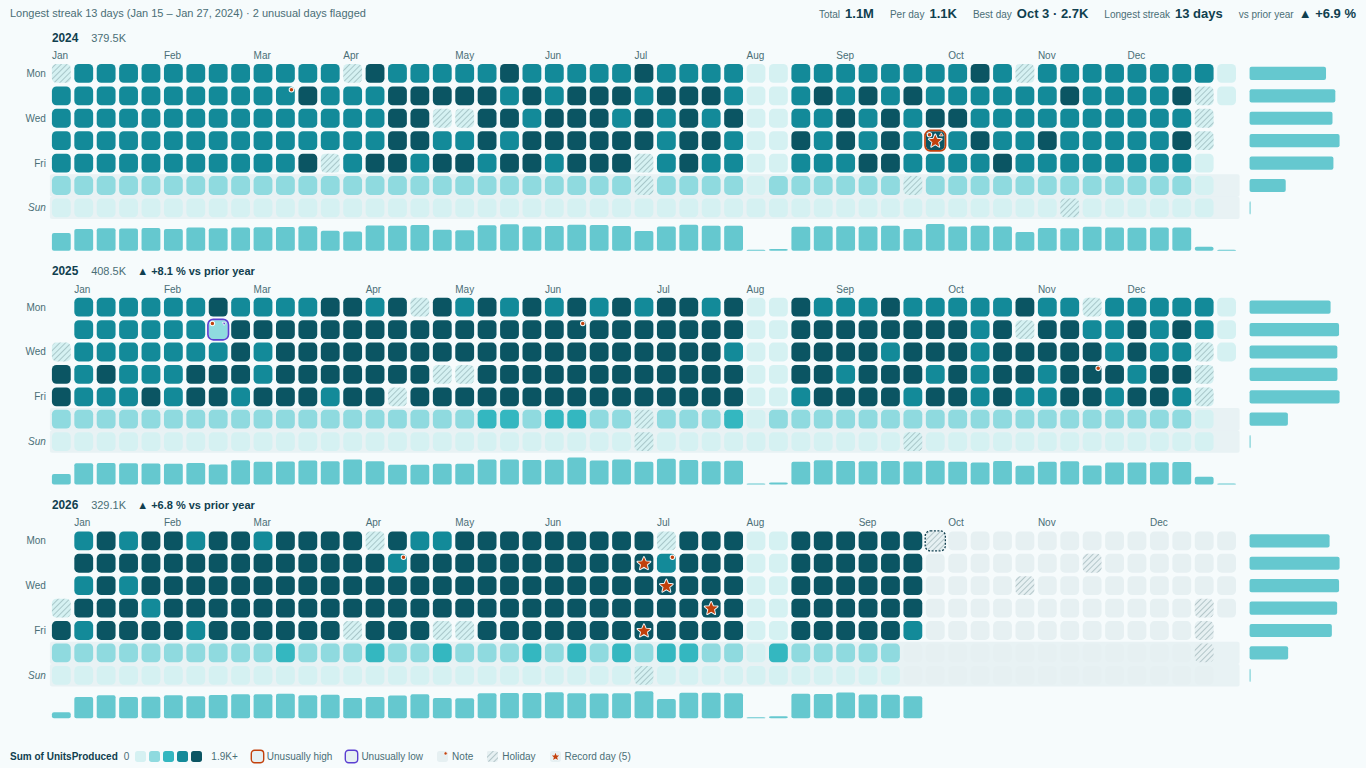
    Calendar heatmap year strips in Power BI with weekly totals, weekday profile, holidays and record-day badges
    Pl. XVII  ·  Calendar Heatmap  ·  Year strips with weekly totals, weekday profile, holidays, notes, record-day badges and unusual days.rendered from the shipped visual
    What it does

    SmartVisuals Calendar Heatmap is a calendar heatmap and a matrix heatmap in one Power BI visual. Bind a Date and a Value and it draws year strips, a wall-calendar month grid with click-to-zoom, or a matrix heatmap that turns the same date/time column into a weekday x hour punch card, or maps any two fields with no dates at all. It knows the calendars businesses report in: fiscal years with any start month, ISO or "1 January = week 1" week numbers, weeks starting Monday, Sunday or Saturday, and public holidays for 21 countries computed offline.

    The free tier includes all three views, four themes, ten palettes, rules with badges, pinned notes, the KPI line and the insight sentence. The premium licence adds the comparison instrument: days coloured by target attainment or by change versus last year, retail 4-4-5 years, small multiples, measure switching and unusual-day detection. Every premium feature is unlocked while editing, unlicensed viewers always see a working calendar with the free features, never a blocked or watermarked visual, and no data leaves Power BI.

    Search all visuals

    Free and premium

    Where the line is, exactly.

    Report authors see the full premium set in edit mode, so you can evaluate every feature on your own data before assigning a single licence. Unlicensed viewers always get a working chart.

    Free tierevery viewer
    • Three views in one visualYear strip, month grid with click-to-zoom, and a matrix heatmap: weekday x hour, weekday x month, year x month, month x day, weekday x week, or any two fields. Readers can switch views with chips when View switcher for readers is on.
    • Business calendarsFiscal years with any start month, ISO or "1 January = week 1" week numbers, weeks starting Monday, Sunday or Saturday, and date hierarchies that work as-is.
    • Holidays for 21 countries, offlinePublic holidays computed from rules inside the visual, or your own holidays from a data column, hatched behind the days. Plus a today marker.
    • Rules, badges and pinned notesUp to 3 rules on the value (above, below, between, top or bottom N days) with star, flag, check, warning and other badges or a fill colour, named in the legend. Notes from your data or pinned in the format pane for a day or a date range.
    • KPI line, insight and marginsTotal, per day, best day, streak, one "vs target" and one "vs prior year" figure, a plain-language insight sentence, sparkline margins with weekday profile and weekly totals, and % of row, column or total in the matrix.
    • Four themes, ten palettesRounded tiles, dark glow, editorial squares and dot matrix; linear, quantile, log and manual-threshold scales, diverging centres, smart range, colour-blind-safe viridis and cividis, and the report theme colour.
    • Native Power BI behaviourCross-filtering, Ctrl multi-select, drill-through menu, report-page tooltips, keyboard navigation, high contrast and five languages (EN, CS, DE, ES, FR).
    Premium$1.99 /user/mo · first month free
    • Target attainment colouringColour every day by attainment against a Target measure, so days above and below plan stand out at a glance.
    • Like-for-like year over yearColour every day by change versus the same weekday or the same date last year, with year-over-year change in the year headers.
    • Retail 4-4-5 calendarsRetail 4-4-5, 4-5-4 and 5-4-4 fiscal years with 52/53 weeks and P1-P12 period labels.
    • Small multiples and measure switchingOne calendar per plant, team or product on shared or independent scales, and switching between measures in the format pane and for report readers.
    • Unusual-day detectionJudges each weekday against its own normal and ignores holidays and shutdowns, so only the days that genuinely stand out are flagged.
    • Comparison rulesRules and badges on target, attainment %, change versus prior year or unusual days.

    How do I make a calendar heatmap in Power BI?

    Power BI has no native calendar heatmap. The usual workaround is a matrix with conditional formatting and a pile of helper columns for week number, weekday and month, and it falls apart as soon as the date range crosses a year boundary or somebody asks for fiscal weeks. SmartVisuals Calendar Heatmap needs one Date column and one Value. It draws a year strip with one row of week columns per year, weekly totals and a weekday profile in the margins, and a one-line insight that names the weekday rhythm, the longest streak and the unusual days.

    Switch to a wall-calendar month grid and click any month to zoom into it, or show all data, the latest year or the last 12 months. Date hierarchies work as they are: Year, Quarter, Month and Day levels are rebuilt into days, and a collapsed hierarchy falls back to a Year x Month grid with an explanation instead of an error.

    Weekday x hour punch card and matrix heatmap from one visual

    The same date/time column that drives the calendar also feeds a matrix heatmap. Pick weekday x hour for a punch card of when tickets arrive or machines run, or weekday x month, year x month, month x day or weekday x week for seasonality. Map Matrix rows and Matrix columns instead and the visual becomes a plain field-by-field heatmap, no dates needed.

    The matrix shows values as-is or as % of row, % of column or % of total, with row and column totals drawn as bars. In the punch card, circle cells scale with the value. With View > View switcher for readers turned on, report readers can switch between Year, Months and Matrix with chips on the visual itself.

    Fiscal years, ISO weeks and public holidays without a date table

    Most calendar visuals assume January to December and Sunday-start weeks. This one lets you start the fiscal year in any month, number weeks the ISO way or with 1 January as week 1, and start weeks on Monday, Sunday or Saturday. Retail 4-4-5, 4-5-4 and 5-4-4 years with 52/53 weeks and P1-P12 period labels are part of the premium licence.

    Public holidays for 21 countries (US, UK, DE, FR, CZ, SK, HU, PL, AT, NL, BE, ES, PT, IT, IE, SE, DK, NO, FI, CA, AU) are computed offline from rules in the visual, including US observed dates, UK substitute days and Nordic floating days. You can also bring your own holidays or closures from a data column. Holidays are hatched behind the days, so a quiet bank holiday never looks like a bad day.

    How do I colour a calendar by target or by last year?

    Map a Target measure and every day can be coloured by attainment, above or below plan at a glance. Or colour every day by change versus last year, matched on the same weekday 52 weeks back or on the same date, with like-for-like year-over-year change in the year headers. Only matched days are compared, and a thin overlap is refused rather than printed as a meaningless percentage. These comparison colourings are premium.

    The free tier still answers "how did we do?": the KPI line carries one "vs target" and one "vs prior year" figure, and every day tooltip shows the prior-year value and the change. Small multiples (one calendar per plant, team or product, on shared or independent scales) and measure switching for authors and report readers complete the premium comparison set.

    Rules, badges, notes and unusual days

    Up to three rules test the value of each day: above, at least, below, at most, between, equals, top N or bottom N days. Each rule can add a badge (star, flag, check, warning and more) or a fill colour, and is named with its count in the legend. Notes come from a data field or are pinned in the format pane for a single day or a date range, with no field needed, so a shutdown or a campaign can be explained right on the calendar.

    Premium unusual-day detection judges each weekday against its own normal and ignores holidays and shutdowns, so it flags the record days and the outage rather than every idle Sunday. Premium rules can also test target, attainment %, change versus prior year or unusual days.

    Who uses a calendar heatmap, and for what?

    Operations and plant managers use the year strip for daily output and downtime, service desks use the punch card for ticket arrivals by weekday and hour, finance teams read daily cash or revenue on their own fiscal calendar, and retail analysts compare sales on 4-4-5 years against last year like-for-like. Anyone who wants to see a whole year at a glance gets the same visual.

    Four themes with their own personality (rounded tiles, dark glow, editorial squares and dot matrix), ten palettes including colour-blind-safe viridis and cividis, and linear, quantile, log and manual-threshold scales are all free. Every marker colour has a picker, and the legend and chips use your real measure names.

    Use cases

    Where Calendar Heatmap earns its place.

    Daily plant output with holidays and record days

    An operations manager maps the production Date to Date and Sum of UnitsProduced to Value, with the shift log's Note column on Notes. Under Calendar, Public holidays is set to the plant's country so a quiet bank holiday is hatched instead of looking like a bad day, and Rule 1 stars the five best days with the name Record day. The year strip shows weekly totals, the weekday profile and a one-line insight on top.

    Service desk tickets by weekday and hour

    A service desk lead maps the ticket's OpenedAt date/time column to Date and Sum of Tickets to Value, then sets View to Matrix heatmap and Matrix > Rows × columns to Weekday × Hour. The result is a punch card of when tickets arrive, with row and column totals in the margins; Cells > Cell shape = Circle scales each dot with the volume.

    Daily output against plan (premium)

    A plant controller adds Sum of TargetUnits to Target, switches View to Month grid and sets Comparison > Colour by to Versus target with Full colour at ± % set to 20. Every day is coloured by attainment, so the days under plan stand out, and the tooltip shows target and attainment per day. In the free tier the KPI line still carries one vs target figure.

    Retail sales on a 4-4-5 year, versus last year (premium)

    A retail analyst maps the sales Date and Sum of Sales, sets Calendar > Year type to Retail 4-4-5 year with the chain's year-end month and weekday, and Comparison > Colour by to Versus prior year aligned by Same weekday (52 weeks back). Each day is coloured by like-for-like change, with fiscal periods P1 to P12 along the strip.

    Downtime by production line and shift

    A maintenance engineer leaves Date empty, maps Line to Matrix rows, Shift to Matrix columns and Sum of DowntimeMin to Value. The matrix heatmap shows where downtime concentrates, and Matrix > Show values as = % of row tells each line's share per shift instead of raw minutes.

    Daily cash on the company's fiscal year

    A finance analyst maps the posting Date and a daily cash measure, then sets Calendar > Year type to Fiscal year, Fiscal year starts in to the company's first month and Week numbers to ISO 8601. The year strips break at the fiscal year boundary, so a July-to-June year reads as one block with its own total in the header.

    Getting started

    From empty canvas to first chart.

    1. 01

      Map a date or date/time column to Date and a measure to Value. The year strip appears with weekly totals, a weekday profile and the insight sentence.

    2. 02

      Choose the view (Year strip, Month grid or Matrix heatmap), the year type, week start and holiday country in the format pane.

    3. 03

      Add a Target measure, a Small multiples field, Notes or Holidays from your data, or Matrix rows and Matrix columns for a field-by-field heatmap.

    4. 04

      Set up to three rules with badges and pin notes for single days or date ranges directly in the format pane.

    Get Calendar Heatmap

    Two ways in.

    Installation instructions for both paths are on the download page.

    Microsoft Marketplace (recommended)

    Reviewed by Microsoft, updates automatically, licences assigned in the Microsoft 365 admin center.

    Open Microsoft Marketplace
    Accessibility

    Readable and usable for everyone.

    Tab
    Moves focus into the calendar or matrix. All days share one tab stop; the view and measure chips, when shown, are separate buttons.
    Up / Down arrows
    In the year strip and month grid, move to the previous or next day.
    Left / Right arrows
    In the year strip and month grid, move to the same weekday in the previous or next week.
    Arrow keys (matrix)
    Move one cell left, right, up or down in the matrix heatmap.
    Home / End
    Jump to the first or the last day or cell of the panel.
    Enter or Space
    Selects the focused day or cell and cross-filters the page. Ctrl+Enter adds it to the selection.
    Escape
    Clears the selection.
    • Screen readers

      The visual is announced as a calendar heatmap of your measure, by its real name. Each day reads its full date with the weekday, the measure and its value (or no data), plus the name of a matching rule and any notes. Matrix cells read their row, column and value, year headers are headings, and the view and measure chips are buttons that say which one is active.

    • Tooltips from the keyboard

      Moving focus to a day or cell opens its tooltip, the same one a mouse hover shows.

    • High contrast

      In a Windows high-contrast theme the colour scale runs from the host's background to its foreground in steps, every cell gets an outline, and custom colours and rule fills are ignored. Selection, today, notes and unusual days use the host's colours.

    • Not colour alone

      Rule matches carry a badge shape (star, flag, check, cross, warning, arrows), holidays are hatched, notes are a dot, unusual days get an up or down triangle, and values are printed in cells when they fit. Viridis and Cividis are colour-blind-safe palettes.

    • Languages

      Format pane and visual text in English, Czech, German, Spanish and French.

    Release notes

    What changed, and when.

    Updates install automatically from Microsoft Marketplace. Full history.

    1. 1.0.0.0

      First release on Microsoft Marketplace.

      • Year, month and matrix heatmap views with business calendars and offline holidays for 21 countries.
      • Target colouring, like-for-like year over year, 4-4-5 calendars and unusual-day detection (premium).
    Questions

    Asked before you did.

    More questions? See support or write to hello@smartvisuals.io.

    No. One Date column and one Value are enough. Week numbers, weekdays, fiscal years and holidays are computed inside the visual, and Year/Quarter/Month/Day hierarchies are rebuilt into days automatically.

    Date (a date or date/time column, or its date hierarchy) and Value are the core. Value takes up to five measures; the first colours the calendar. Target adds attainment, Small multiples splits into one calendar per item, Matrix rows and Matrix columns make a field-by-field heatmap without dates, Notes and Holidays bring text and closures from your data, and Tooltips takes up to ten extra measures.

    Yes. The matrix view turns a date/time column (or separate Date and Hour columns) into a weekday x hour punch card, and also offers weekday x month, year x month, month x day, weekday x week, or any two fields.

    Twenty-one: US, UK, Germany, France, Czechia, Slovakia, Hungary, Poland, Austria, the Netherlands, Belgium, Spain, Portugal, Italy, Ireland, Sweden, Denmark, Norway, Finland, Canada and Australia. They are computed offline from rules, and you can also supply your own holidays from a data column.

    Free: all three views, fiscal years, ISO weeks, holidays, four themes, ten palettes, rules on the value with badges, notes, the KPI line with one vs target and one vs prior year figure, the insight sentence and sparkline margins. Premium: colouring days by target attainment or by change versus last year, year-over-year change in the year headers, retail 4-4-5, 4-5-4 and 5-4-4 years, small multiples, measure switching, unusual-day detection and rules on target, attainment, prior year or unusual days.

    Never. Unlicensed viewers always see a working calendar with the free features: comparison colouring falls back to value colours, retail years show as fiscal years on calendar months, small multiples merge into one calendar with all data still shown, and the calendar shows the first Value measure. Nothing is blocked or watermarked, and every premium feature previews free in edit mode.

    $1.99 per user per month or $19 per user per year, with the first month free, licensed per user through the Microsoft Marketplace.

    Power BI sends the visual rows in blocks of 30,000, and the visual asks for the next block until every row has arrived, so several years of daily data, or hourly timestamps, are not cut off at the first block. If Power BI stops sending more, the visual draws the rows it has.

    The format pane and the text in the visual follow the Power BI language: English, Czech, German, Spanish and French. Dates, weekdays and months are written in the report's locale, and your measure and field names are shown as they are.

    No. The visual makes no external calls of any kind and requests no privileges. Public holidays are computed offline from rules in the code.

    Not yet. Power BI includes a custom visual in PDF and PowerPoint exports only after Microsoft has certified it, and Calendar Heatmap is not certified yet.

    Use the Report a bug block on the support page, or write to hello@smartvisuals.io. A screenshot, the Power BI version (Desktop or Service) and the fields you have bound help us reproduce it quickly. Missing a feature? Tell us the same way.
    Troubleshooting

    When it does not look right.

    Found a bug or missing something? Post it on the requests board or vote for what others asked; the developer answers within two business days.

    The calendar turned into a small grid of months and a warning says "Showing month level".
    The Date field well holds a date hierarchy that has been collapsed above days, so Power BI only sends year, quarter or month values and the visual falls back to a Year × Month matrix. In the Date field well, open the field's menu and choose the date column itself instead of Date Hierarchy, or keep the hierarchy and make sure its Day level is included. The day-level calendar comes back as soon as days arrive.
    Some days are an empty colour, not the lowest colour, and the per-day average looks too high.
    Those days have no value. When a measure is blank for a day, Power BI sends no number for it, and the visual draws that day in Colours > No-data colour and leaves it out of Per day, the weekday profile and streaks. A day with a real 0 is a value: it is coloured at the bottom of the scale and counts in the average. If a blank genuinely means zero in your data, return 0 from the measure for the dates you have data for (for example [Total Sales] + 0 limited to your first and last data date); if it means "not reported", leave it blank so the gap stays visible.
    The punch card shows Weekday × Month and says "Weekday × Hour needs times of day".
    The Date field carries dates without a time, so there is no hour to place. Bind a date/time column (such as the ticket's opened timestamp) to Date, or add a whole-number column named Hour (0 to 23) to the Date field well next to the date. Matrix > Rows × columns = Weekday × Hour then draws the punch card, and Matrix > Hour labels switches between 24-hour and 12-hour.
    Daily values are far higher than the same measure in a table visual.
    A date/time column on Date gives one row per timestamp, and the visual combines the rows of a day with Colours > Combine rows per cell, which is Sum by default. That is right for counts and amounts, but an average or a ratio measure gets added up. For the calendar views, bind a date-only column so Power BI evaluates the measure per day, or choose Average, Minimum or Maximum under Combine rows per cell if that is what the day should show. The same applies when extra fields on Notes or Holidays split a day into several rows.
    One extreme day makes the rest of the year look the same pale colour.
    Colours > Smart range (ignore extreme 2 %) is on by default and caps the top and bottom 2 % of values once there are at least 20 days. If the year is still washed out, set Colours > Scale to Quantile (outlier-proof), so each colour step holds the same share of days, or Logarithmic for values that span orders of magnitude (zero and negative days sit at the bottom of a logarithmic scale). Scale minimum and Scale maximum fix the range by hand.
    Weeks start on the wrong day, or the week numbers do not match our finance calendar.
    The columns of the year strip follow Calendar > Week starts on (Monday, Sunday or Saturday). Week numbers are a separate setting: ISO 8601 numbers weeks the ISO way (Monday weeks, week 1 holds the year's first Thursday) whatever the start day, while Week of 1 January = 1 counts weeks from 1 January using your chosen start day. For a fiscal year, set Year type to Fiscal year and check Fiscal year starts in, which defaults to July.
    Report readers see one merged calendar and plain value colours, while I see small multiples and target colours.
    Comparison colouring, small multiples, retail 4-4-5 years, measure switching, unusual-day detection and rules on target, attainment, prior year or unusual days are premium. In edit mode they all preview in full; a reader without a licence gets a working calendar with the free features (value colours, one calendar with all data, fiscal months instead of retail periods) and a single notice from Power BI. Nothing is blocked or watermarked. To give a reader the premium view, assign them a SmartVisuals Calendar Heatmap licence in the Microsoft 365 admin center under Billing > Licenses.
    My chosen colours and rule fills disappear in Windows high contrast mode, or I cannot reach days with the keyboard.
    In a high-contrast theme the visual uses the host's colours on purpose: colour pickers and Fill the cell with the colour are ignored, cells are outlined, and badges, notes, holidays and unusual days keep their shapes so no meaning depends on hue. For the keyboard, press Tab to move focus into the calendar, use the up and down arrows to move by day and left and right to move by week (in the matrix view the arrows move cell by cell), Enter or Space to select the focused day (Ctrl adds to the selection), Home and End to jump to the first and last day, and Escape to clear the selection.

    For developers & AI agents

    Add this visual programmatically.

    Use the GUID and data roles below to add Calendar Heatmap to a Power BI report via PBIR or the Report Authoring agent. Full catalog (JSON)

    Visual GUID
    calendarHeatmap23B3BA3C1DCD4DE5A9759C587CE879F3
    RoleDisplay nameKind
    dateDateGrouping
    valueValueMeasure
    targetTargetMeasure
    groupSmall multiplesGrouping
    rowsMatrix rowsGrouping
    columnsMatrix columnsGrouping
    annotationNotesGrouping
    holidayHolidaysGrouping
    tooltipsTooltipsMeasure
    Missing something?

    Tell us what is missing.

    A feature you need, a bug you hit, a visual that does not exist yet. Every message reaches the person who builds these visuals, and feature requests shape what ships next. We also build visuals to order.

    Also in the family