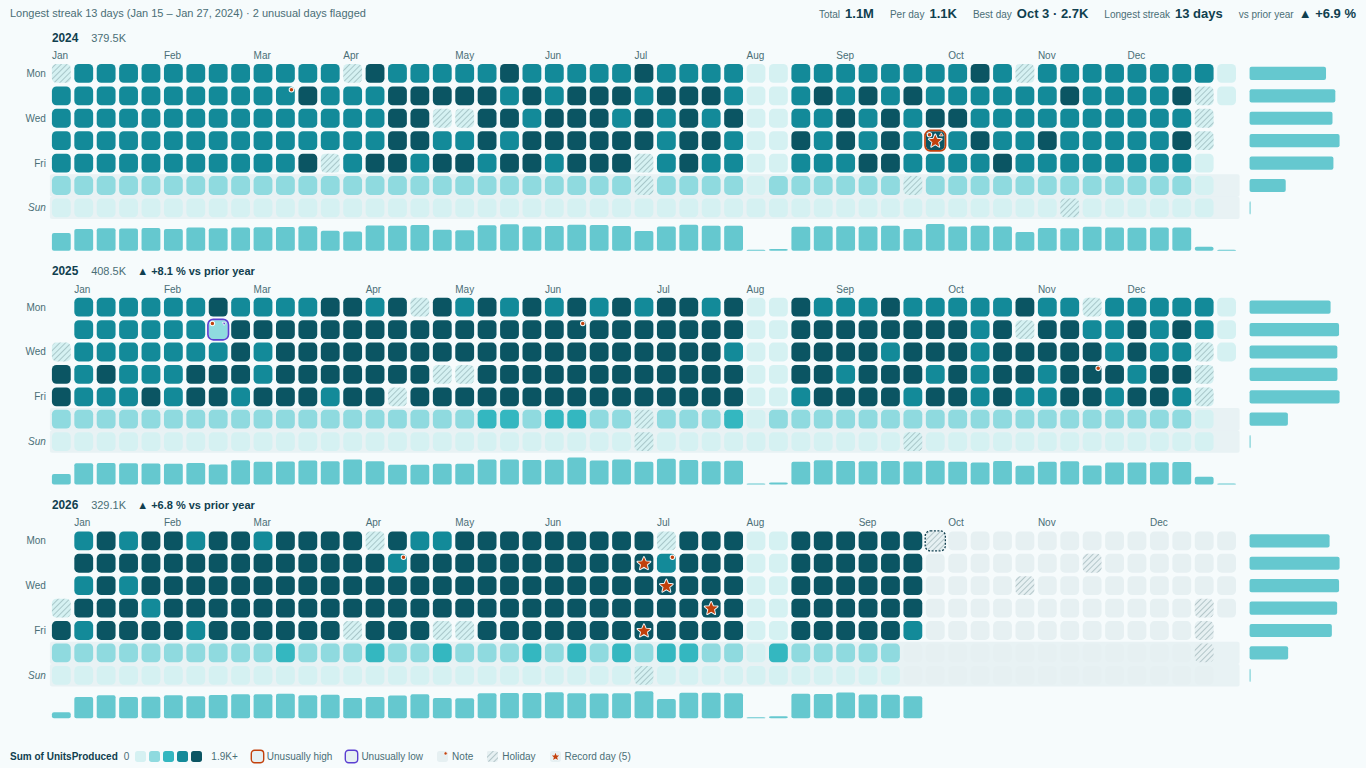
Calendar heatmap in Power BI: the date table, missing days, week start and the colour scale
A calendar heatmap puts every day of a year on a grid, one column per week and one row per weekday, and colours each day by a value. It answers questions a line chart hides: is Monday always heavy, did the shutdown really last two weeks, which days of the year broke the pattern. Power BI has no native calendar heatmap, so most people build one from a matrix visual with conditional formatting. The build takes ten minutes. Getting it to tell the truth takes four decisions: the date table, what a missing day means, where a week starts, and the colour scale.
The matrix recipe
The grid needs two things per date: which week column it belongs to and which weekday row. Both belong in the date table, not in the fact table.
Date =
ADDCOLUMNS (
    CALENDAR ( DATE ( 2025, 1, 1 ), DATE ( 2026, 12, 31 ) ),
    "Week Start", [Date] - WEEKDAY ( [Date], 2 ) + 1,
    "Weekday No", WEEKDAY ( [Date], 2 ),
    "Weekday", FORMAT ( [Date], "ddd" )
)
WEEKDAY with return type 2 numbers Monday as 1 and Sunday as 7, so Week Start is the Monday of each date's week. Sort the Weekday column by Weekday No (Column tools, Sort by column), mark the table as a date table, and relate Date[Date] to the date column of your facts.
Then build a matrix: Weekday on Rows, Week Start on Columns, your measure on Values. Add conditional formatting for the background colour with a gradient and narrow the columns. That is a calendar heatmap.
Three things in the date table matter more than they look.
One row per day, no gaps. CALENDAR or CALENDARAUTO gives that. A date table built from the distinct dates in the fact table does not: the days without sales are simply missing, and the grid has holes you cannot tell apart from anything else.
Dates without times. If the fact column is a date/time, the relationship to a date-only table matches only the rows stamped exactly at midnight. Everything else silently falls out of the calendar. Add a date-only column to the fact table, or change the column's data type to Date in Power Query, and relate on that.
Week columns, not week numbers. It is tempting to put WEEKNUM on the columns. The problem is the year boundary. WEEKNUM ( DATE ( 2025, 12, 31 ), 2 ) is 53 and WEEKNUM ( DATE ( 2026, 1, 1 ), 2 ) is 1, although both days fall in the same Monday-to-Sunday week. The matrix splits that week into two half-empty columns. A Week Start date has no such break: the week of 29 December 2025 is one column, whichever year its days belong to.
A missing day is not a zero
This is the decision that changes what the chart says. When your measure returns blank for a day, the matrix has nothing to colour. Depending on how the conditional formatting treats blank values, that cell stays empty or is painted like the lowest value. Neither is automatically right.
A blank can mean two very different things:
- Nothing happened. The shop was open and sold nothing, the line ran and produced nothing. That is a real zero and belongs at the bottom of the colour scale.
- Nothing was recorded. The plant did not report, the system was down, the store was not open yet. That is missing data, and painting it as zero turns a data gap into a bad day.
If blanks in your data mean zero, say so in the measure, but only for the period you actually have data for. A plain [Total Sales] + 0 returns 0 for every date in the date table, including the months after today, and the calendar fills up with dark empty future.
Sales (zero-filled) =
VAR FirstDay =
    CALCULATE ( MIN ( Sales[OrderDate] ), REMOVEFILTERS ( 'Date' ) )
VAR LastDay =
    CALCULATE ( MAX ( Sales[OrderDate] ), REMOVEFILTERS ( 'Date' ) )
VAR CurrentDay =
    MAX ( 'Date'[Date] )
RETURN
    IF ( CurrentDay >= FirstDay && CurrentDay <= LastDay, [Total Sales] + 0 )
REMOVEFILTERS ( 'Date' ) finds the first and last order date regardless of which day is being evaluated, while slicers on other tables (store, product) still apply. Outside that range the IF returns blank, so the future stays empty.
If blanks mean "not recorded", leave them blank and make the empty colour clearly different from the low end of the scale, for example a light grey next to a blue ramp. The reader should see the gap.
The choice also moves your summary numbers: an average over days with data and an average over all calendar days are different figures. Write down which one your report uses.
Where the week starts
Monday, Sunday or Saturday is not cosmetic. It decides which days share a column: a Monday-start calendar keeps each weekend together at the bottom of its week, where a retail or hospitality reader looks for it.
The Week Start column adapts with one change. For a Sunday start use [Date] - WEEKDAY ( [Date], 1 ) + 1, because return type 1 numbers Sunday as 1. DAX WEEKDAY has no return type that starts on Saturday, but the arithmetic is still short:
"Week Start (Sat)", [Date] - MOD ( WEEKDAY ( [Date], 1 ), 7 )
Saturday has WEEKDAY 7, so MOD gives 0 and the date is its own week start; Sunday gives 1, Friday gives 6.
Week labels are a separate decision. ISO 8601 weeks always start on Monday, and week 1 is the week holding the year's first Thursday. In DAX that is WEEKNUM ( [Date], 21 ), and it must be paired with the ISO year, YEAR ( [Date] - WEEKDAY ( [Date], 2 ) + 4 ), because 29 December can be in week 1 of the following year. If your finance team counts weeks from 1 January instead, use WEEKNUM with return type 1 or 2 and accept the split week at the year boundary. Either way, label the columns with the numbering your readers already use, and keep the Week Start date as the actual column.
Choosing the colour scale
A calendar heatmap has a few hundred cells and one colour ramp. How values map to colours decides what stands out.
Linear is the honest default when values are spread evenly. It breaks down as soon as one day is extreme. A Black Friday at five times a normal day stretches the scale so far that every other day of the year lands in the same pale band. The usual fix is to cap the scale: set a fixed maximum in the gradient (a high percentile of your daily values works well) and let the outliers sit at the top colour.
Quantile colouring gives each colour step the same number of days. Every year shows its full range of colours, and the outlier problem disappears, but equal-looking steps can stand for very unequal amounts. Use it to see the pattern, not to compare magnitudes.
Logarithmic suits values spanning orders of magnitude, such as page views or transaction counts with long tails. Zero and negative days have no logarithm, so decide where they go before you trust it.
Diverging ramps belong to values with a meaningful middle: change versus last year, attainment against a target, profit and loss. Centre them on that middle (zero, or 100 percent of target), not on the average, or "slightly below normal" will look like a loss.
Two smaller rules. Use a single-hue or perceptually uniform ramp (viridis and cividis are designed to stay readable for colour-blind readers) rather than a rainbow. And keep the empty colour out of the ramp, so a missing day never passes for a low one.
Reading the result
Horizontal bands are weekday effects: a dark Monday row means Mondays are heavy all year. Vertical bands are weeks: a pale column is a holiday week or a shutdown. Isolated dark or pale cells are the days worth a question, but check the date first. A pale cell on a public holiday is not news.
When the matrix is not enough
The matrix recipe holds as long as the requirements stay simple. It starts to creak with fiscal years that do not start in January, retail 4-4-5 calendars, several years stacked on one page, a weekday-by-hour view of the same timestamps, or a wish to mark holidays and notes on the days themselves.
That is what we built SmartVisuals Calendar Heatmap for. It takes one Date column and one Value and computes weeks, weekdays, fiscal years and public holidays for 21 countries inside the visual, so the date table needs no week columns. Week starts on Monday, Sunday or Saturday is one setting, with ISO 8601 or "week of 1 January = 1" numbering. Days with no value get their own No-data colour and stay out of the per-day average and the streaks, while recorded zeros are coloured as values. Smart range, quantile, logarithmic and manual-threshold scales, and the colour-blind-safe palettes, are all in the free tier. The same date/time column also drives a weekday-by-hour punch card.
If you stay with the matrix, the checklist is short: a gap-free date table without times, a Week Start column instead of week numbers, a written decision on what a blank day means, and a colour scale that one extreme day cannot wash out.
Try AI Chatbot for Free
Experience the power of conversational analytics in your Power BI reports. Get your free license in seconds - no credit card required.
Get Free License