Candlestick chart in Power BI: OHLC measures, the trading-day axis and indicators
A candlestick chart packs four numbers into one mark per period: where the period opened, how high and how low it went, and where it closed. A filled or hollow body shows whether it closed up or down, and the wicks show the range. It was made for share prices, but it suits anything with an opening and closing value and a range in between: exchange rates, energy and commodity prices, the first and last temperature reading of a shift.
Power BI has no built-in candlestick chart. Approximations with error bars or stacked columns over an invisible base can show the high-low range, but they struggle with hollow and filled bodies, a volume pane and a time axis without weekend gaps. Whichever visual draws the candles, most of the work is the same: the data shape, four correct measures, and a few decisions about the axis and the indicators.
The data shape
The simplest source is one row per instrument and trading day:
| Ticker | Date | Open | High | Low | Close | Volume |
|---|---|---|---|---|---|---|
| HELI | 2026-09-28 | 154.10 | 157.30 | 153.60 | 156.80 | 312,400 |
| HELI | 2026-09-29 | 156.80 | 158.20 | 155.20 | 155.90 | 286,900 |
Relate Date to a date table and use the date table on the axis. Keep the instrument in its own column and filter to one instrument per chart: a candle that sums two tickers is not a price of anything.
If you start from trades or readings instead (one row per timestamp with a price and a quantity), you do not need to pre-aggregate. The measures below compute the four prices for whatever period is on the axis.
Four measures that survive a change of grain
The most common candlestick bug is invisible at day level. With one row per day, SUM ( Prices[Open] ) returns the right number, because there is only one row to sum. Move the axis to weeks or months and the same measure adds up five or twenty opens. The candle is still drawn, it is just wrong.
Write the measures for what each price means:
Open = FIRSTNONBLANKVALUE ( Prices[Date], SUM ( Prices[Open] ) )

High = MAX ( Prices[High] )

Low = MIN ( Prices[Low] )

Close = LASTNONBLANKVALUE ( Prices[Date], SUM ( Prices[Close] ) )

Volume = SUM ( Prices[Volume] )
FIRSTNONBLANKVALUE walks the dates in the current filter context in ascending order and returns the expression for the first date where it is not blank, so a weekly bar opens at the first trading day of the week, even when that is a Tuesday after a holiday. LASTNONBLANKVALUE does the same from the end for the close. High and low are the extremes of the period, and volume is the only one of the five that really is a sum.
From a trades table the pattern is the same, with the timestamp as the column to walk:
Open = FIRSTNONBLANKVALUE ( Trades[Timestamp], MIN ( Trades[Price] ) )

Close = LASTNONBLANKVALUE ( Trades[Timestamp], MIN ( Trades[Price] ) )
MIN inside only decides which price to take when two trades share a timestamp; pick the rule your data needs.
Weekends, holidays and the trading-day axis
Markets do not trade on weekends. On a true calendar axis, every weekend leaves a gap the width of two candles, and a chart of daily prices looks like a comb. Price charts are normally drawn on a trading-day axis instead: one slot per bar, in order, with no space for days without data. Weekly ticks or month labels still tell the reader where they are.
Two practical consequences:
- The axis is ordinal, not time. The distance between two candles is one trading day, whether a weekend or a public holiday lies between them. A long holiday gap does not show unless you ask for calendar spacing.
- Blank days must stay blank. If a measure returns 0 instead of blank on a Saturday, Power BI sends that day as a row with a price of zero and the chart grows a spike to the floor. Keep blank meaning blank (do not add
+ 0to price measures), and the weekend rows never reach the visual.
Check the bars before you trust them
A correct bar has a high at or above both the open and the close, and a low at or below both. Data that breaks this rule is common: a feed that delivers the close before the high is updated, a manual correction to one column, a currency conversion applied to some columns but not others. A chart that draws such a bar anyway shows a candle body sticking out of its own wick, and nobody notices.
A quick DAX check makes the problem visible in a table:
Invalid Bars =
COUNTROWS (
    FILTER (
        Prices,
        Prices[High] < MAX ( Prices[Open], Prices[Close] )
            || Prices[Low] > MIN ( Prices[Open], Prices[Close] )
    )
)
Inside FILTER, the two-argument MAX and MIN compare the values of the current row. Put the measure in a card next to the chart and it should read blank.
Moving averages on trading days
A 20-day moving average of the close means the last 20 trading days, not the last 20 calendar days. DAX time intelligence (DATESINPERIOD and friends) counts calendar days, so give each trading day a number first. As a calculated column on the price table:
Trading Day =
RANKX (
    FILTER ( Prices, Prices[Ticker] = EARLIER ( Prices[Ticker] ) ),
    Prices[Date], , ASC, DENSE
)
Then average the 20 rows ending at the current one:
Close SMA 20 =
VAR CurrentDay = MAX ( Prices[Trading Day] )
VAR Result =
    CALCULATE (
        AVERAGE ( Prices[Close] ),
        REMOVEFILTERS ( 'Date' ),
        REMOVEFILTERS ( Prices[Date] ),
        Prices[Trading Day] > CurrentDay - 20,
        Prices[Trading Day] <= CurrentDay
    )
RETURN
    IF ( CurrentDay >= 20, Result )
The IF leaves the first 19 days blank instead of averaging fewer than 20 values, which is the textbook definition. The ticker filter from a slicer stays in place, because only the date filters are removed.
Exponential averages, RSI, MACD and the ATR are harder. They are recursive: each value depends on the previous smoothed value (Wilder's RSI carries its average gain and loss forward from bar to bar). DAX has no recursion, so these need either an iterative workaround over all earlier rows, which gets slow on long histories, or a calculation outside DAX. This is one place where a visual that computes indicators from the bars it receives saves real modelling work. Whatever computes them, check the parameters against the textbook: RSI 14 with Wilder smoothing, MACD 12, 26 and 9, Stochastic 14 and 3, ATR 14.
Long histories
Three years of daily prices is about 750 candles. On a chart a thousand pixels wide each candle gets little more than a pixel, and a chart that thins the data by dropping bars can drop exactly the day that mattered. The correct way to shrink candles is to combine neighbours: the first open, the highest high, the lowest low, the last close and the summed volume. Done in DAX, that is the grain change above (move the axis to weeks); done in a visual, it should happen per pixel and say so.
Doing it with SmartVisuals Candlestick
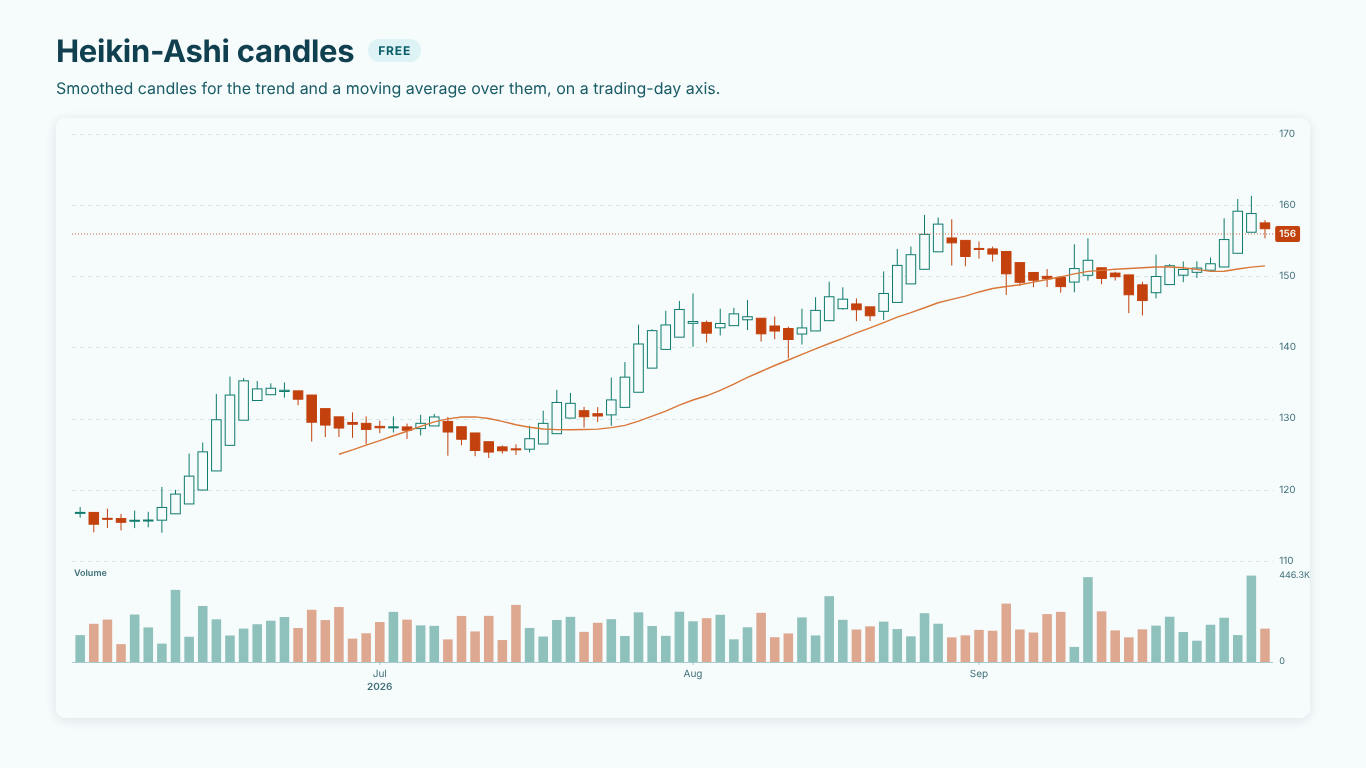
We built SmartVisuals Candlestick for this. Bind a date and the four measures above, and it draws candles on a trading-day axis with a moving average, a volume pane when Volume is bound, and the last close on the price axis. Hollow candles, OHLC bars, Heikin-Ashi, Renko, a close line and a close area are one setting away, Show Calendar Gaps brings back true calendar spacing, and bars whose high and low do not bracket the open and close are outlined and named in the tooltip. When there are more bars than pixels, they are combined into true open, high, low and close, and the footnote says so. The indicators follow the Wilder definitions and are computed inside the report, with no market data feed and no external calls.
It has been prepared for Microsoft Marketplace and is not published there yet. See the landing page for what is free and what is premium.
The checklist
- One instrument per chart, a date table on the axis.
- Open and Close from the first and last date in the period, High as MAX, Low as MIN, Volume as SUM.
- Blank stays blank, so weekends never reach the chart.
- A check that every bar's high and low bracket its open and close.
- Moving averages counted in trading days, with a trading-day index.
- Long histories combined into true OHLC, never thinned by dropping bars.
Try AI Chatbot for Free
Experience the power of conversational analytics in your Power BI reports. Get your free license in seconds - no credit card required.
Get Free License