Combo charts in Power BI: columns, a line, two axes and the plan
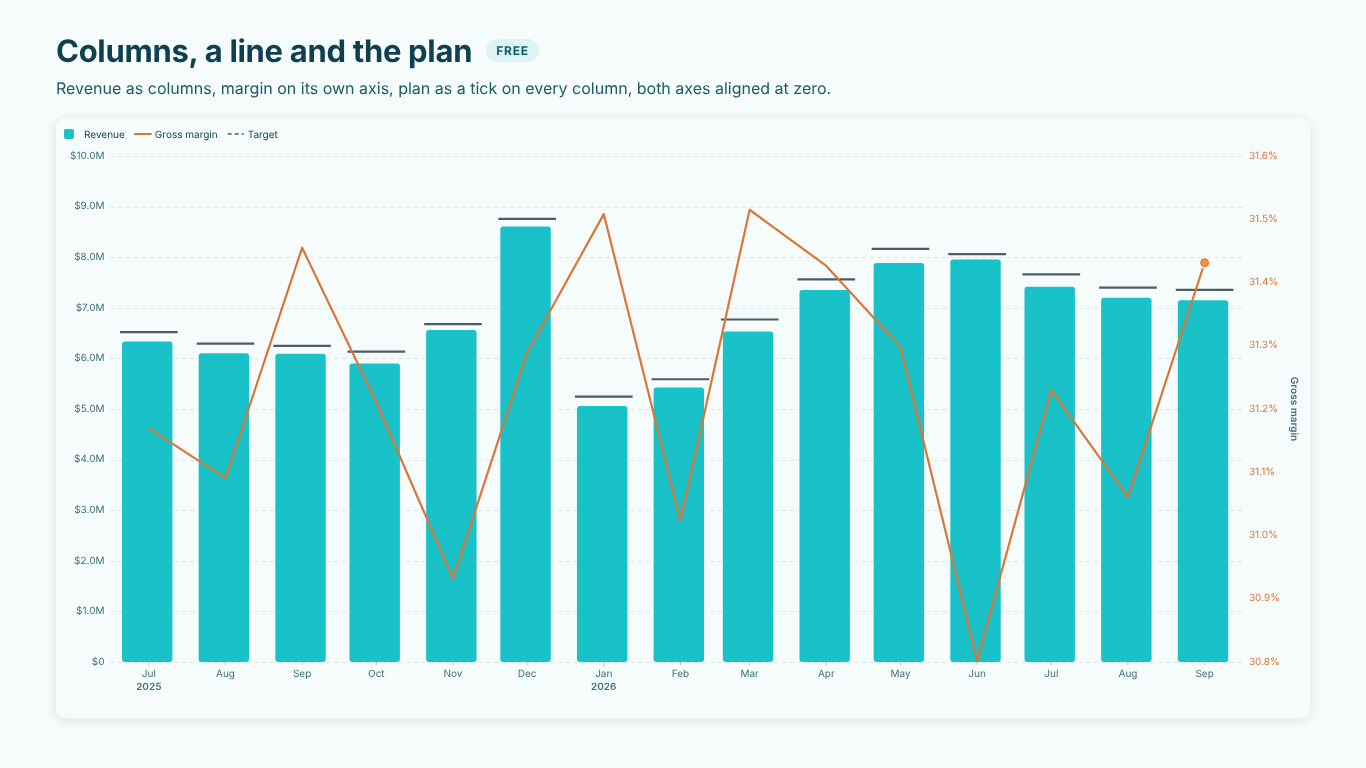
The monthly management page has a favourite chart: revenue as columns, gross margin as a line, and somewhere the plan. It is a good chart. It answers three questions at once: how much did we sell, how profitable was it, and are we where we said we would be. It is also the chart where a second axis most often tells a story the numbers do not.
Below: when a combo chart is the right choice, the data shape and DAX behind actual, plan and last year, how to keep two axes honest, and the pitfalls of actual vs plan by month.
When a combo chart earns its second axis
A combo chart is the right tool when two measures share a time axis but not a unit: revenue in dollars and margin in percent, orders and average order value, headcount and cost per head. One axis cannot carry both, and two separate charts make the reader line up months by eye.
It is the wrong tool when both measures have the same unit. Revenue and plan are both dollars; put them on one axis. A second axis for the same unit lets each series stretch to fill the plot, so a 2 % miss can look like a cliff. The rule of thumb: one axis per unit, never one axis per measure.
The data shape
A typical model:
- a sales fact table:
Sales[OrderDate],Sales[Site],Sales[Amount],Sales[Cost] - a plan table at month grain:
Plan[Month](the first day of each month),Plan[Site],Plan[Amount] - a marked date table
'Date'related toSales[OrderDate]andPlan[Month] - a
'Site'dimension (Chicago, Milwaukee, Atlanta, Toronto, Manchester, Hamburg) related to both fact tables
As with every actual vs plan model, the relationships do more work than the DAX. A plan table that is not related to the site dimension gives every site the company plan. A plan at month grain related through a month-start date works at month, quarter and year level; at day level, the whole month's plan sits on the first day.
The measures
Revenue = SUM ( Sales[Amount] )

Gross Profit = SUM ( Sales[Amount] ) - SUM ( Sales[Cost] )

Gross Margin % = DIVIDE ( [Gross Profit], [Revenue] )

Plan = SUM ( Plan[Amount] )

Revenue PY =
CALCULATE ( [Revenue], SAMEPERIODLASTYEAR ( 'Date'[Date] ) )

Variance to Plan = [Revenue] - [Plan]

Variance to Plan % =
DIVIDE ( [Revenue] - [Plan], ABS ( [Plan] ) )
DIVIDE returns blank instead of an error when a month has no revenue or no plan, and ABS keeps the sign of the variance meaningful when a plan is negative.
A year view usually wants one series that shows actuals for closed months and the plan for the rest. Fix the cutoff once, for every site, so a site with a quiet last week is not cut short:
Revenue Actual or Plan =
VAR LastActual =
    CALCULATE ( MAX ( Sales[OrderDate] ), REMOVEFILTERS () )
VAR PeriodStart = MIN ( 'Date'[Date] )
RETURN
    IF ( PeriodStart <= LastActual, [Revenue], [Plan] )
The month that contains the last actual date shows actuals, even if it is only half over. If a partial month next to a full-month plan would mislead, compare against a plan prorated by days elapsed, or end the actuals at the last closed month instead.
Two axes without lying
Two value axes are scaled independently, so their zero lines usually sit at different heights. Revenue might run from $0 at the bottom to $10M at the top, and margin from -5 % to 35 %, with its zero an eighth of the way up. Now the margin line crosses the column tops at points that mean nothing, and a negative margin month can sit visibly above the revenue zero.
The fix is zero alignment: give every axis the same share of the plot below zero. If revenue has no negatives and margin goes down to -5 % of a 35 % top, both axes reserve the same fraction of height below zero, and zero becomes one line across the chart. Alignment only makes sense when every axis includes zero. A margin that moves between 30.8 % and 31.6 % can keep its own narrow range on a line, as long as the axis is labelled and coloured like its line so nobody reads it against the revenue scale. Columns are different: a column's length means something only from zero, so a column axis should always start there.
Two more habits help. Colour each axis like its series, and give the right-hand axis a title. A reader should never have to guess which scale a line belongs to.
The plan as a tick
The usual way to add the plan to a column chart is a second column next to each actual. The reader then compares two lengths side by side and loses the actual among twice as many bars. A short horizontal tick across each column, at the plan value, reads faster: the question becomes "does the column reach the tick", and the gap is visible without a second bar.
Ticks work for a handful of sites or months. When the gap itself is the story, draw it: variance bars under the chart, one per month, above or below a zero line, labelled with the amount and coloured by whether it is good or bad. For costs, where below plan is good, the colours must flip.
IBCS notation in one paragraph
The International Business Communication Standards give each scenario its own look, so the reader knows what kind of number they are reading without a legend: actuals solid, plan outlined, forecast hatched, previous year grey. On a combo chart that means solid columns for closed months, outlined and hatched columns for the months that are still plan or forecast, and last year as a grey column behind each month. The style takes a little getting used to and then saves a lot of legend reading on finance pages.
Pitfalls of actual vs plan by month
- Blank plan is not zero plan. A site without a plan for a month should show no tick and no variance. If a measure turns blank into zero, the month shows a variance as large as its revenue.
- Partial months. In the middle of October, October's actual is half a month and October's plan is a full one. Either prorate the plan, or stop the actuals at the last closed month.
- Percentages do not add up. Margin by month is fine; a quarterly or yearly margin must be recomputed from gross profit and revenue, never summed or averaged from the monthly percentages. The
DIVIDEmeasure above does this correctly at every level. - Two axes for one unit. Revenue and plan on separate axes each fill the plot, and a miss disappears. Same unit, same axis.
- Previous year from a broken calendar.
SAMEPERIODLASTYEARneeds a complete, marked date table. Without one, last year's months shift or go blank.
Doing it with SmartVisuals Combo Chart
SmartVisuals Combo Chart builds this page from fields rather than workarounds. Measures in Column values are drawn as columns (clustered, stacked or 100 %), measures in Values as lines, and Secondary axis values go on the right-hand axis, coloured like their line and titled. Target draws the plan as a tick on every column, or as a line.
- Zero alignment is on by default (Y-Axis > Align Zero Across Axes) and applies when every axis includes zero; Y-Axis > Start At Zero > Always brings a margin axis down to zero so the two line up.
- The actuals cutoff is a setting: Actual and Forecast Styling > Actuals End At > A date draws the later columns outlined and the lines dashed, with an optional vertical rule, so the Actual or Plan measure above reads as one series with a visible break.
- IBCS Scenario Notation in the Columns card applies the notation by role: actual solid, the periods after the cutoff outlined and hatched, the Comparison field as a grey column behind each month. The Finance (IBCS) preset switches it on with a print-friendly style.
- Variance bars under the chart, labelled, with Higher Is Better to flip the colours for costs; and a forecast that picks up where the columns end, with 80 and 95 % prediction intervals.
See the landing page for what is free and what is premium. The visual has been prepared for Microsoft Marketplace and is not published there yet; the landing page will link to the listing once it is live. Everything is computed inside the report, with no external calls. If the same page also needs line, area or sparkline views over the same fields, the multi-view SmartVisuals Time Series holds the combo view too.
Try AI Chatbot for Free
Experience the power of conversational analytics in your Power BI reports. Get your free license in seconds - no credit card required.
Get Free License