Head-to-head comparisons in Power BI: the data shape, the DAX and a board you can read across the room
A head-to-head comparison answers one question: of these two, who is ahead, and by how much? Plant against plant, region against region, this year against last year, actual against target. It sounds like the simplest chart in a report, and on a laptop it usually is. On a TV on the shop floor, where people glance at it from six metres away, the usual answers stop working. This article covers the two data shapes a comparison can come from, the DAX that turns them into a lead and a tie, three ways the result goes quietly wrong, and what makes the answer readable at a distance.
Two shapes of comparison
Before writing any measure, decide which kind of comparison you have. They look the same on screen but come from different data.
Sides are values of a column. Plzeň and Brno are two values of Sales[Plant]. The measure is the same for both sides; only the filter changes. Region against region and team against team are this shape.
Sides are measures. This year and last year are not two values of a column; they are two measures over the same rows, usually one of them shifted in time. Actual against target and forecast against budget are this shape too.
Most of the trouble with comparisons starts when the second shape is forced into the first, for example by building a Year column and putting it on the axis, and then wondering why the lead does not respect the date slicer.
The recipe for sides as values
Assume a fact table Sales with Plant, Date and Units, and a date table 'Date' related to Sales[Date] and marked as the date table. To let the reader pick any two plants, add two disconnected tables, one per side:
Side A = DISTINCT ( Sales[Plant] )
Side B = DISTINCT ( Sales[Plant] )
Put each in a single-select slicer. The measures then move the slicer selection onto the fact table with TREATAS:
Units = SUM ( Sales[Units] )

Units A =
CALCULATE ( [Units], TREATAS ( VALUES ( 'Side A'[Plant] ), Sales[Plant] ) )

Units B =
CALCULATE ( [Units], TREATAS ( VALUES ( 'Side B'[Plant] ), Sales[Plant] ) )
Because the side tables are not related to Sales, the date slicer and any other filter still apply to both sides equally, which is exactly what a fair comparison needs.
The recipe for sides as measures
This year against last year needs no extra tables, only time intelligence over the marked date table:
Units LY =
CALCULATE ( [Units], SAMEPERIODLASTYEAR ( 'Date'[Date] ) )
[Units] is this year under the current date filter and [Units LY] is the same period a year earlier. Actual against target is the same pattern with the target coming from its own table instead of a time shift.
The lead, the tie and the sentence
A comparison is only finished when it says who leads. Two measures do that: the gap as a number, and the result as words.
Lead =
VAR A = [Units A]
VAR B = [Units B]
RETURN
    IF ( ISBLANK ( A ) || ISBLANK ( B ), BLANK (), A - B )

Lead Text =
VAR A = [Units A]
VAR B = [Units B]
VAR NameA = SELECTEDVALUE ( 'Side A'[Plant], "Side A" )
VAR NameB = SELECTEDVALUE ( 'Side B'[Plant], "Side B" )
VAR Gap = ABS ( A - B )
VAR TieMargin = 0.01 * MAX ( ABS ( A ), ABS ( B ) )
RETURN
    SWITCH (
        TRUE (),
        ISBLANK ( A ) || ISBLANK ( B ), "No score yet",
        Gap <= TieMargin, "Tied",
        A > B, NameA & " leads by " & FORMAT ( Gap, "#,0" ),
        NameB & " leads by " & FORMAT ( Gap, "#,0" )
    )
The tie margin matters more than it looks. Two plants at 22,390 and 22,401 units are, for any practical purpose, level. Without a margin the board announces a leader and the floor starts arguing about eleven units. One percent of the higher score is a reasonable start; an absolute margin in the measure's own units works too.
For measures where lower is better, such as defects, scrap or handle time, flip the comparison: the side with the smaller value leads. Do not try to fix this with a negative sign on the measure, because the number on screen then reads as a negative count.
Three ways the comparison goes quietly wrong
Blanks compare as zero
In DAX, BLANK () > -5 is true and BLANK () = 0 is true, because blank is treated as zero in a comparison. A plant that has not reported yet therefore "leads" a plant with a negative margin, and ties with a plant on zero. That is why both measures above test ISBLANK first. A side with no data should show a dash and never lead.
Ratios added across periods
A comparison often comes with a breakdown by week or month underneath. If the measure is a rate, such as scrap rate or on-time delivery, the total over the month must be computed from the totals, not by adding or averaging the weekly percentages:
Scrap Rate =
DIVIDE ( SUM ( Production[Scrap] ), SUM ( Production[Produced] ) )
Evaluated at the month level, this is the true monthly rate. The trap appears when a visual or a calculated table combines the weekly results itself: adding four weekly rates of 2% gives 8%, and averaging them gives a figure that ignores how much each week produced. The same goes for distinct counts and balances such as stock or headcount, which do not add up across periods either. When the comparison has periods, check what the total row does with each measure.
Unfair filter context
When both sides come from the same column, a slicer on that column filters both of them at once, and one side can disappear. The disconnected side tables above avoid this. When sides are measures, make sure both use the same date logic: a "this year" measure that ignores the date slicer against a "last year" measure that respects it compares a full year to a single month.
What the native visuals give you
A card shows one number; the newer card visual can show several side by side, which is close to a scoreboard but does not state who leads. The KPI visual compares one value to a target and colours it, but it is built for one side and a goal, not two competitors. A clustered bar chart shows two bars, which is honest but makes the reader judge the gap by eye. A table with conditional formatting can hold the lead text, but at a distance it reads as a spreadsheet.
None of these is wrong for an analyst at a desk. The gap is the wall screen.
Making it readable on a wall screen
A board that hangs on a wall has a different reader: someone walking past, with two seconds and no mouse.
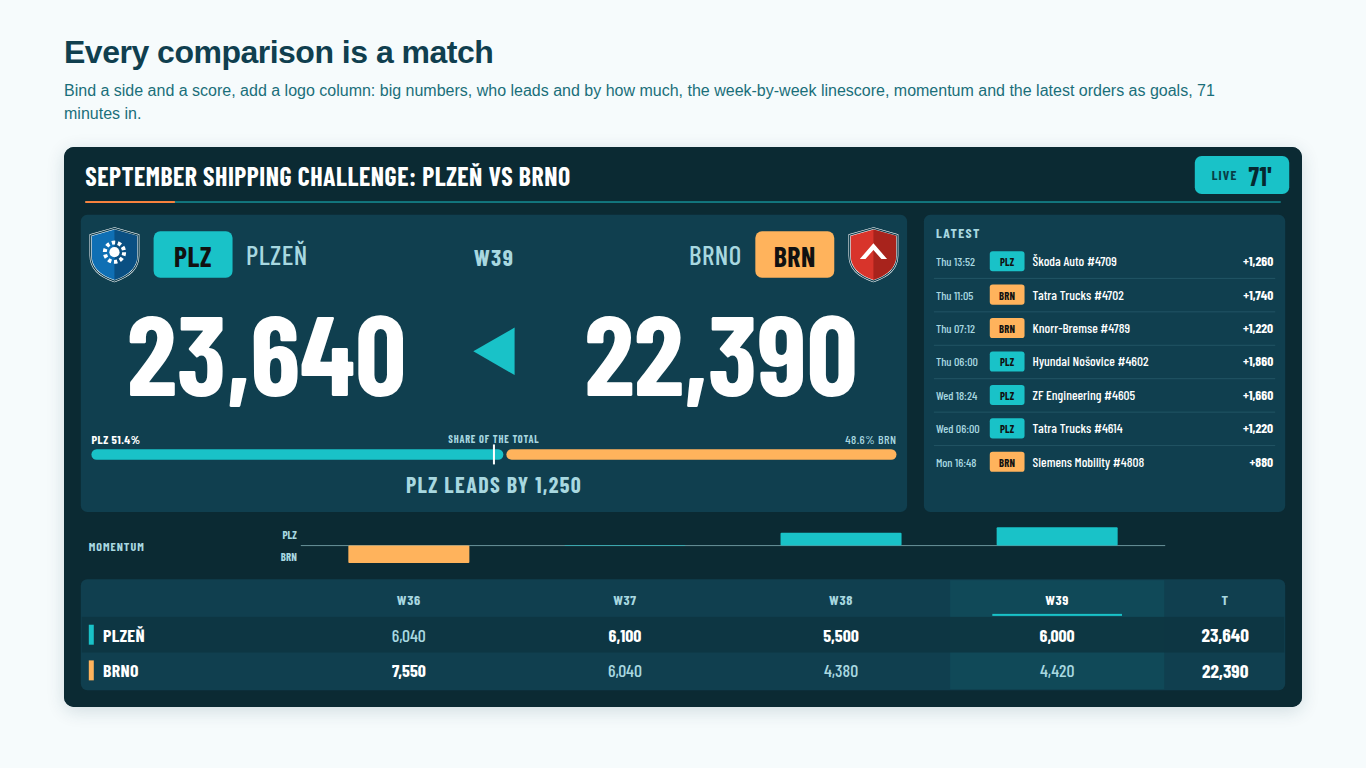
- One big number per side, and the lead as a sentence. "PLZ LEADS BY 1,250" can be read from far away. A gap the reader has to compute from two numbers usually is not.
- Never colour alone. Green and red are hard to tell apart for many colour-blind readers, and on a washed-out TV they look the same anyway. Mark the leader with a shape, an arrow or a word as well.
- Keep the sides where they are. If the leader always moves to the left, the reader loses track of which plant is which. Fix the order and let the lead marker move instead.
- Short codes. PLZ and BRN, TY and LY, fit at large sizes where full names would be cut off.
- Compact numbers. 1.2K survives a small tile; 1,243.57 does not.
- No tooltips. Nobody hovers a TV. Anything the reader needs must be on the board.
- Data refresh sets the pace. The board can only change when the dataset changes. Decide how often the numbers should move, and set the refresh to match.
Where a scoreboard visual saves the work
Everything above can be built with native visuals and the measures shown. If you would rather not maintain the side tables, the lead and tie measures and the formatting for a wall screen, the free SmartVisuals Scoreboard takes the same two shapes directly. Map a column to Side and a measure to Score, or leave Side empty and put two measures in Score, and it shows the scores, the lead as an arrow and a sentence, and "TIED" when the gap is within a tie margin you set. Lower is better is a per-measure toggle, and blanks show as a dash and never lead.
With a Period field bound it combines the rows by a rule you choose per measure (sum, average, latest, maximum or minimum), and its Auto setting averages percentages instead of adding them. For a ratio where the exact monthly figure matters, leave Period off and the score is exactly what your measure returns. It runs fully offline, with no external calls, and nothing in it is locked.
Try AI Chatbot for Free
Experience the power of conversational analytics in your Power BI reports. Get your free license in seconds - no credit card required.
Get Free License