KPI status thresholds in Power BI: good, warning, bad, and which way is up
A KPI status is a judgement: this number, against that target, is good, borderline or bad. Every scorecard makes that judgement, usually with a green, amber or red dot, and most of them make it in a way nobody wrote down. The thresholds live in a conditional-formatting dialog, the direction is assumed, and a blank actual quietly turns red. Below: the decisions behind a status, the DAX that encodes them once, and the pitfalls that make a traffic light lie.
Three decisions before any colour
What "on target" means. Usually actual at or above target, but a production volume may be on target only inside a band because overshooting costs too. Decide per KPI and write it down.
How wide the warning band is. The middle state is the one that matters, because it is where action is still cheap. A common default is three bands measured as a share of target: on target at 100 % or more, within tolerance from 95 %, below target from 85 %, and critical below that. The numbers are a policy: keep them consistent and visible to the reader.
Which way is up. Revenue, on-time delivery and first-pass yield are higher-is-better. Cost, scrap rate, lead time and complaints are lower-is-better. A rule that ignores direction shows a cost overrun as green.
One performance number, mirrored for direction
The cleanest way to apply one set of bands to both kinds of KPI is to turn every KPI into a performance ratio where 1 means on target and higher is always better. For higher-is-better KPIs that is 1 plus the relative gap; for lower-is-better KPIs it is 1 minus it. Being 5 % short of a revenue target and 5 % over a cost budget both become 0.95.
Assume a small dimension table KPI with one row per KPI and a LowerIsBetter column holding 0 or 1, and a fact table KpiValues with the KPI key, a Month date, Actual and Target. The base measures are plain sums, [Actual] = SUM ( KpiValues[Actual] ) and [Target] = SUM ( KpiValues[Target] ), evaluated per KPI.
KPI Performance =
VAR Actual = [Actual]
VAR Target = [Target]
VAR LowerIsBetter = SELECTEDVALUE ( KPI[LowerIsBetter], 0 )
VAR Gap = DIVIDE ( Actual - Target, ABS ( Target ) )
RETURN
    SWITCH (
        TRUE (),
        ISBLANK ( Actual ) || ISBLANK ( Target ), BLANK (),
        Target = 0,
            IF ( IF ( LowerIsBetter = 1, Actual <= 0, Actual >= 0 ), 1, 0 ),
        LowerIsBetter = 1, 1 - Gap,
        1 + Gap
    )
Three details in that measure matter. The blank check comes first, so a missing actual or target produces no performance at all rather than zero. ABS ( Target ) keeps the sign right when a target is negative, such as a planned loss. And a zero target gets its own branch, because a relative gap against zero is undefined: a zero-harm KPI such as lost-time injuries is met at exactly zero and missed at anything above it, with no tolerance band in between.
The status is then a lookup on that one number:
KPI Status =
VAR P = [KPI Performance]
RETURN
    SWITCH (
        TRUE (),
        ISBLANK ( P ), "No reading",
        P >= 1.00, "On target",
        P >= 0.95, "Within tolerance",
        P >= 0.85, "Below target",
        "Critical"
    )
Percentages do not fit every KPI
A percentage band is fair for revenue and cost. It is wrong for a KPI whose tolerance is set in its own units. A delivery lead time with a target of 10 days might be acceptable up to 12 and critical beyond 15. Those are 20 % and 50 % over target today, but change the target to 8 days and percentage limits move to 9.6 and 12 days while the contract does not. For KPIs like this, store the limits as columns on the KPI table and compare the actual with them directly, falling back to the percentage bands only where no limit is set. Mixing both rules is fine if a tooltip says which one judged which KPI.
The blank is not a zero
Most red dots that turn out to be wrong come from one of two blanks.
Missing data. If last month's actual has not been loaded yet, a measure that coalesces blanks to zero reports a 100 % miss. The KPI is not critical; it is unknown. Show a separate "No reading" state, in a neutral colour, so that a data problem never looks like a performance problem.
Future periods. A monthly scorecard usually has budgets through December and actuals through last month. "Current status" should come from the latest month that has an actual, not from the latest month in the table. In DAX that means finding the last month with data before you evaluate status:
Latest Month with Actual =
CALCULATE (
    MAX ( KpiValues[Month] ),
    NOT ISBLANK ( KpiValues[Actual] )
)
Use it to filter the status to that month. It only works if future actuals are truly blank; a measure written as SUM ( KpiValues[Actual] ) + 0 defeats it.
Forecast is not actual
Two different questions get mixed on many scorecards. "Are we on target?" compares the actual with the target. "Will we land on target?" compares a forecast, whether a finance reforecast or a statistical projection, with the target for a period that has not finished. They must not share one dot.
Keep the status as actual against target. Show the forecast next to it as context: a separate column, a second dot labelled as the outlook, or a sentence such as "Scrap rate turns critical in December on the current trend". If the forecast is statistical, say how it was made and on how much history.
Year-to-date KPIs have a related trap. A YTD actual of 70 against a full-year target of 100 reads as 70 % of target, critical, at the start of October. With 75 % of the year elapsed, a linear plan expects 75 by now, so the KPI is at 93 % of pace: below target on the default bands, not critical. If you judge a to-date figure, scale the target by the elapsed share of the period, and show that you did:
Year Elapsed % =
VAR CurrentDay = TODAY ()
VAR YearStart = DATE ( YEAR ( CurrentDay ), 1, 1 )
VAR YearEnd = DATE ( YEAR ( CurrentDay ), 12, 31 )
RETURN
    DIVIDE (
        DATEDIFF ( YearStart, CurrentDay, DAY ) + 1,
        DATEDIFF ( YearStart, YearEnd, DAY ) + 1
    )
Target to date is then [Target] * [Year Elapsed %].
Traffic-light pitfalls
Colour alone. Red and green are the pair most often confused by colour-vision deficiency, which affects about one man in twelve. Every status needs a second channel: a different shape, a word, or both.
Percent in conditional formatting is not percent of target. In Power BI's rules-based conditional formatting, the Percent option places a value between the minimum and maximum of the values in the visual. A rule from 0 to 85 Percent means "the lower 85 % of the visible range", not "below 85 % of target", and it changes with every filter. Format by a status measure instead: return 1 to 4 from a numeric version of the status measure and set icon or colour rules on Number, or use Field value with a measure that returns a colour.
The native KPI visual judges one KPI. It colours its indicator good or bad against a goal, with a direction setting, and draws a trend behind it. Fine for one number; a scorecard means one visual per KPI, each with its own settings.
Green and falling. A KPI at 101 % of target that has dropped three months running is not the same as one at 101 % and rising. Show the trend next to the status, and decide whether a falling trend lowers it one step.
Too much amber. If most KPIs sit in the warning band every month, the band is too wide or the targets are stale. Review them rather than adding a fourth colour.
Totals. A performance ratio averaged across KPIs is meaningless: 120 % on a small KPI does not offset 80 % on a large one. Turn off the total row on the status column, or define a portfolio status explicitly, for example "worst of".
Doing it in a visual
Everything above can be built with measures and conditional formatting. The maintenance comes when a new KPI needs the other direction or a different limit.
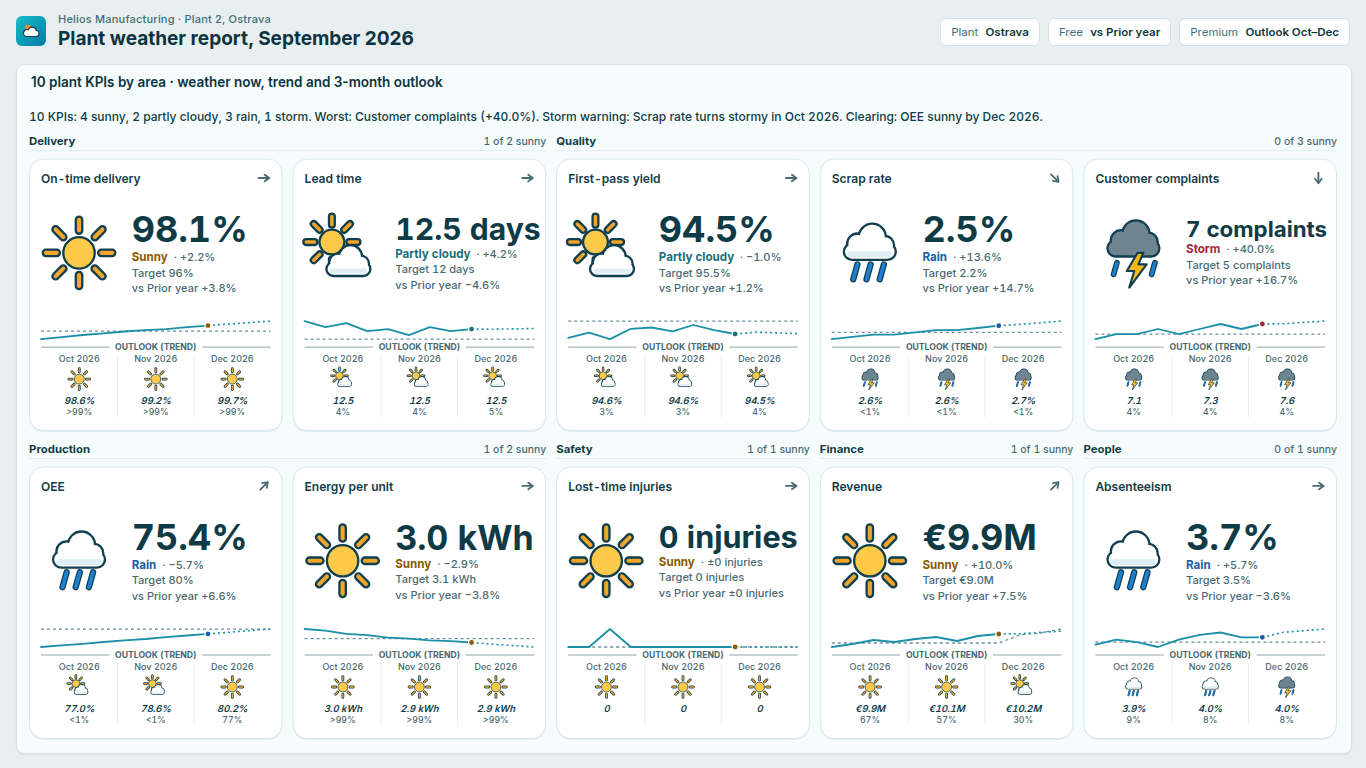
We built SmartVisuals KPI Weather around these same rules. You map KPI, Actual, Target and optionally a Period, and each KPI gets sunny, partly cloudy, rain or storm from the mirrored performance ratio, with bands of 100, 95 and 85 % by default, a Lower is better field per row, Rain threshold and Storm threshold fields for absolute limits, exact handling of zero targets, and fog when there is no reading. Status is shape and word, never colour alone, and the trend arrow and a prior-year comparison sit beside it, all free. The forecast for the coming periods, judged against each period's own target with a chance of meeting it, is part of Premium Outlook and previews free in edit mode.
Whichever way you build it, write the rules down where the reader can see them: the bands, the direction, and what a blank means.
Try AI Chatbot for Free
Experience the power of conversational analytics in your Power BI reports. Get your free license in seconds - no credit card required.
Get Free License