P&L statement in Power BI: signs, statement order, Gross profit and a total that adds up
A P&L looks like the simplest report in finance: a list of accounts grouped into sections, a subtotal under each section and a result at the bottom. In Power BI it is one of the most asked-about layouts, because the matrix visual was built to sum things, and a statement does more than sum. Costs have to subtract. Revenue has to stay on top whatever the alphabet says. Gross profit is a line that belongs to no account. And the total at the bottom has to match the lines above it, to the unit, or the first reader who checks it stops trusting the page.
This article walks through those four decisions with an example: Helios Manufacturing, September, three sections (Revenue, Cost of sales, Operating costs) and about a dozen accounts.
Start with the data shape
Keep two tables. A fact table with one row per posting or per account and month, holding the account key, the date and the amount. And an account table with one row per account, holding at least the account name, the section it belongs to and a number for the section's place in the statement.
| Account | Section | Section Order | Sign |
|---|---|---|---|
| Product sales | Revenue | 1 | 1 |
| Spare parts | Revenue | 1 | 1 |
| Materials | Cost of sales | 2 | -1 |
| Direct labour | Cost of sales | 2 | -1 |
| Salaries | Operating costs | 3 | -1 |
| Energy | Operating costs | 3 | -1 |
Put the section and its order on the account, not on the fact rows. A section is a property of the account, and when an account moves from Operating costs to Cost of sales next year, you change one row instead of reloading history.
Decide how costs are signed
Ledgers store costs in one of two ways. Some keep the accounting sign: revenue as credits (negative in many systems) and costs as debits (positive). Others export everything as positive numbers and leave the meaning to the section. Neither is wrong, but a plain SUM of either gives a nonsense result.
The cleanest fix is a Sign column on the account table, as above, and one measure that applies it:
Signed Amount =
SUMX ( GL, GL[Amount] * RELATED ( Accounts[Sign] ) )
RELATED works here because each GL row belongs to exactly one account (a many-to-one relationship from GL to Accounts). Every section subtotal and every result line is now a plain sum of Signed Amount, and costs print as negative numbers, which is what a reader expects on a statement.
If your ledger already stores revenue as negative credits, flip it once, in Power Query or in the Sign column, rather than sprinkling minus signs through several measures. One place for the sign convention means one place to check when a number looks wrong.
Keep the statement order
Drop Accounts[Section] on the rows of a matrix and you get Cost of sales, Operating costs, Revenue: alphabetical. Select the Section column, choose Column tools, Sort by column, and pick Section Order. Now every visual that sorts by Section, the matrix included, follows the statement.
Two things to watch. First, the sort-by column must have exactly one value per section, otherwise Power BI refuses it; that is another reason to keep both on the account table. Second, a reader can still click a column header in a matrix and re-sort it by amount. For a statement that is usually harmless to the numbers but bad for the reading: the result line ends up in the middle.
Gross profit is a running total
Gross profit is Revenue plus Cost of sales (already negative). Operating result is Gross profit plus Operating costs. In other words, each result line is a running total of the sections in statement order, and that is how to compute it:
Running Result =
VAR CurrentOrder =
    MAX ( Accounts[Section Order] )
RETURN
    CALCULATE (
        [Signed Amount],
        REMOVEFILTERS ( Accounts ),
        Accounts[Section Order] <= CurrentOrder
    )
On the Cost of sales row, CurrentOrder is 2, the filter keeps sections 1 and 2, and the measure returns Gross profit. REMOVEFILTERS ( Accounts ) drops the filter that the matrix row puts on the section and the account, so the sum is not limited to the current row. Filters on other tables, such as the month or the plant, still apply. Use it at section level only: on an account row it would return the same cumulative figure, which means nothing next to a single account.
Getting that number onto the page as its own line is the hard part. A matrix has no "insert a calculated row after this section". The common workaround is a separate layout table with one row per printed line (Revenue, Cost of sales, Gross profit, Operating costs, Operating result) and a measure that uses SWITCH on the selected line to return either a section sum or a running total. It works, and for a full statement with hundreds of accounts it is the right tool. The price is that the layout table now carries the statement structure, and every new account or section has to be added in two places.
Make the total add up
A reader adds up the lines in their head, or in a spreadsheet, and compares. Three things break that check.
Discount and tax computed somewhere else. If the total includes a discount or a tax amount, print those as lines between the subtotal and the total. A total that silently includes tax the reader cannot see looks like an error. Keep "tax included in the prices" and "tax added to the total" apart: included tax is a line for information and is not added again.
Rounding. Totals should be summed from the unrounded values, never from the displayed text. A side effect is that a column of rounded lines can differ from the rounded total by one unit in the last digit. That is correct, not a bug, but it is worth showing one more decimal or a short footnote on statements where readers check by hand.
Lines that were left out. A Top N filter that hides the small accounts also drops them from the total, unless the measure is written to ignore it. If you show only the largest lines, show the rest as one "other" line with their sum, so the page still adds up.
Mind the blanks
An account with no postings this month returns blank, not zero. In a matrix that row disappears, which is usually what you want on a statement. But a section where every account is blank disappears too, together with its subtotal, and if your Gross profit line hangs off that section's row, it disappears with it. The sum itself is still right, because a blank adds nothing, but the line the reader looks for is gone. Decide whether an empty section should print as zero or vanish, and test the report on a month where one section had no postings.
When the statement is the summary, not the source
Most of this work is worth doing in a matrix when the statement is the main object of the report: many accounts, expand and collapse, drill to postings. For a cover page, an all-hands slide or a phone, a narrow one-column summary often works better than a wide matrix, and that is what we built SmartVisuals Receipt for.
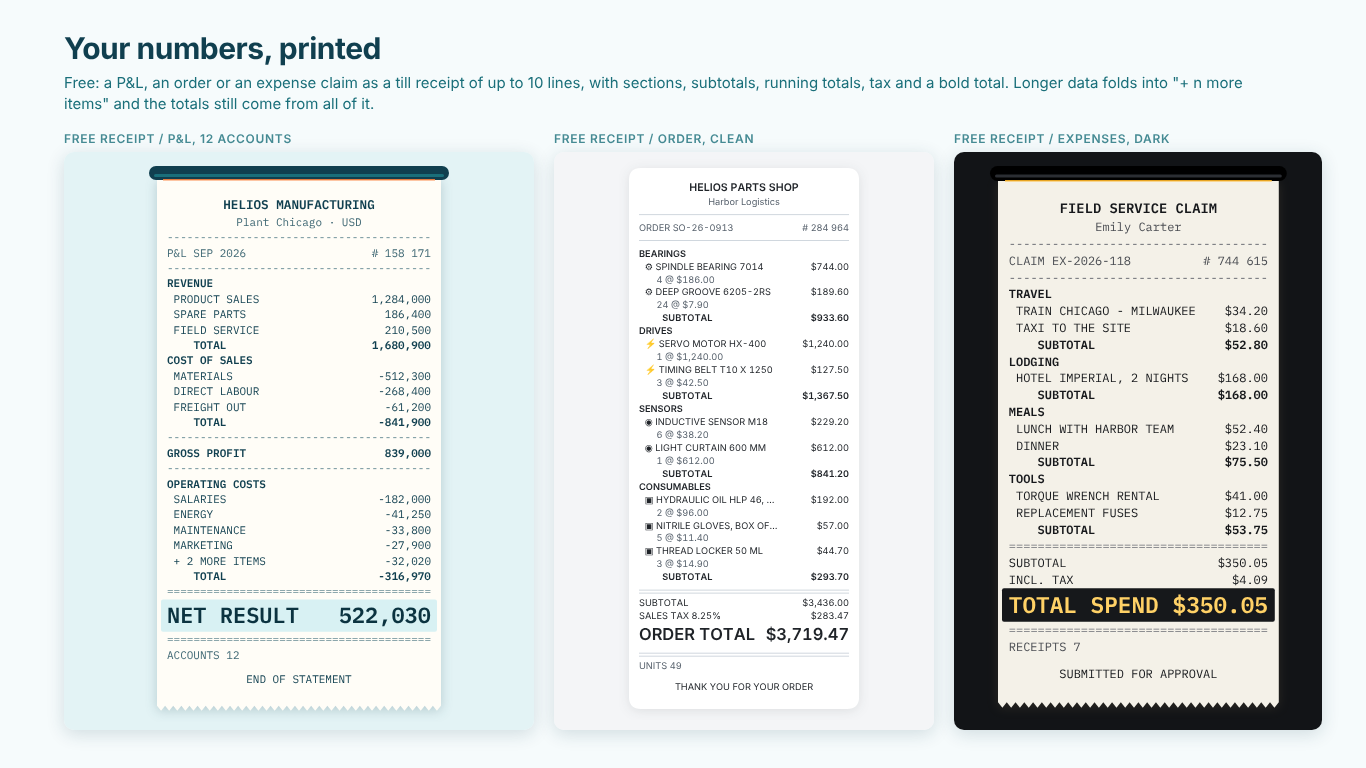
It prints the same P&L as a till receipt. Bind Account to Item, the section column to Section and Signed Amount (or the raw amount) to Amount. If your costs are stored as positive numbers, Lines > Signs subtracts the sections you name, so you can skip the Sign column. Lines > Running Totals takes Cost of sales = Gross profit and prints the running total as its own line, with no layout table, and Lines > Section Order fixes the statement order by name. The visual's sort is fixed and follows your Sort by column, and readers get no sort menu to reorder it. Discount and tax print as their own lines, from a measure or a rate, added or included, and every subtotal and total is summed from the raw values.
The free tier is a complete receipt of up to 10 item lines; longer statements keep each section's largest accounts and fold the rest into a "+ n more items" line, so the totals still come from every row. Premium ($1.99 per user per month or $19 per year) prints every line and adds a budget comparison with signed differences and arrows, margin lines and one receipt per plant, plus a Print pack with a QR code and a stamp. It is limited to 1,000 rows and has no drilldown, so it complements a full statement rather than replacing it. It has been prepared for Microsoft Marketplace and is not published there yet.
Whichever way you draw it, the checklist is the same: sections on the account table, one sign convention in one place, a sort-by column for the statement order, result lines as running totals, and a total that the reader can rebuild from the lines on the page.
Try AI Chatbot for Free
Experience the power of conversational analytics in your Power BI reports. Get your free license in seconds - no credit card required.
Get Free License