Process funnel in Power BI: conversion and time between stages in one view
Every monthly review of a process asks two questions. How many made it through each stage? And how long did it take? A funnel chart answers the first. The second usually ends up in a separate table of average days, on another part of the page, and the reader has to connect the two in their head: the stage that loses the most orders and the stage that takes the longest are often not the same, and the interesting one is the leg where both happen.
This article walks through preparing the data for both questions from one event table, the traps that make the numbers wrong, and how to show conversion and time in one picture.
Start from one row per item per stage
Most processes are recorded as events: an order, a candidate or a ticket reaches a stage at a point in time. The shape that works for everything below is an event table with one row per item and stage:
| OrderID | Stage | Stage Order | Reached At |
|---|---|---|---|
| 10021 | Order received | 1 | 2026-07-01 08:12 |
| 10021 | Credit check | 2 | 2026-07-01 14:40 |
| 10021 | Scheduled | 3 | 2026-07-03 09:05 |
Two columns matter more than they look. Stage Order is a number, not the stage name. Sorted alphabetically, "Produced" comes before "Scheduled", which is not how the process runs. And Reached At is a date and time, not a date: legs of a few hours vanish when the timestamp is rounded to the day.
If the source system logs every status change, including repeats, keep the first time each item reached each stage. In Power Query that is a Group By on OrderID and Stage with the minimum of the timestamp.
Traffic: count what reached the stage
The volume at a stage is the number of distinct items that reached it:
Orders Reached = DISTINCTCOUNT ( Events[OrderID] )
With Stage on the axis this gives the funnel. Conversion from one stage to the next is the count at the stage divided by the count at the stage before it, and the drop-off is the difference.
Two things change these numbers without anyone noticing.
Items that skip a stage. An express order may never pass Credit check. Counted per stage, Credit check then shows fewer orders than Scheduled, and the drop-off turns negative. That is not an error in the data: traffic joined the process mid-way. Decide whether skipped stages should count as passed (add the missing rows upstream) or whether the express orders are a separate path, and say which in the report.
Items still in progress. Orders received last week have not had time to reach Delivered. Mixed with older orders, they show up as drop-offs at the end of the process, and the last stages always look worse than they are. Build the funnel on a cohort that has had time to finish: orders received in a closed period, filtered by the date the item entered the process, not by the date of each event. For that, give every event row the item's start date:
Entry Date =
CALCULATE (
    MIN ( Events[Reached At] ),
    ALLEXCEPT ( Events, Events[OrderID] )
)
As a calculated column this returns the first timestamp of the order on each of its rows. Relate your date table to a date-only version of it (INT of the value, or a Date-typed copy in Power Query), and slicing by month now means "orders that entered in that month", whatever happened to them later.
Time from the previous stage
The time of a leg belongs to the stage it arrives at: how long it took to get from the previous stage to this one. As a calculated column on the event table:
Days From Previous =
VAR ThisOrder = Events[OrderID]
VAR PrevStep = Events[Stage Order] - 1
VAR PrevTime =
    MAXX (
        FILTER ( Events, Events[OrderID] = ThisOrder && Events[Stage Order] = PrevStep ),
        Events[Reached At]
    )
RETURN
    IF ( NOT ISBLANK ( PrevTime ), DATEDIFF ( PrevTime, Events[Reached At], MINUTE ) / 1440 )
DATEDIFF in minutes divided by 1,440 gives days with decimals, so a six-hour leg reads 0.25 rather than 0. The first stage has no previous stage and stays blank. An order that skipped the previous stage also stays blank here, which is honest: its time belongs to a longer leg that the per-step calculation does not see. If skips are common, look up the latest earlier stage instead of exactly Stage Order - 1.
FILTER over the whole table for every row is fine for tens of thousands of events. For millions, do the same step in Power Query (sort by order and stage, add an index, merge the table with itself on the previous index) or in the source.
The measure is then an average or a median:
Avg Days From Previous = AVERAGE ( Events[Days From Previous] )
Median Days From Previous = MEDIAN ( Events[Days From Previous] )
Average or median?
Process times are skewed. Most orders pass Credit check in a day, a few wait three weeks for a customer to send documents, and those few pull the average up. If the question is "how long does a typical order wait", use the median. If the question is "how many order-days did we spend at this step", the average is the right one, because the long waits are real cost.
Whichever you pick, put it in the measure name and the tooltip. "Avg days" and "median days" for the same leg can differ by a factor of two, and a reader comparing this month's report with last month's must know which one they are looking at.
A target per leg
A time is only late against something. Keep the agreed time per leg in a small stage table, one row per stage with its Target Days, related to the event table on Stage. The measure is simply:
Target Days = MAX ( Stages[Target Days] )
A leg is late when its time is over the target. Two checks before trusting the flag: the target and the time must be in the same unit, and they must describe the same statistic. A target of "90 % of orders within 2 days" is not comparable with an average; compare it with the 90th percentile (PERCENTILE.INC ( Events[Days From Previous], 0.9 )) instead.
Compared with when?
"Conversion at Credit check is 94 %" means little alone. Against last quarter it becomes a finding. With the date table related to the entry date, the comparison is one measure:
Orders Reached LQ =
CALCULATE ( [Orders Reached], DATEADD ( 'Date'[Date], -1, QUARTER ) )
Compare conversion between periods in percentage points, not as the percentage change of a percentage: a move from 90 % to 85 % is minus 5 points, and that is what readers expect to see.
Putting count and time in one picture
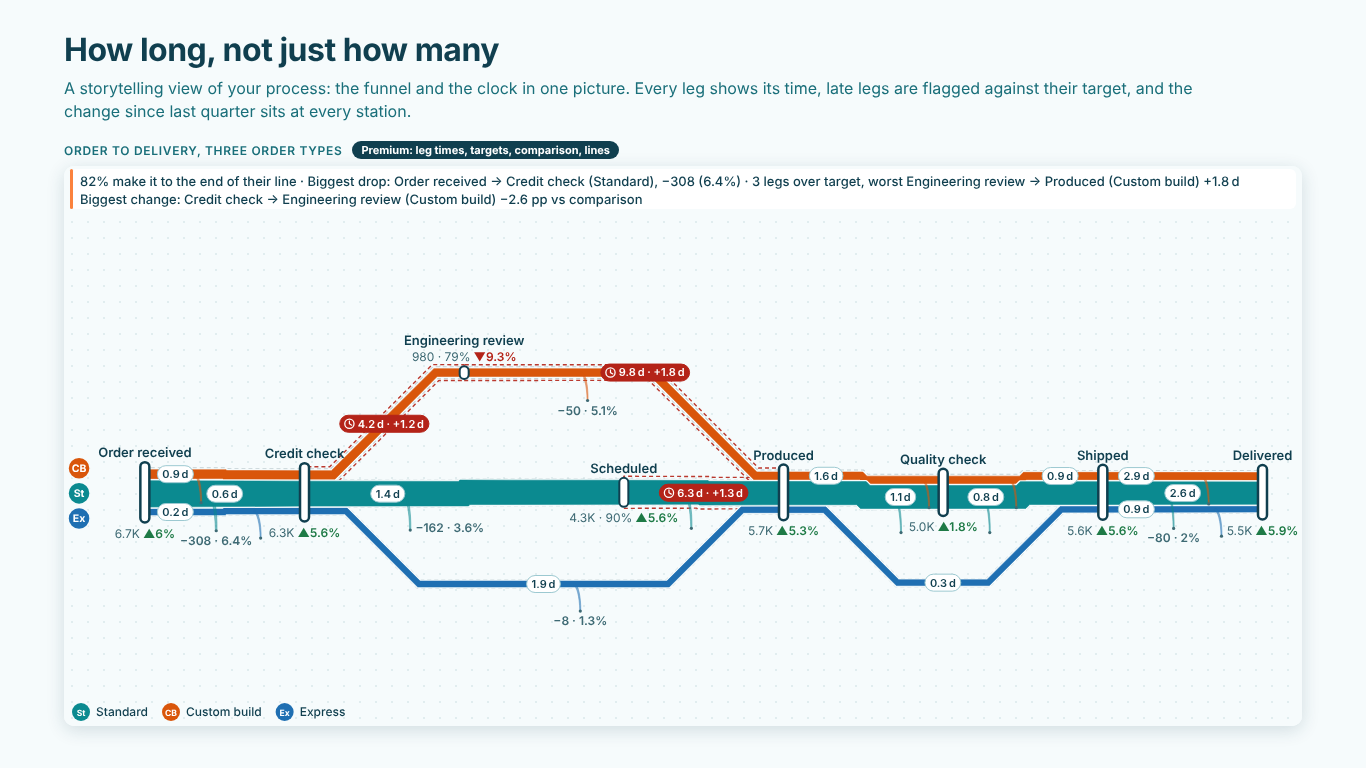
With the measures ready, the usual page is a funnel chart for the counts and a table or bar chart for the times. It works, but it splits the story. The reader sees a big drop at Credit check in one visual and a long wait at Engineering review in another, and nothing shows that both belong to the same order type.
We built SmartVisuals Process Metro Map for exactly this page. It draws the process as a metro line from the same fields: Stage (Station), Stage Order and Traffic (Volume). The line narrows as traffic leaves, and every gap shows the drop-off as an exit with its count and share; traffic that joins mid-way, like the express orders above, joins as an entry instead of a negative drop-off. One line of up to six stages, with four themes, a plain boardroom table, keyboard access and high contrast, is free, with no watermark.
Premium adds what this article prepared. Bind Avg Days From Previous (or the median) to Time From Previous Stage and every leg carries its time; Target Days to Target Time and late legs get a clock and the overrun; Orders Reached LQ to Comparison Volume and every station shows its change. Time heat colours each leg against the median leg, and an insight sentence names the biggest drop, the slowest leg and the late legs. Bind an order type to Line (Path) for parallel paths with branches and interchanges, and use more than six stages. Premium is $1.99 per user per month or $19 per user per year; readers without a licence see the free map, never a blank one. The visual has been prepared for Microsoft Marketplace and is not published there yet.
One detail from the measures above matters for the visual too: its Time Unit setting labels the number, it does not convert it. A measure in days goes with Time Unit set to Days.
The checklist
Whatever you draw it with, the numbers hold up when:
- the event table has one row per item and stage, with the first time each stage was reached, as a date and time;
- stages are ordered by a number, not by name;
- the funnel is built on a cohort that has had time to finish, filtered by entry date;
- skipped stages are a decision, not an accident;
- the time measure says whether it is an average or a median, and the target uses the same unit and statistic;
- comparisons of conversion are in percentage points.
Try AI Chatbot for Free
Experience the power of conversational analytics in your Power BI reports. Get your free license in seconds - no credit card required.
Get Free License