Ranking a sales team in Power BI: percentile ranks, missing values and one score from several stats
The monthly sales review usually starts with a table: one row per rep, a column per measure, sorted by revenue. It looks like a ranking, but it ranks one thing. Say Emily Carter is first on revenue, James Walker is fifth on revenue but first on win rate, and Hannah Wright brought in the most new clients. Who had the best month? The table does not say, and the person presenting ends up answering by feel.
This article builds a ranking that holds up when someone asks how it was computed: a percentile per stat that treats ties fairly, blanks that stay blank, stats where lower is better, one score from several stats, and tiers that admit when the team is too small to rank.
Why one sorted column is not a ranking
Sorting by revenue answers "who sold the most". A sales review asks a wider question, and the measures in it do not share a unit. Revenue is in dollars, win rate is a percentage, new clients is a count, days to close is a duration. You cannot add $725,700 to 40% and 24 clients.
RANKX per measure gets you a step further, but ranks have two problems of their own. They depend on team size (3rd of 6 and 3rd of 24 are very different results), and averaging ranks across measures quietly assumes every team has the same number of reps in every measure, which stops being true the moment someone has no data for a stat.
A percentile rank fixes both. It says what share of the team a rep beats on that stat, from 0 to 100, whatever the unit and whatever the team size. Percentiles from different stats can be compared and averaged.
A percentile measure that shares ties
The definition used here is the "mean" convention: count the reps with a worse value, add half of the reps with an equal value (the rep included), and divide by the number of reps with a value.
Revenue Pct =
VAR CurrentValue = [Revenue]
VAR Team =
    FILTER ( ALLSELECTED ( Reps[Rep] ), NOT ISBLANK ( [Revenue] ) )
VAR TeamSize = COUNTROWS ( Team )
VAR Worse =
    COUNTROWS ( FILTER ( Team, [Revenue] < CurrentValue ) ) + 0
VAR Equal =
    COUNTROWS ( FILTER ( Team, [Revenue] = CurrentValue ) )
RETURN
    IF (
        HASONEVALUE ( Reps[Rep] ) && NOT ISBLANK ( CurrentValue ),
        100 * DIVIDE ( Worse + 0.5 * Equal, TeamSize )
    )
[Revenue] inside FILTER is evaluated per rep through context transition, so Team is the list of reps that have revenue. The + 0 matters: COUNTROWS of an empty table is blank, and the best rep has nobody below them.
Why half of the ties? Two reps with exactly 24 new clients have the same result, so they must get the same percentile. Counting all ties as beaten would give both the higher value, counting none would give both the lower one; half sits in the middle and keeps the average of all percentiles at 50. RANKX gives the same pair rank 2 and 2, then skips to 4, which is also fair, but it is still a rank and not a share.
ALLSELECTED decides the base: the reps visible after slicers. If a site slicer is set to Chicago, Chicago reps are ranked against each other. If you want every rep ranked against the whole company whatever the slicer says, use ALL ( Reps[Rep] ) instead. Both are valid; pick one and write it on the page, because "top 10% of Chicago" and "top 10% of the company" are different claims.
A blank is not a zero
Say Daniel Hughes joined in the middle of the month and has no closed deals yet, so his win rate is blank. If the measure turns that blank into 0%, he drops to the bottom of win rate, his overall score falls, and every other rep moves up a little because there is now a guaranteed loser in the column.
The measure above avoids all of that. Reps without a value are not in Team, so they do not move anyone else's percentile, and their own percentile for that stat is blank. When you combine stats, average only the ones that exist. A rep with three stats out of four is scored on three; a rep with none is unranked, not last.
Watch for + 0 or COALESCE ( [Win Rate], 0 ) added "to clean up the table". In a ranking that line is a decision, and usually the wrong one.
Lower is better
Days to close, discount given, returns and cost per lead are better when smaller. Flip the comparison for those stats, and only for those:
VAR Worse =
    COUNTROWS ( FILTER ( Team, [Days to Close] > CurrentValue ) ) + 0
Do not negate the value or divide one by it to make it "higher is better". Negation reads badly in tooltips, and 1 / x changes the distances between reps. With the comparison flipped, the percentile already points the right way, and the value on screen stays the real number of days.
One score from several stats
Once every stat is a percentile, the overall score is their average. A table constructor keeps it readable and lets you drop blanks:
Power Score =
VAR Pcts =
    { [Revenue Pct], [Win Rate Pct], [New Clients Pct], [Days to Close Pct] }
RETURN
    AVERAGEX ( FILTER ( Pcts, NOT ISBLANK ( [Value] ) ), [Value] )
If the sales director says revenue counts double, give each stat a weight. A two-column table constructor names its columns Value1 and Value2:
Power Score (weighted) =
VAR Pcts =
    {
        ( [Revenue Pct], 2 ),
        ( [Win Rate Pct], 1 ),
        ( [New Clients Pct], 1 ),
        ( [Days to Close Pct], 1 )
    }
VAR Scored =
    FILTER ( Pcts, NOT ISBLANK ( [Value1] ) )
RETURN
    DIVIDE ( SUMX ( Scored, [Value1] * [Value2] ), SUMX ( Scored, [Value2] ) )
Dividing by the weights of the stats that exist, not by the total of all weights, keeps the blank rule intact. Agree the weights before the review, not after the first rep asks why they are fourth.
Tiers, and when they mean nothing
A score of 81 still needs a sentence. Tiers give it one. Rank the power score itself with the same percentile pattern (a Power Pct measure over [Power Score]), then cut it:
Tier =
VAR P = [Power Pct]
RETURN
    SWITCH (
        TRUE (),
        ISBLANK ( P ), "Unranked",
        P >= 90, "Legendary",
        P >= 70, "Epic",
        P >= 40, "Rare",
        "Common"
    )
Ranking the score, rather than cutting the score directly, means the tiers follow the team: roughly the top tenth is Legendary whatever the absolute numbers. Cutting the score itself is the other option, and it lets a strong team have several Legendary reps. Both are defensible; again, say which one the page uses.
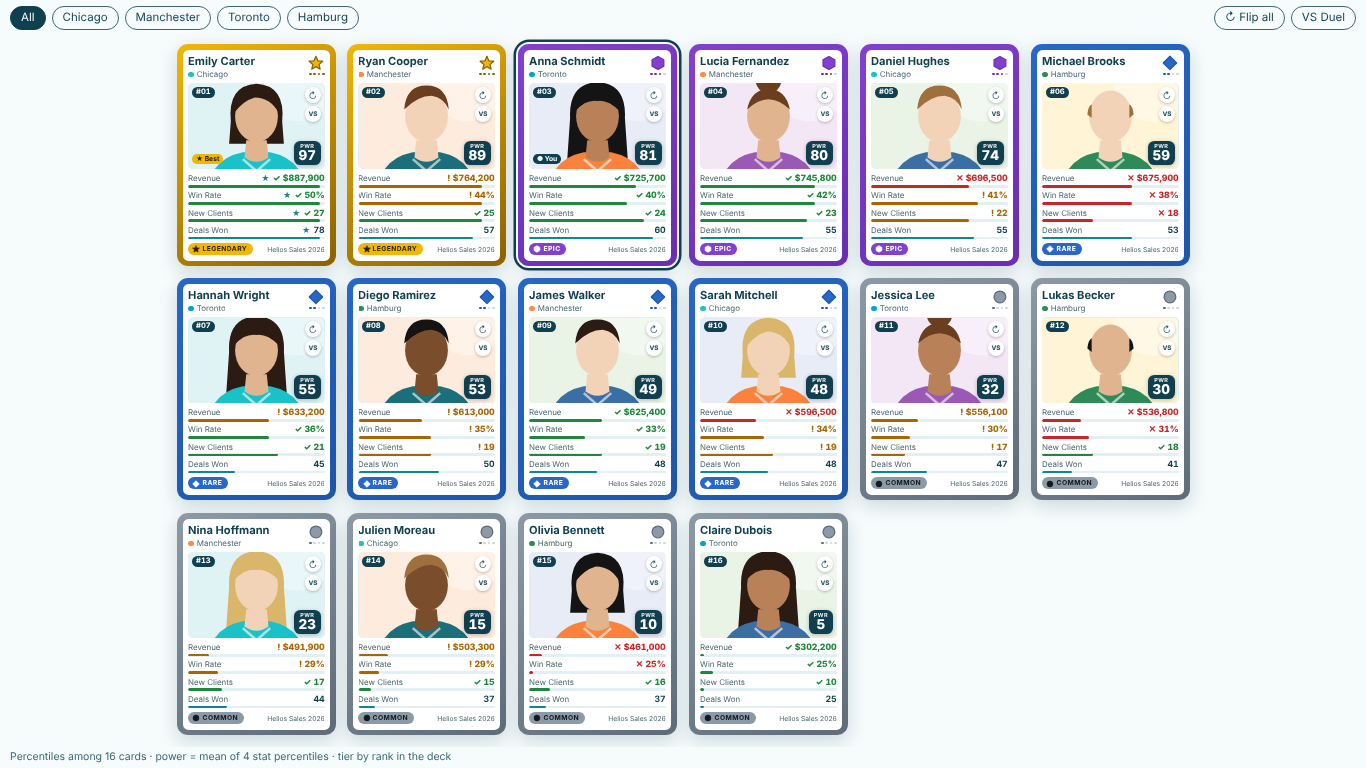
Then check the team size. With five reps and no ties, the possible percentiles are 10, 30, 50, 70 and 90. Every rep lands in a different tier by construction, and one deal moves someone a whole tier. With fewer than five ranked reps, a tier is a label on a coin toss. Print the base under the visual, for example "Percentiles among 16 reps", so readers know what was compared.
Two more checks before the review. These measures iterate the team once per rep and stat, which is fine for a team and slow for tens of thousands of products, so test on the real size. And if your rep table has a row for a rep who left, a filter on active reps belongs in the model, not in a reader's memory.
Showing the result
A matrix with the percentile measures and a data bar per column works. It also looks like every other table in the report, and the tier is one more column to read across.
We built SmartVisuals Trading Cards to show this ranking as a profile per rep. Bind the rep to Card and up to eight measures to Stats, and it computes everything in this article inside the visual: the percentile per stat with ties shared, Lower Is Better per stat, blanks shown as "no data" and left out of every calculation, the power score with a weight per stat, and Common, Rare, Epic and Legendary tiers by rank in the deck or by power score. Each tier has its own shape and word, the back of each card lists every stat with its percentile and rank ("3rd of 16"), and the status strip names the base and warns when fewer than 5 cards are ranked. A Boardroom style shows the same numbers as a plain ranked table.
Up to 5 cards are free with all of that. Premium adds more than 5 cards (up to 500), Compare against a target or last year with met, near and missed marks, each viewer's own card through a USERPRINCIPALNAME() measure, the Duel against the team average, custom tiers, History sparklines, Wall mode and collector skins, for $2.99 per user per month or $29 per user per year with the first month free. Readers without a licence see the first 5 cards with the same numbers and are never blocked. The visual makes no external calls; photos come from image data URIs in your model. It has been prepared for Microsoft Marketplace and is not published there yet.
Whichever way you show it, the checklist is the same: a percentile per stat that shares ties, blanks kept out of every average, the comparison flipped where lower is better, weights agreed in advance, and the base printed on the page.
Try AI Chatbot for Free
Experience the power of conversational analytics in your Power BI reports. Get your free license in seconds - no credit card required.
Get Free License