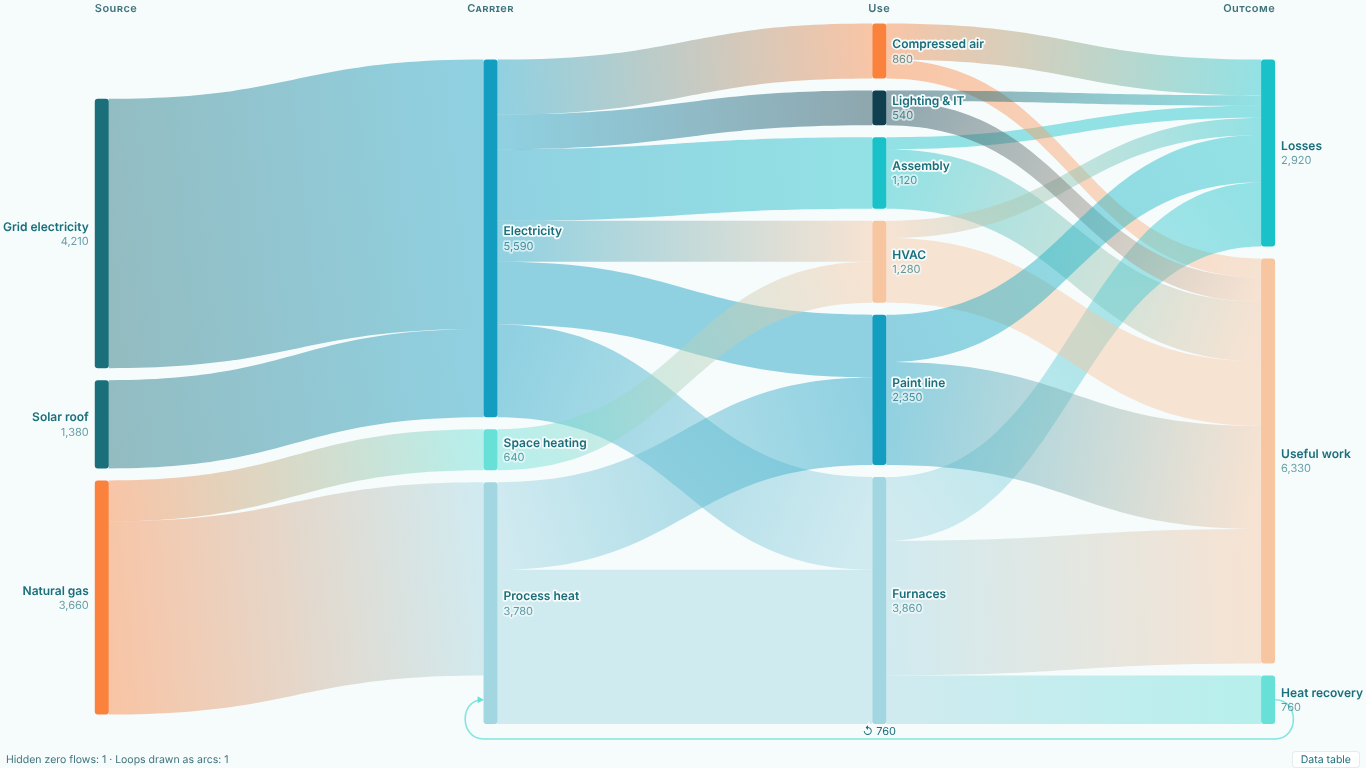
Sankey diagram in Power BI: pairs or a flat table, loops, blanks and colours that stay put
A Sankey diagram draws quantities moving from one state to the next: energy from sources through carriers to uses, customers from a channel through their orders to a status, budget from headquarters to sites and cost types. The width of every ribbon is the amount. It shows where things go and where they leak, which is why it ends up in so many reviews.
It is also a chart that goes wrong quietly. The picture looks finished while a whole group of customers is missing, a loop is drawn as a second copy of a node, or the colours move every time somebody touches a slicer. Most of these problems are decided before the visual is even added: in the shape of the data. This article goes through the decisions in the order you meet them.
Pairs or a flat table
A Sankey needs to know, for every ribbon, where it starts, where it ends and how big it is. Data arrives in one of two shapes.
Pairs. One row per flow: From, To, Amount. Energy balances, budget allocations and P&L walks usually look like this, because each line is already a movement from one account or carrier to another. Pairs can be any depth: Grid electricity goes to Electricity, Electricity goes to Paint line, Paint line goes to Useful work. The chart has to work out the columns itself, by following the chain from nodes with no inflow.
A flat table of stages. One row per entity, one column per stage: a customer with Channel, First order, Second order and Status. This is how journey and funnel data comes out of a CRM or a data warehouse. The flows are implicit: each row is a path through the columns.
If your Sankey takes only pairs, the flat table has to be reshaped. In Power Query that means building one pair table per neighbouring pair of columns and stacking them. Prefix every value with its stage name, otherwise "Spare parts" as a first order and "Spare parts" as a second order become the same node and the chart folds back on itself.
let
    Source = Journeys,
    Step = (fromCol as text, toCol as text) =>
        Table.SelectRows(
            Table.FromColumns(
                {
                    List.Transform(Table.Column(Source, fromCol), each if _ = null then null else fromCol & ": " & _),
                    List.Transform(Table.Column(Source, toCol), each if _ = null then null else toCol & ": " & _)
                },
                {"From", "To"}
            ),
            each [From] <> null and [To] <> null
        ),
    Pairs = Table.Combine({
        Step("Channel", "First order"),
        Step("First order", "Second order"),
        Step("Second order", "Status")
    })
in
    Pairs
The stage columns must be text for the & to work; change their type first if they are not. Each row of Pairs is one customer taking one step, so the amount is a row count: Customers = COUNTROWS ( Pairs ).
That works, and it shows what the reshape costs. The table loses the link between steps: a ribbon from Bearings to Lapsed no longer knows which channel those customers came from, so you cannot trace a single channel's customers to the end. And look at the SelectRows filter. It is the next problem.
A blank stage is a decision
Customers with one order have a blank Second order. The filter above drops the pairs that contain a blank, which removes those customers from the Second order step and from the step to Status as well. Their ribbons stop after First order and nobody sees that they are Active or Lapsed. The chart is not lying about any single ribbon, but the right-hand column is now smaller than the left, and the difference is unexplained.
There are three honest options, and they say different things:
- Skip the stage. The path goes straight from First order to Status, passing the Second order column. Totals stay complete, and the chart shows that some customers took a shorter path.
- Show the blank. A "(Blank)" node in the Second order column collects everyone without a second order. The reader sees exactly where paths stop, at the cost of a node that is not a real category.
- End the path. The ribbon stops at First order. This is right when a blank really means the journey ended, for example when Status is only filled for repeat customers.
In the pairs recipe, skipping needs an extra step that pairs First order directly with Status for the rows where Second order is blank. Showing the blank means replacing null with "(Blank)" before building the pairs. Pick one on purpose and say which in the chart title or a note.
Loops are not duplicates
Real flows go backwards. Heat recovered from the furnaces is fed back into process heat. Returned goods go back to the warehouse. A support ticket is reopened. In pairs data that is simply a row whose To is a node that appears earlier in the chain, and it creates a cycle.
A layered chart cannot place a node both before and after another, so something has to give. The usual workaround is to rename the second occurrence ("Process heat (return)"), which turns one node into two. The totals of each copy are now wrong, the reader sees two boxes for one thing, and the workaround has to be maintained in the model.
The better reading is the one the data states: the flow goes back. Draw it as a return arrow from the later node to the earlier one, with its amount on it, and count the node once. If your tool cannot do that, at least keep a note of how much flows back, because it changes how the rest of the chart reads: a furnace that receives 760 MWh of its own recovered heat is not consuming 760 MWh from the grid.
Zeros and negatives
Two values do not have a width.
Zero. A flow of 0 is not a flow. If a visual draws a minimum-width ribbon for it, the reader sees a connection that does not exist. Filter zero rows out in Power Query (Table.SelectRows(Pairs, each [Amount] <> 0)) or in the measure, and accept that a node with only zero flows disappears.
Negative. A ribbon cannot be minus 120 wide. Taking the absolute value is the silent mistake: a business unit that lost 0.8 million is then drawn as if it contributed 0.8 million to profit. Either leave negative flows out and say so, or model them as what they are: a flow into a Loss node. In a P&L Sankey, a loss-making unit is a ribbon from Gross profit into its loss, drawn in a different style, not a positive contribution.
Whichever you choose, the reader needs to know what was left out. A small line under the chart, "1 zero flow hidden, 1 loop drawn", is enough.
Colours that follow the name
The last decision is the one people notice only after the report is published. When colours are assigned in the order the nodes arrive, filtering changes them. Filter to one site, and the nodes arrive in a different order: Electricity, blue a moment ago, is now orange, and every other node has moved too. A reader who was following one ribbon has to start again.
The fix is to tie the colour and the order of each node to its name. Setting a colour per category by hand in the format pane gets close, but it has to be redone whenever a new category appears. In a flat table it also means the same value in two stages gets the same colour, which is what the reader expects: "Spare parts" as a first order and as a second order are different nodes in the same colour.
Order matters as much as colour. If nodes are sorted by size, a filter that changes the sizes reshuffles the column. A sort that minimises crossings is easier to read, but it should be deterministic, so the same data always gives the same picture.
When the recipe is not enough
The Power Query reshape is fine for a one-off. It starts to creak when the stages change, when people want to trace one channel to the end, or when the report needs a comparison between two quarters.
That is what we built SmartVisuals Sankey for. It takes Source and Destination pairs at any depth, or the flat table as it is in Stages (in order), with no reshaping. Blank Stages is one setting with the three options above. Loops are drawn as return arrows with their amount, zeros are never drawn as a ribbon, negative flows are left out and counted, and the status line under the chart names everything it hid. Colours, order and positions are keyed to the node name, and Node Colors lists your real node names.
The free version covers all of that up to 40 nodes and three stage columns, with tracing, cross-filtering, four themes, keyboard navigation and 20 languages. Premium ($1.99 per user per month or $19 per user per year) adds journeys of up to ten stages, more than 40 nodes, drop-off nodes counted from each customer's path, comparisons between two periods, alluvial over time, small multiples, before-and-after migrations, finance mode for loss flows, insights and export. The visual is prepared for Microsoft Marketplace and not published there yet; the product page will link to the listing once it is live.
If you stay with the Power Query recipe, the checklist is short: prefix stage values, decide what a blank stage means, draw loops as loops instead of duplicates, keep zeros and negatives out of the widths and tell the reader, and fix colours to names before the first slicer moves them.
Try AI Chatbot for Free
Experience the power of conversational analytics in your Power BI reports. Get your free license in seconds - no credit card required.
Get Free License