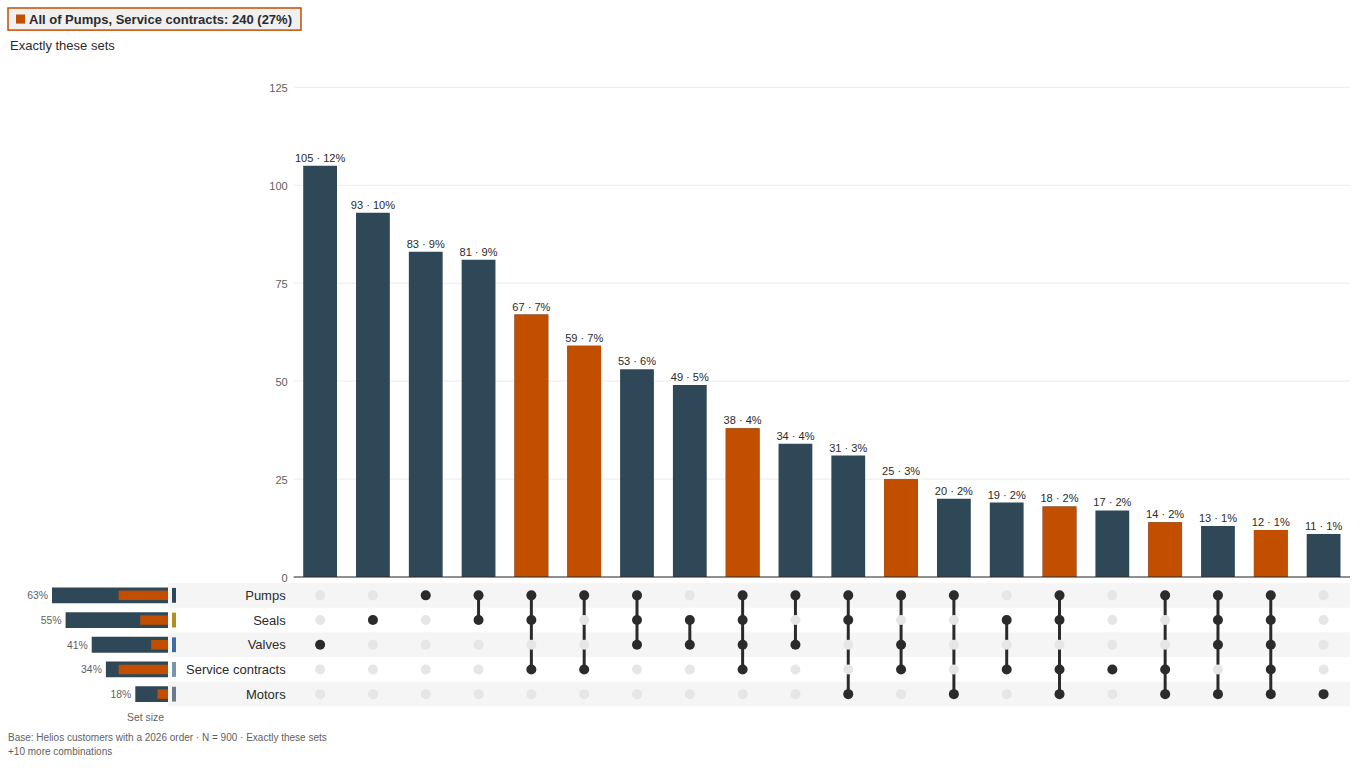
Set overlap in Power BI: the data shape, why Venn breaks after three sets, and how to read an UpSet plot
"Which of these brands have you bought in the last year? Select all that apply." "Which product lines does each customer hold?" "Which features has each user tried?" Each is the same question: every person or thing belongs to some combination of sets, and the overlap is the interesting part. Power BI handles the single-set version easily, a bar per brand, and leaves the overlap to you. This article covers the data shape that makes overlap analysis correct, the DAX that gets you surprisingly far, why the Venn diagram everyone asks for stops working at four sets, and how to read the UpSet plot that replaces it.
The data shape
Overlap data arrives in one of four shapes:
- Long: one row per person and selected answer. RespondentID 17 has three rows: Helios, Aquaron, Norda. The DAX below assumes this shape.
- Delimited: one row per person, all answers in one cell, "Helios;Aquaron;Norda". Microsoft Forms exports multi-select questions like this. Split it to long with Power Query's Split Column by Delimiter > Into Rows.
- Wide: one row per person, one 0/1 or Yes/No column per set. Common in feature-usage tables. Unpivot the set columns to get long, then filter out the zeros.
- Pre-aggregated: one row per combination with a count, "Helios & Aquaron, 120". You cannot recover individuals from it, so treat it as already-finished output.
The detail that decides whether your percentages are right is the base. "42% bought Helios" means 42% of everyone who was asked, not 42% of the people who bought something. A long answer table usually contains only people who selected at least one answer, so the people who selected nothing are simply not there. Keep a separate table with one row per respondent (or customer, or user) and relate it one-to-many to the answer table:
Respondents[RespondentID]  1 ──── *  Answers[RespondentID]
                                     Answers[Brand]
If the questionnaire has an explicit "None of these" answer, it should count in the base and in no brand. The Respondents table takes care of the base; you exclude the answer from the set measures.
The DAX that gets you most of the way
Set size and share of base, with Brand from the Answers table on the axis of a bar chart:
Base =
DISTINCTCOUNT ( Respondents[RespondentID] )

Selected =
CALCULATE (
    DISTINCTCOUNT ( Answers[RespondentID] ),
    KEEPFILTERS ( Answers[Brand] <> "None of these" )
)

% of Base =
DIVIDE ( [Selected], [Base] )
With a single-direction relationship from Respondents to Answers, the Brand on the axis filters Answers but not Respondents, so [Base] stays the full respondent count on every bar. If you ever set the relationship to filter both directions, the base will shrink to the people who chose the brand on the axis and every bar reads 100%.
A pairwise overlap, "bought both Helios and Kestrel Flow", is an intersection of two ID lists:
Helios and Kestrel Flow =
VAR BoughtHelios =
    CALCULATETABLE ( VALUES ( Answers[RespondentID] ), Answers[Brand] = "Helios" )
VAR BoughtKestrel =
    CALCULATETABLE ( VALUES ( Answers[RespondentID] ), Answers[Brand] = "Kestrel Flow" )
RETURN
    COUNTROWS ( INTERSECT ( BoughtHelios, BoughtKestrel ) )
For the full picture, give every respondent a combination label in a calculated column on the Respondents table:
Combination =
VAR Picked =
    CALCULATETABLE (
        VALUES ( Answers[Brand] ),
        Answers[Brand] <> "None of these"
    )
RETURN
    IF (
        ISEMPTY ( Picked ),
        "None of these",
        CONCATENATEX ( Picked, Answers[Brand], " & ", Answers[Brand], ASC )
    )
In a calculated column, CALCULATETABLE turns the current respondent row into a filter, so Picked holds that respondent's brands. Put Respondents[Combination] on the axis of a bar chart with [Base] as the value, sort descending, and you have the top half of an UpSet plot: one bar per exact combination, each respondent in exactly one bar, bars summing to the base.
Two limits to know. The column is computed at refresh, so a slicer on Brand does not change the combinations; slicers on other respondent attributes (region, wave) still filter the counts correctly. And the labels get long: with eight brands, "Aquaron & Helios & Kestrel Flow & Norda" is a single bar label, and nothing tells the reader which sets are absent.
Why the Venn diagram breaks
For two sets a Venn diagram is perfect. Two circles have three free numbers (two radii and the distance between centres) and the diagram has three regions to size (only A, only B, both), so the areas can match the data exactly.
Three sets have seven regions. Three circles have six free numbers once you ignore where the drawing sits on the page: three radii and three distances. Seven targets, six dials: in general no arrangement of circles makes every area right. A good layout gets close and should say how close. Equal circles with numbers written inside make a region of 40 people look as large as one of 4,000, and readers look at area before they read labels.
At four sets circles fail on a different level. Four sets have 15 combinations plus the outside, 16 regions in all. Four circles can split the plane into at most 14 regions, because two circles cross at no more than two points. Some combinations cannot be drawn at all, at any size. Ellipses fix the topology up to five sets, but nobody can compare the areas of curved slivers, and by six sets (63 combinations) any diagram of closed curves is a puzzle, not a chart.
Reading an UpSet plot
An UpSet plot replaces regions with a matrix and bars. It has three parts:
- The dot matrix. One row per set, one column per combination. A filled dot means the combination includes that set; dots in a column are joined by a line. A column with dots on Helios and Aquaron is "Helios and Aquaron". The number of filled dots is the combination's degree.
- Intersection bars above the matrix. Their height is the size of that combination.
- Set-size bars beside the matrix. One per set, the familiar "how many chose each brand".
Three things to check before you read the bars.
Exclusive or inclusive. In an exclusive plot, the Helios-and-Aquaron bar counts people who chose exactly those two and nothing else; every person sits in one bar, and the bars plus "None of these" add up to the base. In an inclusive plot, the same bar counts everyone who chose at least those two, so a person who chose three brands appears in several bars and the bars overlap by design. Exclusive answers "what bundles do people actually hold", inclusive answers "how many hold both A and B, whatever else they hold". A chart that does not say which one it shows cannot be read.
Sort order. Sorted by size, the plot answers "what are the most common bundles". Sorted by degree, it shows all singles first, then pairs, then triples, which is better for "how many are loyal to one brand". The same data can tell two different stories depending on the sort, so check it before you draw conclusions.
What is left out. With eight sets there are 255 possible combinations, and a plot usually shows the largest twenty or so. A long tail of tiny combinations is normal; a missing "None of these" bar usually means the base is wrong.
Then read across, not just along the bars. A tall single-set bar next to a short pair bar for the same brand means a loyal, single-brand customer base. Two set-size bars of similar height whose pair bar is tiny means substitutes: people choose one or the other. If the pair bar is much taller than the two set sizes would suggest by chance, they are complements. Judging "by chance" properly is a statistics question (lift against independence, with a test), and it is where survey weights start to matter.
Pitfalls that cost the most
- Filtering the sets with a slicer. Filtering Brand to three brands removes the rows of everyone who only chose other brands. With a Respondents table they stay in the base. Without one they vanish, and every share goes up.
- Counting rows instead of IDs. A customer with two orders in the same product line is still one customer. Always distinct-count the ID.
- Wide flags aggregated with Count. Count counts "No" as a value. Use Max or Sum on 0/1 columns, or unpivot first.
- Percent of respondents versus percent of mentions. Shares of a multi-select question add up to more than 100%. That is correct. If a chart forces them to 100%, it is showing share of mentions, which is a different and usually less useful number.
Doing it in a visual
The DAX above is worth having in any model, but the full combination view, the exclusive/inclusive switch and a to-scale Venn are a lot to maintain by hand. We built SmartVisuals Venn & UpSet for this. You map an ID and the set field, in any of the four shapes above, and it draws an area-proportional Euler diagram for up to three sets with a badge saying how close the areas are, or an UpSet plot for four to 30 sets. "None of these" stays in the base, the exclusive or inclusive choice is labelled on the chart, and a set filter in the format pane hides sets without shrinking the base. Survey weights, significance of overlaps and wave comparison are in the premium tier and preview free in edit mode.
Try AI Chatbot for Free
Experience the power of conversational analytics in your Power BI reports. Get your free license in seconds - no credit card required.
Get Free License