Before and after in Power BI: slope chart or dumbbell, and how to shape the data
Most review meetings ask the same question in different clothes: what changed between then and now? Revenue by product line this year against two years ago, scrap rate by plant before and after a fix, survey agreement in wave one against wave four. A clustered column chart answers it badly, because the reader has to compare pairs of bars across the whole chart. Two charts answer it well, the slope chart and the dumbbell. This article covers when to use which, how to shape the data, the DAX that goes with each shape, and how to read rank changes correctly.
Slope or dumbbell?
Both charts show one category with two values. They differ in what they make easy to see.
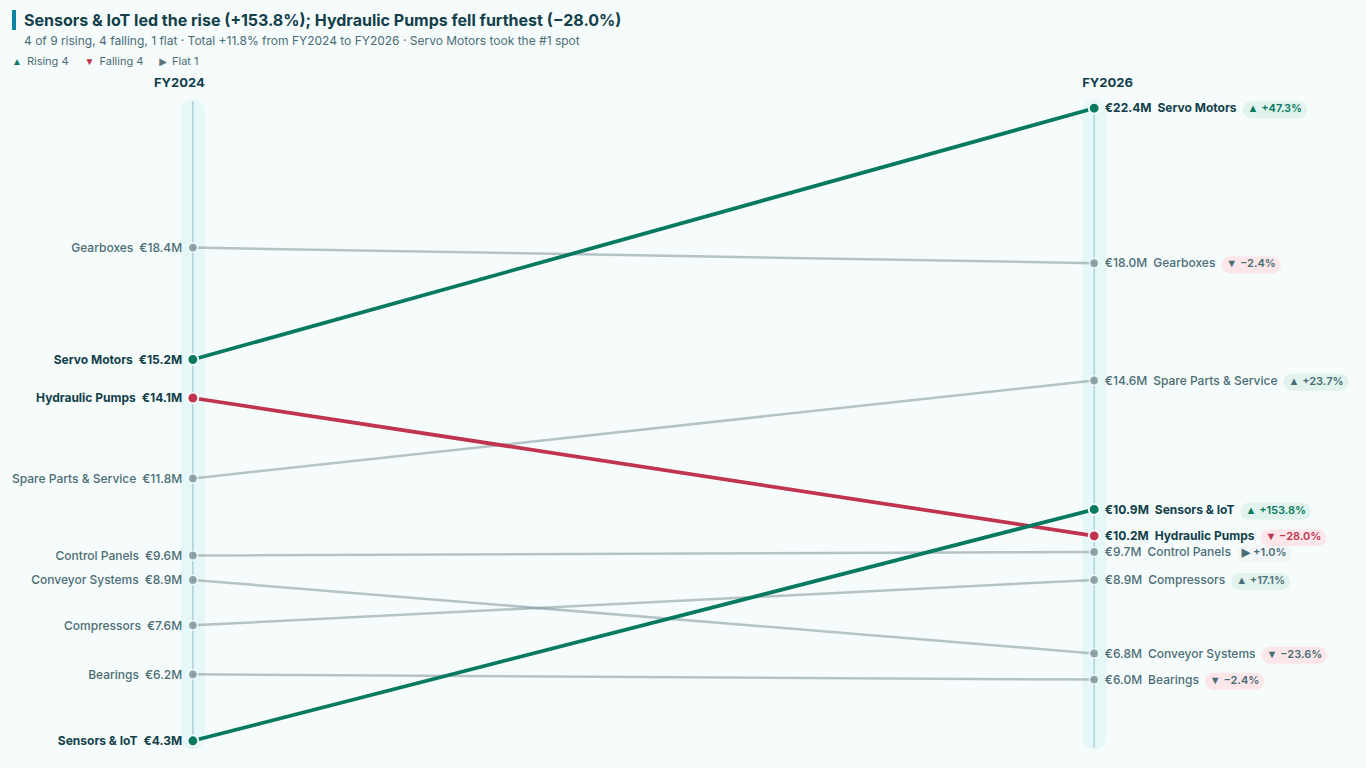
A slope chart puts the first period on the left axis and the last period on the right, and draws one line per category between them. The eye reads the angle: a steep line is a big change, a line that crosses others is a category that changed places. It works best with up to a dozen or so categories and short names, and it is the right choice when the story is about crossings and rank shifts.
A dumbbell chart gives each category its own row, with a marker at the start value and a marker at the end value joined by a bar. Nothing crosses, so it stays readable with many categories and long names, and it can be sorted: by end value, by change, by % change. It is the right choice when the story is "who moved most" and the reader wants to scan a ranked list.
A rule of thumb: if you would describe the result with the word "overtook", draw a slope. If you would describe it with "the top five overruns were", draw a dumbbell.
What Power BI gives you natively
Neither chart is in the built-in visuals. The closest native slope chart is a line chart with the period on the X-axis and the category in Legend, filtered to two periods. It draws the lines, and that is where it stops:
- End labels collide as soon as two categories end near the same value.
- There is no change annotation; you add a separate measure to the tooltip.
- Colours are per series, so "red when falling" means setting each category by hand, and the colours do not follow when a category changes direction after the next refresh.
- Rank moves are not shown anywhere; you see lines crossing, but not how many places a category moved.
A native dumbbell is usually assembled from a scatter or a combination of visuals with helper measures for each marker. It works for one dataset and is fragile after that.
The two data shapes
Before any DAX, decide which shape your model has. Both are legitimate, and the choice decides every measure afterwards.
Shape 1: one measure plus a period column. This is the shape most models already have: a fact table with a date, related to a Date table with Year, Quarter or Month columns. The category is a column, the value is one measure such as [Revenue], and the period comes from the Date table. This is also the shape for scenarios: a Scenario column with values Budget and Actual.
Shape 2: one measure per period. Here each end of the comparison is its own measure, for example [Revenue FY2024] and [Revenue FY2026], or [Budget] and [Actual]. This shape is useful when the two ends come from different tables, or when you want the comparison fixed regardless of slicers.
Shape 1 has one trap: the order of the periods is the sort order of the column. Years and dates sort correctly. Month names stored as text sort alphabetically (April before January) unless you set Sort by column to a month number. And a Scenario column with Actual and Budget sorts Actual first, which puts "after" on the left. If the comparison reads backwards, check the sort before checking the measure.
The DAX recipe
For a slope or dumbbell that follows the slicer, you want the first and the last selected period, not hard-coded years. Assuming a 'Date' table with a whole-number Year column and a base measure [Revenue]:
Revenue Start =
VAR StartYear = CALCULATE ( MIN ( 'Date'[Year] ), ALLSELECTED ( 'Date' ) )
RETURN
    CALCULATE ( [Revenue], REMOVEFILTERS ( 'Date' ), 'Date'[Year] = StartYear )

Revenue End =
VAR EndYear = CALCULATE ( MAX ( 'Date'[Year] ), ALLSELECTED ( 'Date' ) )
RETURN
    CALCULATE ( [Revenue], REMOVEFILTERS ( 'Date' ), 'Date'[Year] = EndYear )
REMOVEFILTERS ( 'Date' ) clears any month or quarter filter on the Date table, so the measure always returns a whole year. If you want a month slicer to keep working inside each year, filter the Year column only and leave the rest of the Date table alone.
The change measures need one guard. A percentage from a base at or below zero is meaningless: a loss of 500 turning into a profit of 300 would read as "−160%". Return blank instead and show the absolute change for those rows:
Revenue Change =
VAR S = [Revenue Start]
VAR E = [Revenue End]
RETURN
    IF ( NOT ISBLANK ( S ) && NOT ISBLANK ( E ), E - S )

Revenue % Change =
VAR S = [Revenue Start]
VAR E = [Revenue End]
RETURN
    IF ( S > 0 && NOT ISBLANK ( E ), DIVIDE ( E - S, S ) )
If the measure itself is a percentage, such as a scrap rate or a share of respondents, do not use a % change at all. A rate going from 20% to 25% is a change of 5 percentage points, not 25 percent. Build [Scrap Rate Start] and [Scrap Rate End] the same way as the revenue pair, then:
Scrap Rate Change pp =
VAR S = [Scrap Rate Start]
VAR E = [Scrap Rate End]
RETURN
    IF ( NOT ISBLANK ( S ) && NOT ISBLANK ( E ), ( E - S ) * 100 )
Format it as a decimal number and put "pp" in the label, so nobody reads 5.0 as five percent.
Reading rank changes
Ranks are where before-and-after charts most often mislead, so the rank measures deserve care:
Rank Start =
IF (
    NOT ISBLANK ( [Revenue Start] ),
    RANKX ( ALLSELECTED ( Product[Product Line] ), [Revenue Start], , DESC, Skip )
)

Rank End =
IF (
    NOT ISBLANK ( [Revenue End] ),
    RANKX ( ALLSELECTED ( Product[Product Line] ), [Revenue End], , DESC, Skip )
)

Rank Move =
VAR RS = [Rank Start]
VAR RE = [Rank End]
RETURN
    IF ( NOT ISBLANK ( RS ) && NOT ISBLANK ( RE ), RS - RE )
A positive Rank Move means the category climbed. Four things to keep in mind when you read it:
- Ties share a rank. With
Skip, two categories tied for second are both rank 2 and the next one is rank 4. That is the standard competition ranking and the honest one;Densewould hide that two categories share a place. - Ranks depend on the set.
ALLSELECTEDranks within whatever the slicers leave. Filter to one region and every rank changes. A rank move is only comparable between charts that rank the same set. - Growth and rank can disagree. A category can grow 10% and still drop two places if its neighbours grew faster. When the story is about performance, lead with the change; when it is about competition, lead with the rank.
- New and gone categories have no move. A category with no value at the start was not ranked then. Label it "new" rather than giving it a rank move from last place, which would overstate its climb.
Pitfalls that survive a correct measure
Noise painted as trend. Colour by direction and every 0.3% wobble turns red or green. Decide on a dead band, say plus or minus 2%, inside which a change counts as flat, and give flat its own colour.
Lower is better. For costs, defect rates and scrap, falling is good news. A red-for-down palette tells the reader the opposite of the truth. Flip the colours for those measures, and keep an arrow or other glyph so the direction is still readable without colour.
The axis. A slope chart does not need a zero baseline; starting at zero flattens the slopes until every change looks small. That is fine as long as all lines share one scale. When you split by region into several charts, keep a shared scale or the steepest panel is not the one with the biggest change.
Too many lines. Past fifteen or twenty categories a slope chart is a hairball. Highlight the few categories the meeting is about and fade the rest, or switch to a sorted dumbbell.
Doing it in a visual instead
The measures above are worth having in a model regardless, for tooltips and tables. If you would rather not maintain the chart side as well, SmartVisuals Slope Chart takes either data shape directly: a Category plus one measure per period, or one measure plus a Period column. It computes the change (switching to percentage points for percent measures and to the absolute change when a line starts at or below zero), ranks with shared ties, spreads end labels apart with leader lines, colours rising, falling and flat with a dead band and a Higher is better switch, and labels new and gone categories. The two-period slope and dumbbell are free; three or more periods, the bump chart of ranks, Top N movers, small multiples and a story headline are premium and preview in edit mode.
Whichever way you build it, the checklist is the same: the right period order, an honest % change, ranks over a known set, a dead band for noise and colours that know when down is good.
Try AI Chatbot for Free
Experience the power of conversational analytics in your Power BI reports. Get your free license in seconds - no credit card required.
Get Free License