Sparklines in a Power BI table: one trend per row, one honest scale
A sparkline is a line chart with everything taken away except the line. Put one next to every row of a table and a list of twelve plants turns into twelve small stories: which one is drifting, which one had a bad week in March, which one is steady. It is one of the most useful things a report page can show, and one of the easiest to get subtly wrong. The mistakes are rarely in the drawing. They are in the data shape, the scale, the change column and what happens to a missing week.
The data shape: one row per item and period
Sparklines per row need a long table, not a wide one. One row per plant and week, with the value in one column:
| Plant | Week | OEE |
|---|---|---|
| Chicago | 2026-01-05 | 0.812 |
| Chicago | 2026-01-12 | 0.807 |
| Milwaukee | 2026-01-05 | 0.771 |
If your source has one column per week, unpivot it in Power Query (select the Plant column, then Transform, Unpivot Other Columns) and change the new attribute column to a date. A wide table looks tidy in Excel, but every new week becomes a new column and nothing in Power BI can draw a trend from it.
Relate Week to a date table and put the date table's column on the axis, so slicers and the date hierarchy work as usual. The measure itself can stay simple:
OEE = AVERAGE ( PlantKPI[OEE] )
Power BI's table and matrix visuals can add a sparkline to a measure in the Values well (the measure's menu, Add a sparkline), with the date column as its X-axis. That is a good start for a handful of rows. Microsoft documents two limits worth knowing before you plan around it: up to five sparklines per visual and up to 52 data points per sparkline. A year of weekly data just fits; two years of weeks or a year of days does not.
The change column is a decision, not a formula
Next to the line, readers want a number: how much did it move? There are at least three honest answers, and they tell different stories.
Last against first in view. The change over whatever window the date slicer shows. This is the right default for a trend table: move the slicer to the last quarter and the column follows.
Last against the previous period. Week on week. Useful for monitoring, noisy for anything else: one bad week dominates the column.
Last against the same period a year ago. Removes seasonality, which matters for anything with a December or a summer shutdown in it.
For the first one, take the first and last values that actually exist in the window, not the first and last dates of the window. A plant that started reporting in February should not get a change computed against a blank.
OEE First = FIRSTNONBLANKVALUE ( 'Date'[Week Start], [OEE] )

OEE Last = LASTNONBLANKVALUE ( 'Date'[Week Start], [OEE] )

OEE Change % =
DIVIDE ( [OEE Last] - [OEE First], ABS ( [OEE First] ) )
FIRSTNONBLANKVALUE walks the weeks in the current filter context in ascending order and returns [OEE] for the first week where it is not blank; LASTNONBLANKVALUE does the same from the end. Dividing by the absolute value of the base keeps the sign right when the base is negative, which happens with margins and variances: a move from -10 to -5 is an improvement and should read as +50 %, not -50 %.
Then decide what "good" means. For OEE, up is good. For scrap rate, cost per unit or defects, down is good, and a green "+12 %" on a scrap rate is a small disaster on a report page. Colour the change by direction and by whether higher is better, and keep the sign or an arrow in the text so the meaning does not depend on colour.
Shared scale or independent scale
This is the decision that changes what the table says.
With independent scales, every sparkline is stretched between its own minimum and maximum. Each line fills its cell and shows its shape nicely. It also makes a plant that moved from 80.1 % to 80.4 % look exactly as dramatic as one that collapsed from 85 % to 70 %. The reader compares heights, because that is what eyes do, and the heights mean nothing.
With a shared scale, every row uses the same minimum and maximum. Small moves look small, and the plant that collapsed is obviously the one to talk about. Some lines will look nearly flat. That is not a problem with the chart; it is the answer.
The rule of thumb:
- Rows that measure the same thing in the same unit (OEE per plant, revenue per region): shared scale.
- Rows that are different measures (revenue, units, margin %): independent scales, and say so in the header so nobody compares heights across them.
Whichever you pick, put the number next to the line. A sparkline shows shape; the last value and the change give the size.
Missing periods are not zeros
A plant that did not report in week 14 has a blank, not a zero. Drawn as zero, the blank becomes a cliff that never happened, and if the blank is the last week, the change column reports a collapse.
Keep blanks blank. A line chart should break at the gap, and the change should use the last value that exists, which is what LASTNONBLANKVALUE above does. Avoid the common [OEE] + 0 trick in measures feeding sparklines: it turns every missing week, and every future week in the date table, into a zero.
If a blank really does mean zero (a shop that was open and sold nothing), make that explicit in the measure for the dates you have data for, and leave the future empty.
Sorting and long lists
A trend table is read top to bottom, so the sort order is part of the message. Sorting by name is for lookup. Sorting by change % (descending, or ascending if lower is better) puts the movers where the eye lands first, and that is usually what a review meeting needs.
Long lists need a decision too. Fifty rows of sparklines on one page are hard to read and hard to fit. Options that keep the table honest:
- A scrolling table with a fixed header, so the column names stay visible.
- A Top N filter on the change, with a visible note that the list is cut ("Showing 10 of 48"), so nobody assumes the list is complete.
- One table per region with small multiples.
What you should not do is drop rows silently because the visual ran out of space.
Win/loss, bullets and normal ranges
Not every row needs a line. Win/loss sparklines draw only the sign of each value, one bar above or below a middle line per period, which is the clearest picture for profit or loss per month or a target hit or missed. A bullet strip shows only the last value against its target. Column sparklines suit counts per period.
A normal range band behind each line (the shaded zone a KPI should stay inside) turns "the line went down" into "the line left the range", which is a much better reason to act.
Doing it with SmartVisuals Sparklines
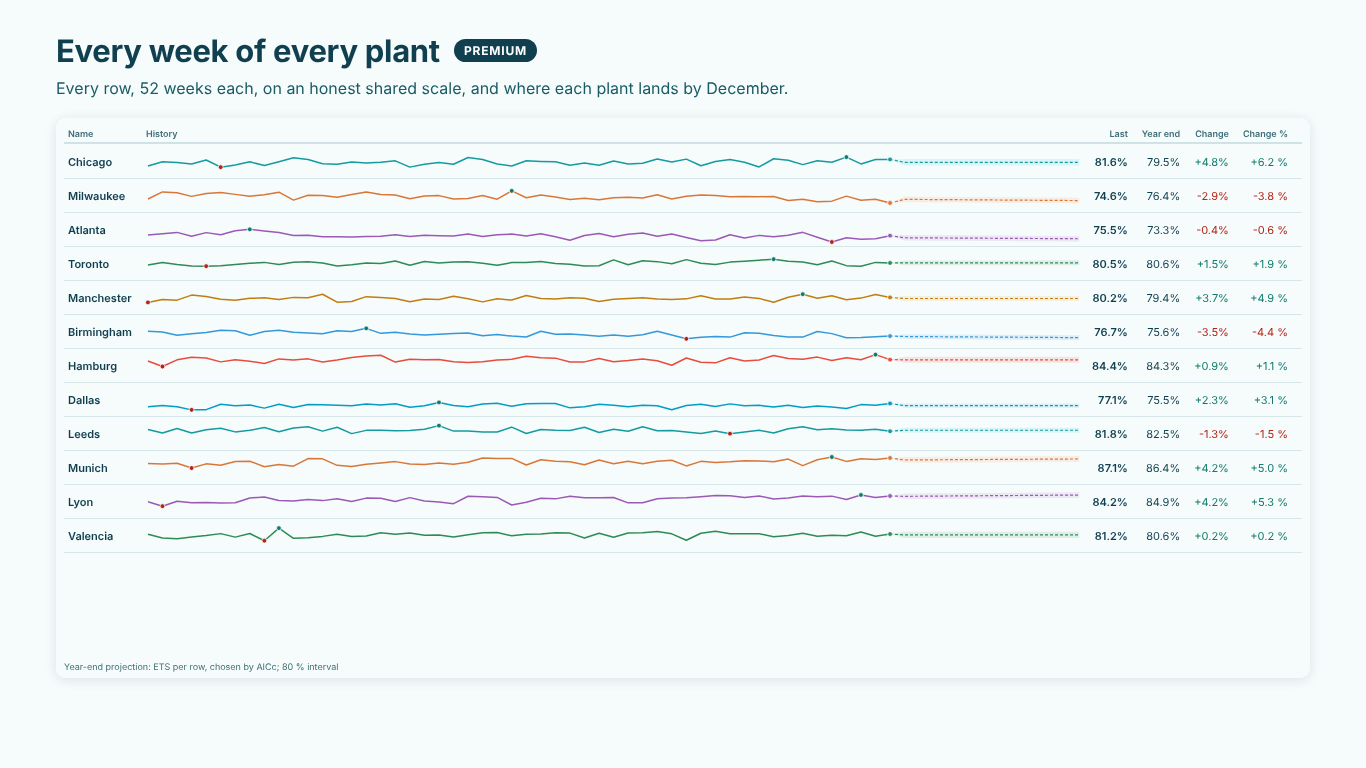
We built SmartVisuals Sparklines for this table. Bind the date to Axis (date), the plant to Legend and the measure to Values, and every plant gets a row with its sparkline, last value, change and change %, on a shared scale by default. Without a Legend, every measure becomes a row, for a compact KPI list.
The change basis is a setting (last vs first in view, last vs previous point, or last vs the same period a year ago, looked up in your data), Higher Is Better sets the colours, and the table carries signs and the tiles carry arrows. There are five spark types (line, area, columns, win/loss and last value vs target), markers for first, last, minimum and maximum points, a normal range band and a target line. Every period is drawn, blanks stay gaps, the table scrolls under a fixed header, and when tiles do not fit, the footnote says how many are shown. It runs entirely inside your report, with no external calls.
It has been prepared for Microsoft Marketplace and is not published there yet. See the landing page for what is free and what is premium.
The checklist
- A long table: one row per item and period, related to a date table.
- A change column with a stated base, computed from the first and last values that exist.
- "Higher is better" decided per measure, and the sign or arrow in the text.
- A shared scale for rows in the same unit; independent scales only with a label.
- Blanks left blank, never
+ 0. - A sort order that puts the movers first, and a visible note whenever the list is cut.
Try AI Chatbot for Free
Experience the power of conversational analytics in your Power BI reports. Get your free license in seconds - no credit card required.
Get Free License