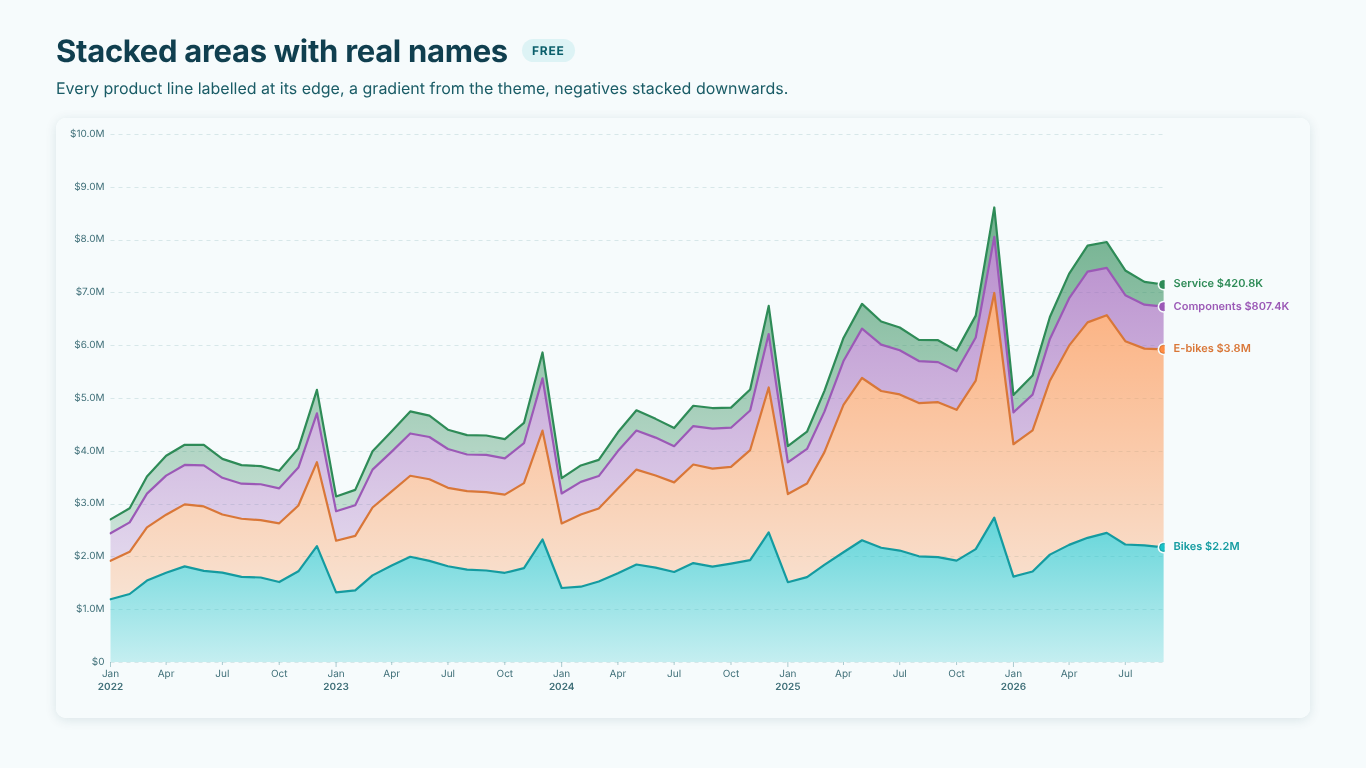
Stacked, 100 % or streamgraph: choosing an area chart in Power BI
An area chart looks like a line chart with colour underneath, and that is how it usually gets chosen: because the line chart looked a bit thin. But the moment you stack the areas, the chart starts answering a different question. The top edge becomes a total, each band becomes a part of it, and the reader starts comparing thicknesses instead of heights. Pick the wrong layout and the chart answers a question nobody asked.
Below: which layout answers which question, the data shape and the DAX, and the mistakes that make a stacked area chart say something the data does not.
Three layouts, three questions
Stacked: how big is the whole, and which part drives it? The series are added on top of each other, so the top edge is the total for each period. Use it when the total matters and the parts are additive, such as revenue by product line. The bottom band is easy to read because it sits on a flat baseline. Every band above it sits on a moving one, so the reader can judge the total and the bottom band well and the middle bands only roughly.
100 % stacked: how is the share shifting? Every period is scaled to the same height, so only the proportions remain. Use it when the mix is the story: the share of each site in revenue, the share of each channel in orders. It hides growth completely. A business that doubled and one that halved look the same if the mix stayed put, so pair it with a total somewhere on the page.
Streamgraph: how is each part moving? The stack is centred on a baseline that wiggles as little as possible (the method published by Byron and Wattenberg in 2008), and the series are ordered inside-out: the ones that peak early sit in the middle, later ones on the outside. The shape of each band becomes easy to follow; the total and the baseline are not readable at all. It is the right chart for "E-bikes grew while Bikes stayed flat", and the wrong one for "what was revenue in March".
A fourth question, "when does each series peak?", is answered by none of them. That is the job of a ridgeline (joy plot): one small area per series, stacked vertically with a little overlap, each scaled to its own peak.
The data shape
The model is the usual one:
- a fact table such as
Sales[OrderDate],Sales[ProductLine],Sales[Site],Sales[Amount] - a marked date table
'Date'related toSales[OrderDate], with a month column for the axis - a
'Product'dimension holding the product line
There are two ways to get several areas: one measure split by a Legend field (Product line), or several measures side by side (Bikes revenue, E-bikes revenue). Prefer the Legend. It keeps one measure to maintain, new product lines appear without a report change, and filters on the dimension work as expected.
Put a real date on the axis, not a text month. A text axis has no notion of time: missing months close up silently, and "Apr" sorts before "Jan" unless you set a sort-by column.
The measures
The base measure is a plain sum:
Revenue = SUM ( Sales[Amount] )
If your chart cannot draw percentages itself, compute the share. ALLSELECTED keeps the page and slicer filters but removes the split by product line, so the denominator is the total of what is on screen:
Revenue Share =
DIVIDE (
    [Revenue],
    CALCULATE ( [Revenue], ALLSELECTED ( 'Product'[ProductLine] ) )
)
Blank periods deserve a decision rather than an accident. A product line with no sales in a month returns blank, not zero. In a stack, a blank in the middle band either leaves a hole or makes every band above it drop, depending on the chart. If no sales really means zero, say so in the measure, but only for periods where the other lines have data, so the chart does not grow a tail of zeros into the future:
Revenue (zero filled) =
VAR ThisLine = [Revenue]
VAR AllLines =
    CALCULATE ( [Revenue], ALLSELECTED ( 'Product'[ProductLine] ) )
RETURN
    IF ( ISBLANK ( ThisLine ) && NOT ISBLANK ( AllLines ), 0, ThisLine )
If a blank means "not reported yet", leave it blank and let the chart show a gap.
Six ways a stacked area chart misleads
- Negative values. Stacking assumes every part adds to the total. A product line with returns, or a margin that turns negative, does not. Drawn on top of the others, a negative band eats into the bands below it and the top edge is no longer the sum of positives. Either stack negatives downwards from zero, as accountants draw them, or chart that series separately.
- Non-additive measures. Stacking rates, averages or percentages gives a top edge with no meaning. Two sites with a 40 % margin do not make 80 %. Stack only measures that add up: amounts, counts, hours.
- Too many bands. Beyond five or six series the bands get thin and the colours run out. Keep the biggest few and group the rest as Others, or move to small multiples.
- The order of the bands. The bottom band is the only one with a flat baseline, so it is the only one the reader can judge accurately. Put the most important or the most stable series at the bottom. Ordering by total puts the biggest first; data order keeps a fixed order across pages, which helps when several charts sit side by side.
- Reading a middle band as a line. A band that looks like it is rising may only be riding on a rising band below it. If the question is about one series on its own, an overlapping area or a line chart answers it better.
- Trend lines and forecasts per series. A trend line or forecast of one series, drawn on a stacked chart, floats at that series' own value, below its own band, and reads as nonsense. On a stacked chart, a trend or forecast should belong to the total, drawn from the top of the stack. On a 100 % chart the total is constant, so a trend of it is meaningless.
Forecasting a mix
"Where are the shares heading?" is a fair question with a subtle answer. You cannot forecast the share directly with most methods, because the shares are not independent: they must add up to 100 %. A practical approach is to forecast each series on its absolute values and then express each forecast as a share of the sum of the forecasts. What you lose is the interval. Shares of separately forecast series have no simple prediction interval, so an honest chart draws the forecast mix without bands and says so.
Doing it with SmartVisuals Area Chart
SmartVisuals Area Chart draws all of the above from the same fields: Axis (date), Values and Legend. Format pane > Area > Layout switches between overlapping, stacked, 100 % stacked, streamgraph, a range band from Low to High, and the difference between two series, without touching the data. A few details from this article are built in:
- Negatives stack downwards on the stacked layout instead of hiding positive bands; the 100 % layout uses the share of the sum of absolute values, and the streamgraph counts negatives as zero, because a stream has no sign.
- Blanks follow Lines > Missing Values: leave a gap, treat as zero, connect across, interpolate or repeat the previous value, so the zero-fill measure above is optional.
- Area > Stack Order offers data order, by total or inside-out; the streamgraph uses inside-out and the wiggle baseline.
- Overlays follow the total. On the stacked layout the trend line, forecast and comparison belong to the stack total, drawn from the top of the stack and named Total. On 100 % and streamgraph the Trend Line and Compare cards hide; on 100 % the Forecast draws the forecast mix described above, without intervals, and the footnote says how it was computed.
- Every series is named at its edge, so a four-band stack reads without a legend, and View > Chart > Ridgeline (joy plot) draws the same series as ridges for the "when does it peak" question.
See the landing page for what is free and what is premium. The visual has been prepared for Microsoft Marketplace and is not published there yet; the landing page will link to the listing once it is live. Everything is computed inside the report, with no external calls. If you need line, combo, sparkline and candlestick views over the same fields as well, the multi-view SmartVisuals Time Series holds the area and ridgeline views too.
Try AI Chatbot for Free
Experience the power of conversational analytics in your Power BI reports. Get your free license in seconds - no credit card required.
Get Free License