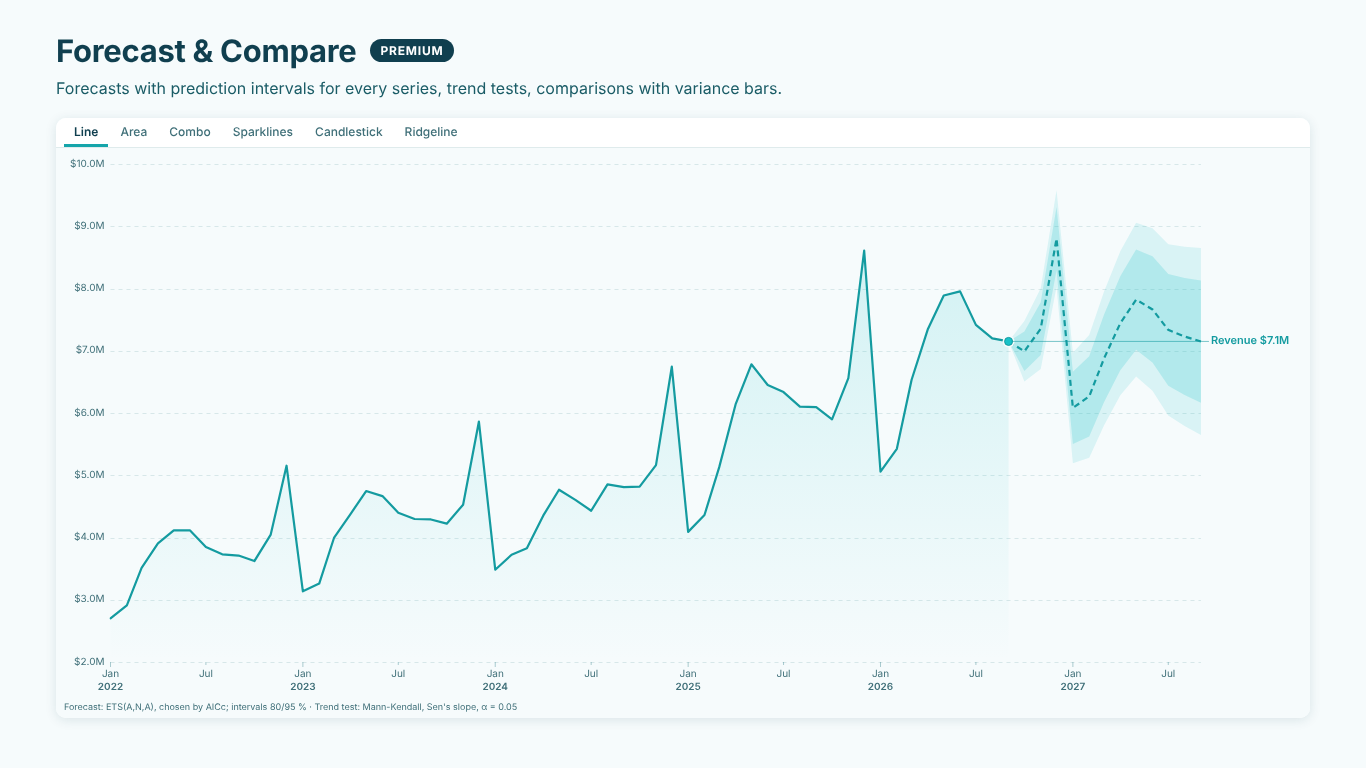
Forecasting a time series in Power BI: preparing the data, choosing the season and reading the prediction intervals
A forecast on a line chart looks like an answer: a dashed line into next year and a shaded cone around it. Whether it is a good answer is decided before the model runs, by the series you hand it. A half-finished month, a blank that should have been a zero, the wrong season length or a cone read as a promise can each turn a reasonable model into a misleading chart. This article walks through the preparation and the reading, with monthly revenue as the example. The steps are the same whichever visual draws the forecast.
What an exponential smoothing forecast does
Most business forecasting in BI tools uses exponential smoothing. The model keeps a running estimate of the level of the series, optionally a trend (the change per period) and optionally a seasonal pattern (how much each month usually sits above or below the level). Each new observation updates those estimates, with recent periods weighted more than old ones. The forecast continues the last level, trend and season forward.
The family has a handful of members: level only (simple exponential smoothing), level and trend (Holt), a trend that flattens out over the horizon (damped trend), and seasonal versions of each (Holt-Winters). A sound way to pick one is to fit them all and keep the model with the lowest AICc, a score that rewards a close fit and penalises extra parameters, so a seasonal model wins only when the season earns its keep.
All of that assumes three things about the input: the periods are evenly spaced, every value means the same thing, and the last value is a finished period. Most of the preparation is about making those three things true.
Cut the unfinished period
The most common forecasting mistake in a report is the current month. On 21 October, October revenue holds three weeks of sales. On the chart it looks like a sudden drop, and the model reads it as the newest and most heavily weighted observation. The forecast bends down to follow it.
Blank the incomplete period in the measure the chart uses, not with a visual filter that someone will forget to move next month. Base the cut on the data rather than on TODAY(), so a late load does not leave a half-month in:
Revenue (complete months) =
VAR LastSale =
    CALCULATE ( MAX ( Sales[OrderDate] ), REMOVEFILTERS ( 'Date' ) )
VAR LastCompleteMonthEnd =
    IF ( LastSale = EOMONTH ( LastSale, 0 ), LastSale, EOMONTH ( LastSale, -1 ) )
RETURN
    IF ( MAX ( 'Date'[Date] ) <= LastCompleteMonthEnd, [Revenue] )
REMOVEFILTERS ( 'Date' ) finds the last order date regardless of which month is being evaluated, while slicers on other tables still apply. If the last sale falls on the last day of its month, that month counts as complete; otherwise the cut is the end of the previous month. For a month on the axis, MAX ( 'Date'[Date] ) is the month's last day, so the running month returns blank.
Decide what a blank period means
A forecast model needs one value per period. When a month has no rows, the measure returns blank, and that blank can mean two things: nothing was sold (a real zero), or nothing was recorded (missing data). They lead to different forecasts. Zeros pull the level down; a missing month should not.
If blank means zero in your data, say so in the measure, but only inside the range you actually have data for, or every future month in the date table turns into a zero as well. [Revenue (complete months)] + 0 would undo the cut above, because blank plus zero is zero, so the range check goes into the same measure:
Revenue (zero-filled) =
VAR FirstSale =
    CALCULATE ( MIN ( Sales[OrderDate] ), REMOVEFILTERS ( 'Date' ) )
VAR LastSale =
    CALCULATE ( MAX ( Sales[OrderDate] ), REMOVEFILTERS ( 'Date' ) )
VAR LastCompleteMonthEnd =
    IF ( LastSale = EOMONTH ( LastSale, 0 ), LastSale, EOMONTH ( LastSale, -1 ) )
VAR PeriodEnd =
    MAX ( 'Date'[Date] )
RETURN
    IF (
        PeriodEnd >= FirstSale && PeriodEnd <= LastCompleteMonthEnd,
        [Revenue] + 0
    )
If blank means "not recorded", leave it blank. A forecasting tool then has to fill it in for the fit, usually by interpolating between the neighbouring months, and it should tell you that it did. Either way, write down which one your report does, because it changes the level the forecast starts from.
Use a proper date table with one row per day, marked as a date table, and put its month on the axis. A month taken from the fact table only exists when something was sold in it, and the gap disappears instead of showing.
Get the season right
The season length comes from the grain: 12 for months, 4 for quarters, 52 for weeks, 7 for days, 24 for hours. A seasonal model needs at least two full seasons to estimate the pattern at all, so 24 months for monthly data, and it gets steadier with more. With 18 months of history, a model that claims to know your December is guessing.
Three things break the season:
Mixed grains. A series that is monthly until last year and weekly since is two series. Aggregate to the coarser grain.
Calendar effects. A month with five Saturdays sells more in retail; Easter moves between March and April. Monthly seasonality averages these out, so expect larger errors in the months they hit, or model sales per trading day and multiply back.
One-off events. A launch, a strike or a supplier outage looks like a level shift to the model. Annotate it on the chart so readers know why the line jumped, and think about whether the history before it still describes the future.
Read the cone
A prediction interval is a range in which a single future value is expected to fall with a stated probability, if the model describes the process. An 80 % interval should contain about four of every five future months; a 95 % interval about 19 of 20. Drawing both, the darker 80 % band inside the lighter 95 % band, tells the reader how fast confidence fades.
Four things to say whenever you show one:
It widens with the horizon. Each step adds the uncertainty of the step before. Twelve months out, the 95 % band of a volatile series can span most of the chart. That is the honest answer, not a flaw.
It is about one month, not the year. The interval for each month says nothing about the sum of the next twelve; adding up the monthly upper bounds overstates the annual upside.
It assumes the model is right. The band covers the noise the model has seen. A new competitor, a price change or a recession is outside it.
Additive intervals are symmetric. For small values with a lot of noise, the lower bound can fall below zero. Read that as "could be close to nothing", not as a negative sales forecast.
Check it against months it has not seen
Before trusting a forecast, test it on data you already have. Filter the date table to end six or twelve months before your last complete month, let the model forecast that period, and compare the forecast with what actually happened. If the actuals fall inside the 80 % band about four times in five, the model is behaving as its intervals claim. If they keep landing outside, the series has changed in a way the model does not capture.
An in-sample error such as MAPE (the average absolute one-step error as a percentage of the actual) is a useful summary, but it measures how well the model followed the past, one step at a time. The holdout tells you how it forecasts the future several steps out, which is what the chart claims to show.
Many series: forecast each, or the total?
With a Legend on the chart, each product line or region gets its own forecast. The sum of those forecasts is usually close to a forecast of the total, but not equal, and the intervals do not add up: the total is relatively steadier than its parts because their noise partly cancels. When the reader cares about the total, forecast the total, for example on a stacked area chart where the forecast belongs to the top of the stack. When they care about the mix, forecast each series and show the shares.
Doing it with SmartVisuals Time Series
We built SmartVisuals Time Series to keep these steps visible on the chart. Forecast > Show Forecast fits the exponential smoothing family (simple, Holt, damped trend and the additive seasonal models) to every series in the Legend, keeps the one with the lowest AICc, and draws the 80 and 95 % intervals; the footnote names the chosen model, such as ETS(A,N,A), and says when blanks were interpolated for the fit. The season comes from the dates and needs two full seasons; with fewer than 6 periods the visual says so instead of drawing a line. Mark Anomalies rings the past points that fell outside the one-step interval, the tooltip shows the in-sample MAPE, and the horizon can be a number of periods or "through" a date. On stacked areas the forecast follows the stack total, and on 100 % stacked areas it shows the forecast mix.
The same fields also draw area, combo, sparklines, candlestick and ridgeline views, switched with tabs. Every statistic runs inside the visual, with no external calls, and is golden-tested against statsmodels, scipy and pandas. See the landing page for what is free and what is premium. The visual has been prepared for Microsoft Marketplace and is not published there yet.
Whatever draws your forecast, the checklist is the same: no unfinished period at the end, a written decision on what a blank means, at least two full seasons for a seasonal model, both interval bands with a line that says what they mean, and one holdout test before the chart goes to the people who will plan with it.
Try AI Chatbot for Free
Experience the power of conversational analytics in your Power BI reports. Get your free license in seconds - no credit card required.
Get Free License