Timeline chart in Power BI: one events table, ongoing ranges, milestone columns and the label problem
A timeline puts things that happened, and things that are coming, on one time axis: the plant programme for the steering group, the company history for the annual report, the incident log for the safety review. Power BI has no native timeline of events, so most reports fall back on a chart that was built for something else, and the result is usually a cloud of labels on top of each other. Before any visual choice, though, the work is in the data. Get the table right and almost any timeline gets easier.
One table for points and ranges
A timeline mixes two kinds of rows. A point happens at one moment: a board approval, a first part off the line, an audit. A range lasts: a construction phase, a supplier audit programme, an era of the company. Keep both in one table with the same columns:
| Event | Start | End | Lane | Category |
|---|---|---|---|---|
| Board approval | 2025-03-20 | Engineering | Milestone | |
| Hall construction | 2025-04-07 | 2025-08-29 | Production | Work package |
| Supplier audits | 2025-05-05 | 2025-07-25 | Quality | Work package |
| Continuous improvement | 2025-12-01 | Quality | Work package |
End is blank for a point. That is the rule worth writing down, because the last row shows the trap: Continuous improvement has no end either, but it is not a point. It is a range that has not finished. A blank cannot tell the two apart.
Two common fixes:
- A sentinel date. Many source systems already store "no end" as 9999-12-31. Keep it, and let the report treat that year as "still running".
- A status word. Write
ongoingin End, or keep a separate Status column, and derive the end at query time.
Whichever you pick, do not replace the open end with today's date in Power Query. The refresh freezes it, and next week the range ends a week ago.
If you want a column that always reaches today for a built-in chart, compute it in DAX, which evaluates at query time:
End (display) =
IF (
    ISBLANK ( Events[End] ) || YEAR ( Events[End] ) = 9999,
    IF ( Events[Category] = "Milestone", Events[Start], TODAY () ),
    Events[End]
)
Two cautions. A calculated column is evaluated at refresh, not when the report opens, so use the same logic in a measure if the report must move between refreshes. And replace the Category = "Milestone" test with whatever marks points in your data; the column cannot guess which blank End means "a moment" and which means "not finished".
Dates, date-times and years
Three things go wrong with the Start column more than anything else.
The Date Hierarchy. When auto date/time is on, dragging a date column into a visual often adds Year, Quarter, Month and Day instead of the date. A timeline needs the date itself. In the field well, open the field's menu and pick the field name rather than Date Hierarchy.
Times that are not there. If some rows are dates and some are date-times, decide what the finest step on the axis should be. An incident log needs the minute; a programme needs the day. Mixing them is fine as long as nobody expects 00:00 to mean "sometime that day".
History before 1900. Power BI's date type has no BC, and the DAX DATE function adds 1900 to any year between 0 and 1899, so DATE ( 1673, 1, 1 ) is not 1673. For a company or regional history, keep a whole-number Year column and treat it as a number, not a date. If some dates are only known roughly, say so in the data (for example "c. 1700" in a text column) rather than inventing 1 January.
Long or wide milestones
Project data rarely arrives as one row per event. The usual shape is one row per project and one column per milestone:
| Project | Kick-off | Design freeze | Pilot run | Launch |
|---|---|---|---|---|
| HP-9 pump | 2025-04-14 | 2025-09-01 | 2026-02-02 | 2026-06-15 |
| Smart actuator | 2025-06-02 | 2025-12-01 | 2026-03-16 |
Most timeline charts want the long shape. In Power Query, select Project and choose Unpivot Other Columns, or write it directly:
= Table.UnpivotOtherColumns ( Source, { "Project" }, "Milestone", "Date" )
Now each milestone is a row, Milestone becomes the label or category and Project becomes the lane. One thing to know: unpivoting drops null values. The Smart actuator Launch with no date disappears from the result, and with it the fact that a launch is still pending. If pending milestones matter, and in a programme review they are the point, keep a planned date column for each milestone and check the blanks before you unpivot.
Planned against actual
Once each milestone has an actual and a planned date, the slip is one column:
Slip (days) =
IF (
    NOT ISBLANK ( Milestones[Planned] ) && NOT ISBLANK ( Milestones[Date] ),
    DATEDIFF ( Milestones[Planned], Milestones[Date], DAY )
)
DATEDIFF returns a negative number when the actual date is before the plan, so early milestones show as negative days and late ones as positive. A row with a plan but no actual is pending; it is overdue once the plan has passed. Count those separately: an average slip that leaves out every milestone that has not happened yet flatters the programme.
Quiet periods between events
For an incident log, the question is often how long each line went without an incident. As a calculated column on the events table:
Days since previous =
VAR CurLane = Events[Lane]
VAR CurStart = Events[Start]
VAR PrevStart =
    MAXX (
        FILTER ( Events, Events[Lane] = CurLane && Events[Start] < CurStart ),
        Events[Start]
    )
RETURN
    IF ( NOT ISBLANK ( PrevStart ), DATEDIFF ( PrevStart, CurStart, DAY ) )
The first event of each lane has no previous one and stays blank, which is correct: it is not a gap of zero.
The label problem
With the data shaped, the drawing is where built-in charts struggle. A timeline is mostly labels. Two events a week apart on a five-year axis sit a few pixels apart, and their names collide. A chart that draws every label in a fixed position will overlap them; a chart that drops labels to avoid overlap will quietly lose events from the story.
A few rules help whatever you use:
- Rank the labels. Decide which events matter most (milestones first, then a priority column) so that when space runs out, the minor ones give way.
- Use both sides of the line. Alternating labels above and below the line gives every label a second side to use.
- Never lose an event silently. If a label cannot be drawn, the reader should know that something is there and how to see it, usually by zooming in.
- Use few lanes. Three to five lanes read at a glance; twenty lanes is a table.
When a Gantt chart is the better tool
A timeline tells what happened and what is coming. If the job is scheduling, with tasks that depend on other tasks, percent complete and a critical path, use a Gantt chart instead. Our SmartVisuals Gantt Chart does that; a timeline deliberately does not.
Where SmartVisuals Timeline fits
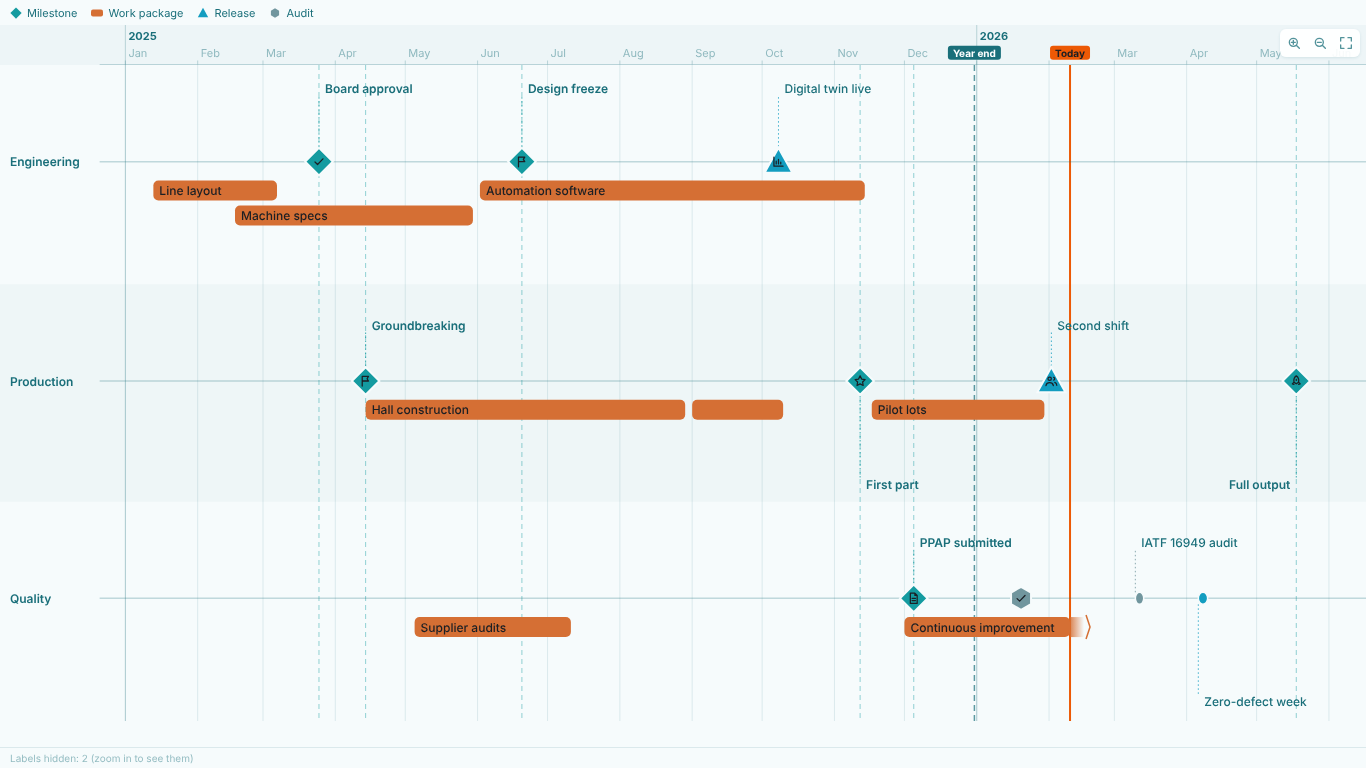
We built SmartVisuals Timeline for the table at the top of this article. Bind Event and Start; End, Lane and Category are optional. A blank End makes a point, an End of ongoing or a date in the year 9999 draws a range that runs to today, whole-number years are read as years (negative years are BC), and c. 1450 marks an approximate date. Labels are placed above and below each line, most important first, no stem runs through another label, and a label that does not fit is counted in the status strip and comes back as you zoom. Rows it cannot read are skipped and counted, never guessed.
The free tier covers all of that in up to three swimlanes in the horizontal layout, with zoom, time-range selection, reference lines, built-in icons, keyboard access and 20 languages. Premium, Roadmap & Story, costs $1.99 per user per month or $19 per user per year and adds more lanes, lane groups, eras, the vertical layout, milestone date columns without unpivoting, planned vs actual with pending and overdue milestones, story mode, gap analysis and axis breaks. The visual has been prepared for Microsoft Marketplace and is not published there yet.
Whatever you draw it with, the checklist is the same: one table for points and ranges, an explicit open end, the date field rather than its hierarchy, years as numbers before 1900, and a plan for the labels that will not fit.
Try AI Chatbot for Free
Experience the power of conversational analytics in your Power BI reports. Get your free license in seconds - no credit card required.
Get Free License