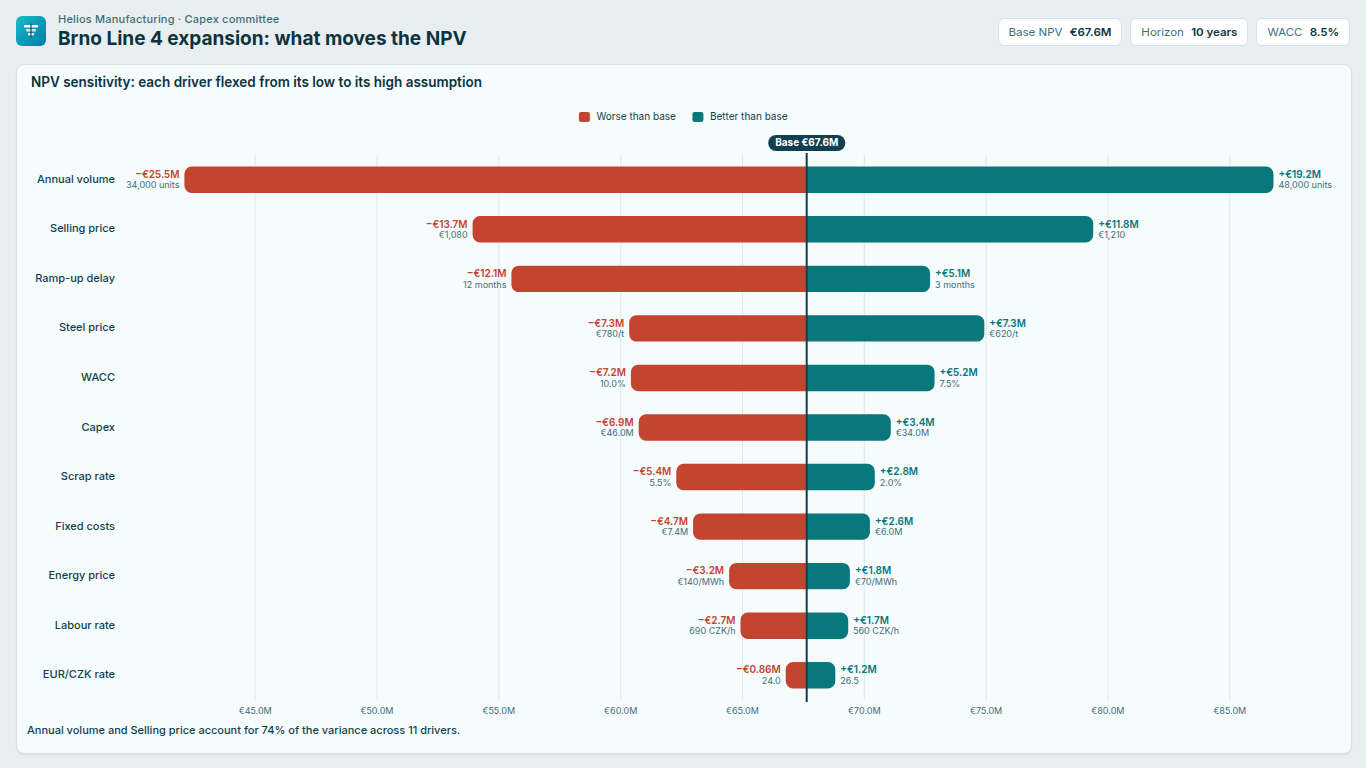
Tornado chart in Power BI: the sensitivity analysis recipe, and how to read it
A tornado chart answers one question: which assumptions move the result most? Each driver of a model (volume, price, a raw material cost, the discount rate) is flexed to a low and a high value while everything else stays at the base case, the output is recalculated, and the result is drawn as one horizontal bar per driver around the base output. Sorted with the widest bar on top, the chart narrows towards the bottom, which is where the name comes from.
Power BI has no native tornado chart. The name is also used loosely for a different chart, the back-to-back butterfly, and that mix-up is the most common reason a "tornado" in a report does not actually show a sensitivity analysis. This post covers the data shape, a recipe that works on the native bar chart, how to read the result, and the pitfalls.
Tornado or butterfly?
A butterfly chart puts two values back to back from a centre line: men and women per age band, won and lost revenue per product, plan and actual per department. Both bars start at zero and the question is "how do the two sides compare?". A population pyramid is a butterfly with age bands sorted youngest at the bottom.
A sensitivity tornado draws one bar per driver that starts at the output under the low input and ends at the output under the high input, with the base case as the vertical line the bars cross. The question is "how far does each assumption push the result away from the plan?". The length of a bar is the swing: the absolute difference between the high-case and low-case output.
You can tell them apart with one check: if the axis has a zero in the middle and both bars grow from it, it is a butterfly. If the axis is centred on the base output, or on a change of zero against the base, it is a tornado. Drawing sensitivity results as a butterfly from zero produces bars whose length is the output itself (NPV at the low input, NPV at the high input), and the differences that matter are a sliver at the end of each bar.
The data shape
The sensitivity runs happen in the financial or engineering model, usually in Excel or a planning tool. Power BI only needs the results. The most practical import shape is long: one row per driver and case.
| Driver | Case | Input | Output |
|---|---|---|---|
| Annual volume | Low | 34000 | 42.1M |
| Annual volume | Base | 42000 | 67.6M |
| Annual volume | High | 48000 | 86.8M |
| Steel price | Low | 620 | 74.9M |
| Steel price | Base | 700 | 67.6M |
| Steel price | High | 780 | 60.4M |
Call the table Sensitivity. Every driver has a Base row with the same output, because one-way sensitivity flexes one driver at a time from the same base case. If your export stores the base only once, add it to every driver before import, or keep it as a single number in a separate measure.
Two things in this table matter later. Steel price is an inverse driver: the low input gives the higher output. And the inputs carry different units (units per year, euro per tonne), so the input column is useful for labels but not for arithmetic.
The DAX recipe
Start with the output under each case.
Output Low =
CALCULATE ( SUM ( Sensitivity[Output] ), Sensitivity[Case] = "Low" )

Output High =
CALCULATE ( SUM ( Sensitivity[Output] ), Sensitivity[Case] = "High" )

Output Base =
CALCULATE ( MAX ( Sensitivity[Output] ), Sensitivity[Case] = "Base" )
MAX rather than SUM for the base: if a total row or a card evaluates it across all drivers, it should return the base once, not the base times the number of drivers.
A native bar chart cannot start a bar at an arbitrary value, so the trick is to plot changes against the base, which puts the base case at zero on the axis.
Low Delta =
IF ( NOT ISBLANK ( [Output Low] ), [Output Low] - [Output Base] )

High Delta =
IF ( NOT ISBLANK ( [Output High] ), [Output High] - [Output Base] )
The ISBLANK guard matters. Without it, a driver with no high-case run returns BLANK() - [Output Base], which is minus the whole base, and the chart draws that driver as the largest downside in the model.
Now split each driver into the part of its range below the base and the part above it.
Downside =
MIN ( MIN ( COALESCE ( [Low Delta], 0 ), COALESCE ( [High Delta], 0 ) ), 0 )

Upside =
MAX ( MAX ( COALESCE ( [Low Delta], 0 ), COALESCE ( [High Delta], 0 ) ), 0 )

Swing =
ABS ( COALESCE ( [High Delta], 0 ) - COALESCE ( [Low Delta], 0 ) )
Put Sensitivity[Driver] on the Y-axis of a stacked bar chart and Downside and Upside on the X-axis. Each driver gets a bar from its worst outcome to its best, crossing zero at the base case. Add Swing to the tooltips, then use the visual's More options > Sort axis to sort by Swing, descending. Sorting by a field in the tooltips is allowed, and it is what turns a bar chart into a tornado.
Why Downside and Upside rather than plotting Low Delta and High Delta directly? Because a stacked bar adds segments with the same sign. For a driver whose low and high cases both reduce the output (a minus 5M and a minus 2M), stacking the two deltas draws a bar to minus 7M, a result no scenario produced. With the min and max approach, that driver's bar runs from minus 5M to zero, which is the range the driver actually covers relative to the base.
Reading it correctly
The axis is a change, not the output. The labels read "−4M" and "+19M", not the NPV. Put the base value in the title ("Change in NPV vs base of €67.6M") so a reader can do the addition.
Colour means effect, not input. In this recipe, the left segment is always the worse outcome. For an inverse driver like steel price, the worse outcome comes from the high input. If readers need to know which input produced which end, add the inputs to the tooltip, or label the bar ends with them.
Share of variance is the ranking in numbers. The decision-analysis convention for a one-way tornado is that each driver's share of the output variance is its swing squared over the sum of all squared swings. Squaring is why the top two or three bars usually explain most of the variance.
Share of Variance =
DIVIDE (
    [Swing] ^ 2,
    SUMX ( ALLSELECTED ( Sensitivity[Driver] ), [Swing] ^ 2 )
)
A sentence like "Annual volume and ramp-up delay explain 58% of the variance" is what a capex committee remembers from the slide.
Materiality. A twenty-driver tornado is mostly short bars. A common convention is to show only drivers whose swing exceeds a share of the base output, say 1%, and say how many were left out. A visual-level filter on Swing does the first half; the "and say so" half needs a card or a text box.
Pitfalls that make a tornado misleading
Inconsistent ranges. The chart compares drivers, so their low and high inputs have to mean the same thing: all at P10 and P90 of an expert estimate, or all at a defined plausible range. Flexing one driver by ±10% and another to its historical extremes ranks the ranges, not the drivers.
Different bases per driver. If the Output Base measure returns a different number for each driver, the analysis was not run from one base case, and the zero on the axis means something different on every row. Check it with a table visual before building the chart.
One-sided and non-linear drivers. Some drivers push the output in the same direction at both ends, such as a price that is near its optimum. The min and max recipe draws these honestly, but the bar no longer shows which end is which. That is the second reason to show the inputs.
Interactions. A one-way tornado moves one driver at a time. Two drivers that are each modest can be dangerous together, and the chart cannot show that. It is a ranking tool for where to look next, not a risk model.
When a dedicated visual saves the work
The native recipe gives you a correct tornado with five measures and a sort setting to keep in place. What it does not give you is the base drawn as a labelled line at its real value, the input assumptions printed at the bar ends with each driver's own unit, colour by input rather than by effect, or a materiality threshold that tells the reader what it hid.
That is the gap we built SmartVisuals Tornado for. It takes Output Low, Output High and Output Base directly (no delta measures), anchors the bars at the base, sorts by swing and writes the share-of-variance sentence. Up to 5 drivers are free; more drivers, small multiples per project and the share-of-variance columns are premium and preview fully in edit mode. The same visual draws butterflies and population pyramids from two measures when there is no base case, so the chart type follows the data rather than the other way round.
If you stay with the native chart, the checklist is: one base for every driver, guard blanks in the delta measures, plot downside and upside rather than raw deltas, sort by swing, and put the base value in the title.
Try AI Chatbot for Free
Experience the power of conversational analytics in your Power BI reports. Get your free license in seconds - no credit card required.
Get Free License