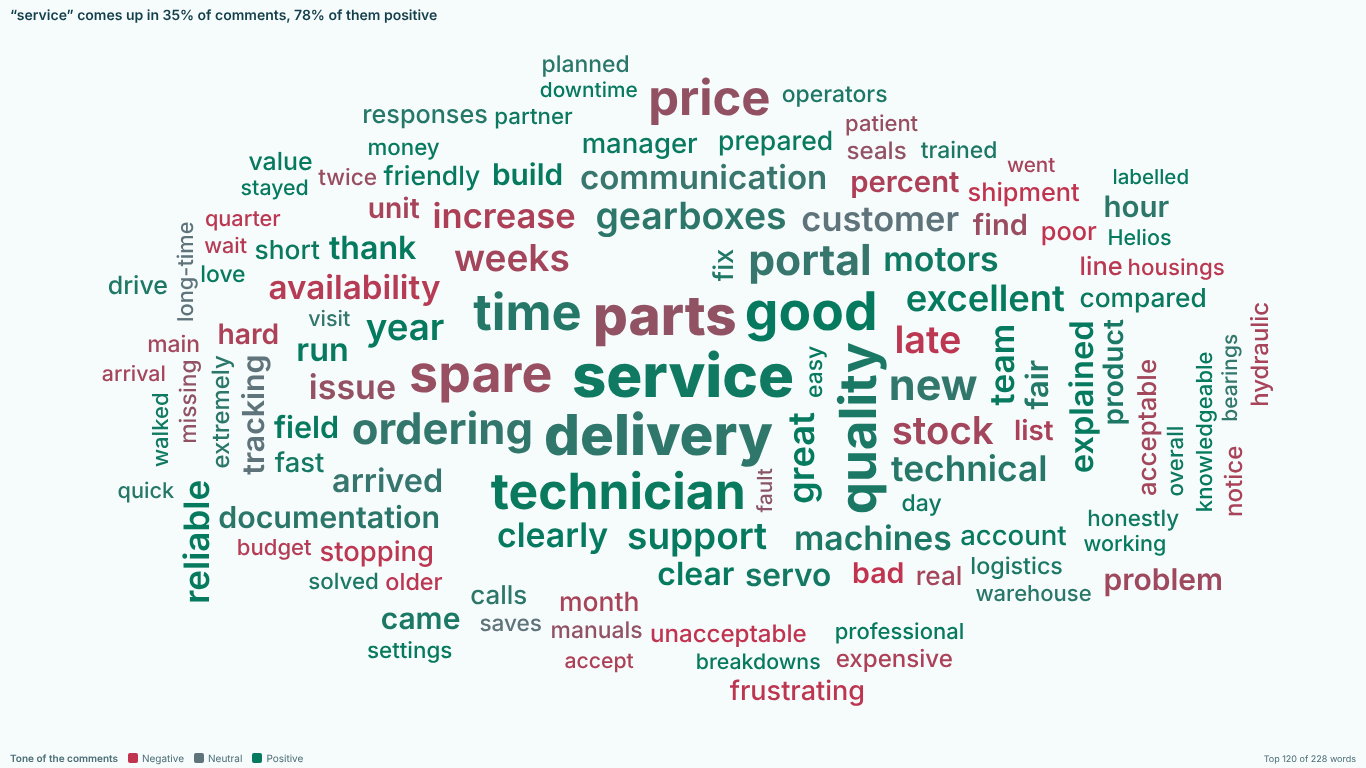
Word cloud in Power BI from survey comments: duplicates, stop words, word forms and what to count
Every survey ends with a free-text question, and every report built on that survey ends with the same request: show us what people wrote. A word cloud is the usual answer. It is quick to add and easy to read, and it is also easy to get wrong. The words that come out on top depend on four decisions most reports never make on purpose: how rows reach the visual, what counts as a word, which words to drop, and what "bigger" means.
This guide walks through those decisions with a customer-feedback table: one row per comment, with a comment number, a date, a site such as Chicago or Manchester, an NPS answer and the comment text.
Identical answers can disappear before you count
Power BI sends a visual the distinct combinations of the fields in it. If the only field is the comment text, every "Good", every "No comment" and every "Fast delivery" arrives as a single row, however many people wrote it. A word cloud built on that field undercounts exactly the short, common answers you most want to see.
The fix is to give each comment an identity. Put a unique comment number in the visual next to the text, or bind a measure that counts responses, so the visual knows how many rows each text stands for. If your source has no comment number, add an index column in Power Query (Add Column > Index Column) before the data is loaded.
Check this before anything else. A cloud that looks plausible but has quietly merged a few hundred identical answers is worse than no cloud.
Splitting comments into words in Power Query
Most word cloud visuals expect one word per row with a count. If yours does, the words have to come from Power Query. Here is a recipe that keeps track of which comment each word came from, so you can count both occurrences and comments:
let
    Source = Comments,
    Lowered = Table.TransformColumns(Source, {{"Comment", Text.Lower, type text}}),
    Split = Table.TransformColumns(
        Lowered,
        {{"Comment", each Text.SplitAny(_, " .,;:!?()""/#(cr)#(lf)#(tab)"), type list}}
    ),
    Words = Table.ExpandListColumn(Split, "Comment"),
    Renamed = Table.RenameColumns(Words, {{"Comment", "Word"}}),
    LongEnough = Table.SelectRows(Renamed, each Text.Length([Word]) > 1),
    NoStops = Table.RemoveColumns(
        Table.NestedJoin(LongEnough, {"Word"}, StopWords, {"Word"}, "Stop", JoinKind.LeftAnti),
        {"Stop"}
    ),
    Counted = Table.Group(
        NoStops,
        {"Word"},
        {
            {"Occurrences", each Table.RowCount(_), Int64.Type},
            {"Comments", each List.Count(List.Distinct([CommentID])), Int64.Type}
        }
    )
in
    Counted
A few notes on what this does and does not do.
Text.SplitAny splits on any of the characters you list. The doubled quote "" is how a quotation mark is written inside an M string, and #(cr)#(lf)#(tab) are line breaks and tabs. Apostrophes are not in the list, so "don't" stays one word. Add a hyphen if you want "e-mail" split, and leave it out if you want "long-time" kept.
The filter on length drops the empty strings that appear between two separators and one-letter leftovers.
The stop words come from a one-column table called StopWords with a Word column, and the left anti join keeps only the words that are not in it. A join is much faster than testing every row against a list once the comments run into the tens of thousands.
Table.Group produces two numbers per word. Occurrences counts every time the word appears. Comments counts how many different comments contain it, which is the number you usually want (see below). Grouping like this also gives you exact counts however many comments there are, because the visual only receives one row per word.
What the recipe cannot do is know that "price", "prices" and "pricing" are the same word, that "service" is part of "customer service", or that "not good" is not a compliment. Those are the next three sections.
Stop words: start with a list, then read the cloud
Stop words are the words that carry no topic: "the", "and", "was", "very". A standard list for the comment language is the right start, and every comment language needs its own. A dataset with English, German and Spanish answers needs "the", "die" and "el" removed alike.
Then look at what is left and add the words that are frequent but tell you nothing in your context:
- Your own name. In customer feedback about Helios, "Helios" is in a large share of the comments and says nothing.
- The question echoed back. If the question was "What could we improve about our service?", "improve" and "service" will dominate the answers.
- Survey boilerplate. "n/a", "none", "nothing", "no comment".
Keep the extra words in a table, not in the query text, so business users can maintain them. If the visual accepts a text measure of stop words, a measure is enough, with no relationship needed:
Stop words = CONCATENATEX ( StopWords, StopWords[Word], "," )
Be careful with negations. "not" and "no" are on most stop-word lists, which is why a cloud of "good, fast, helpful" can come from a page of complaints that say "not good", "not fast" and "no help". If tone matters, keep negations attached to the next word, or count two-word phrases.
Word forms and accents
English inflects lightly, and still "delivery" and "deliveries" split one topic into two smaller words. In German, Spanish or French the effect is larger: "Preis" and "Preise", "precio" and "precios". The usual remedy is stemming, which cuts words to a common root. It merges well, but a root such as "deliveri" is not something to put on a slide. Whatever merges the forms, the label shown should be a real word, ideally the form people used most.
Accents add a second split. People type quickly, often without them, and "tecnico" and "técnico" end up as two words. Merging an unaccented form into the accented one is safe when both forms appear in your data.
Count comments, not occurrences
This is the decision that changes the ranking most. Size by occurrences, and one long complaint that mentions "delivery" ten times outweighs nine customers who mention it once. Size by the number of comments that mention a word, and each customer counts once per topic. For survey and feedback data, comments mentioning is almost always the honest measure, and it reads naturally as a share: "delivery comes up in 14 % of comments".
Two other choices are worth knowing. TF-IDF ("distinctive words") down-weights words that appear everywhere and brings out words that are frequent in some comments but not in all. It helps when a few generic words dominate. A weight lets one row count more than another, for example a response count when the data is already aggregated.
Whatever you choose, say it on the page. A footnote such as "Size: number of comments mentioning the word, first 30,000 comments" saves a meeting.
Know how much text the visual reads
Custom visuals receive a limited number of rows per query, and many word clouds read only the first batch. Rows arrive in the query's sort order, not at random, so "the first 30,000" may mean the first 30,000 in alphabetical order of the comment text. Two habits help: sort the visual by the comment number or date so the cut is at least predictable, and for large surveys, pre-aggregate words in Power Query with the recipe above so the visual only receives one row per word.
A word cloud that does this inside the visual
We built SmartVisuals Text Insights to make these decisions inside the visual. You bind the comment column to Text and a comment number to Comment ID, and it splits the text itself, merges word forms under the most frequent real form, merges words typed without accents, removes stop words in 18 languages detected per comment, and sizes words by comments mentioning by default. A note says when identical comments are being counted once, and "Based on the first 30,000 comments" whenever rows were cut. When you filter the page, the words that remain keep their positions.
The word cloud, sentiment colouring, TF-IDF sizing, custom and measure-based stop words, every shape, theme and font, tooltips, cross-filtering and accessibility are free. Premium ($2.99 per user per month or $29 per user per year) adds phrases such as "delivery time" and "not good", the comments behind every word, Compare groups, Trend over time, Score impact, dictionary themes, Bars and Table views, and reading up to 150,000 comments. Everything runs offline, with no external calls. The visual has been prepared for Microsoft Marketplace and is not published there yet.
If you build the cloud yourself, the checklist is short: give every comment an identity, split and count in Power Query with a comment-level count, maintain stop words in a table, merge word forms, size by comments mentioning, and write down what the size means and how many comments it is based on.
Try AI Chatbot for Free
Experience the power of conversational analytics in your Power BI reports. Get your free license in seconds - no credit card required.
Get Free License