Visuals/Pl. XXV

    Org Chart

    The org chart your Power BI reports have been missing

    Bind Employee ID, Manager ID and Name and get the whole organization, with messy data handled and explained. The full chart is free for every viewer; Premium adds headcount and cost roll-ups, span of control, snapshot comparison and scenario planning.

    Datasheet
    Status
    Available on Microsoft Marketplace
    Price
    $2.99 /user/mo · $29 /user/yr
    Licensing
    Per user, assigned in the Microsoft 365 admin center. Unlicensed viewers see the free tier, never a blocked visual.
    Data
    Computed inside Power BI. No external calls, no API keys, no telemetry.
    Visuals API
    5.11
    Accessibility
    Single-tab-stop tree keyboard navigation, screen-reader list view, high contrast, Accessibility card (focus outline, minimum text size, reduce motion)
    Languages
    English, Czech, German, Spanish, French
    Works in
    Power BI Desktop, Service, Embedded
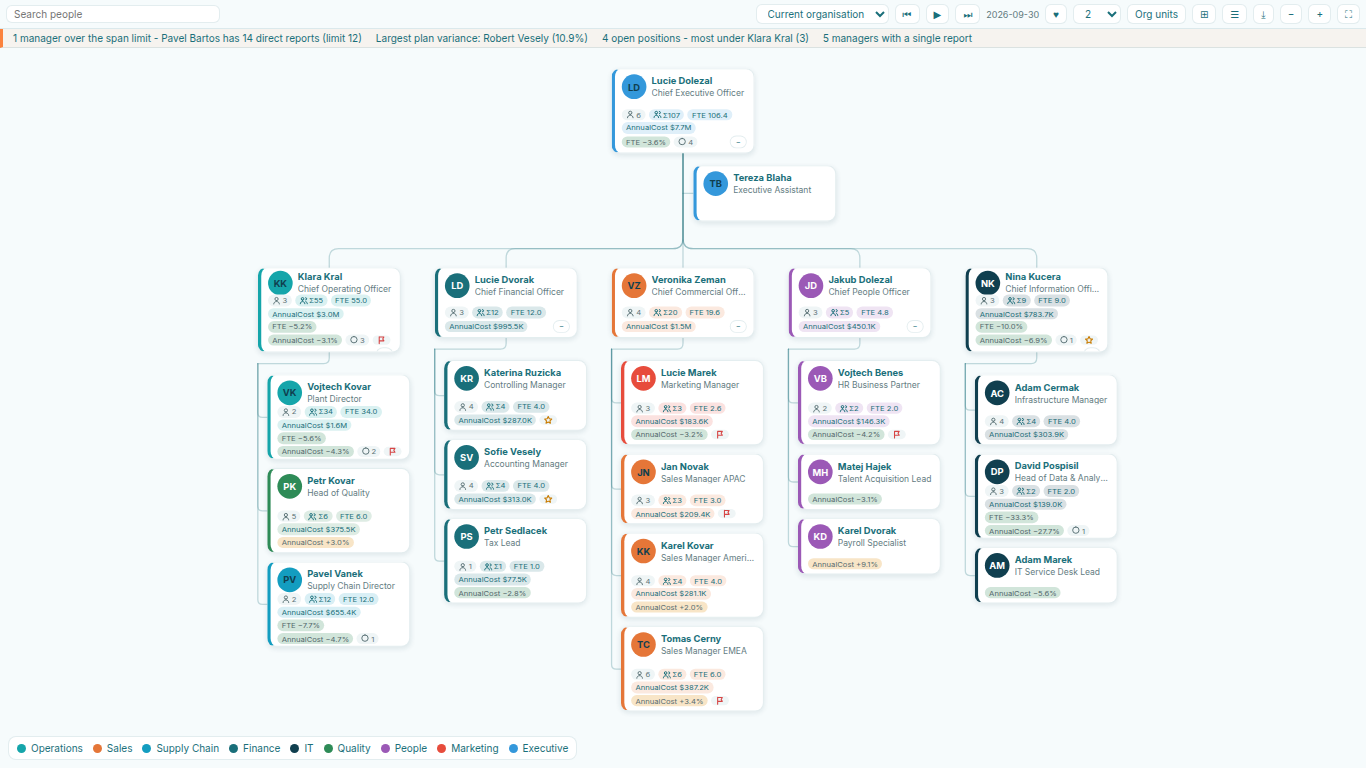
    Power BI org chart built from an employee table, with FTE and cost roll-ups and an insights strip
    Pl. XXV  ·  Org Chart  ·  The whole organization from an employee table: FTE and cost roll up, and the insights name the outliers.rendered from the shipped visual
    What it does

    SmartVisuals Org Chart builds a board-ready organization chart from an ordinary employee and manager table, with no DAX and no parent-child columns. Missing managers, several people at the top, reporting loops and duplicate ids are handled and explained in a data-notes strip, never shown as an error. Branch view, neighbourhood view, search, photos, dotted-line managers, positions and vacancies, card actions and four themes are all free, with no caps and no watermark, tested with 50,000 people.

    Premium is the analytics layer for HR, finance and org design: headcount, FTE and cost roll-ups under every manager, span of control, plan vs actual, snapshot comparison with joiners, leavers and moves, and scenario planning for a reorg. Every premium feature is fully unlocked while you edit, and viewers without a licence always see the full free chart, never a blocked or watermarked visual. Everything runs inside Power BI; the visual makes no external calls.

    Search all visuals

    Free and premium

    Where the line is, exactly.

    Report authors see the full premium set in edit mode, so you can evaluate every feature on your own data before assigning a single licence. Unlicensed viewers always get a working chart.

    Free tierevery viewer
    • A hierarchy from any employee tableUnlimited people, any id type (numbers, codes, e-mails), multiple tops, missing managers, loops and duplicates handled and explained in a data-notes strip.
    • Cards that carry the factsPhotos from data URIs or initials, job title, department, extra lines, direct-report count, badges from flag columns and conditional formatting on cards.
    • Positions, vacancies and dotted linesVacant positions, job shares, one person on two positions, assistants beside their manager, contractors, dotted-line managers, team cards and swimlanes by department.
    • Card actions and exportsOpen the HR profile, chat in Teams or write an e-mail from a card (https links only, on a click), a vector PDF of the chart in one page or poster tiles, and a CSV data-quality report.
    • Privacy thresholdHide figures and roll-ups on branches smaller than a number of people you set. A protection is never paywalled.
    • Themes, keyboard and five languagesFour themes with their own card style, top-down or left-to-right layouts, one-tab-stop keyboard navigation, a screen-reader list view, high contrast, and English, Czech, German, Spanish and French.
    Premium$2.99 /user/mo · first month free
    • Headcount, FTE and cost roll-upsHow many people and how much budget sit under every manager, for any bound measure, formatted with the measure's own format string.
    • Span of control and org healthSpan bands and colouring, managers of one and over-span lists, an insights strip that names the outliers, and a health panel with layers, manager ratio, vacancy rate and cost per head.
    • Plan vs actualTarget headcount or budget against actual, with the variance on every card and the plan rolled up through the tree.
    • Snapshot comparison and historyJoiners, leavers, moves and new titles between any two dates, attrition per branch, a headcount sparkline per manager and a timeline player.
    • Scenario planningMove teams by drag and drop, add and vacate positions, save named scenarios, compare them with today in headcount and cost, and export the moves as CSV.
    • Org-unit view, composition and people listThe department tree derived from the people table with roll-ups, team composition bars by any category, and a CSV people list of the visible branch.

    How do I build an org chart in Power BI without DAX?

    Bind Employee ID, Manager ID and Name and the visual builds the whole hierarchy itself: no DAX path functions, no parent-child columns, no hard-coded levels. Ids can be numbers, codes or e-mail addresses. Only Employee ID is required; with no fields bound, the visual shows a landing page that explains the setup.

    Add Job Title, Department, a Photo column with data URIs, up to two extra card lines, badges from flag columns and measures in Values, and every card carries them. People without a photo get their initials. Two levels open by default, the rest folds into a "+n" chip, and the expand state, the branch you focused and the zoom are saved with the report, so refreshes and bookmarks keep them.

    What happens when the HR data has missing managers or loops?

    The chart renders anyway and tells you what it found. Several people at the top, managers who are not in the data, reporting loops, duplicate and blank ids, self-managed rows and dangling dotted lines are handled and listed in a data-notes strip, never shown as an error screen. Loops are cut at the link that closes them, so every person stays reachable; people whose manager is missing gather under an Unassigned node or become their own top, as you choose.

    When a slicer removes the top of the organization, the remaining branches render as their own trees and the strip says "Filtered view" instead of reporting data errors. A CSV data-quality report lists every issue with the employee id, name and detail, ready to hand to whoever owns the HR system.

    How do I show headcount and cost under each manager?

    That is the premium roll-up. Headcount, FTE and any bound measure, such as annual cost or budget, add up through the tree, so every manager's card shows how many people and how much money sit beneath them, formatted with the measure's own format string. Plan values pair with actuals for target headcount or budget against actual, with the variance on every card.

    Span of control colours managers by their number of direct reports against bands you set and lists managers of one and over-span managers. An insights strip names the outliers, and the health panel summarises layers, manager ratio, vacancy rate and cost per head for the branch on screen. The direct-report count on each card stays free.

    Can I compare the organization between two dates or plan a reorg?

    Yes, both are premium. Bind a Snapshot Date and the comparison highlights joiners, leavers, moves and new titles between any two dates, with attrition per branch, a headcount sparkline per manager and a timeline player that steps through the snapshots.

    Scenario planning lets you move teams by drag and drop in edit mode, add and vacate positions, save named scenarios, compare a scenario with today in headcount and cost, and export the list of moves as CSV. Scenarios are stored with the report, not in the browser.

    Does it handle positions, vacancies and job shares?

    Bind a Position ID next to Employee ID and cards become positions. A position with no incumbent is a vacancy, two incumbents make a job share shown as one card with both avatars, and one person holding two positions gets a chip on each card while headcount counts them once. Assistants sit beside their manager, contractors get their own styling, and large flat teams fold into a team card with an avatar grid. All of this is free.

    Is HR data safe in the visual, and is the chart accessible?

    No data leaves Power BI. The visual makes no external calls and stores nothing in the browser; photos are drawn only from inline data URIs in your data. Card actions (open the HR profile, chat in Teams, write an e-mail) open https links only, and only on a click or key press. A privacy threshold hides figures and roll-ups on branches smaller than the number of people you set, and it is free, because a protection is never paywalled.

    The chart is one keyboard tab stop: arrows move through the tree, Enter selects, Space expands, F opens branch view, N the neighbourhood and L a screen-reader-friendly list view of the visible branch. Cards are announced as tree items with their level and state, high-contrast mode is honoured, and the visual ships in English, Czech, German, Spanish and French.

    Use cases

    Where Org Chart earns its place.

    Company org chart from the HR export

    An HR team maps the employee number to Employee ID, the manager's number to Manager ID, plus Name, Job Title, Department and a Photo (Data URI) column. The whole organization draws with two levels open, search finds anyone by name, and Slicer Selection Opens Branch View turns a department slicer into a branch with a breadcrumb back. All of it is free.

    Headcount and cost under every manager

    Finance binds FTE and annual cost to Values. With the licence, Roll-Ups on Cards shows how many people and how much cost sit beneath each manager, summed, averaged, or as a minimum or maximum, and Plan Values adds the variance against budget on every card. Readers without a licence see the same chart with each person's own figures.

    Span of control review

    An org-design team sets the narrow, ideal and wide bands under Roll-Ups & Span of Control. With the licence, managers are coloured by their number of direct reports, the insights strip names managers of one and over-span managers, and the health panel sums up layers, manager ratio and vacancy rate for the branch on screen.

    Joiners, leavers and moves between two dates

    A table with monthly snapshots of the organization goes to Snapshot Date. The newest snapshot always draws in full; with the licence, Compare the Two Latest Snapshots highlights joiners, leavers (as ghost cards), moves and new titles, with attrition per branch.

    Positions and open vacancies

    Bind Position ID next to Employee ID and the chart is built over positions: a position with no employee is an open position, two people on one position share a card, and Card Type marks assistants and contractors. Open Positions Count shows the vacancies under each manager.

    Getting started

    From empty canvas to first chart.

    1. 01

      Add SmartVisuals Org Chart to your report and bind Employee ID, Manager ID and Name; the chart builds itself.

    2. 02

      Add Job Title, Department, Photo, Badges and measures in Values as your cards need them.

    3. 03

      Read the data-notes strip for missing managers, loops or duplicates, and export the CSV data-quality report if the source needs fixing.

    4. 04

      Pick a theme and a layout. Bind a Snapshot Date or Plan Values to try the premium analytics, which preview free in edit mode.

    Get Org Chart

    Two ways in.

    Installation instructions for both paths are on the download page.

    Microsoft Marketplace (recommended)

    Reviewed by Microsoft, updates automatically, licences assigned in the Microsoft 365 admin center.

    Open Microsoft Marketplace

    Direct download (1.0.1.0)

    .pbiviz package, import into Power BI Desktop or Service, does not auto-update. Includes the full free tier; premium features preview in edit mode and are licensed through Microsoft Marketplace.

    Download .pbiviz
    Accessibility

    Readable and usable for everyone.

    Tab
    Moves into the chart. The whole tree is one tab stop, and focus returns to the card you left.
    Down arrow
    Moves to the first direct report of the focused person.
    Up arrow
    Moves to the focused person's manager.
    Left / Right arrow
    Moves to the previous or next colleague under the same manager.
    Home / End
    Jumps to the first or the last card on screen.
    Enter
    Selects the focused person and cross-filters the page. Hold Ctrl or Shift to add them to the selection.
    Space
    Expands or collapses the focused person's team.
    E
    Expands the whole branch under the focused person.
    F
    Opens branch view on the focused person; press again to leave it.
    N
    Opens the neighbourhood view: the person's managers, peers and reports on one screen.
    L
    Shows the visible branch as a list, which is easier to read with a screen reader.
    O
    Opens the card's menu with its card actions.
    + / -
    Zooms in or out.
    Esc
    Clears the selection, then leaves the neighbourhood or branch view.
    Shift+F10 or the context-menu key
    Opens the Power BI context menu for the focused person.
    • Screen readers

      The chart is announced as an organization chart, and each card is a tree item that reads the person's name, job title and level, and whether their team is expanded. Folded teams are announced as a team with the names in it. The list view (L, or the Show as List button) presents the visible branch as a plain list.

    • Accessibility card

      The format pane has an Accessibility card: Focus Outline Color and Focus Outline Width for the keyboard focus ring, Minimum Text Size, and Reduce Motion for the timeline fade and card dimming (Follow System Setting by default, Always, or Off).

    • High contrast

      In Windows high contrast mode the chart takes its colours from the contrast theme: text, connectors and lines use the foreground colour, and department colours are replaced by the contrast colours.

    • Context menu

      Right-click anywhere in the visual, Shift+F10 or the context-menu key opens the Power BI context menu; on a card it is the menu for that person.

    • Languages

      The format pane, data notes, card labels and screen-reader text are available in English, Czech, German, Spanish and French.

    Release notes

    What changed, and when.

    Updates install automatically from Microsoft Marketplace. Full history.

    1. 1.0.1.0

      First release on Microsoft Marketplace.

      • An org chart from an employee and manager table with no DAX: several tops, missing managers, loops and duplicate ids handled and explained in a data-notes strip.
      • Branch and neighbourhood views, search, photos from data URIs, dotted-line managers, positions and vacancies, card actions, a vector PDF and a CSV data-quality report, all free.
      • Headcount, FTE and cost roll-ups, span of control, plan vs actual, snapshot comparison and scenario planning (premium).
      • Accessibility card in the format pane: focus outline colour and width, minimum text size, and Reduce motion for the timeline fade and card dimming.
      • Right-click anywhere in the visual opens the Power BI context menu; cards keep their own per-person menu.
    Questions

    Asked before you did.

    More questions? See support or write to hello@smartvisuals.io.

    No. The visual builds the hierarchy from Employee ID and Manager ID on its own, including several tops, missing managers, loops and duplicate ids, and explains what it found in a data-notes strip.

    Never. Viewers without a licence always see the full free chart, never a blocked or watermarked visual. Premium roll-ups and analytics need a per-user licence in reading view, and every premium feature is fully unlocked in edit mode, so you can evaluate everything before buying.

    $2.99 per user per month or $29 per user per year, with the first month free. Licences are bought and managed through the Microsoft Marketplace.

    No. The visual makes no external calls and stores nothing in the browser, so HR data stays in your report. Photos are drawn only from data URIs in your data, and card actions open https links only when someone clicks them.

    The free chart puts no cap on people. It is tested with 50,000 people, opens collapsed to the levels you choose, and pages in large tables automatically up to 200,000 rows; if the data is ever truncated, the data-notes strip says so.

    English, Czech, German, Spanish and French.
    Troubleshooting

    When it does not look right.

    Found a bug or missing something? Post it on the requests board or vote for what others asked; the developer answers within two business days.

    Most people sit under an "Unassigned" card.
    Their Manager ID does not match any Employee ID in the data, so the visual groups them under Unassigned and lists them in the data-notes strip instead of failing. Check that both columns hold the same kind of id (both numbers, or both text without extra spaces), switch on Hierarchy > Match IDs Ignoring Case if the case differs, and with Position ID bound check Hierarchy > Manager ID Holds. Hierarchy > Employees Whose Manager Is Missing > Show as Separate Trees draws them as their own trees instead.
    The chart says "Filtered view" and the top of the organization is missing.
    A slicer or filter removed the people at the top, so the remaining branches draw as their own trees. This is not a data error. Clear the filter to see the whole organization, or use Navigation > Slicer Selection Opens Branch View to open a branch on purpose.
    Photos show initials instead of the picture.
    The Photo (Data URI) field accepts base64 data URIs only, values starting with data:image/. Web addresses are not loaded, because that would be an external call. A long data URI can be split over up to five Photo columns, which the visual joins in the order of the field well.
    Viewers do not see roll-ups, span colours or the snapshot comparison.
    Those are Org Chart Premium features and need a per-user licence in reading view, assigned in the Microsoft 365 admin center. Without one, viewers still see the full chart with every person's own figures. In edit mode every premium feature previews free.
    The card menu has no Open profile, Chat in Teams or Email.
    Card actions appear only when their fields are bound: Email adds Chat in Teams and Email, Profile URL adds Open profile (https links only). Check that Navigation > Card Actions (Profile, Teams, Email) is on. Links open only when someone clicks them.
    The PDF or CSV export does nothing.
    The export button uses Power BI's download permission for custom visuals. When a Power BI admin has turned downloads from custom visuals off, the visual says so and nothing is downloaded. Ask the admin to allow it, or hide the button with Navigation > Export Button (PDF, CSV).
    The data-notes strip says not every row reached the visual.
    Power BI sent the data in parts and the visual stopped before the end, so the chart may be incomplete. The visual loads up to 200,000 rows; filter the page to a smaller part of the organization or remove columns you do not need on the cards.

    For developers & AI agents

    Add this visual programmatically.

    Use the GUID and data roles below to add Org Chart to a Power BI report via PBIR or the Report Authoring agent. Full catalog (JSON)

    Visual GUID
    orgChart198BA137CFFE4E33AFF8A22A8BC151CF
    RoleDisplay nameKind
    employeeIdEmployee IDGrouping
    positionIdPosition IDGrouping
    managerIdManager IDGrouping
    nameNameGrouping
    titleJob TitleGrouping
    groupDepartmentGrouping
    photoPhoto (Data URI)Grouping
    emailEmailGrouping
    profileUrlProfile URLGrouping
    linesExtra Card LinesGrouping
    colorByColor ByGrouping
    sortKeySort KeyGrouping
    dottedManagerIdDotted-Line Manager IDGrouping
    cardTypeCard TypeGrouping
    snapshotSnapshot DateGrouping
    valuesValuesMeasure
    plansPlan ValuesMeasure
    compositionCompositionGrouping
    badgesBadgesGrouping
    tooltipsTooltipsMeasure
    Missing something?

    Tell us what is missing.

    A feature you need, a bug you hit, a visual that does not exist yet. Every message reaches the person who builds these visuals, and feature requests shape what ships next. We also build visuals to order.

    Also in the family